
Ageing Analysis
Ageing Analysis
1. The Ageing Analysis report is an important change brought about by Revised Schedule III (RS III) applicable from the financial year 2021-22
2. RS III stipulates multi-tiered aging reports for trade payables, receivables, Capital WIP, and Intangible Assets under Development
3. Further classification of Trade Payables into ‘MSME’ and ‘Disputed’ made mandatory
4. Further classification of Receivables as ‘Secured’, ‘Disputed’, and ‘Considered Doubtful’ to be done
5. AssureAI handles these ageing reports seamlessly in a single click
6. While importing a JSON file, the system captures the data on ‘Due date’ for a particular transaction and computes ageing analysis reports as required by RS III.
7. Every single journal entry about the ledgers under Trade Payables and Trade Receivables can be viewed by clicking on any ledger name.
Perform Ageing Analysis
1. After submitting the voucher import, the ageing analysis table will get re-initiated
2. This is necessary because any change in mapping should be given due effect in the Ageing Reports
3. Click the button ‘Perform Ageing Analysis’ – witness the magic of aging reports getting loaded within seconds
4. The system will automatically apply the ageing rules built in and generate the ageing report
5. Ageing analysis to be performed based on the ‘Due date’ for a particular transaction
6. The system will automatically consider the ‘Due date’ information as captured in the JSON file and generate the ageing report
7. Four-tier due date capture is done from Tally – Firstly, from the outstanding balance report, secondly, from the voucher level due dates, thirdly from the default credit period, and if none of the above information is available, ageing is done based on transaction date.
Ageing Reports
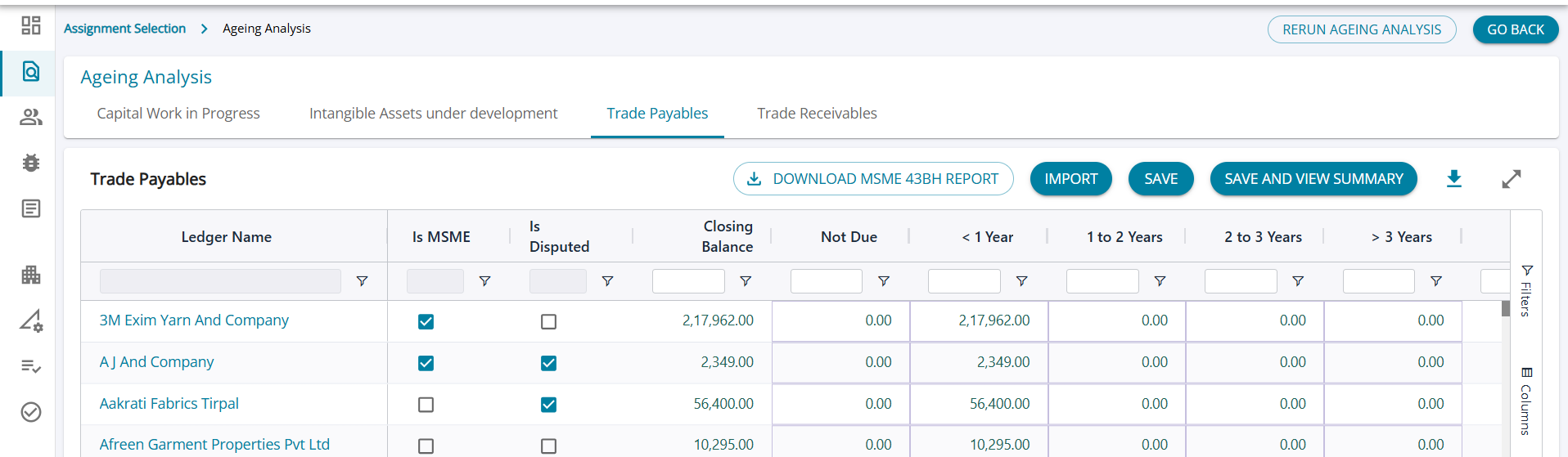
1. Aging analysis report covers all four heads, namely Capital WIP, Intangible Assets under Development, Trade Payables, and Trade Receivables
2. The report automatically categorizes the outstanding balance under relevant buckets, namely ‘Not Due’, < 6 months, 6 months – 1 year, 1 – 2 years, 2-3 years, and > 3 years
3. Additional flags to be added manually for Trade Payables are ‘ Is MSME?’, ‘ Is Disputed ‘
4. Additional flags to be added manually for ‘Trade Receivables’ as ‘Is Secured’, ‘Is Disputed’, and ‘Is Considered Doubtful’
5. Additional Flags for Capital WIP, Intangible Assets under Development is ‘ Is Project In progress?’
6. Using all these flags ‘Aging analysis report’ will be generated in the format prescribed by RS III
7. The figures will be appropriately presented in the Financial Statement generated under ‘RS III’ under respective sub-heads
Ageing Reports – Summary
1. The summary screen shows the aging by grouping them under the buckets, and according to the additional flags the user manually chooses in the edit screen.
2. A bar graph is populated based on the groups that are used to filter the report. The user can change the graph option
Ageing Reports – filters on the summary screen
There are additional filter options available for the user on this screen :
(a) The user can alter the report to include whatever column they need and unselect the column they do not want in the report column filter-(1)
(b) The menu (2) button below the columnar filter allows the user to choose a graph pattern between Column, Bar, Pie Chart, Line, Scatter Plot, Area, Histogram, or Combination.
The horizontal menu at the bottom allows the user to change the color combination of the graph.
(c) The third (3) filter available here is according to the selection on the edit page, classifying the payable / receivables as secured, disputed, doubtful, etc.