
Audit Task- Planning Mode
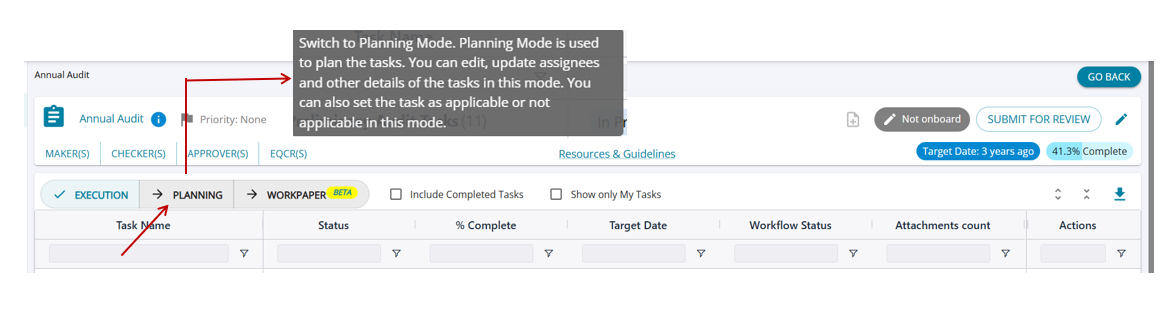
The feature “Audit Program” allows a single view to access all Audit workflow tasks.

- The default display is the “Execution View”
- When it is the first visit to the Audit Program page, no tasks will be automatically added to the assignment.
- Click “Planning View” to add tasks to the assignment. All the tasks for the Audit will be listed there.
- The Planning view lists all the tasks that are available to choose from.
- The required tasks can be chosen by selecting the applicability.
- The selected tasks will be available in the Execution View to fill in

The Task Source column identifies whether a task was added from a task pack or manually added by the user.
Client Access Level column improves visibility into task accessibility for clients. This column (hidden by default) reflects the access permissions assigned to each task, with values: Can Work, Read Only, and No Access—aligned with the options available in the Edit Task dropdown.
1. Reload Task List—
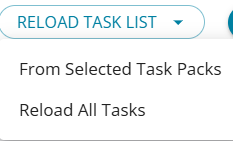
Reload from Selected Task Packs
This option reloads the assignment with newly added tasks from the selected task packs in the Annual Audit after the assignment was planned.
Reload All Tasks
This option reloads the assignment with all tasks added to the Annual Audit after the assignment was planned, across all task packs.
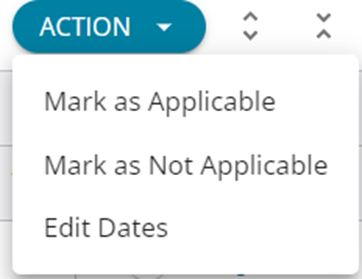
2. Action—The Action drop-down enables the user to bulk update tasks. The user can mark multiple selected tasks as Applicable and Not Applicable. The “Edit Date” option allows the dates for multiple tasks to be updated at the same time.
3 & 4. The “Expand All” and “Collapse All” expand and contract the entire set of tasks on the Planning View screen.
5. More Task Pack - This oprion allows users to choose additional Task packs from all that are cofigured.
https://assureai.productfruits.help/en/article/8177f629-df44-48f1-96f0-9c72db90c506
The Available Task Packs pop-up displays the list of task packs configured based on the client status.
Users can refresh the task pack list to view any changes or newly added task packs that were configured after the assignment was initiated.
6. The Edit Task” button on the “Planning View” screen allows for changing the Dates and Maker, Checker, Approver roles for a selected Task.
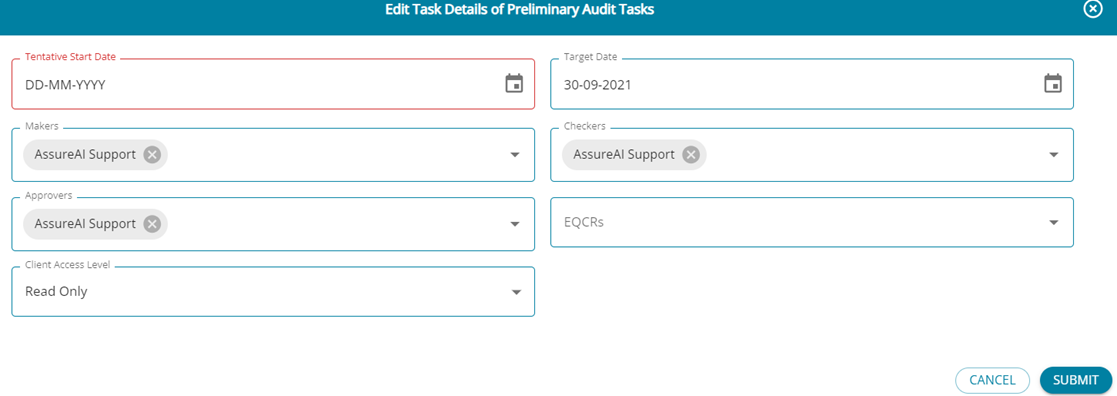
- “The Edit Task” button on the “Planning View” screen allows for changing the Dates and Maker, Checker, Approver, and EQCR assignees.
- The Assignees can be added/removed from this screen for a task or an entire set of tasks under a Parent Task.
- No new assignees who have not been added for the Annual Audit can be added from this screen.
- Workflow steps can be skipped , by removing assignees for Checker, Approver, or EQCR.