
AssureAI Release - June 2025 [Annual Audit Enhancements - Phase 1 Release]
1. New Statement Format: Non-Corporate New
The ICAI has issued a Guidance Note on Financial Statements of Non-Corporate Entities, which becomes applicable for financial statements covering periods beginning on or after 1st April 2024.
To align with this regulatory change, AssureAI has introduced a third option for financial statement generation — Non-Corporate New.
On the Client Setup screen, when the client’s status is any of the following, the Non-Corporate view will be auto-selected by default:
- Partnership Firms
- Association of Persons (AOP)
- Proprietorship (Individual)
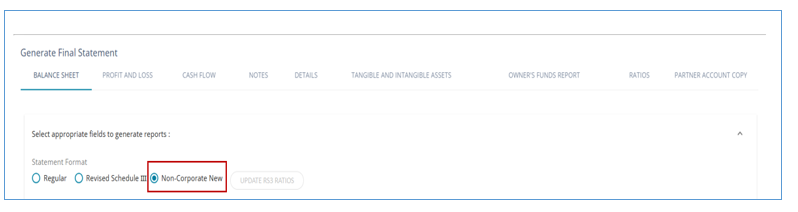
1.1 Changes to Balance Sheet
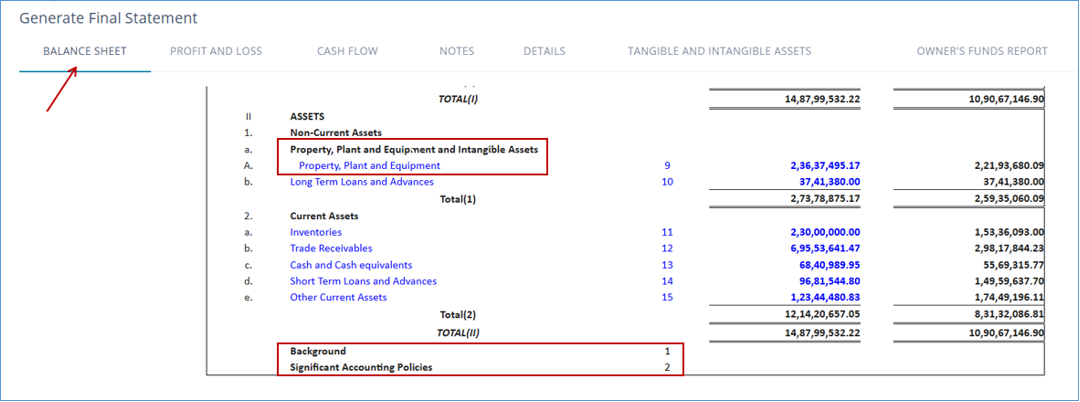
- Under the "Assets" section of the balance sheet, Tangible and Intangible Assets are now displayed together under the consolidated sub-heading: "Property, Plant and Equipment and Intangible Assets"
- The financial statements now include note numbers referencing key disclosures:
- Note 1: Background
- Note 2: Significant Accounting Policies
1.2 Changes to P&L Statement
- Remuneration to Partners now moved above Tax expense
- Interest to Partners under Finance Cost (A new subhead has been created from the backend for your convenience - Ledgers have to be remapped for this to take effect – elaborated on the next slide)
- Extraordinary items displayed below Exceptional Item
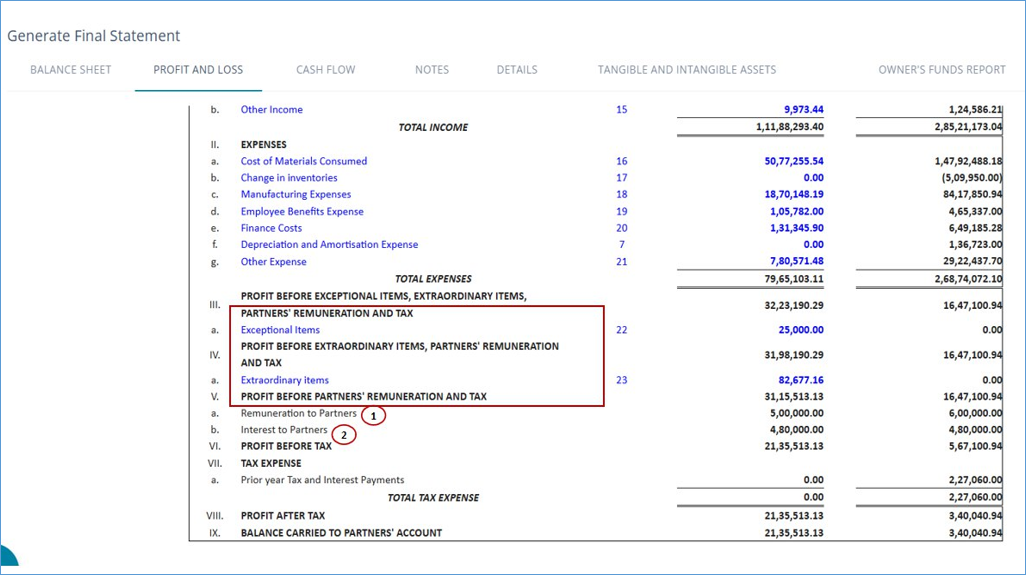
1.2.1 Note regarding “Interest to Partners”
- Previously, “Interest to Partners” was being shown under “Appropriations”on the face of the P&L statement
- As per the ICAI guidance note, this is to be grouped under Finance Costs
- Please follow the below steps to achieve this:
A. Step 1 : Map the current year ledger to “Interest to Partners” under Finance Cost.
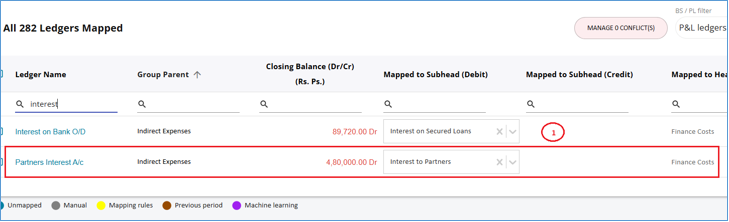
B. Step 2: Use the “Reclassify ledgers” to map the previous year ledger under the new subhead to show the comparatives. (This would be possible only if the ledger name has remained the same between the last year and current year).
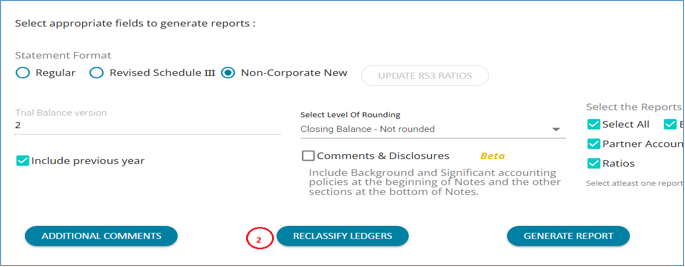
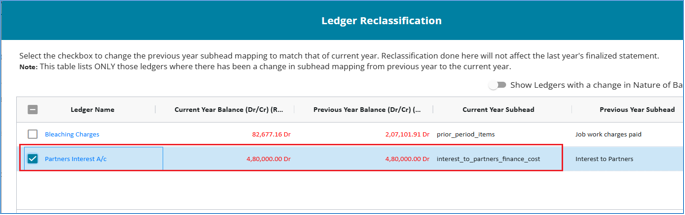
1.3 Changes to Notes
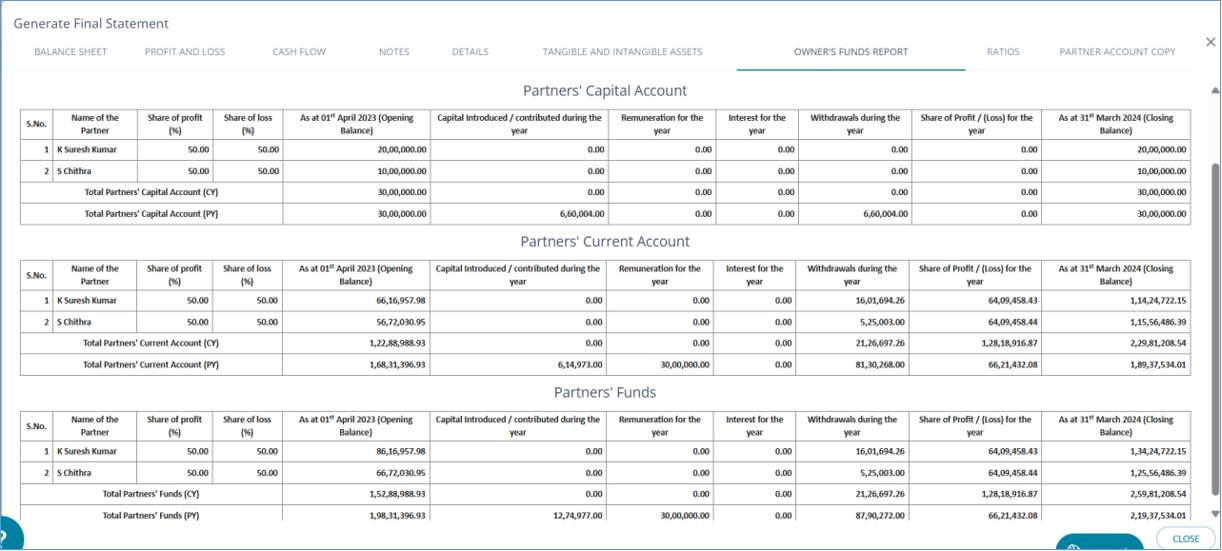
New Section : Owners’ Funds
This section summarizes the transactions in the partners’ or proprietor’s capital and current accounts, in the standard format as prescribed in the ICAI Guidance note.
2. Other enhancements to Financial Statements
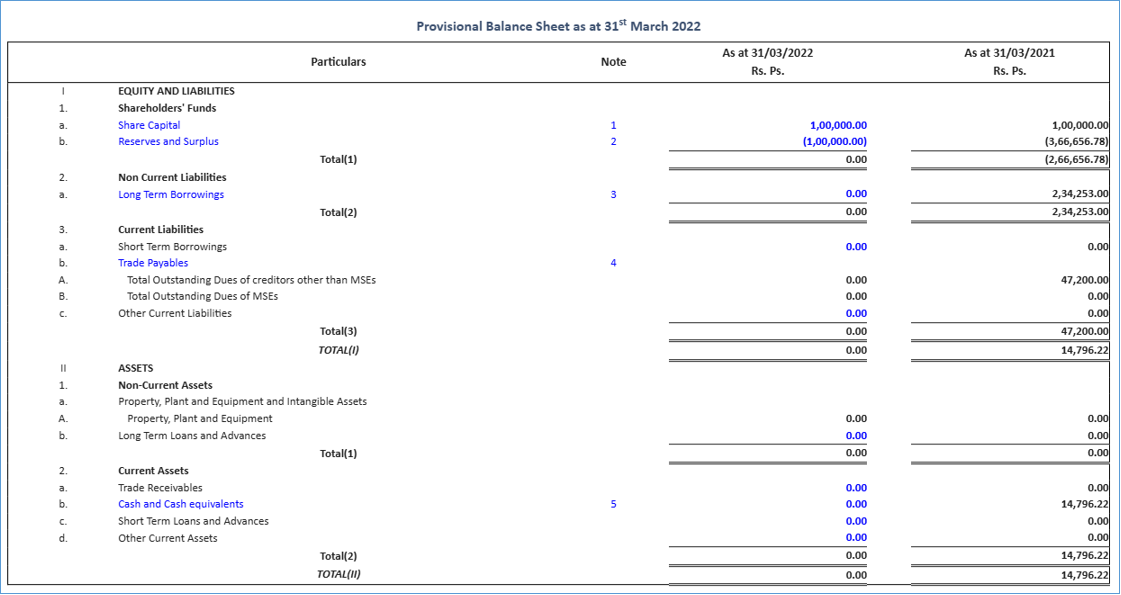
1. Display of line items with zero balances in the Balance Sheet and Profit & Loss statements. (The list of mandatory line items to be included can be configured by the Support Team.)
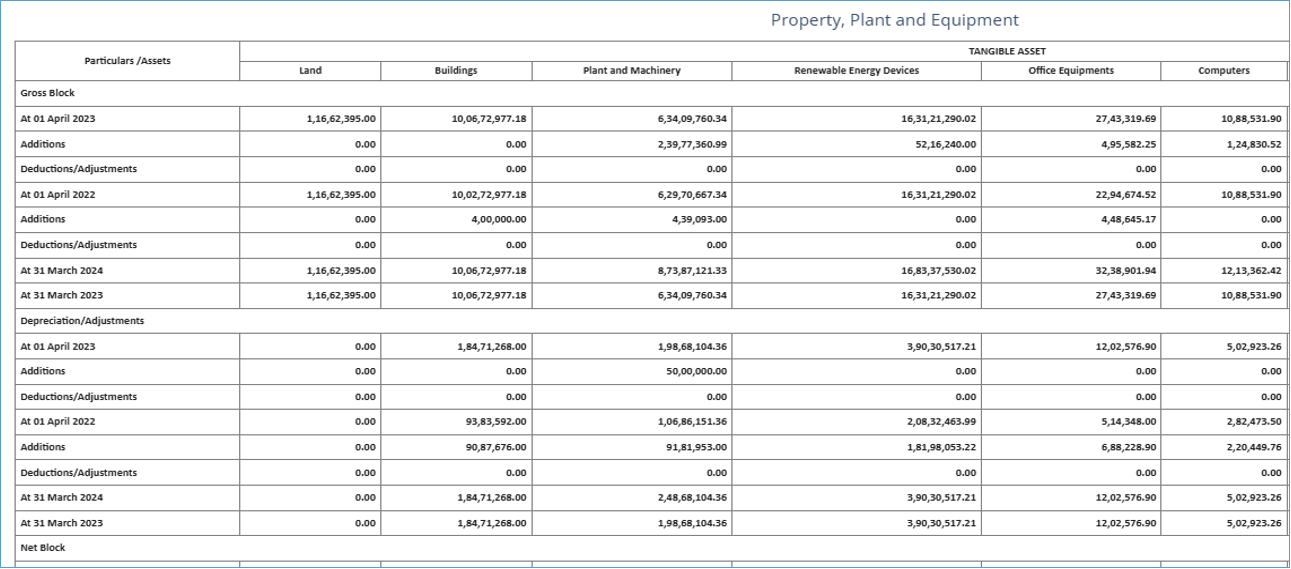
2. Inclusion of previous year figures in Tangible and Intangible assets in "Revised Schedule 3" and “Non-corporate New” format
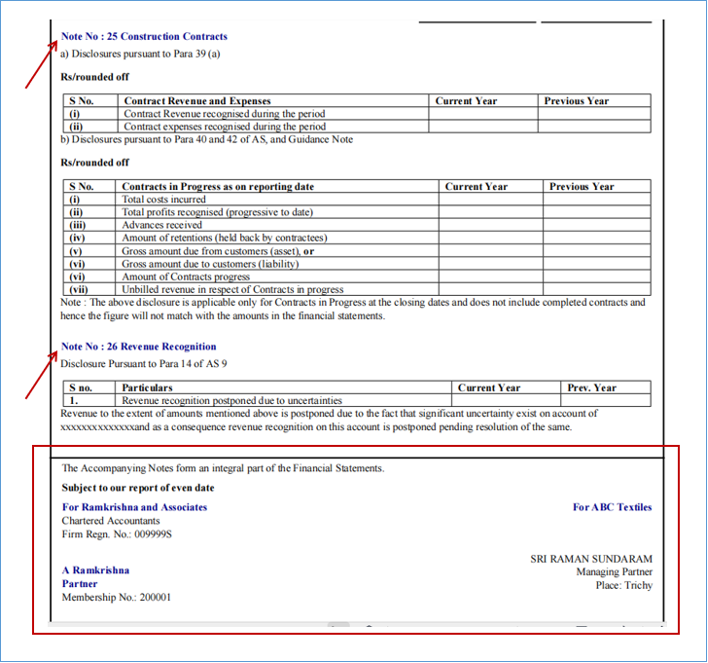
3. Inclusion of all sections of Comments and Disclosures in Notes
Previously, only the "Background" and "Significant Accounting Policies" sections from the comments and disclosures were included in the Notes section.
With the recent enhancements, all other categories—Accounting Standard Disclosures, Schedule III Disclosures, and Other Disclosures—are also now integrated into the Notes section.
Additionally, a provision has been introduced to include signatures at the end of the Notes section when downloaded into a DOCX and PDF format along with the new inclusions to the Notes section.
The option to download the complete selection of the comments and disclosures into a word document has been retained.
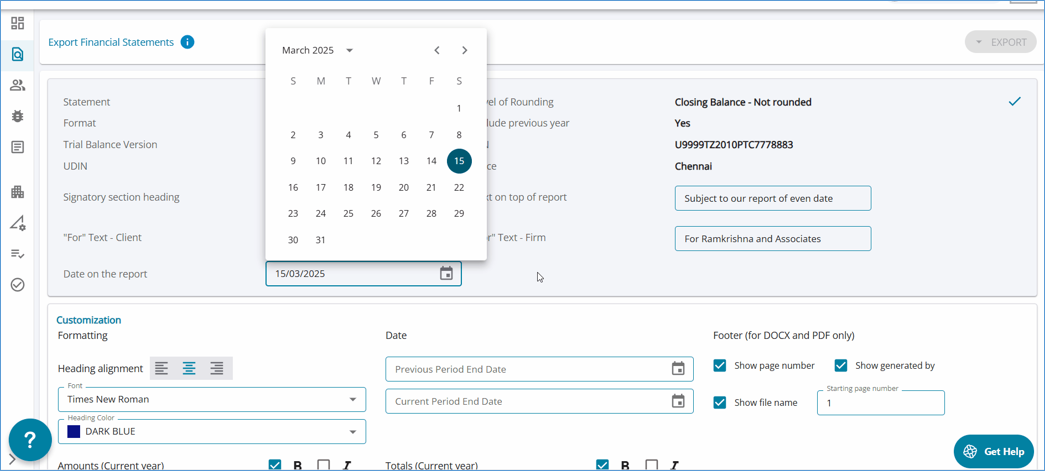
4. Customizable DOCX, PDF and Excel Export
Customization is now possible before users can download the generated financial statements into the required format.
Upon clicking the ‘Export Financials’ button, users can navigate to the pop-up screen for making required changes.
The Export Financial Statements allows the following customizations:
- Select / Deselect the sections to be exported
- Edit the section headings
- Customize the subheading colors and fonts
- Select formatting style for amounts and totals
- Inclusion / Exclusion of CA signature
- Order of client signatures
- Also the DOCX is now easily editable using Microsoft Word, in case of any further adjustments needed
3. Other Enhancements
1. Ageing Analysis Bulk import
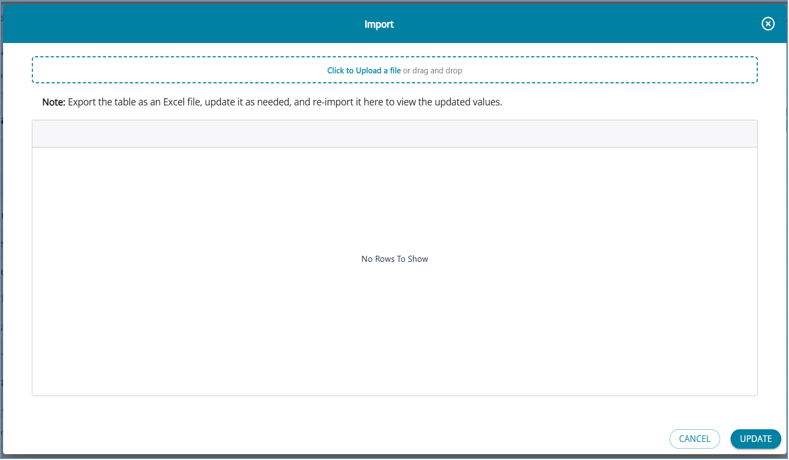
A new feature for bulk updating in the Ageing Analysis module has been introduced. Users can now download the Ageing Analysis table in Excel format, make necessary updates to flags and amounts within the ageing buckets, and then import the updated Excel file back into the system.
By clicking the ‘Import’ button, the modified data will be reflected directly in the Ageing Analysis table displayed on the screen.

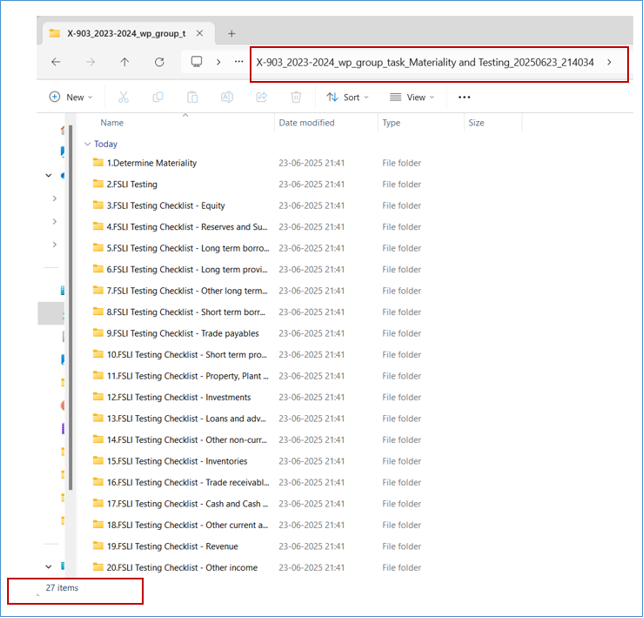
2. Workpaper – Sequence of folders
The updated work paper now mirrors the tasks listed under each parent group with numbered folders.
All folders are numbered in the same order as they appear on the screen, making it easier to identify how many tasks have corresponding work papers.
This consistent numbering also helps users quickly locate and open the required task folders with ease.

*****