
Add Team Members
Add Team Members
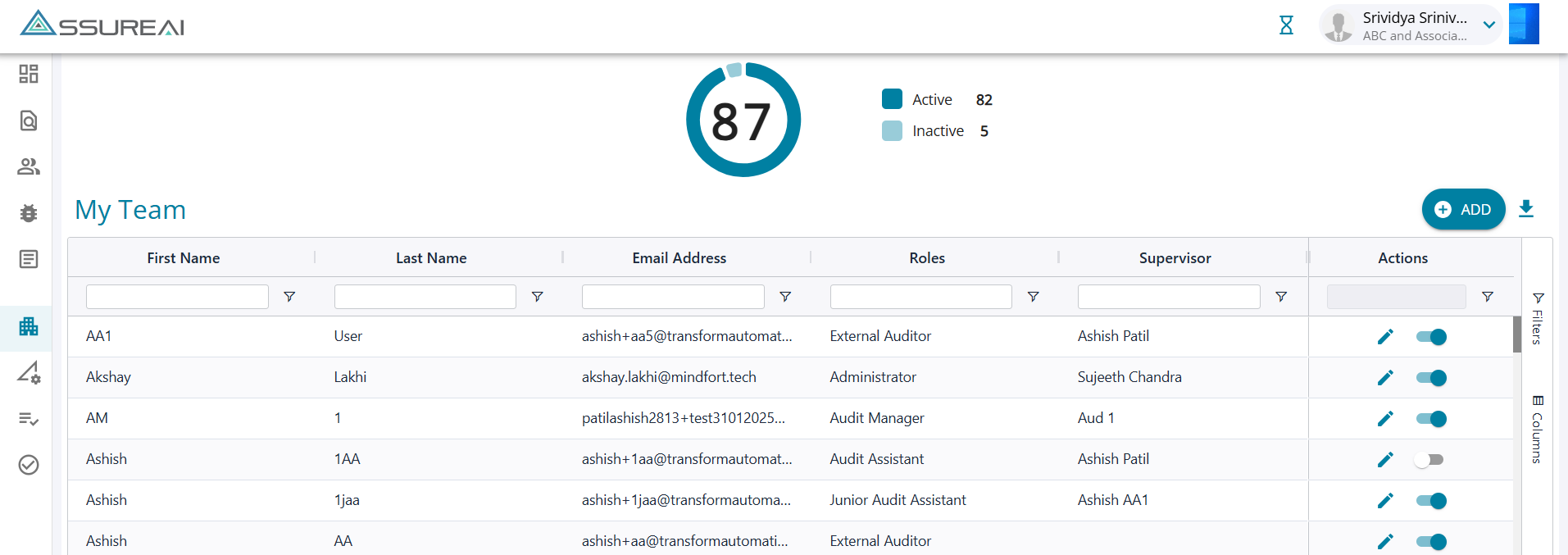
1. The screen displays an option to filter and see the active and inactive users in the firm. The pie chart on the top indicates the number of users under each category.
2. Uses can activate/ deactivate the users by using the toggle button under the actions column.
3. New/ Additional users can be added to the team members by clicking on the "Add" button.
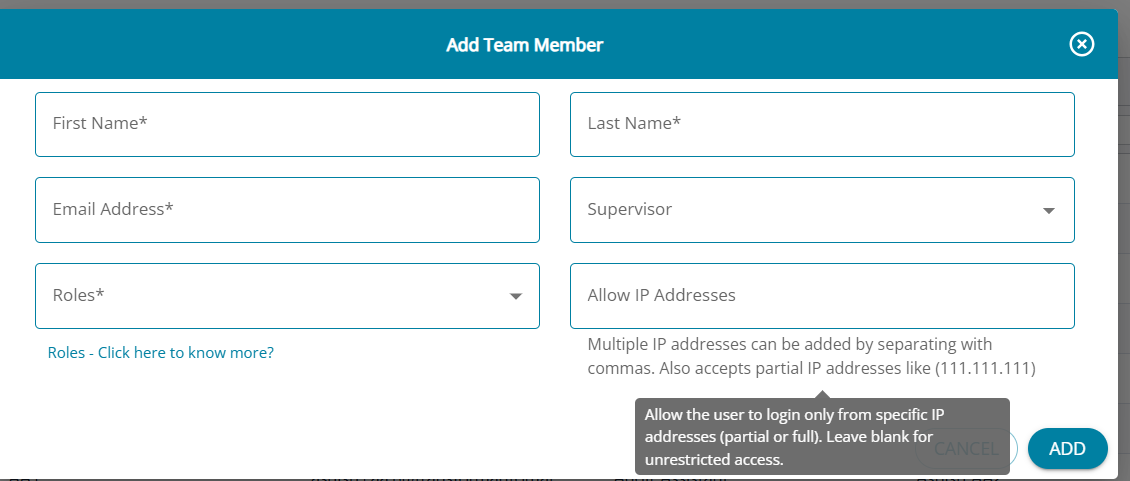
"Roles - Click here to know more?" The link opens a PDF clarifying to the users how to choose roles; various roles are available in the system to allow the users to access the features / clients on a need-to-know basis.
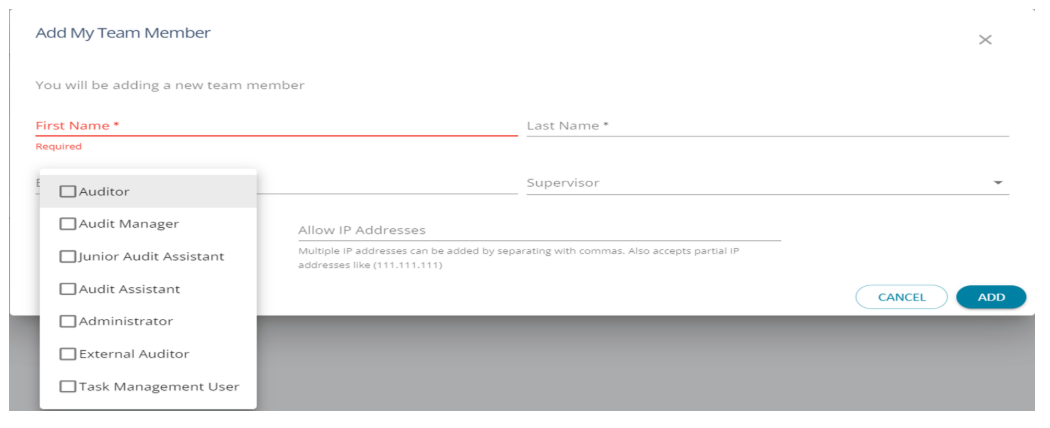
- Administrator role be added to any other role to give the user access to the configuration screens.
- The user roles PDF in the previous slide details all access rules and restrictions.
- Allow IP Address: Update the filed to allow the user of the firm to access the application from the given IP addresses only.
External Auditor
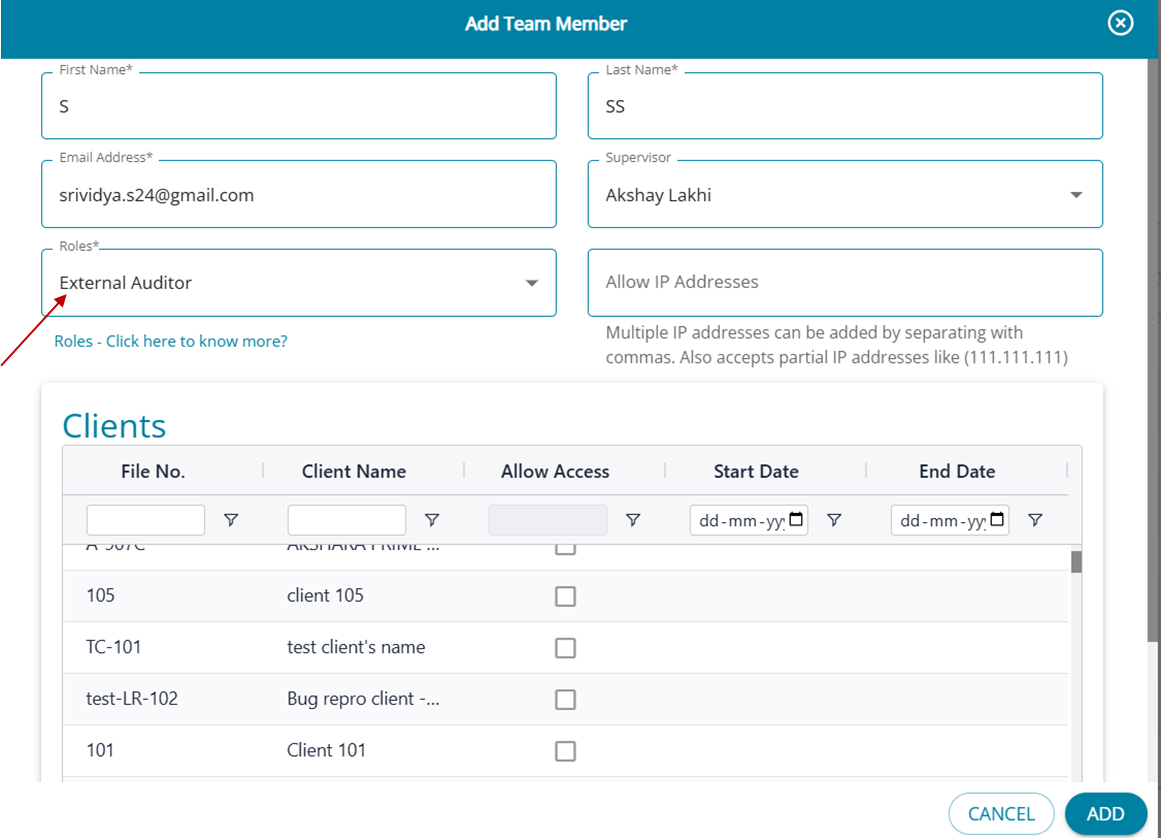
When the user is added/edited and assigned the role of an External Auditor, the screen additionally lists the entire set of clients in the firm. Users will have to choose the clients for which the external auditor has access to.
https://assure-documentation.s3.ap-south-1.amazonaws.com/task-management/AssureAI_User_Roles.pdf