
Owner’s Fund
This feature enables Non-Corporate clients to adjust Owners’ Funds before generating financial statements.
Separate tabs for Capital Account and Current Account are created (in case of Partnership concerns), enabling users to update capital introduced, partner remuneration, interest earned on contributions, and any withdrawals made during the year.
This is an optional step to be used in case the user wants to update the figures in Owners’ Funds. If the tables are not updated by the user OR the screen is not visited, the system will automatically consider the existing vouchers in the books while generating the financial statements.
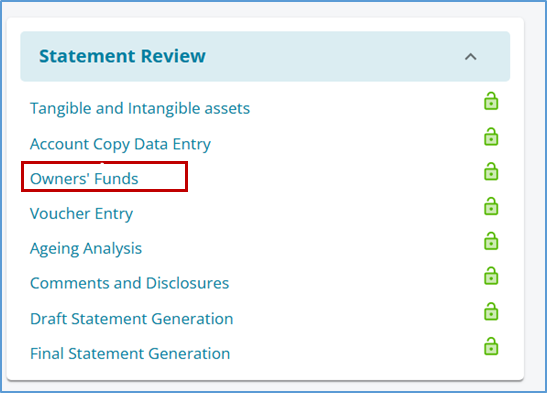
I. Features on the Screen - Partnership
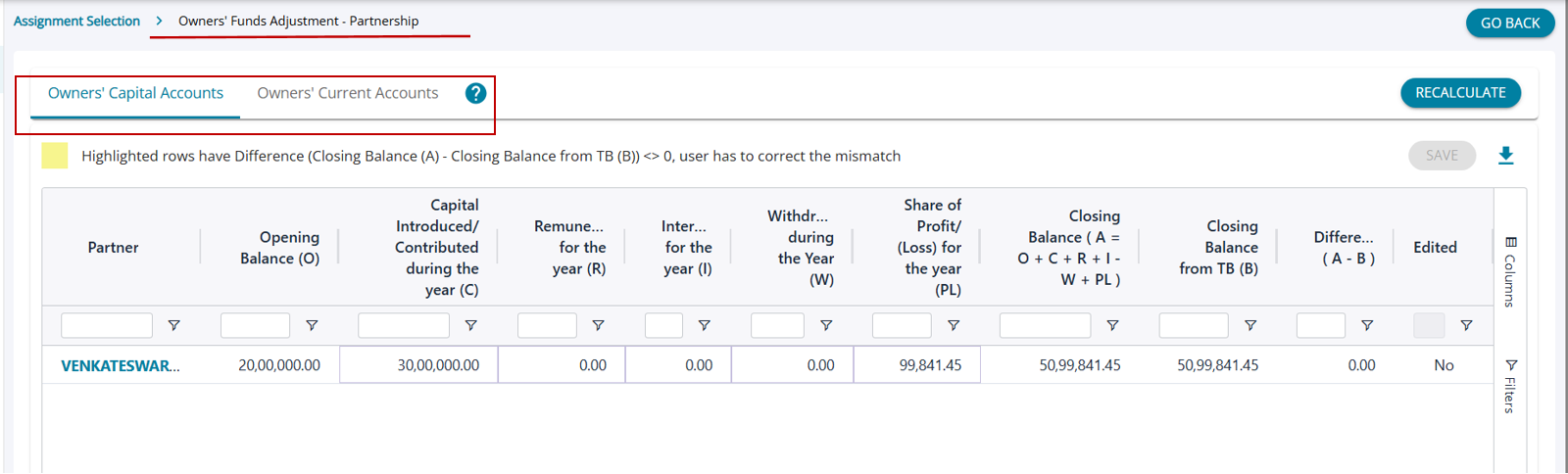
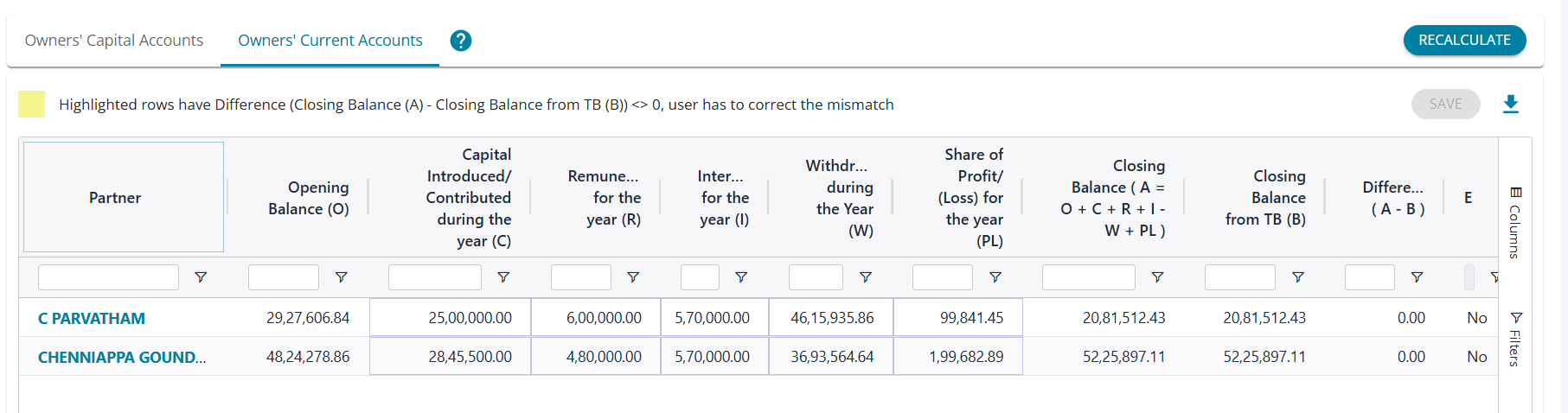
1. Partner - The system automatically updates the table with the Partner’s names where there are ledgers mapped under Capital and Current Accounts under their respective tabs.
Each name is shown as a hyperlink, allowing users to navigate to the ledger summary and further drill down to view the list of transactions for that ledger.
2. Opening Balance (O) - An editable field representing the balance of the partner’s capital or current account at the start of the financial year.
3. Capital Introduced / Contributed during the year (C)- Capital contributions are identified as the sum of credit entries in the Partners’ Capital / Current Accounts, where the corresponding debit is recorded in Cash or Bank, signifying the introduction of additional capital.
These contributions increase the partner’s capital or current account balance and are added to the opening balance while computing the closing balance of the account.
4. Remuneration for the Year (R) - The system aggregates all credit amounts where the corresponding debit is recorded against the ledger classified under the subhead “Remuneration to Partners,” and reports them as Remuneration and is added to the opening balance.
5. Interest for the Year (I) -The system aggregates all credit amounts where the corresponding debit is recorded against the ledger classified under the subhead “Interest to Partners,” and reports them as Interest Paid to partners, and is added to the opening balance.
6. Withdrawal during the Year (W) - This reflects the aggregate amount of partner withdrawals during the financial year, computed as the sum of all debit postings to the Partners’ Capital and Current Accounts. These withdrawals reduce the respective account balance and are reduced from the opening balance while arriving at the closing balance.
7. Share of Profit /(Loss) for the year (PL) - This represents the partner’s allocated share of the firm’s profit or loss for the financial year, as per the partnership agreement. This amount is credited (added to the opening balance) in case of profit and debited (reduced from the opening balance) in case of loss while computing the closing balance of the partner’s account.
8. Closing Balance (A) - This is a computed field calculated by adding to the Opening Balance, Contributions, Remuneration, and Interest earned, along with Profit /(Loss) transferred, and then reducing any withdrawals made during the year. A = O + C+ R + I - W + PL, and the value cannot be edited.
9. Closing Balance from TB (B) - The closing balance from the TB for the respective ledgers is displayed.
10. Difference (A-B) - Automatically calculated as the difference between the computed Closing Balance (A) and the Closing Balance from the Trial Balance (B). Each row must show a zero difference, indicating that the closing balance after considering all adjustments matches the closing balance from the TB.
Rows with a non-zero difference are highlighted in yellow to indicate discrepancies that require correction.
11. Edited ( Is manually edited). Indicates whether the row has been manually edited by the user, shown using a Yes/No flag.
A value of Yes means manual changes have been made to the table for that row, while No indicates no manual edits.
Additional Features on the Screen
1. Save: The Save button is disabled by default, indicating that there are no manual changes to save. Once the user updates any field, the Save button is enabled to indicate that changes are pending.
If a manual change results in a non-zero difference, the affected row is highlighted in yellow, and the user will not be able to save. A tool-tip explains the reason:
“Cannot Save – One or more rows have a non-zero difference: Closing Balance (A) – Closing Balance from the Trial Balance (B). Please ensure the difference is zero before saving your changes.”
Partial saving is also not allowed. If even one row has a non-zero difference, saving is blocked for all rows until all discrepancies are resolved.
2. Recalculate: The user can click the Recalculate button to discard all manual changes and restore the system-calculated values. A confirmation dialog is displayed to seek user approval, and upon confirmation, all manually entered values are replaced with the system-generated numbers.
Once the values are restored, the Edited flag is set to No, indicating that there are no manually edited values in the table.
3. Export to Excel: The user can export the current table data to an Excel file for offline analysis or reporting.
4. Single-Click Edit: Users can click directly on editable cells to modify values without needing to enter an edit mode.
5. Highlighted Differences: Rows with differences (Closing Balance - From Books ≠ 0) are highlighted in yellow to draw attention to discrepancies that require correction.
6. Subtotal Row: A total row is displayed at the bottom showing the sum of all numeric columns for quick reference.
II. Features on the Screen - Proprietorship
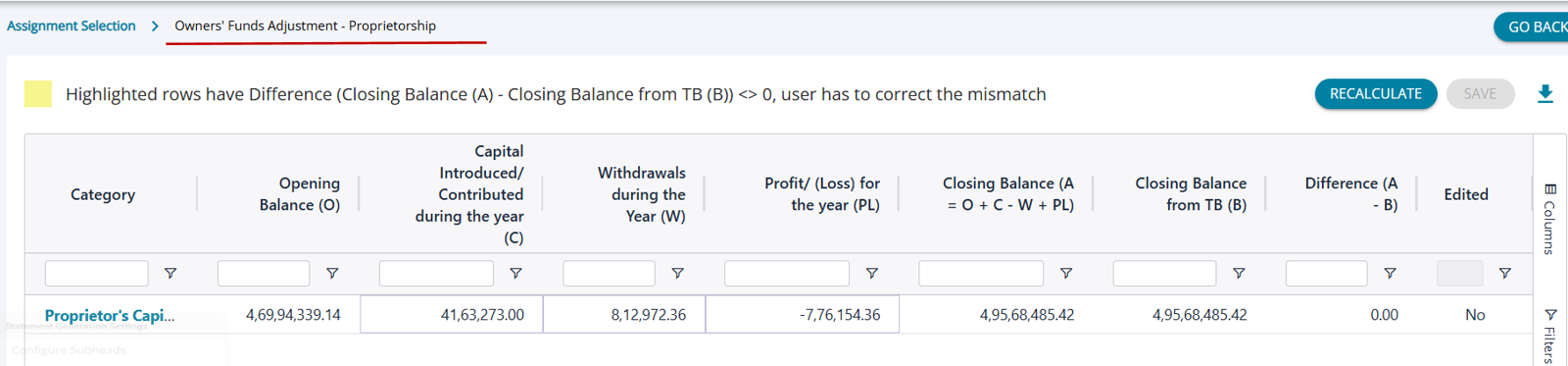
The table structure for a Proprietary Concern differs slightly, as there is no requirement for separate tabs for Capital and Current Accounts. Since a Proprietor does not receive remuneration or interest, only capital contributions and withdrawals are tracked. These transactions are adjusted directly against the opening balance.
All other features and functionalities remain unchanged.
III.Owner's Fund - First visit to screen


1. When the user visits the Owner's Fund screen for the first time, the user sees the button “ Perform Owner's Fund Computation” in the case of Partnership and 'Compute Proprietoryship Funds' in the case of a Proprietory concern.
2. It is mandatory for the user to click on this button to initiate computation.
Once the computation is completed, the table is displayed to the user with auto-populated values for all the fields in the table, depending on the type of business entity.
IV. Owner's Fund - Subsequent Visit
1. During subsequent visits to the table, if the user has made changes to the books by adding manual vouchers or has re-imported JSON or has changed mapping, the system requires the computation to be re-run, so if there are changes that impact the ledgers, they can be applied to the table.
2. The user has to click on “Override Manual Changes” so that the changes can be overridden by the system ( if they would like to lose the manual changes and use the system-generated numbers).
3. But in doing so, any manual changes made to the table will be lost, but the user can edit the values again if required.
Subsequent Visit
