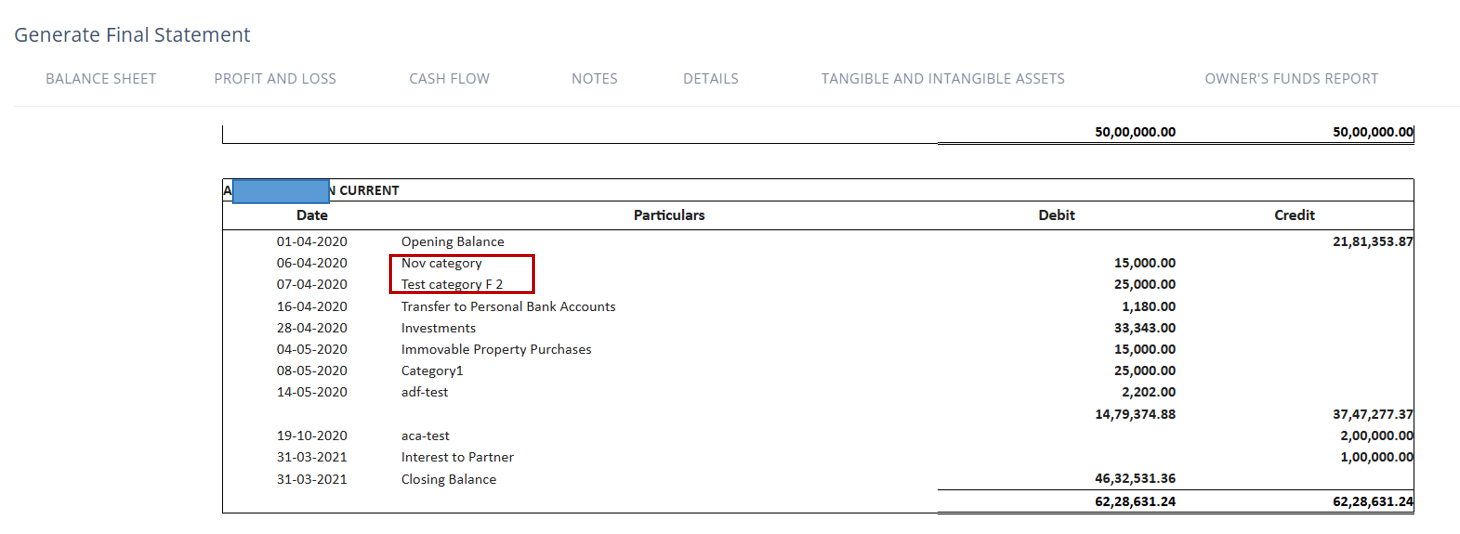
Configure Account Copy Categories
The Account Copy Data Entry page allows users to classify vouchers under predefined categories for Non-Corporate Clients such as Firms, AOPs (Association of Persons), and HUFs (Hindu Undivided Families).
Currently, users depend on the support team whenever a new category is required, which limits flexibility and slows down operations.
With this enhancement, users will now have the ability to independently configure and manage categories for both Debit and Credit transactions. This provides full control to create, edit, reorganise, or delete categories as per their operational needs—without any assistance from the support team.
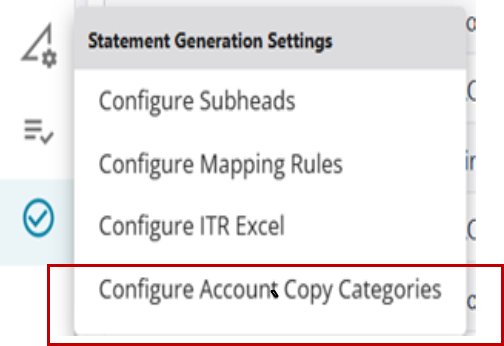
Users can set up new categories through:
Statement Generation Settings → Configure Account Copy Categories
This update streamlines workflows, reduces dependency on external support, and improves overall efficiency in voucher classification.
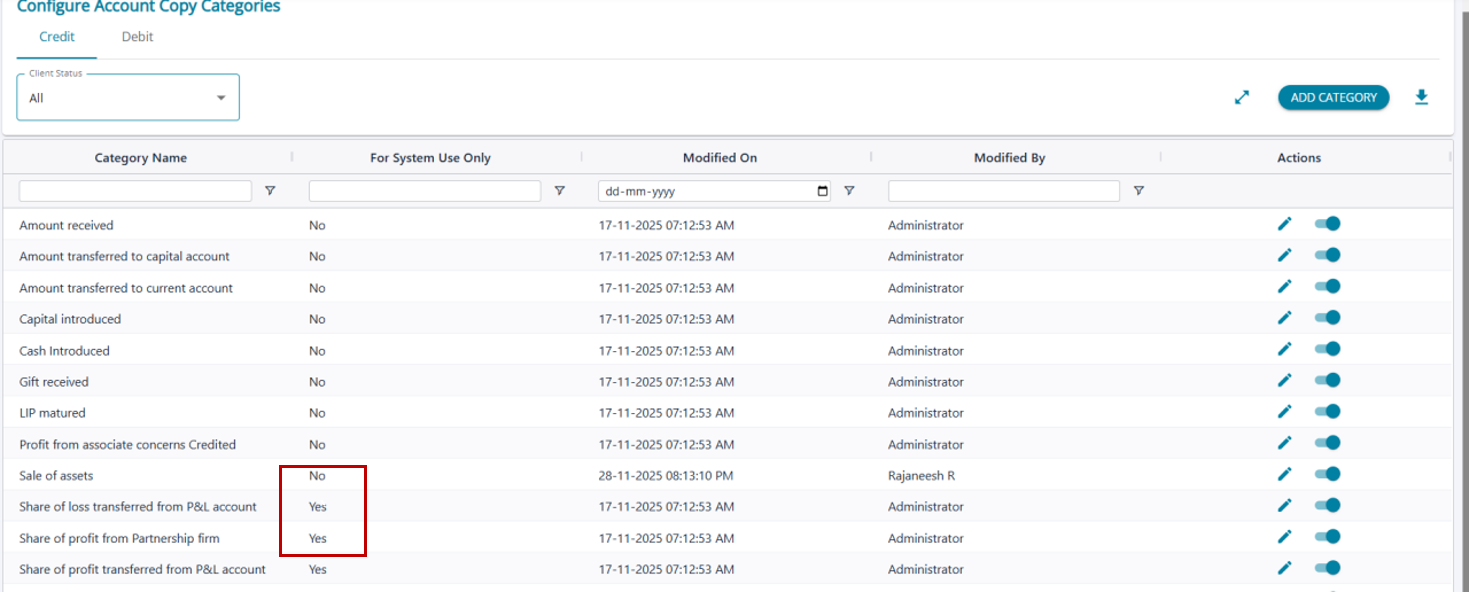
The configuration screen allows users to create and manage the required categories for Non-Corporate Clients, in addition to the default categories provided by AssureAI.
Add / Edit Category
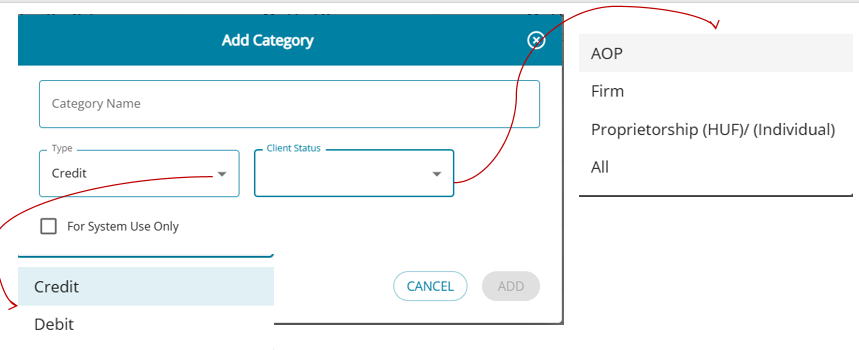
The pop-up screen allows users to add their own categories. On this screen, the user must enter a unique category name and select the type—either Debit or Credit.
From the Client Status drop-down, the required entity type can be selected. Users may choose a specific entity (Firm, AOP, HUF), or make the category applicable to all Non-Corporate Clients by selecting All.
The ‘For System Use Only’ checkbox will be automatically selected for certain categories predefined by AssureAI. These system-designated categories can be applied only to transactions created by AssureAI (System Vouchers), and cannot be used for entries imported from the client’s books of accounts.
If users wish to use these system-defined categories for imported transactions as well, they may simply unselect the checkbox to make the category available for manual or imported entries.
For all categories manually added by users, the ‘For System Use Only’ checkbox will remain unselected by default.
However, once a category is created, its name cannot be modified. If the category is no longer required, it can be deactivated.
The Edit button allows users to update the category settings by changing the Type (Debit/Credit) and modifying the Client Status as needed.
Annual Audit
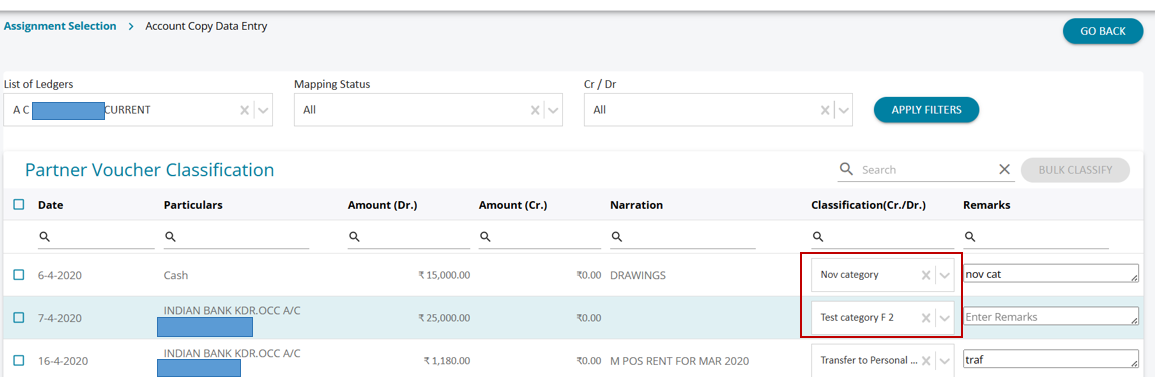
Any newly added category will also be available in the Classification drop-down for voucher classification in the Account Copy Data Entry screen (accessible via Statement Review features on the Annual Audit Landing Page).
If a newly added category is used to classify vouchers, it will also appear in the Financial Statements under the Partner Account Copy tab..