
Tangible & Intangible Assets
Tangible & Intangible Assets
Assure AI has an automated process of updating the Tangible & Intangible Assets table and the system populates for the user data for the columns Addition, Deletion and Depreciation for the Year (Deprecation withdrawn if any is not updated by the system and user has to manually enter the numbers)
The Opening Cost and Opening Depreciation for the Year will not be populated for Year -1 alone and the user has to manually enter the numbers.
From Year -2 onwards the table will auto populated with all numbers and any difference or changes the user is still allowed to make manual corrections/ updates as is required.
Features on the Screen
1. Perform Asset Value Computation: The button is displayed when the user is visiting the screen for the first time and to run the values, the user must click on the button only then will the table be displayed.
The button is also displayed for re-calculation when data is outdated (books are considered outdated if manual vouchers are added or user has re-imported JSON or has changed mapping)
2. Override Manual Changes: When the data is outdated and computation has to be re-run, the user can choose to retain all the manual changes made to the table earlier by leaving the checkbox un-selected or choose the data to be replaced by system computed numbers
3. Re- Calculate :The user can click on "Recalculate" button to reverse all manual changes and display the numbers calculated by the system , a pop screen will be displayed to the user requesting approval to change the numbers and upon user approval system generated numbers will replace all manual changes made.
4. Save: Any manual changes made by the user on the table should be saved
Tangible & Intangible Assets Table Columns
The system helps the user with pre-populated numbers for a few columns and allows user intervention to update/ change / enter values in the table.
The table summarises all transactions at a sub-head level, where the assets are classified as Tangible or In-Tangible.
1. Opening Cost (A):
1. Year – 1 in AssureAI: the opening cost will be marked “0” ; the user needs to fill in the numbers manually
2. From Year-2 onwards, the closing cost of previous FY is brought forward as Opening Cost for the current FY (which the user can still edit if necessary)
2. Additions (B):
1. System populates value for this field with the sum of all purchases of assets made under the respective asset sub-head are summarised. The field can be edited by the user.
2. Purchase Return: If purchase returns have been booked in the system with reversal of purchases the system will consolidate the debits (purchase) by adjusting any credits (returns) that are in the asset ledger pertaining to the same purchase creditor.
The purchase and the return need not be on the same date.
3. Deletions (C) :
1. System populates value for this field with the sum of the sale of assets resulting in reduction of Assets
2. The field can be edited by the user .
4. Closing Cost (D= A+B-C) :
1. System calculates value for this field.
2. The field cannot be edited by the user.
5. Opening Depreciation (E) :
1. Year – 1 in AssureAI: the opening depreciation , will be marked “0” ; the user needs to fill in the numbers manually.
2. From Year-2 onwards, the closing balance of previous FY is brought forward as Opening balance for the current FY, which the user can still edit if desired.
6. Depreciation for the Year (F):
1. System populates value for this field with the sum of all deprecation against each ledger under the head "Depreciation and Amortisation Expense“. In doing so, the system considers all the debits in the ledger .
2. The field can be edited by the user.
7. Depreciation Withdrawn (G) :
1. System does not populate value for this field, user can enter values.
2. All depreciation reversed upon sale of assets have to be summarised for each sub-head and entered in this field.
(This includes the calculation of how much accumulated depreciation has been charged over the past several years since the asset is first put to use.
However this information is not available in the tally data, hence Assure AI will not be able to compute the value for this field)
Tangible & Intangible Assets – First visit to screen
1. When the user visits the Tangible & Intangible Assets screen for the first time , the user sees the button “ Perform Asset Computation”
2. It is mandatory for the user to click on this button to initiate fixed asset computation
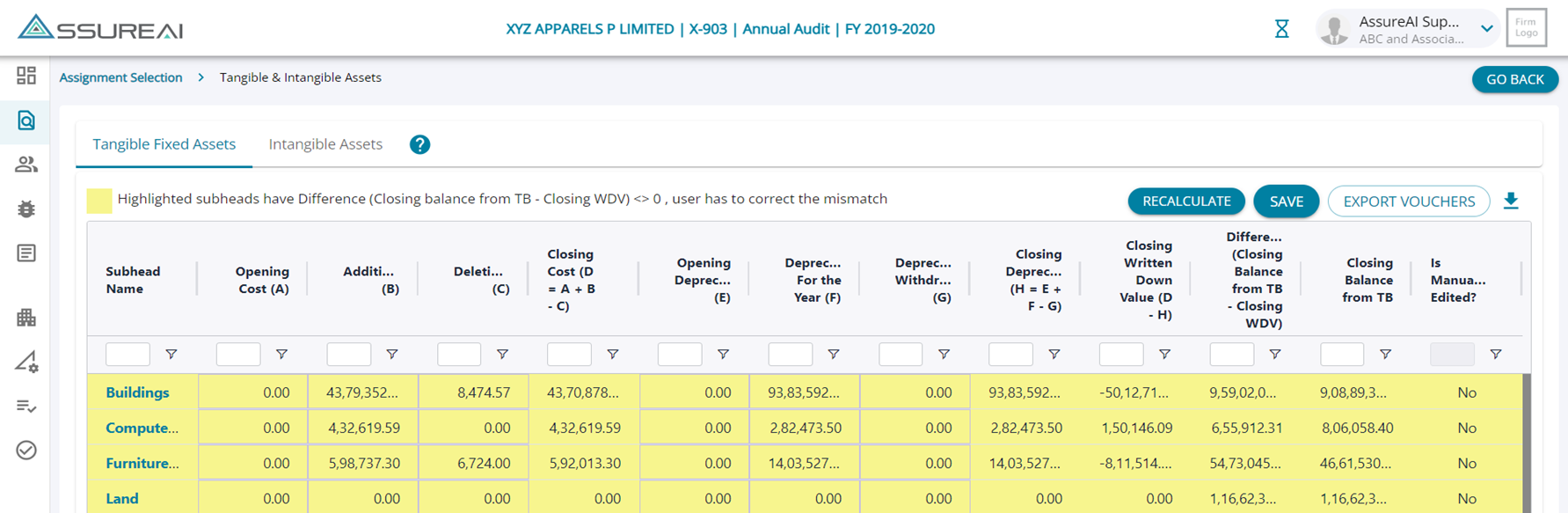
1. Once the computation is completed, the table is displayed to the user with auto populated values for Additions, Deletions and Depreciation for the Year.
2. As this is the first year of accounts in Assure AI, the Opening Cost and Opening Depreciation is not populated by the system. This the user can enter manually.
3. As data for all fields are not entered upon first visit, there is difference between the Balance from TB and the Closing WDV , this leads to the rows being highlighted in yellow.
4. The difference has to be resolved by the user manually for Year -1
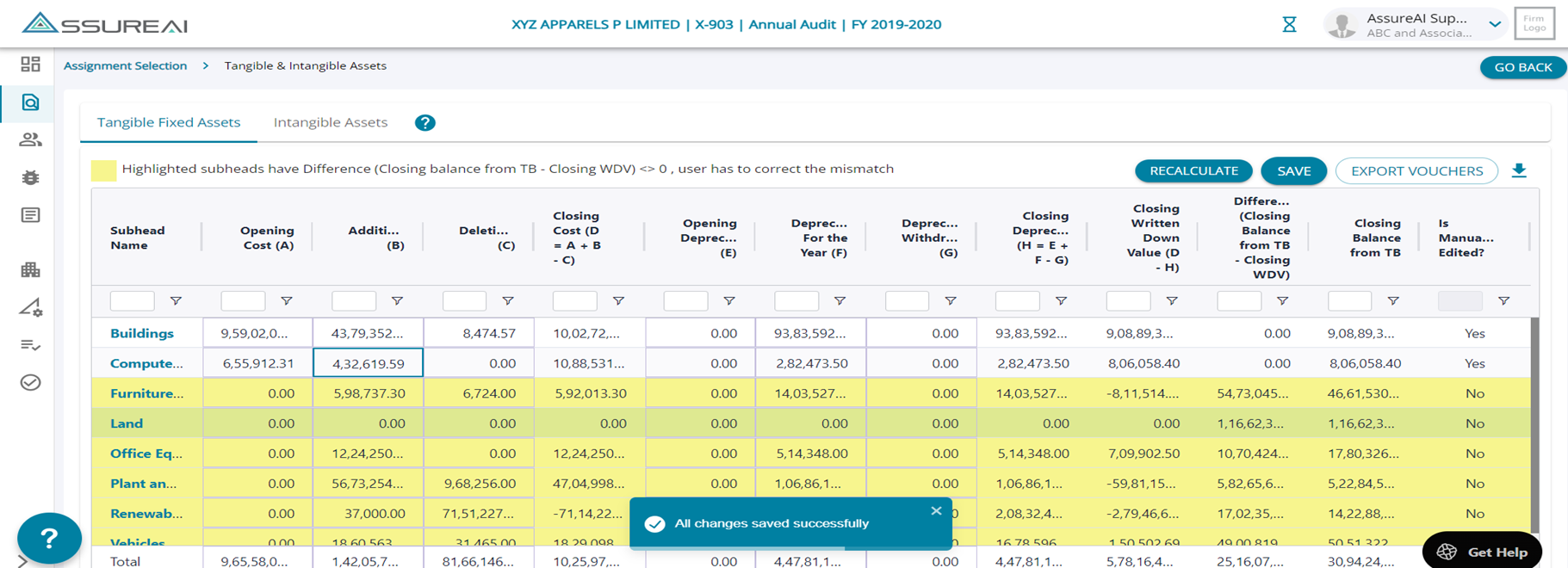
1. The user can update the entries and enter Opening Balance and Opening Depreciation , once the difference is resolved, the row is not highlighted in yellow anymore.
2. The user needs to click “Save” to save the manual changes and the flag “ Is Manually Edited?” is updated to “yes”
3. The user has to update the entire table , by manually making changes to year -1
Note : Upon clicking on “Recalculate” all manual changes will be erased.
Export Vouchers
This feature allows the user to export vouchers along with their classification into “addition” / “deletion” /“depreciation” and “transfer”. Upon click of the button an excel is downloaded with all vouchers pertinent to Asset classification ( both Tangible & In-Tangible) .
Tangible & Intangible Assets – List of Ledgers
1. The user can click on the hyperlinks on any of the sub-head in the Tangible & Intangible Assets screen and navigate to the “List of Ledgers” page.
2. The screen shows the 4 column Trial Balance for all the ledgers under the selected sub-head and this information can be used to validate the numbers populated by the system in the previous screen.
3. The user can also click on the ledgers listed to navigate to the ledger view screen (screenshot below)
Tangible & Intangible Assets – List of Ledgers (group by sub-head)
1. The user can group the ledgers by sub-head, when more ledgers are added
2. The user can bring more sub-heads into the screen by adding the same in the search bar on the top (all ledgers in the books will be listed for the user to choose from).
3. The user can add to the list ledgers that are neither Tangible or In-Tangible assets.
Tangible & Intangible Assets – Subsequent Visit
1. During subsequent visits to the Tangible and Intangible assets table if the user has made changes to the books by adding manual vouchers or has re-imported JSON or has changed mapping , the system requires the asset computation to be re-run so if there are changes that impact the assets they can be applied to the table.
2. The user has to click on “Override Manual Changes” so that the changes can be overridden by the system ( if he would like to lose the manual changes and use the system generated numbers).
3. But in doing so any manual changes made to the table will be lost, but the user can edit the values again if required.
Tangible & Intangible Assets – Second year
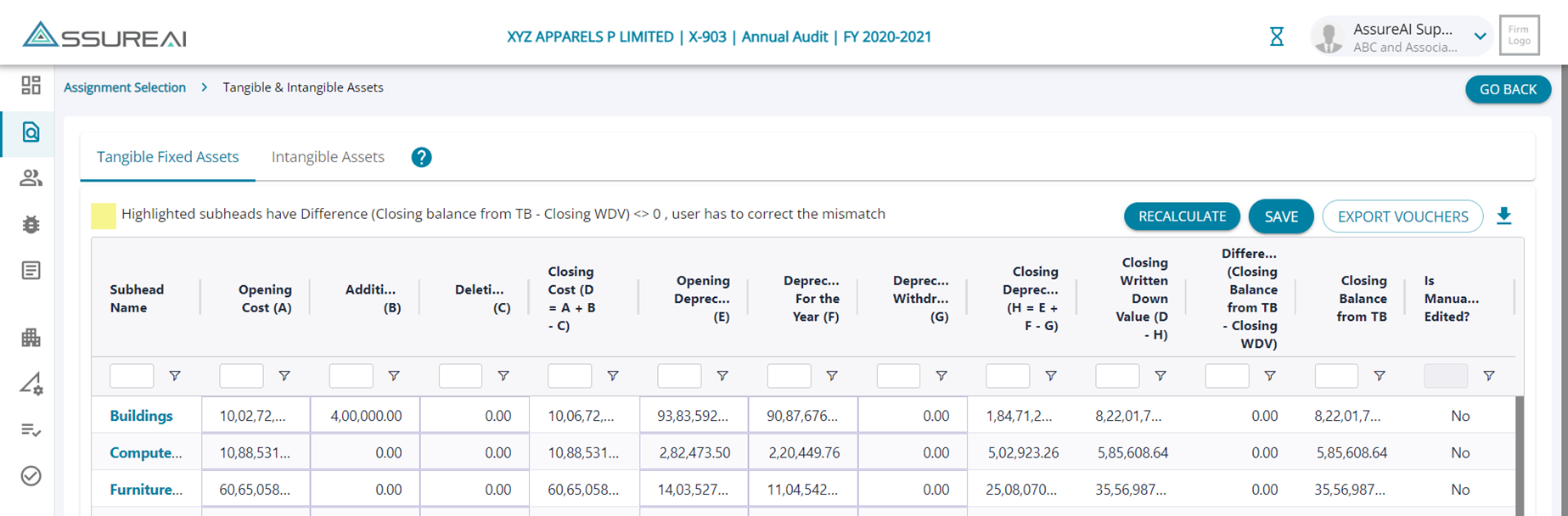
1.As the user has made all changes and saved the numbers in the first year , when the second year accounts are initiated in Assure AI and asset computation is run, the table is populated with values for Additions , Deletions and Depreciation for the Current year along with opening balances from the previous year (Opening Cost & Opening Depreciation)
2. The sub-heads are not highlighted in yellow as all values are automatically flown into the table ( however , if there are still any mismatches, and the rows are highlighted in yellow , the user can make necessary changes and save).