
Final Statement
Final Statement Report
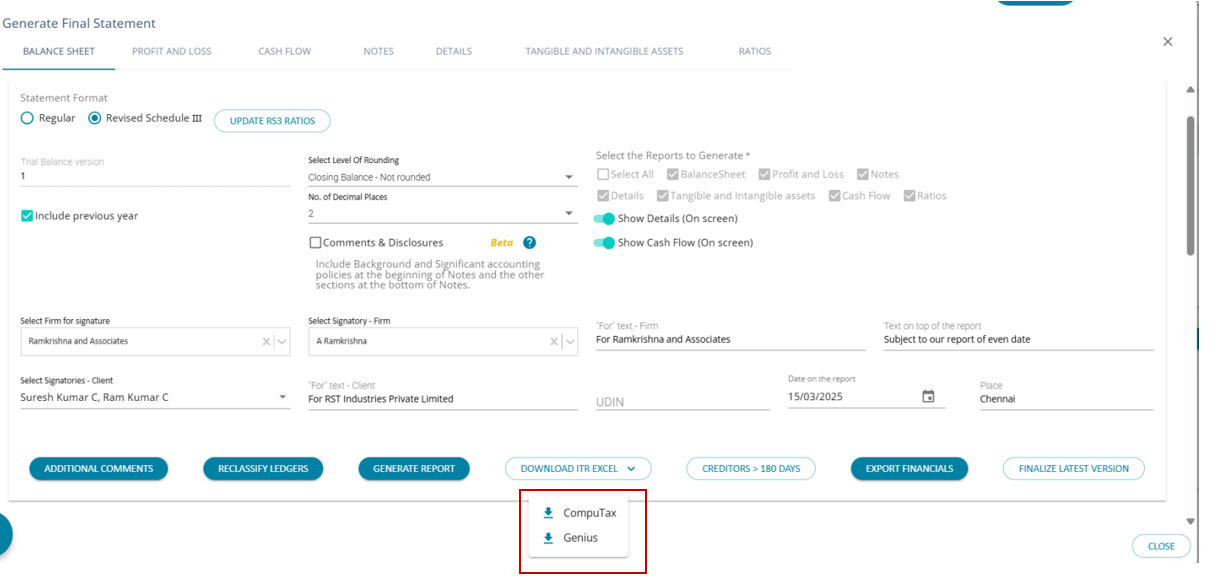
Final Statement Generation Steps
In addition to the steps followed for the draft statement, the following additional selections are to be made for generating the Final Statements.
1. Select the ‘CA Firm for signature’ from the Dropdown on the left side
2. Select the name of the CA firm partner from the dropdown ‘Select Signatory-firm’
3. Select the client signatories from the dropdown ‘Select Signatories-client’
4. In case no information is available here, then go to client configuration and add the authorized signatory under the ‘Key Persons’ tab
5. Select the Signature ‘For’ text for the CA firm and the Client
6. Specify the date for generating the Final report
7. Type the Place and then proceed to generate Final Statements. The user has to enter UDIN if they would like to include it in the final statements
8. The user can choose to number the pages and include the previous year’s statement.
Download Financial Statement
When the user clicks on generate report the report is generated, and the user views the screen above. By clicking on the down arrow, the user can navigate to the screen below and download reports in the required formats.
The user needs to generate the report first, and then will be allowed to download the generated report for both the Draft and Final Statement.
Additional Features
1. Click Download ITR Excel to download the Excel version of financial statements that can be uploaded into the IT Filing Utility
2. At present, the facility is available for the IT Filing tool, Genius & Computax
1. Under the GST Law, there is a requirement to reverse the Input Tax Credit availed by the assessee for creditors that are outstanding for more than 180 days.
2. For generating this report, click on the button ‘Creditors > 180’ days button
3. Immediately, an Excel file will be downloaded containing bifurcation of the entire trade payable ledgers into two categories, namely ‘Due for < 180 Days’ and ‘Due for > 180 Days’
4. This information will be useful for quantifying the Input Tax Credit for creditors due for more than 180 days and reversing the same in the GST Annual returns
1. Once the entire audit is completed and the filing of Income Tax Returns is over, then the user may proceed to ‘Finalize’ the version of the Data
2. Click ‘Finalize Latest Version’ in the Final Statement Generation Page
3. Immediately, the system will freeze all the data for the given period
4. Once finalized, there will be no modifications allowed in that year’s data
5. Only after finalization, the system will allow the user to import the next year's data