
Clients Details- Company
Add Client Details - Company 1. Any number of Authorised Signatories can be assigned to a company/ firm and during final accounts preparation the user can choose from the names added to the list here as the signatory of the accounts.
2. The field ‘Correspondence Address same as Official Address’ can be checked and then the system will not ask the user to fill in a different address and the default address of the company will be assumed as correspondence address.
NOTE
1. To add the Key people / Authorized Signatory Table – press the ‘+’ button on top right of the table and enter details of Key persons in the client entity.
2. Also click the Checkbox ‘Is Authorized Signatory’ if the said person is Authorized to sign the financial statements -also add Authorized signatory Designation.
3. Only those people chosen as Authorized signatories will be shown for selection as signatory at the time of generation of final Financial Statements.
4. The ‘Key Person’ field has to be updated to be able to generate the final statements .
Address in the Balance Sheet
1. Once the user has filled in all the details for the address , the address for the balance sheet is populated from this table.
2. However as the entire address cannot be accommodated the data entered in the “City/ Town/ Village” filed is populated in the BS as the address .
Scroll down and fill up the missing details – Company
1. In case the client is a company the additional details required to add the client are details of the shareholders. The names of the shareholders along with the other details in the table will be auto-populated from the XML , else need to be manually entered.
2. The start date field has to be manually filled in and if no specific date is mentioned the date of incorporation of the company can be used and the field is displayed in previous section.
3. The end date need not be mentioned as long as the shareholder is still associated with the company and in case of change in ownership / end of role / resignation, then the end date needs to be updated.
Scroll down and fill up the Missing Details – Company (contd.)
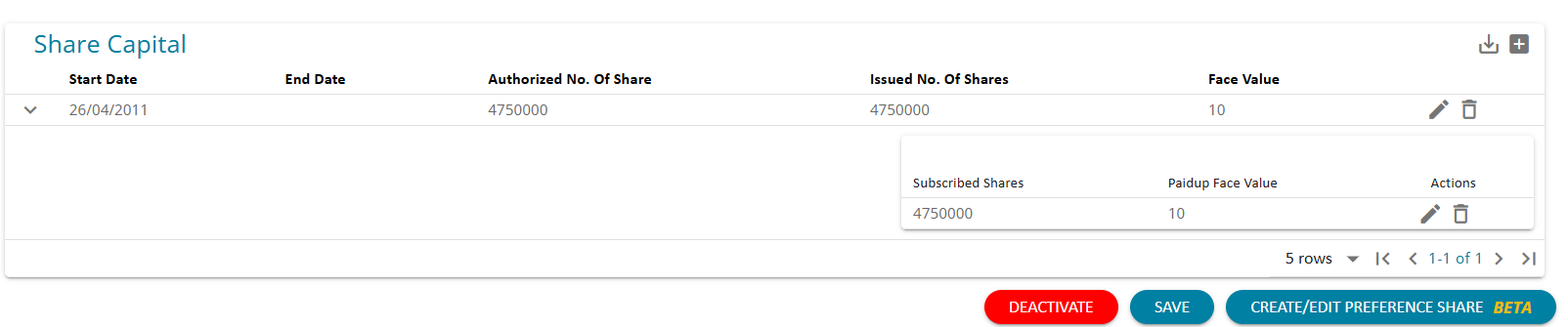
- After adding the shareholder details the user needs to add the Share Capital details .
- By clicking on the down arrow next to the Start date the user can add the details of the subscribed share capital details in the pop up that opens .
- User should ensure to save the screen to save all the details entered.
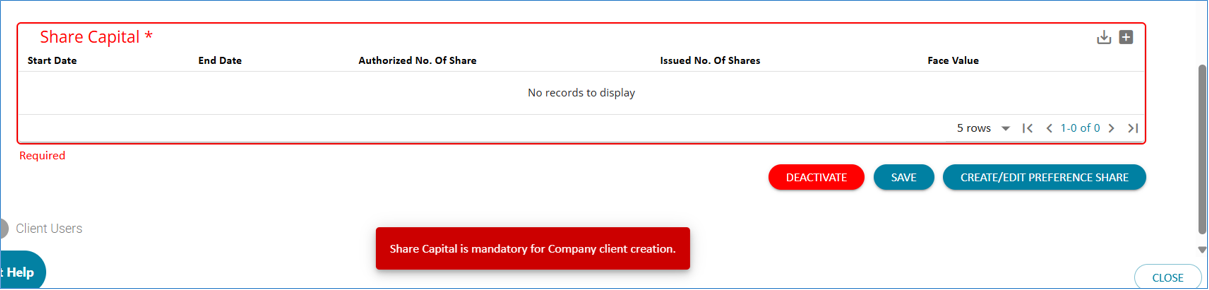
- Share capital details are mandatory. This ensures that the required information is available upfront and helps prevent errors or validation issues during the mapping submission process
Computing Earnings per Share ( EPS)
For a client where there have been changes in share capital during the period, the system will now compute Earning per share using the below formula:
Net profit
EPS = -----------------------------------------------------------------
Weighted average of equity shares held during the period
To be able to calculate this accurately, share capital details need to be entered continuously for a period, with no overlaps.
For example, If the first row of Share capital has an end date of 13-Oct-2022, the next row has to start from 14-Oct-2022, not before or after. This will also help the system to accurately compute the weighted average.