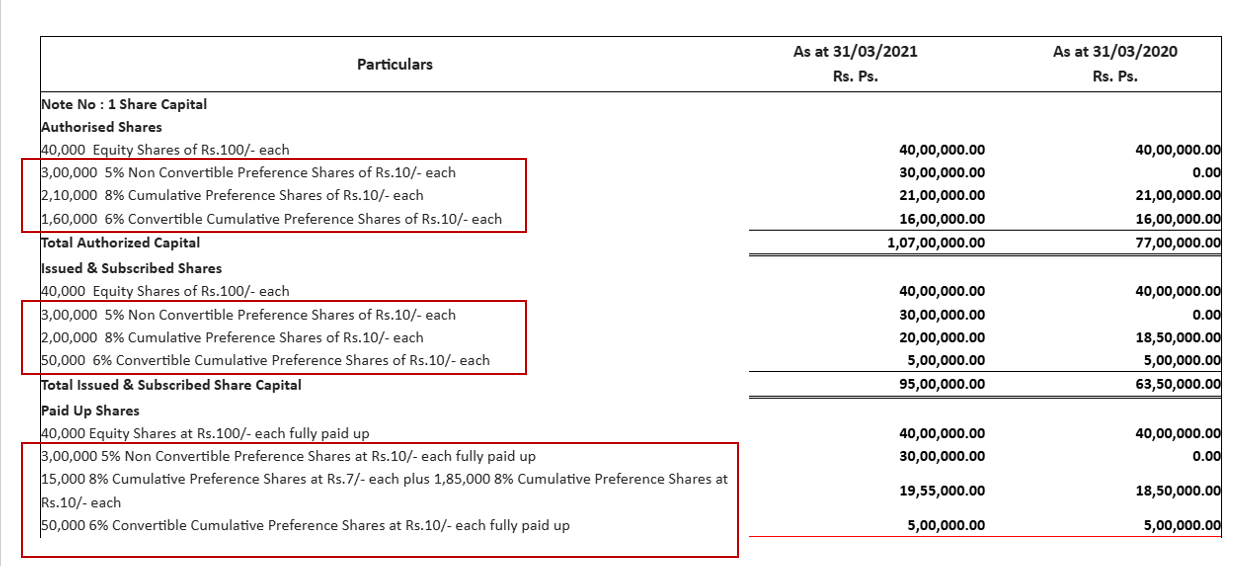
Add Preference Share Details
From the client onboarding screen, users can add Preference Share Details by clicking on the Create / Edit Preference Share details.
The button is displayed on the client onboarding screen only if the client status is 'Company'

When the user clicks on this button, the system navigates to a new screen to capture all details required for entering the preference share details for the client.

The system displays a blank screen, allowing users to add any number of preference share types by clicking on the 'Add' button.
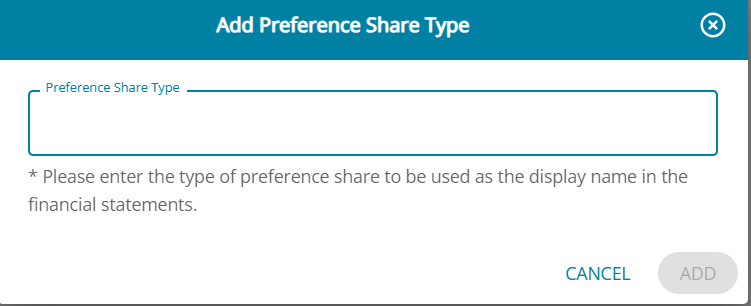
The user can enter the type of the preference share to add additional details; multiple preference share types can be added.
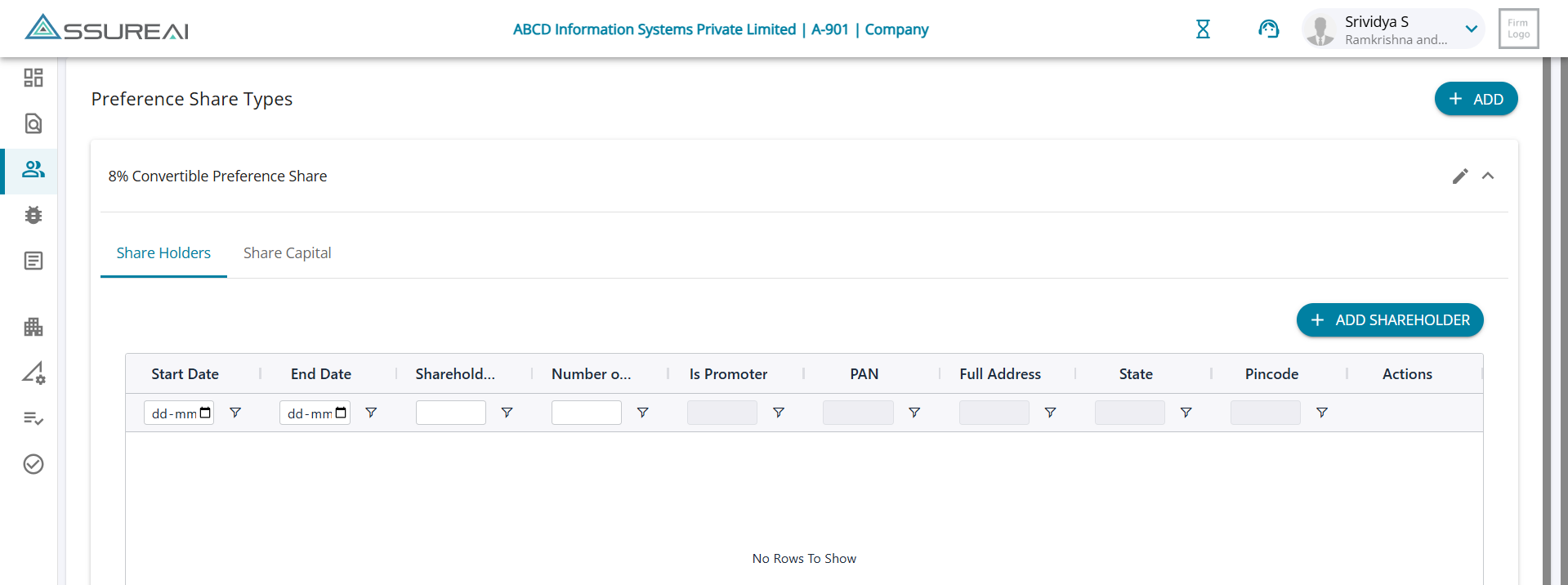
Once a preference share type is added, the screen displays 2 tabs of details required for adding details for each type of preference shares.
- Shareholders
- Share Capital
1. Shareholders:
- The Pop-up screen requires users to enter details of shareholders holding preference share capital.
- If the holder is a promoter, then the toggle 'Is Promoter' has to be turned on
- The mandatory fields are marked with * for the user to fill in to add a row
.
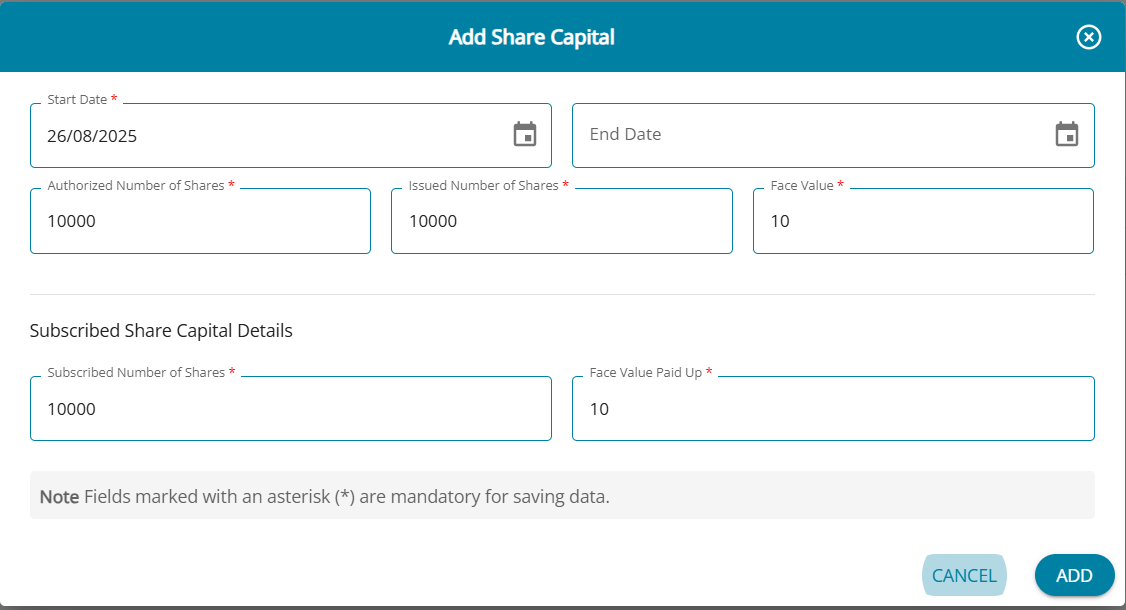
2. Share Capital
- Details of share capital to be entered into the pop-up screen
- Authorised, Issued, and Subscribed share capital details and face value details can be entered in the screen
Sample from Financial Statement
Once the required details are entered, the users can see details of preference shares added to the Financial Statement.