Time Sheet Settings
Timesheet Settings
The Timesheet Settings module in AssureAI enables administrators to configure how time is logged, validated, and submitted across the organization. These settings provide flexibility while ensuring consistency and control in time tracking practices.
Accessible under Task Management Settings → Timesheet Settings, this section governs key behaviors such as working days, submission rules, and time entry validations.
1. Permission Settings - Overlapping Time Entries
This setting controls whether users can log time entries that overlap within the same time period.
Enabled:
(i) Users can log multiple entries for the same time range
(ii) Useful when working on multiple tasks simultaneously
Disabled:
(i) System prevents saving overlapping entries
(ii) Ensures strict, non-duplicative time tracking
This flexibility allows firms to choose between strict time discipline or parallel activity tracking.

2 . Working Day Settings
This section defines the organization’s working calendar and controls how time can be logged across different days.
a. Working Days Configuration
(i) Admins can select working days (Monday–Sunday)
(ii) Typically used to define standard business days
b. Allow Entry on Non-Working Days
When enabled:
(i) Users can log time on weekends
(ii) Entries are allowed but visually highlighted
When disabled:
(i) System blocks time entry on non-working days
(ii) Date picker disables restricted dates
c. Allow Entry on Holidays
(i) Controls whether users can log time on configured holidays
(ii) Works in conjunction with the Holiday Calendar
These controls ensure a balance between policy enforcement and operational flexibility.

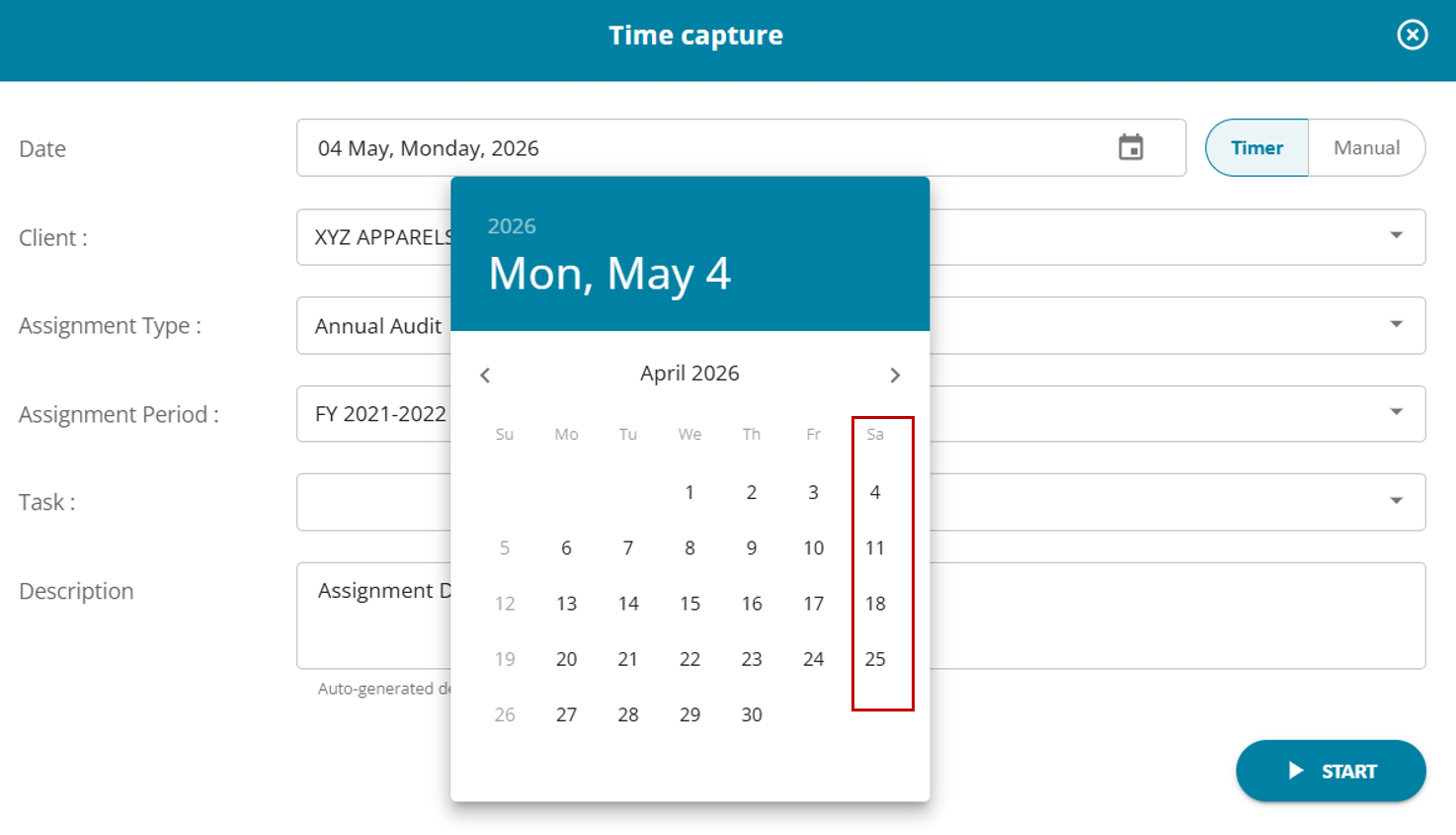
Sunday is not selected → Time entry is disabled; users cannot log time on Sunday
3. Submission Settings - Submission Frequency & Working Hours

Timesheet Submission Frequency
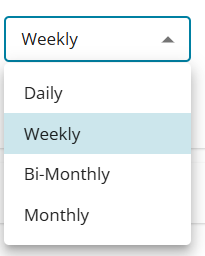
(i) Configure how often users must submit timesheets:
Daily / Weekly / Bi-Monthly / Monthly
(ii) Entries are grouped by the selected period
Working Hours Configuration
(i) Define standard working hours per day
(ii) Helps identify: Under-logged hours / Over-logged hours
(iii) Maximum Duration Rule: A single time entry cannot exceed 24 hours; users must adjust start/end time to save the entry.
4. Holiday Calendar
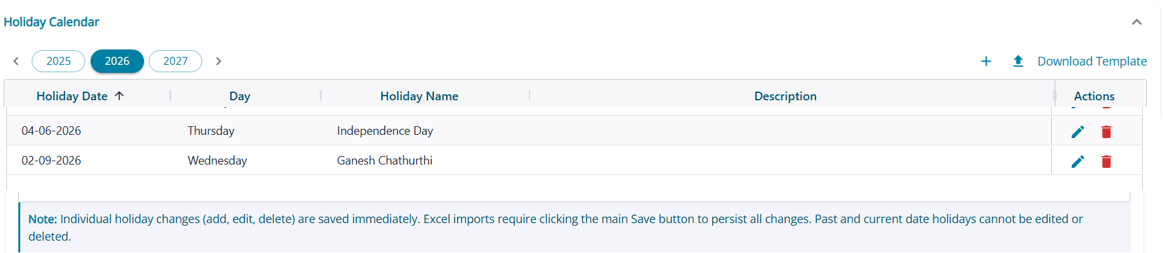
Features
(i) Manage holidays year-wise using the selector (e.g., 2025 / 2026 / 2027)
(ii) Add new holidays manually using the “+” icon
(iii) Download template for bulk upload using Download Template option
(iv) Holiday Details Captured:
(a) Holiday Date
(b) Day (auto-derived)
(c) Holiday Name
(d) Description
(v) Actions Available: Edit or Delete individual holiday entries
(vi) Key Behavior:
(a) Individual changes (add/edit/delete) are saved instantly
(b) Bulk uploads require clicking Save to persist all changes
(c) Past and current date holidays cannot be edited or deleted