
Comments And Disclosures
The comments and disclosures screen displays to the user 5 categories of comment tabs and multiple sections under each category for the user to choose from.
The content for each section is displayed on the right side of the screen once it is chosen by the user.
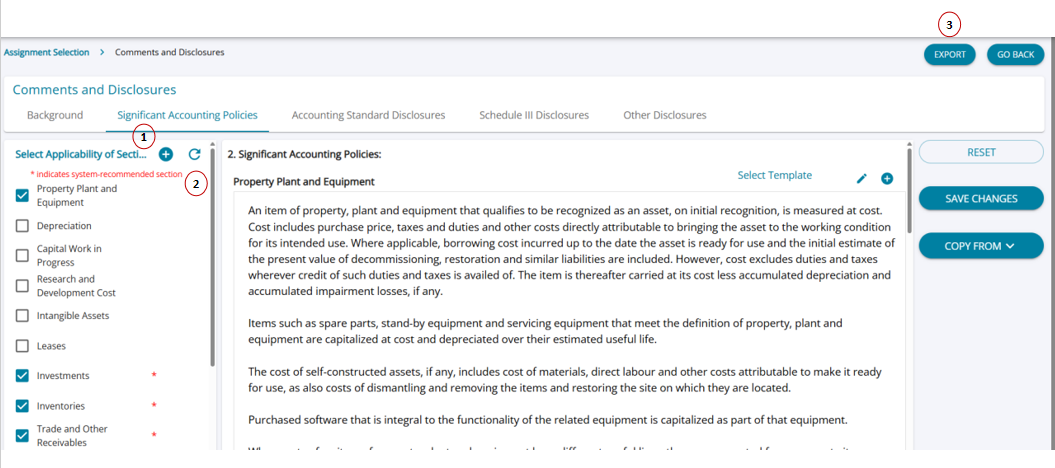
 1. Add Sections
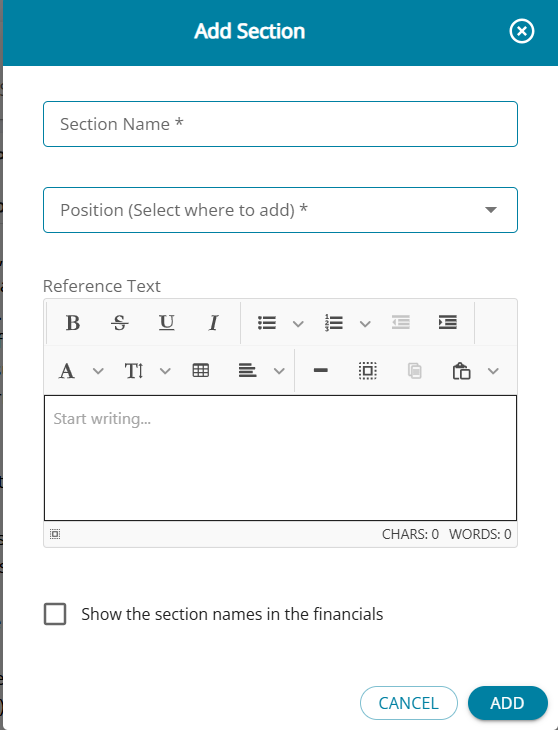
By clicking on the '+' under any category, additional sections can be added.
2. Refresh
Once a user has already saved a category of comments and disclosures for an assignment, subsequent addition of sections / templates in the master will not be autmatically avaibale in the assignment.
When the user clicks on the ‘Refresh’ button new sections/templates added in the Master data tables to will be available for even previously started assignments.
Edit Template
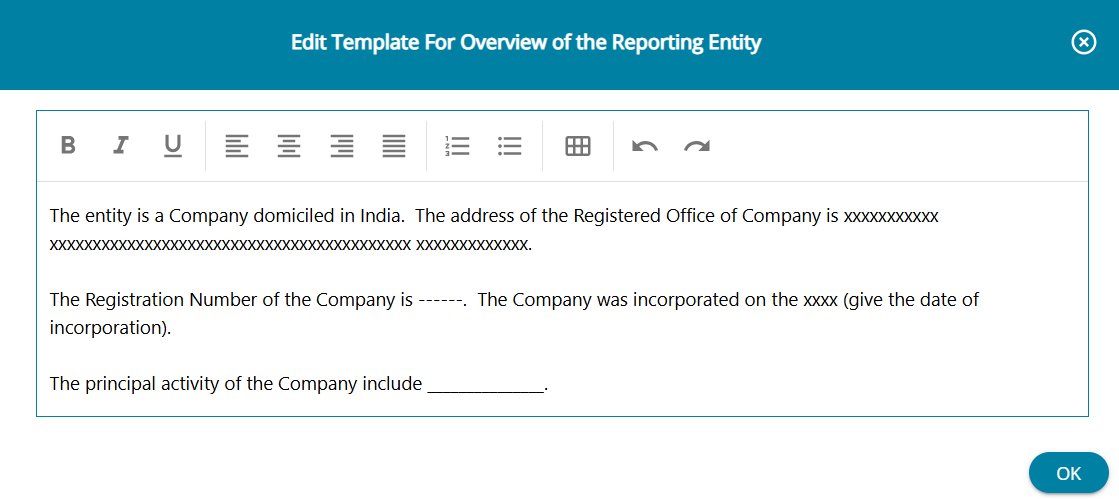
The system provides default comments for users; however, users can click the Edit button on the right-side panel to modify the content they wish to display.
Any changes made in the pop-up screen are saved as the user’s edited version of the comments.
3. Export
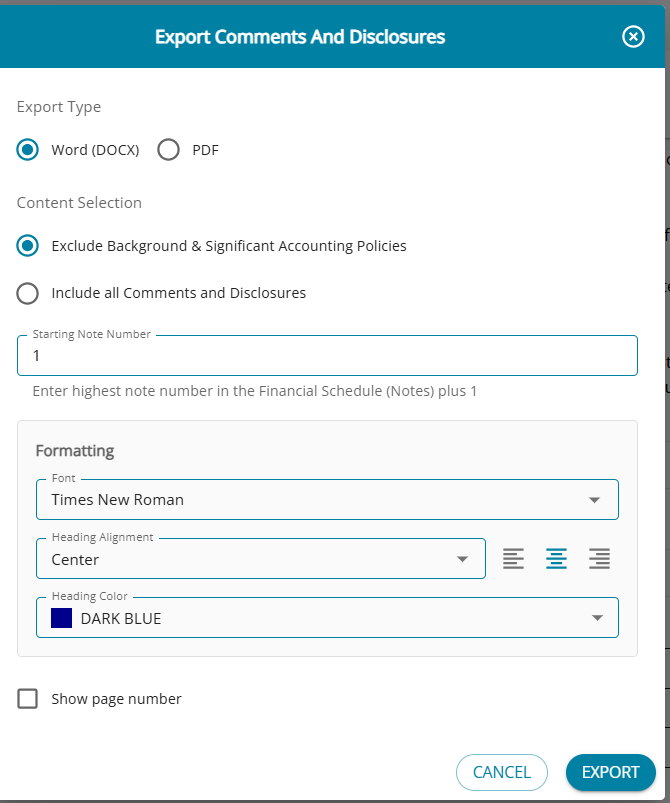
1. The export process includes several features, allowing users to generate the entire set of comments and disclosures as a PDF and DOCX (choose from options).
2. Users can choose to include or exclude Background and Significant Accounting Policies through a simple checkbox.
3. Additional formatting options—such as font style, heading alignment, font color, and the ability to add page numbers—are also available to enhance the final output.
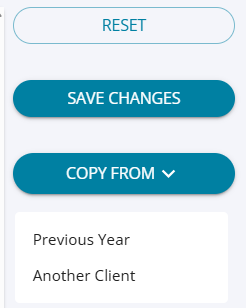
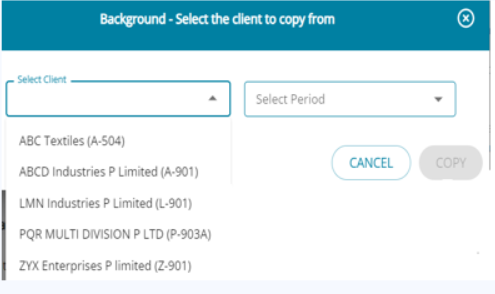
Action Buttons
Generate Financial Report Screen
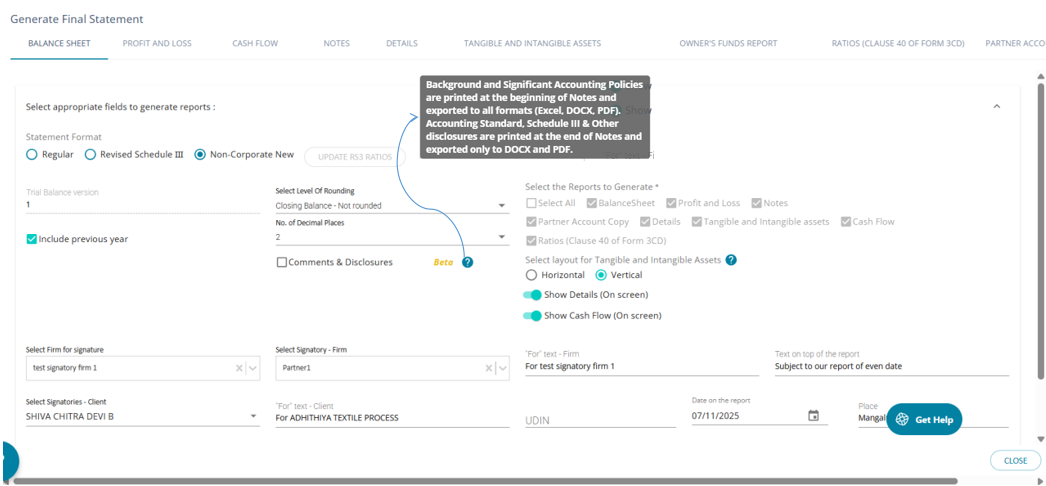
- The system allows the user to add comments and disclosures in the financial statements by selecting the check box on the generate financial statement screen ( draft / final statement)
- The system throws a message to the user that the required comments have been chosen
- The user can select Background and Significant accounting policies to be added as Notes 1 and 2 in the FS, and the rest of the notes will be at the end of the Notes section.


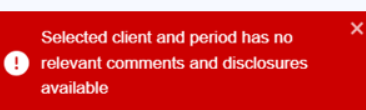
4. If there are no templates chosen in the comments screen, then the system throws an error message highlighting that no template has been saved.