
FSLI Testing - Head Level View
FSLI Testing - Head Level View
FSLI testing refers to Financial Statement Line Item testing. This is part of the audit process, where auditors focus on verifying the accuracy, completeness, and fairness of individual financial statement line items. AssureAI allows auditors to accumulate misstatements identified during the audit, other than those that are trivial.
The accumulation of misstatements can be done at the Head, Sub-Head, and Ledger levels using this feature.
FSLI testing is a child task of Materiality and Testing that can be marked as applicable.
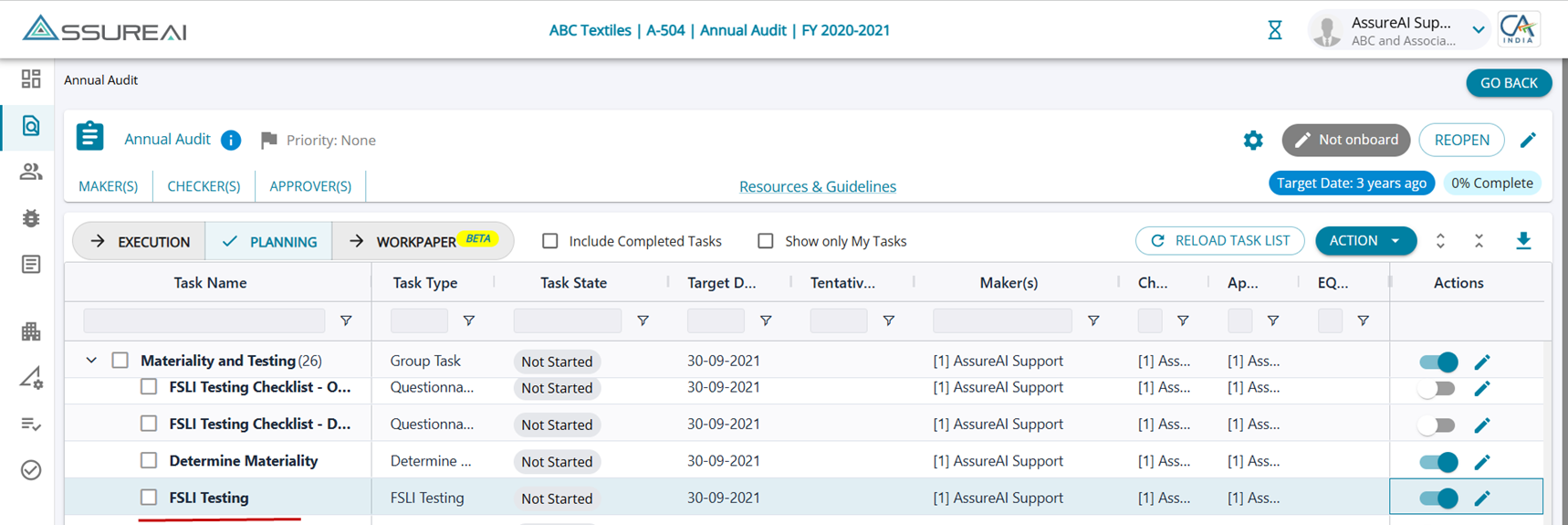
The FSLI Testing can be initiated by the Auditor once the Determining Materiality task has been completed.

Head View Screen
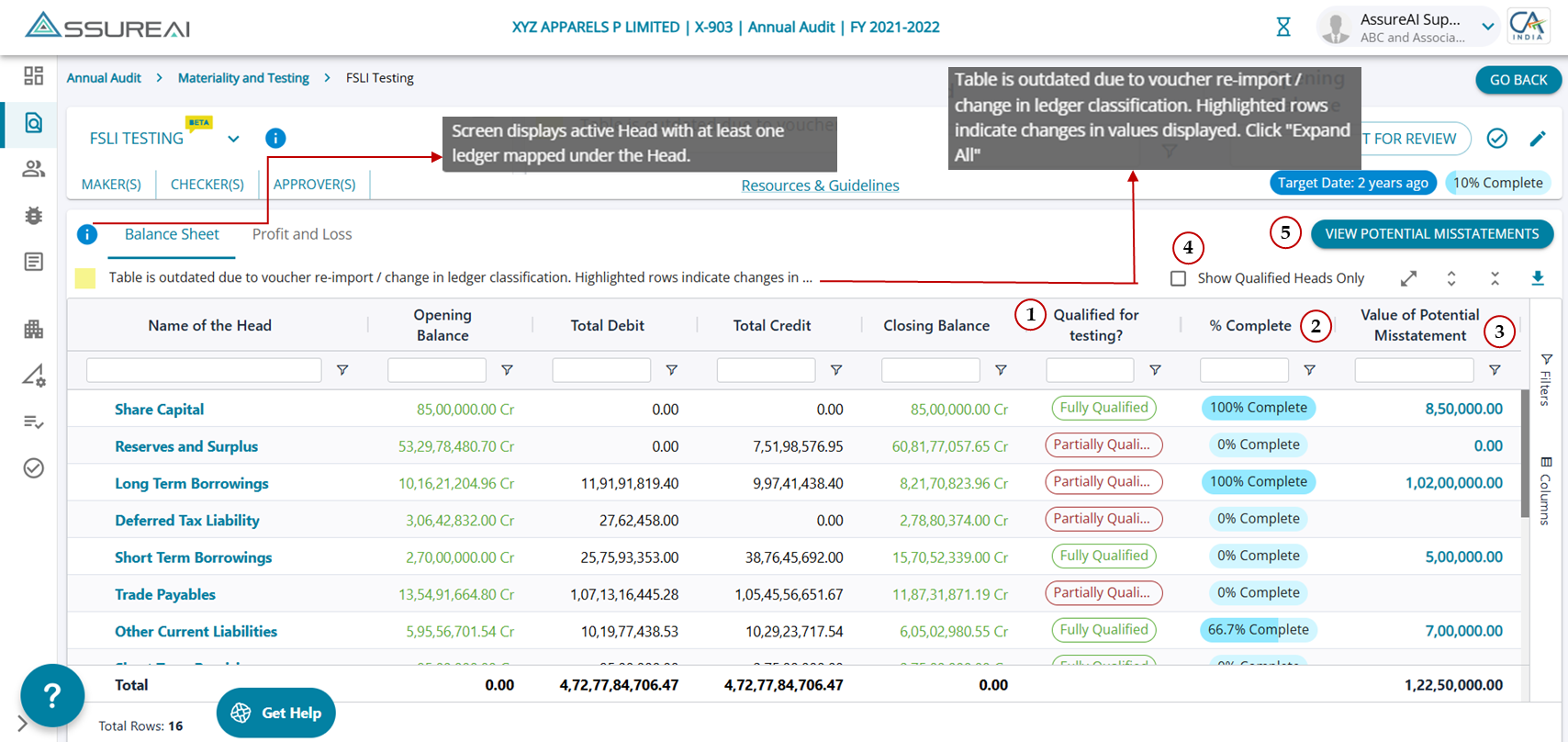
- The table lists all Heads under Balance Sheet and Profit & Loss in separate tabs.
- All Heads are hyperlinks. Clicking a Head name will take the user to the next tab - Drill-down to subhead - "Testing of FSLI".
- The screen will list only Active Heads, wherever there is at least a ledger mapped under the Head. The (i) button displays a tooltip indicating it: " Screen displays active Head with at least one ledger mapped under the Head."
- Values will be displayed for each head in the TB format with Opening Balance, Total Debits, Total Credits, and Closing Balance.
1. Qualified for Testing: The column can have the following options : (i) Fully Qualified, (ii) Partially Qualified, (iii) Not Qualified
- Fully Qualified: The Head is marked as Fully Qualified if all the sub heads under the Head are Fully qualified for FSLI testing.
- Partially Qualified The head is marked as partially qualified if even one of the subheads is marked Not qualified
- Not Qualified The head is marked as not qualified if all the subheads are not applicable for FSLI testing.
2. % Complete: Real-time updation of % completion of all Subheads, Ledgers, and Transactions that are applicable for FSLI testing.
Only subheads that are Fully Qualified for Testing (yes) contribute to status calculation (% completion)
Computation Logic ( % completion)
Numerator: No. of Subheads ( fully qualified for testing) where "Tested (Yes/ No)" is marked as Yes
Denominator: No. of Subheads ( fully qualified for testing)
3. Value of Potential Misstatement
The amount displayed is a hyperlink.

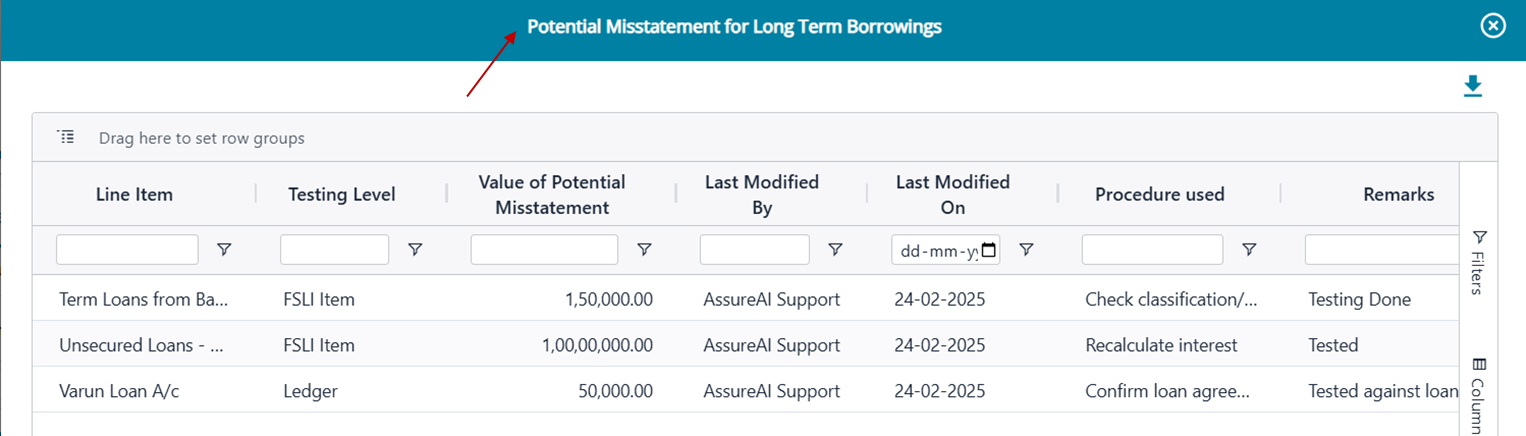
- On click of the hyperlink (Amount of Potential misstatement), the breakdown of the amount will be shown in a pop-up screen:
- The amount displayed in this field is a summation of misstatement amounts from the Subheads/ Ledger level. Amounts entered in total at the FSLI and Ledger levels will be added together to be displayed here.
- Only the line items where the is a PMS amount entered by the user (marked as Tested Yes or No), will be listed on his screen. Not all FSLI items / ledgers within the head will be listed here.
4. Show Qualified Heads Only
- The checkbox can be selected by the user to filter only Heads that are classified as "Fully Qualified" or "Partially Qualified" for testing.
- The non-qualified Heads will be removed from the screen.
- For partially qualified rows , the numbers will be refreshed to indicate only the pertinent values from the child levels.
5. View Potential Misstatement
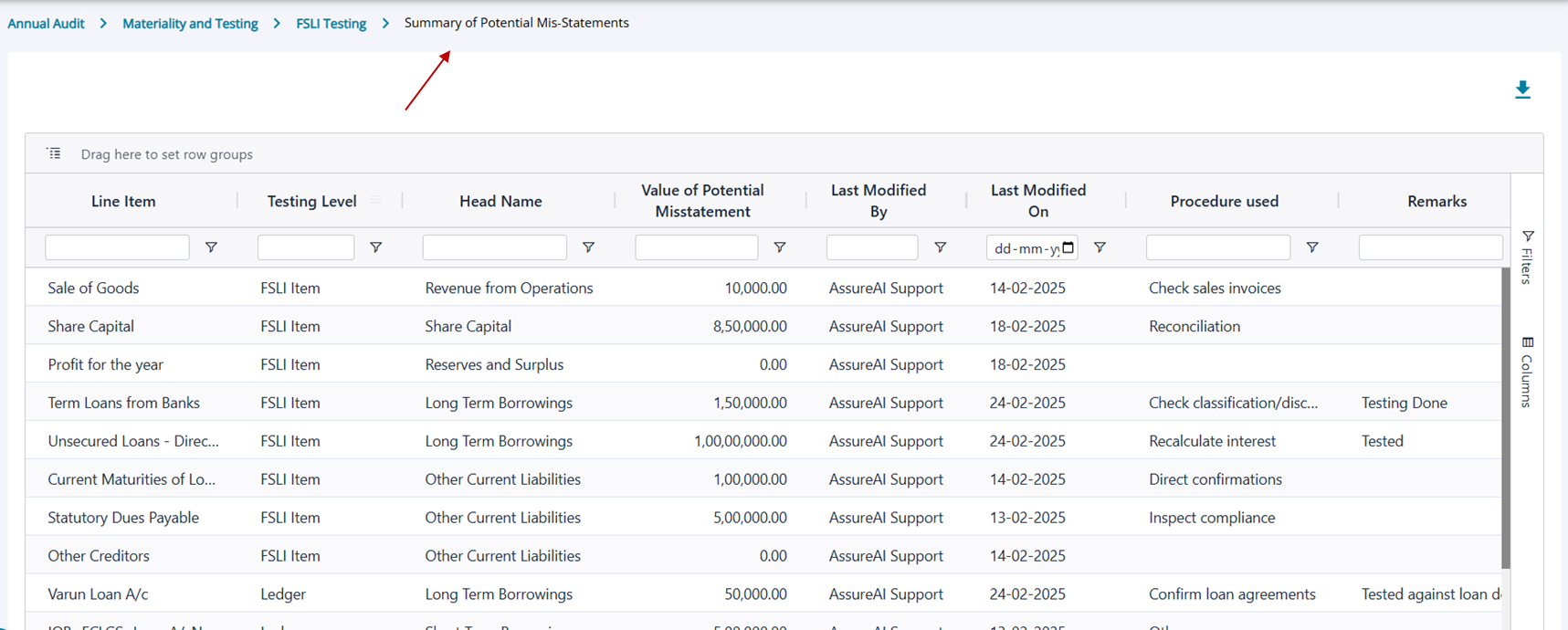
- When the link "View Potential Misstatement" is clicked, the Summary under the Balance Sheet / Profit & Loss Statement is displayed with details at Subhead (FSLI Level) and Ledger.
- The user can drag and rop column heads to group the results and view the details.
Alternate Process flow when the Table is outdated
If there has been case of Voucher re-import or Ledger Re-mapping then there arises a scenario where the values previously displayed on the table based on which the PMS amount was entered by the user; have changed.
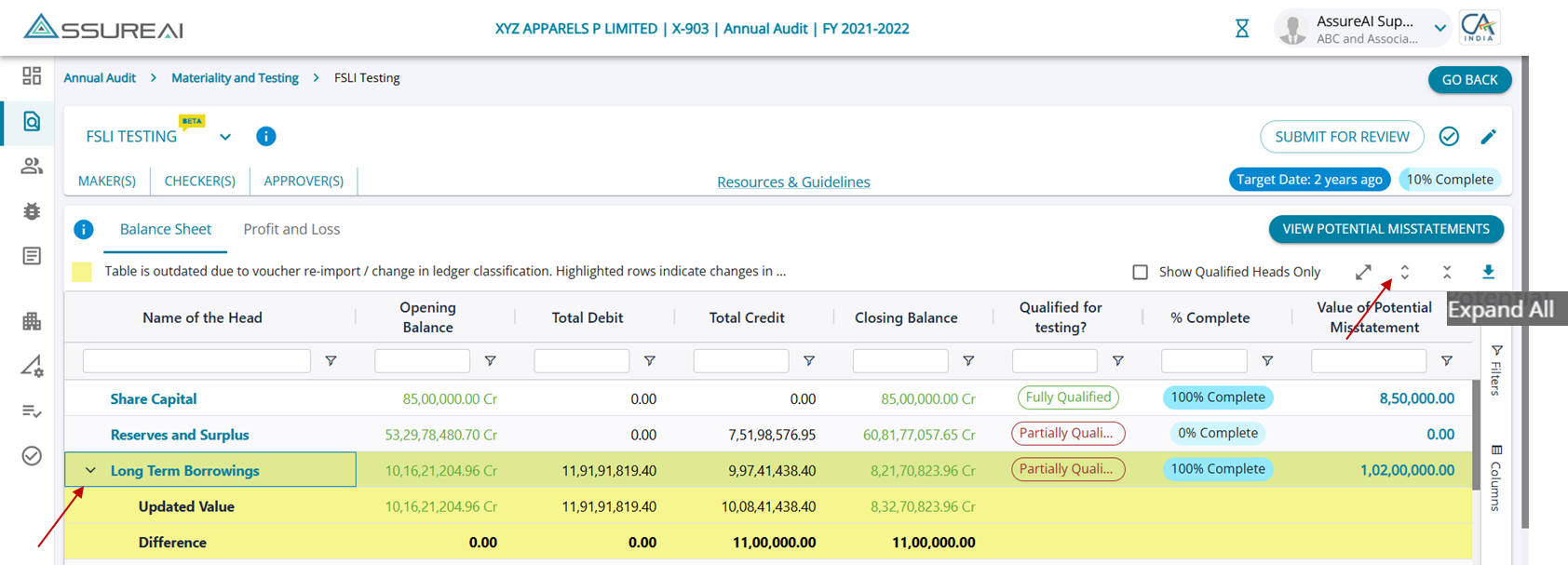
If for the heads displayed on this screen there has been change in values, then the row will be highlighted in yellow , indicating the values have hence changed.
A nested display is given for all the heads highlighted in yellow. When a user clicks on the " Expand All" button, the nested view is expanded. The nested view displays 2 rows within :
(i) Updated Value : The new set of values for the Head will be displayed
(ii) Difference: The difference between the existing values in the table and the updated values. The difference will be an absolute value without Dr. or Cr.
For rows not highlighted in yellow, there will not be any nested view
Once the change is accepted at a child level ( Subhead / Ledger level), the yellow highlight will be removed for the respective rows on the head view screen, also.
No action can be taken for accepting changes from the Head level screen; changes can only be viewed.
For row highlighted in yellow the field "Qualified for Testing?" will be updated with the current status of the line item , if there has been a change in the testing qualification for the line item the new status will be reflected.
FSLI Level Testing : https://assureai.productfruits.help/en/article/fsli-testing-sub-head-level-testing
Ledger Level Testing: https://assureai.productfruits.help/en/article/fsli-testing-ledger-level-testing