
AssureAI Release Note – December 2025 [Annual Audit (Preaudit) Enhancements - Phase 3]
So What's New !!
This release introduces several new capabilities designed to streamline workflows and enhance productivity. Key additions include:
- Binder feature for consolidating all deliverables into a single, unified PDF (Premium),
- Configurable Account Copy Categories for non-corporate clients,
- Single-click ITR downloads integrated with CompuTax.
- Premium users also benefit from enhanced Task Management features and the ability within the Load Audit Program module to raise and track Issues for better audit control and visibility.
Along with new features, this release delivers important enhancements and bug fixes across core modules to improve accuracy, performance, and user experience. Updates include
- Refinements to Annual Audit preliminary tasks,
- Improvements in the Financial Statement review process, ensuring smoother and more reliable day-to-day operations.
This release delivers usability enhancements and stability improvements across key modules, including a new shortcut for faster ledger addition in Voucher Entry, refreshed and improved export options for Comments and Disclosures, and a more printer-friendly Excel signature area. The update also enhances handling of complex Preference Share scenarios and includes multiple bug fixes and refinements driven by client feedback.
---------------------------------------------------------------------------------------------------
I. New Feature
1. Binder
Users can now configure a binder template for any assignment type and generate a combined PDF containing all required deliverables.
The binder automatically:
- Merges files in the defined sequence
- Inserts continuous page numbering
- Generates a dynamic Table of Contents
- Produces a downloadable, ready-to-share PDF booklet
This ensures standardized, audit-friendly documentation across engagements.
Binder - Configuration

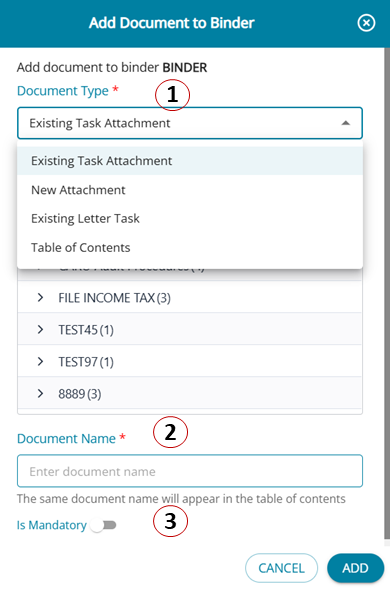
- The Document Type field allows users to select and configure the attachments that need to be included in the binder — such as the Table of Contents, Cover Page, New Attachments, and Existing Attachments from various tasks under the chosen assignment type.
- The Document Name field allows users to specify the name under which the selected attachment will appear in the binder.
- And the attachment can be marked as mandatory or not.
A default table of Contents can be added to the Binder.
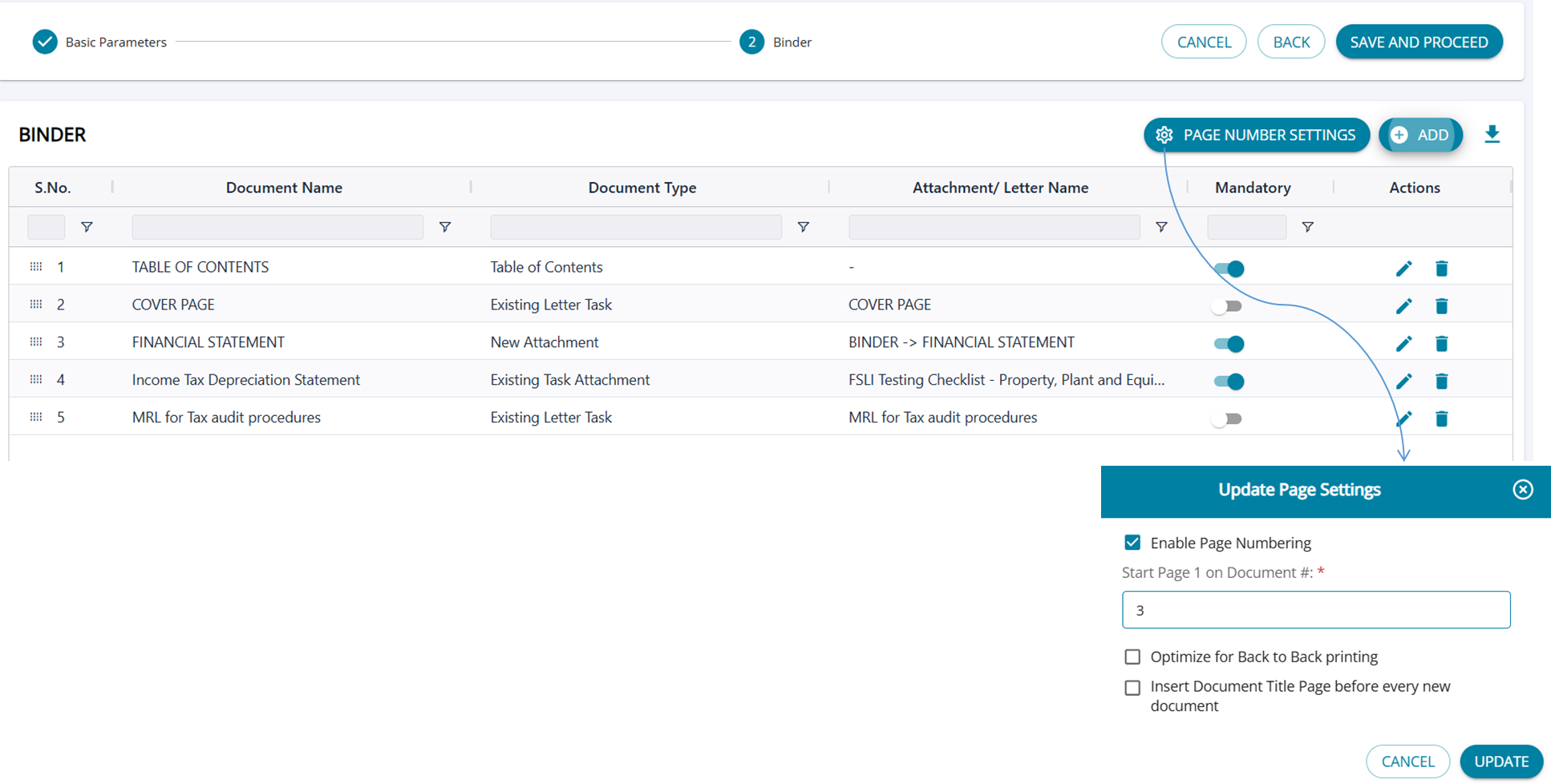
- All the configured documents are listed in a table format, allowing the user to review the additions.
- Documents can be edited, updated for mandatory status, or deleted.
- The display order can be rearranged using a drag-and-drop feature.
- Page number settings allow users to choose whether to include page numbers and to specify the document from which numbering should begin.
Binder - Generation
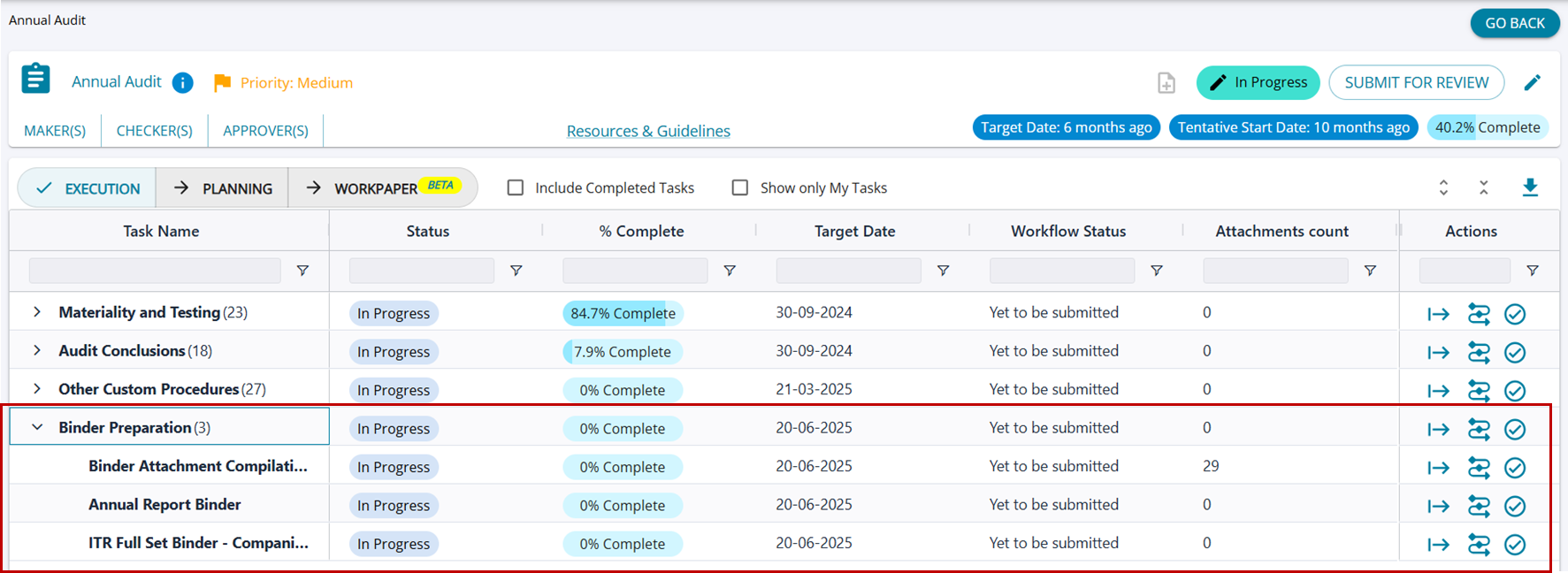
Once marked as applicable from the planning screen , similar to every other task the Binder task will also be available under the execution screen.
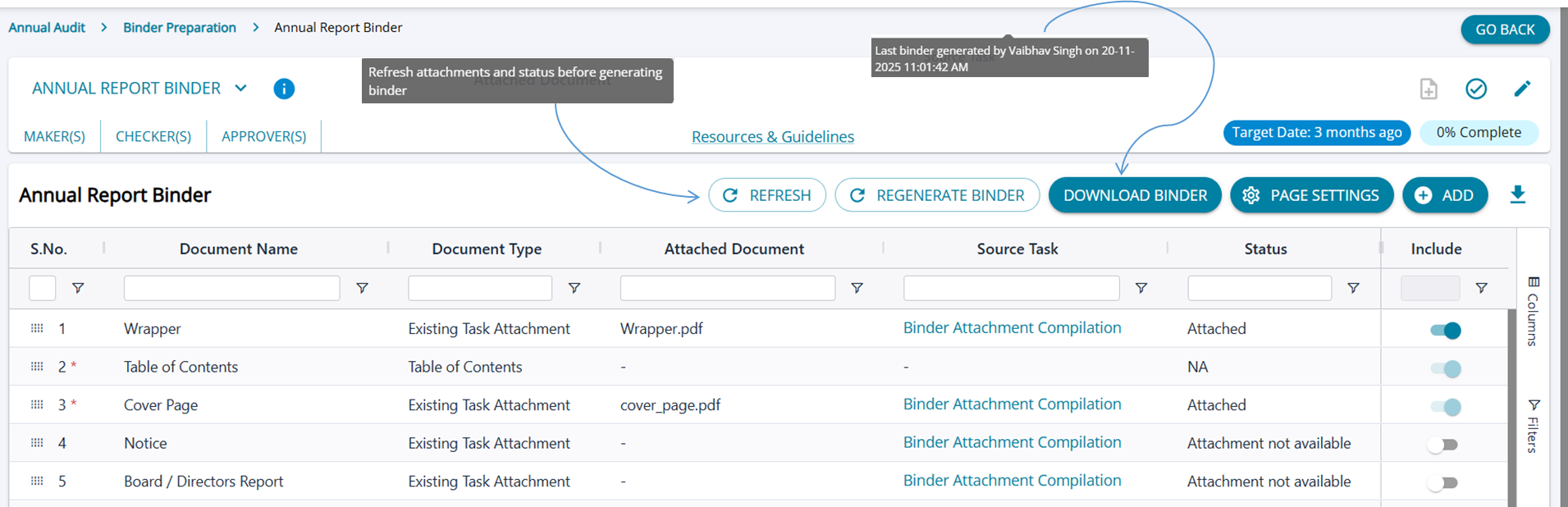
- The task displays the list of all configured attachments, and users can add additional attachments directly from the generation page as well.
- The Document Type and Document Name details are shown based on details from the configuration page. Wherever a document has an attachment it is displayed and a link for the source task is also displayed.
- For documents with no attachments, or with attachments in an invalid format, the source task link allows users to navigate to the task and update the attachment from this screen itself.
- The status column shares an update to the user about the status of task and new and existing attachments
- Once all attachments are uploaded into the respective document names, the binder an be generated and re generated multiple times into a single PDF.
2. Configure Account Copy Categories
The Account Copy Data Entry page enables users to classify vouchers under predefined categories for Non Corporate Clients - Firms, AOPs( Association of Persons) , HUF ( Hindu Undivided Family) .
The enhancement will allow users to independently configure and manage categories for both Debit and Credit transactions, giving them full control to create, edit, or organize categories based on their operational needs.
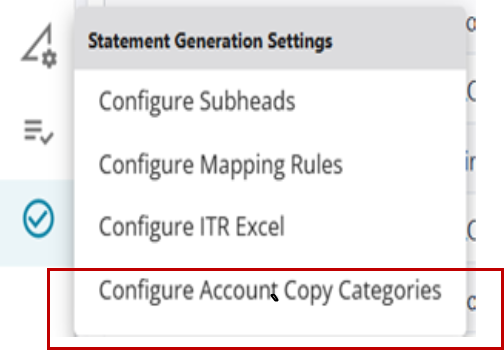
New Categories can be set up from the ‘Statement Generation Settings’ by selecting the ‘Configure Account Copy Categories’ option.
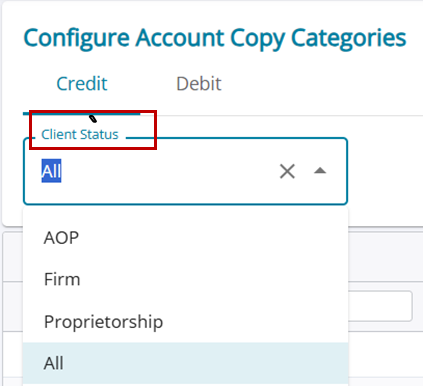
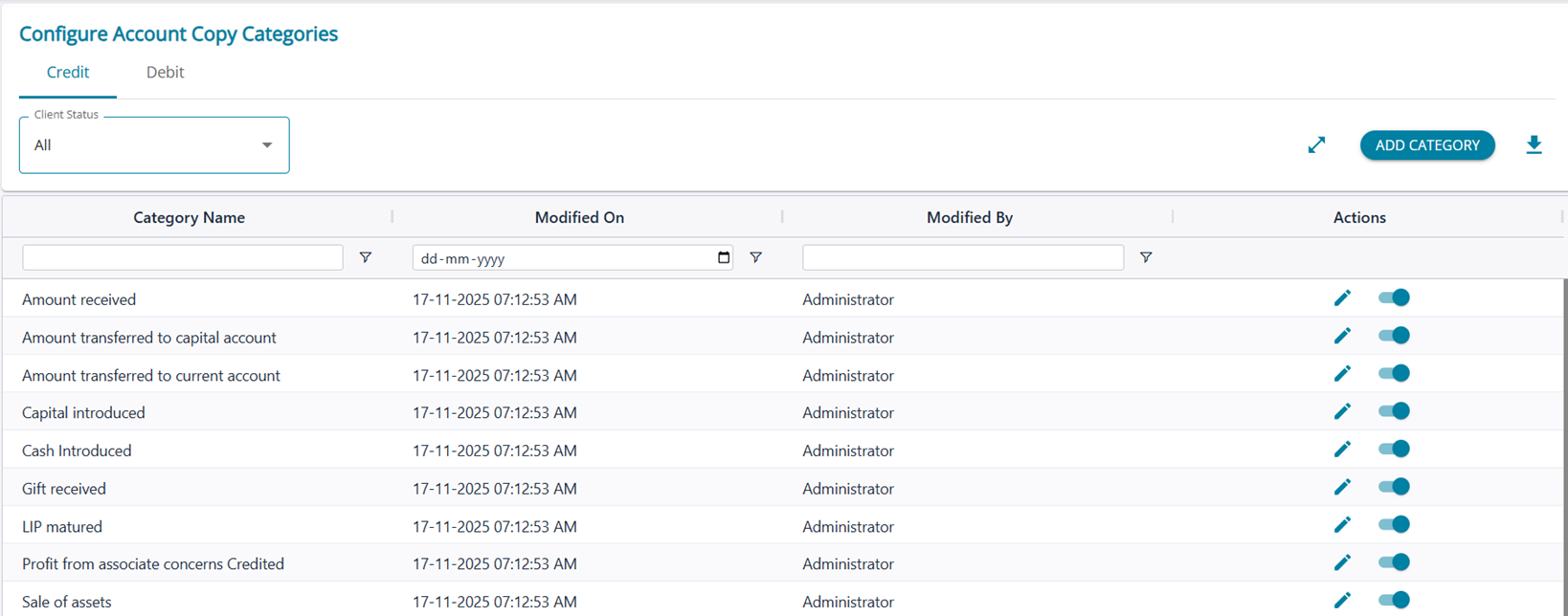
Additional categories can be created at any time by clicking the ‘Add Category’ button.
All newly added categories from this screen will automatically appear in the Account Copy Data Entry feature under Statement Review on the Annual Audit Landing Page, with the ‘Classification’ field drop-down now reflecting the newly configured categories to be included in the statement.
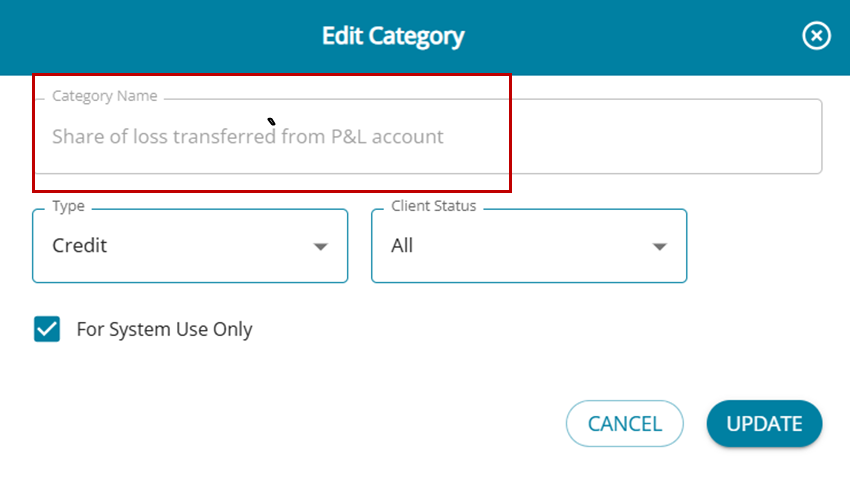
The ‘Edit’ button allows user to edit category by changing the type between ‘Debit/ Credit’ and changing the Client status.
The ‘For System Use Only’ checkbox will be automatically selected for certain categories set up by AssureAI, and the option to choose this category for transactions (debit & credit) is applicable only for entries passed by AssureAI ( System Vouchers).This category will not be allowed for use in entries that are imported through the books of accounts.
If the user wishes to use these categories for imported transactions as well, the checkbox can be un-selected and used.
The checkbox will be un-selected by default for all manually added categories.
3. Single Click ITR download for CompuTax
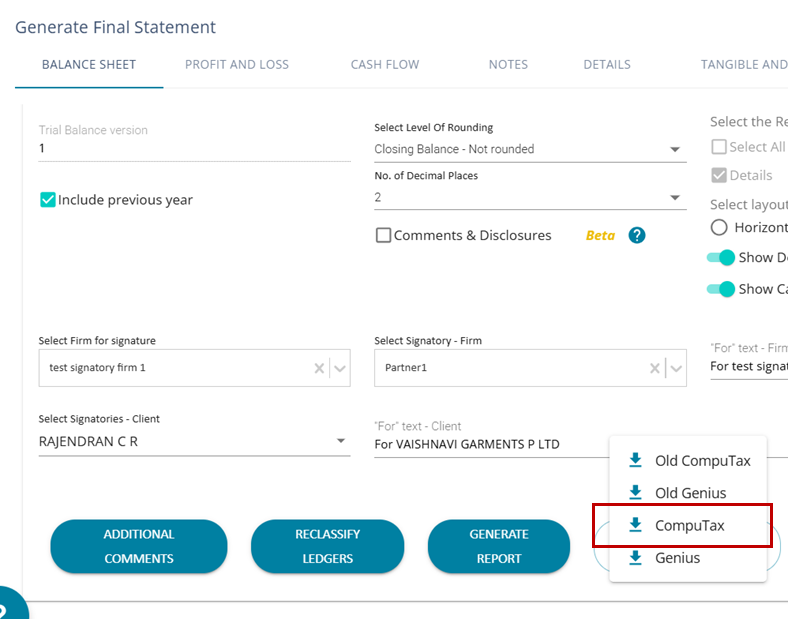
The Computax format can be configured from the ‘Configure ITR Excel’ feature.
Under Final Statement Generation > Generate ITR Excel,
The previous option “Computax” to download Trial Balance has now been renamed “Old Computax ”.
The option “Computax” will now download a full-fledged ITR Excel with multiple sheets of required information.

II. Enhancements to Annual Audit Preliminary tasks
1. Edit/ Delete Manual Ledgers
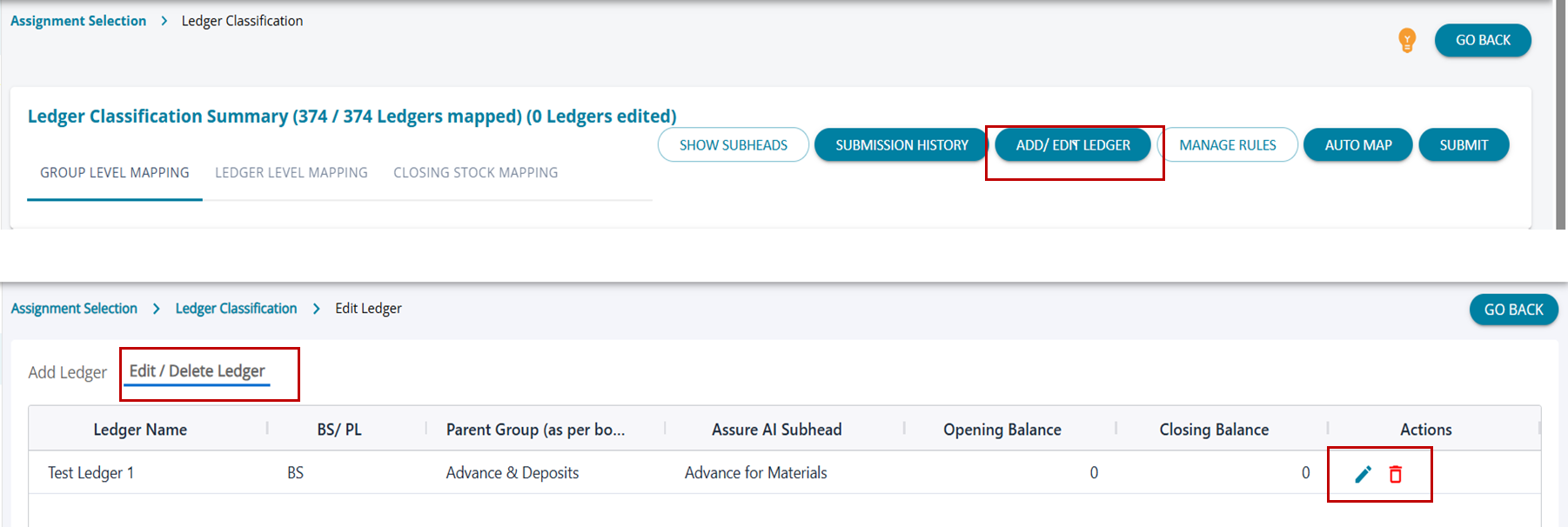
The ‘Add Ledger’ button has been changed to ‘Add/ Edit Ledger’ allowing users to edit and delete the manually added Ledgers. Manual Ledgers can be added from the ledger classification page or from the Voucher entry page and can be edited/ deleted through this enhanced feature.
2. Additionally the constraint that special characters cannot be included in the names of the manual ledgers has been rectified. Now the ledger name can contain all characters, barring a few like <, > etc.
3. Ledgers that are added can be deleted when they have ‘0’ balance.
2. Ledger Mapping Submission History
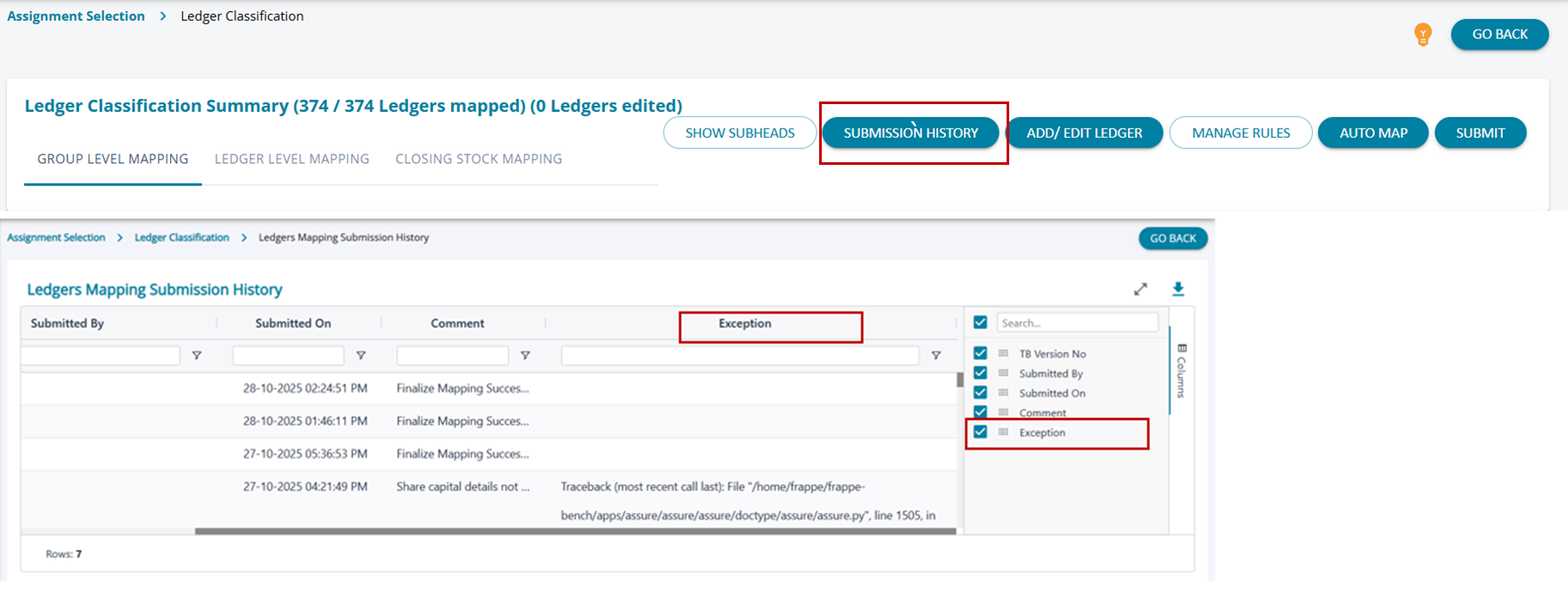
A new button ‘Submission History’ has been added to the ledger classification screen to list all previous submissions for the assignment. A hidden column ‘Exception’ has been included in the Ledgers Mapping Submission History table.
Comment column shows the user-friendly error message and the ‘Exception’ column shows the system error that can be reported to the Support team.
 3. Data Validation - Screen
Version History
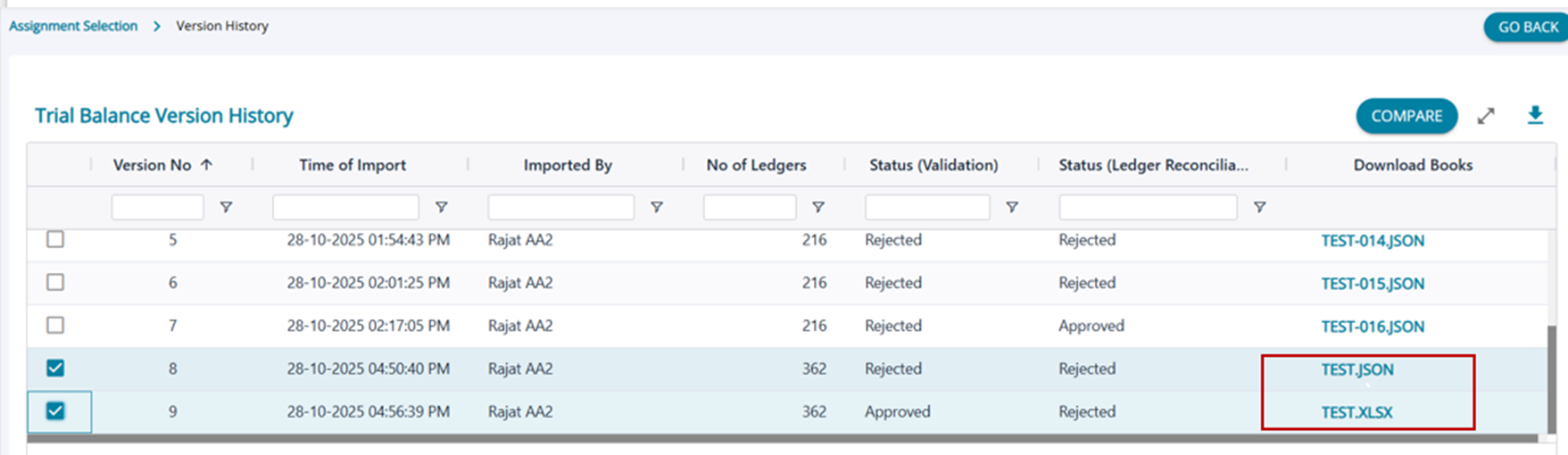
Users can now download books of accounts imported for each and every version imported, in all formats ; JSON, ZOHO and Excel imports from the version history page.
The JSON / Excel downloaded here is the originally imported version and will not include the ledgers and vouchers added manually within AssureAI
Other minor changes for better user experience :
- Compare button has been to the top of the screen but better visibility in the Trial Balance Version History table
- On Data Validation screen, the ‘Download Books’ button clearly indicates that users can download the last upadted JSON
4. Bug Fixes - Annual Audit Preliminary tasks
1. Data Validation - When users imported books of accounts from ZOHO, the trial balance export from AssureAI was duplicating all the line items in the Trial Balance - Fixed
2. Ledger Reconciliation - System was defaulting ‘Approved’ status for Ledger Reconcilaition even without the user click on the ‘Submit’ button on the reconciliation screen. - Fixed ; system will no longer update status unless approved or rejected by user.
III. Enhancements to Statement Generation
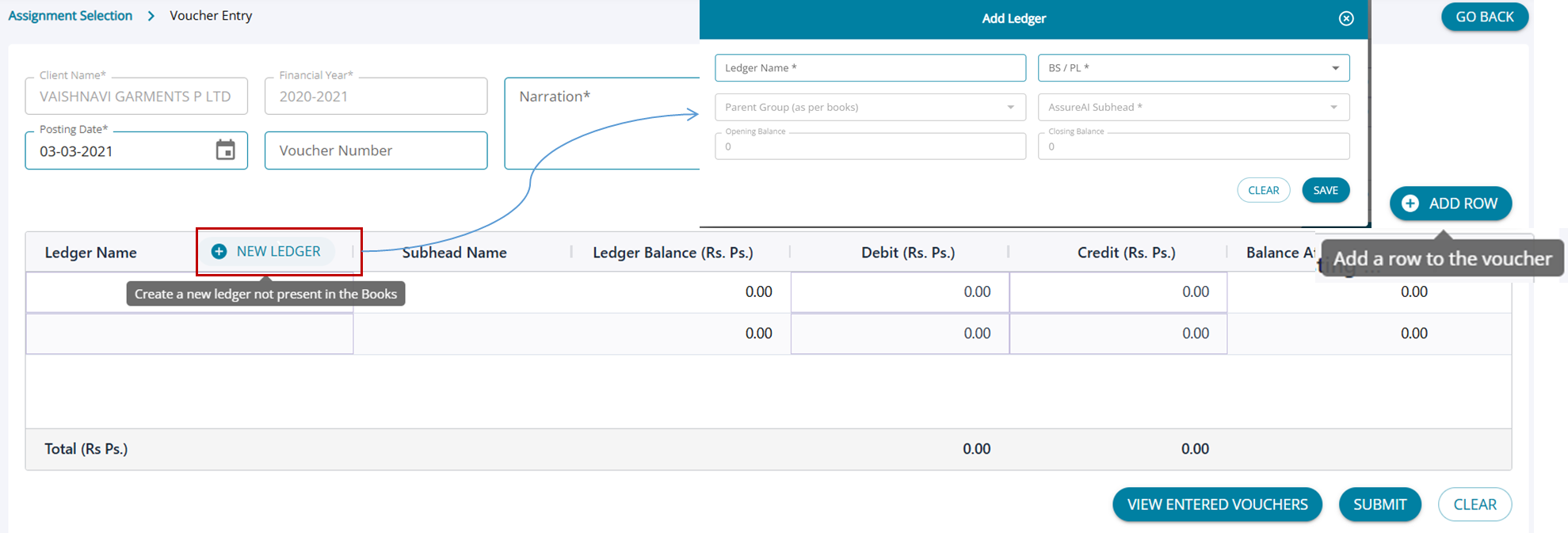
1. Voucher Entry - Add Ledger from Voucher Entry Screen
A new button has been added for adding ledgers from the voucher entry screen directly and users now need not go to the Ledger Classification screen each time.
While adding new entries , missing / required ledgers can be added and mapped to required subhead from the voucher entry screen itself. The manually added ledgers can be edited / deleted if required from the Ledger Classification screen.
2. Comments & Disclosures
Refresh Button
Once a user has already saved a category of comments and disclosures for an assignment, subsequent addition of sections / templates in the master were not visible in the assignment.
A ‘Refresh’ button has been added for the users to include new sections / templates added in the Master data tables to previously started assignments.
 Export Button
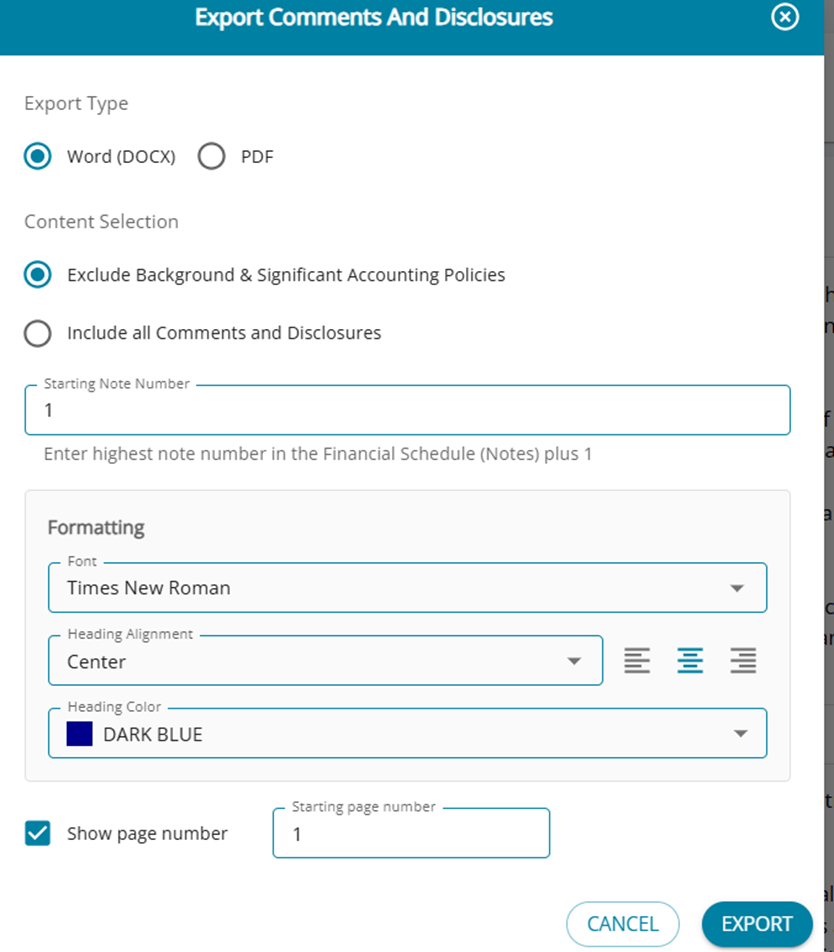
1. The export process has been revamped to include several new features, allowing users to generate the entire set of comments and disclosures as a PDF in addition to DOCX .
2. Users can choose to include or exclude Background and Significant Accounting Policies through a simple checkbox.
3. Additional formatting options—such as font style, heading alignment, font color, and the ability to add page numbers—have also been introduced to enhance the final output.
3. Preference Shares : Multiple Upgrades
1. Division-Specific Comments Handling
Additional Comments recorded at the Consolidated division are now restricted to that division and no longer appear at the Head Office or Branch levels.
2. Consistent “Fully Paid-Up” Identification for Preference Shares
The system now uniformly displays the label “Fully Paid-Up” whenever the Face Value per Share = Paid-Up Face Value per Share, irrespective of the Issued vs. Subscribed share comparison.
3. Enhanced Edit Capability for Preference Share Type Names
Users can now modify incorrectly entered Preference Share Type names using the Edit function without limitations.
4. Improved End-Date Validation for Share Capital Entries
The system now permits users to set the end date of an existing Preference Share Capital entry equal to the last finalized period end date (i.e.) end date = last finalized date.
5. Accurate Notes Display for Ended Share Types
Preference share types that ended in a previous financial year now appear appropriately in the Notes section, even if they are not part of the current year.
4. Bug Fixes - Statement Generation
1. Statement Generation :
- ‘Copy from Previous Year’ was not working when the user required to copy additional comments from previous year - Fixed
- Partner Account Copy - While listing ledgers mapped to Proprietor's Capital Account and Proprietor's Current Account the system at times was listing ledgers names in the statement not pertaining to the current year period but ledgers mapped in previous years as well. - Fixed
2. ITR Excel :
- Under Bad Debts written off , the following keys weer not available in the OTR excel mapping feature : (a) If PAN is available , (b) Others [More than Rs. 1 Lakh] where PAN is not available , (c) Others [Amounts less than 1 lakh ] - They have now been added in the ITR Excel configuration
- In the Genius ITR Excel, sheets like "P&L and Other details", "Other_expenses", were displaying subheads with 0 balance as well - Fixed , to display only the subheads with non zero balance
3 . Ageing Analysis
While importing ledgers and details for Ageing Analysis, the ledgers with white spaces in the excel were failing to be updated into the table - Fixed 5.
5. Client Feedback - Bugs & Enhancements
Statement Generation Module:
- Comments & Disclosures: The contents of comments and disclosures when downloaded into an excel format displays the style tags in code format - Fixed
- Auditor & Client Signature Text in financial statement in the excel output were placed at different levels in different rows - Fixed now to be displayed in the same row
- Head level comments were not printed below the tangible/ intangible assets table and Owners funds table - Fixed
IV. Enhancements to Task Management
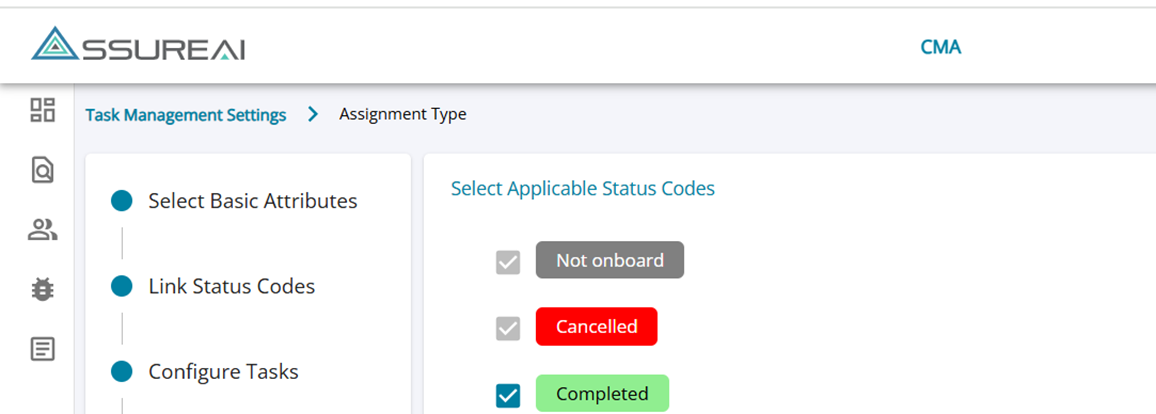
1. New Assignment Status “Cancelled”
- When an assignment type is created, two default status codes are always applicable: “Initial” (Not Inboard) and “Final” (Closed).
- A third status, “Cancelled”, has been introduced to handle assignments created by mistake and not taken up.
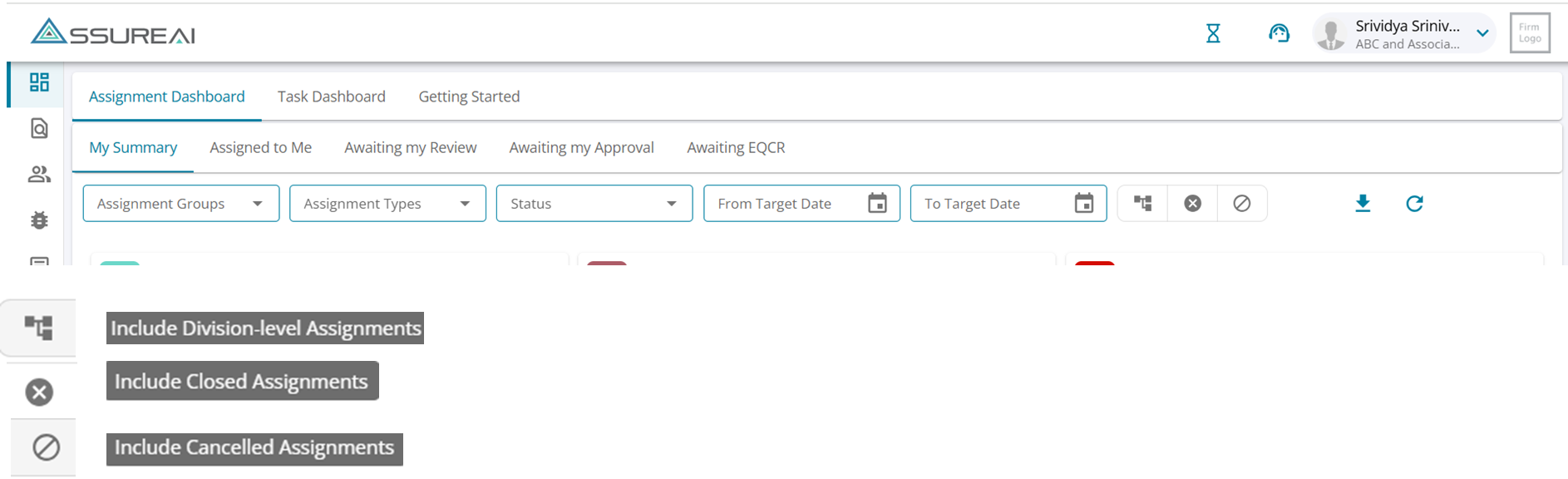
- Cancelled assignments are excluded from dashboard numbers by default, with an option to include them if required.
- When an assignment is cancelled for a client, no further assignments will be auto-planned by the system for that client.
- Cancelled status is not available for Annual Audit to avoid financial inconsistencies due to a break in assignment sequence (planned for future release).
- On the Task Management Settings screen for Annual Audit, the Cancelled status is disabled and cannot be selected.
2. Assignment Dashboard
Check boxes for including division level assignments , closed assignments have been replaced with buttons and a new button for including canceled assignments has been included on the dashboard.
Also for certain user roles - Audit assistant, Junior Audit Assistant, External Auditor, Task management user - the "contact us" option was not visible in the top bar of assure-web page . This has been fixed
3. Enhancements to - My Client
My Clients
The table will now include a column to indicate whether the client is a single or multi division entity.
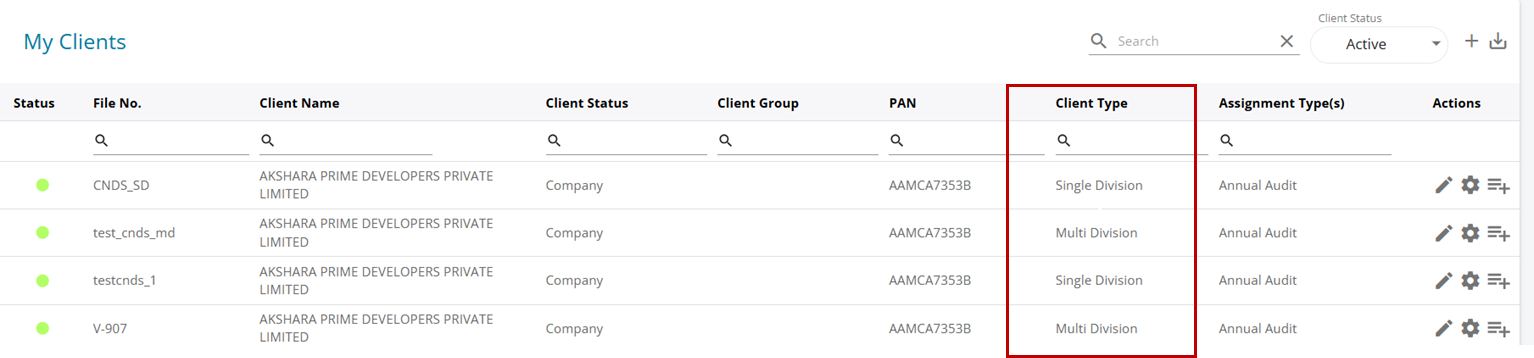
Client On-Boarding Screen
For client status Hindu Undivided Family (HUF) , the client data was being saved even without Authorized Signatory Name and Authorized Signatory Role - Fixed - Validations have been added to ensure client cannot be saved without these data

V. Enhancements & Fixes to Load Audit Program
1. Raise Issues
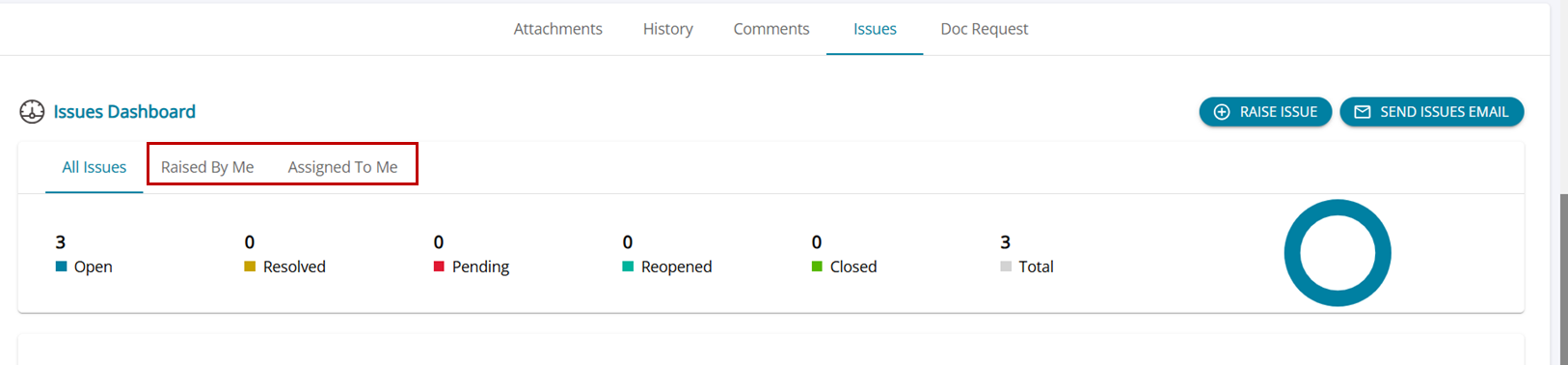
In the Load Audit program Issues tab, the UI currently provided only two tabs : "All issues" and 'My Issues'. To provide more clarity two new tabs have been added: 'Raised by me' and 'Assigned to me'.
Bulk Update of checkpoints in the checklists was displaying a blank screen to the uses - Fixed
When comments were copied and pasted with spaces , the workp paper displayed other characters in the comments section - Fxed
3. Task Management
Task-level attachments ( both mandatory and non mandatory ) were not automatically getting listed in the task in the load audit program screen when the task is started - Fixed
4. Load Audit Program - Raise Issues Module
- Upload file feature now has a maximum size limit of 10MB, for a file size bigger than that the system will share an error message and not accept the document. Only a few file formats are now not allowed, like .exe , .py , .db etc..
- Client Login - Issues Dashboard was displaying a mismatch in the number of issues actually raised to the number being shown in the summary - Fixed
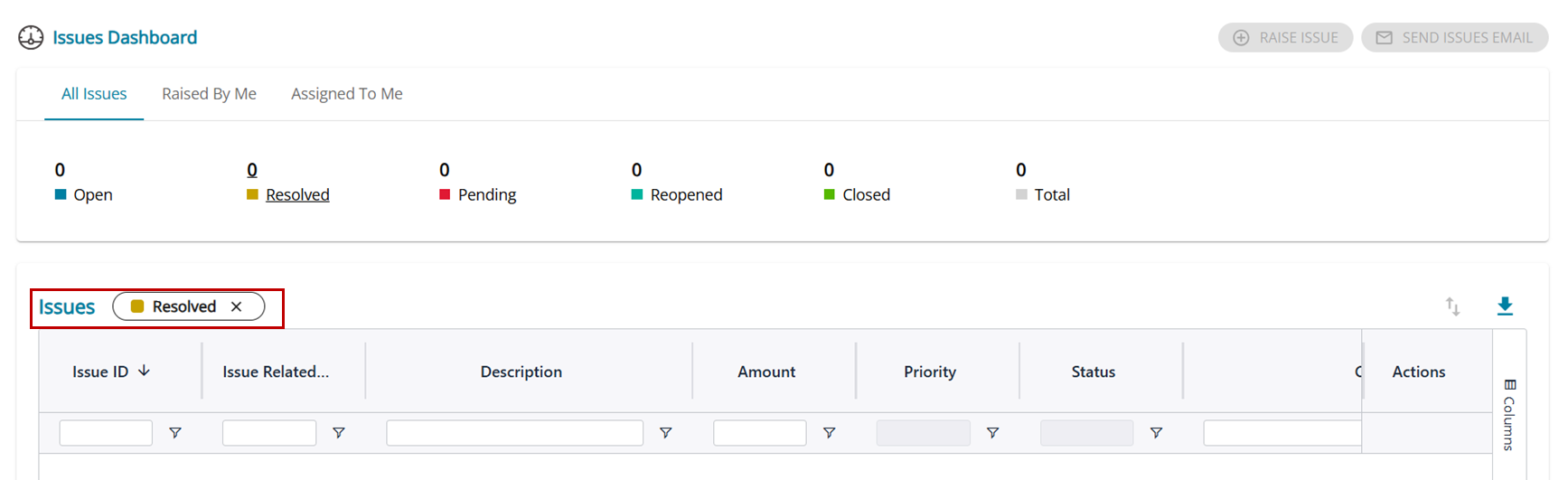
- Displays filter - User can filter on the type of issues , open, resolved, pending etc. and the same will be displayed on the top of the table indicating the list is filters according to choice .
*********