Configure Tasks
PATH - > Task Management Setting -> Annual Audit -> Configure Tasks
AssureAI comes preloaded with a comprehensive list of:
- Checklist tasks
- Letter tasks
- To-do tasks
- Follow-up tasks
- Special Tasks ( Determine Materiality, FSLI Testing, Identified & Corrected Misstatement)
- Binder
- Configuration for all these tasks is managed through the 'Configure Tasks' screen. Planning Mode displays all tasks that are configured from this screen.
- Only tasks marked as 'Active' will appear under Planning Mode. Inactive tasks can be activated at any time to include them in the workflow.
- Users can also configure their own Group Tasks and Sub Tasks as needed to customize the engagement process in addition to the default list of tasks
.Add NewTask
"Add New Task" button allows the user to add a new task of any type.

To reduce clutter on the “Configure Tasks” page users can choose to display only active tasks by default. The “Include inactive tasks” option, allows users to view deactivated tasks when needed.
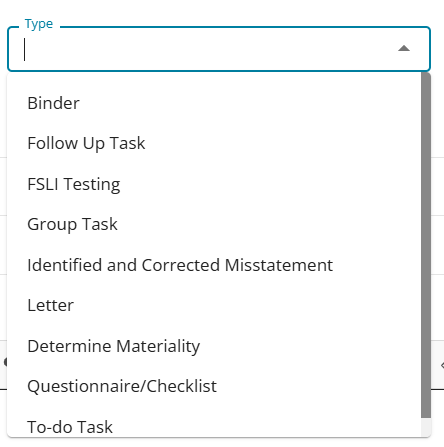
Step-1 requires the user to fill in basic parameters required to configure any task type that can be chosen from the drop-down list 'Type'.
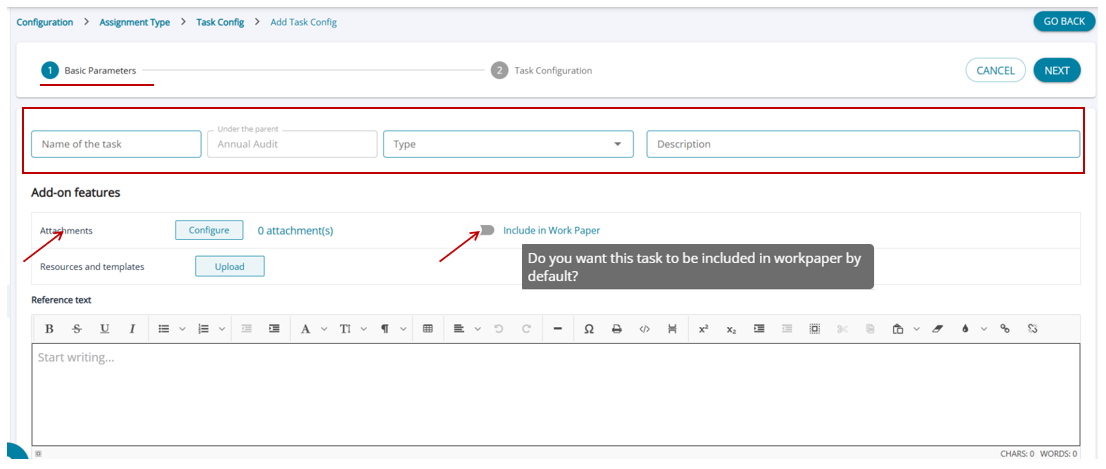
Users can create custom tasks in AssureAI. To create a task, the user can:
- Enter the task name.
- Select the task type from a drop-down menu.
- Add a description (optional) to provide context or instructions.
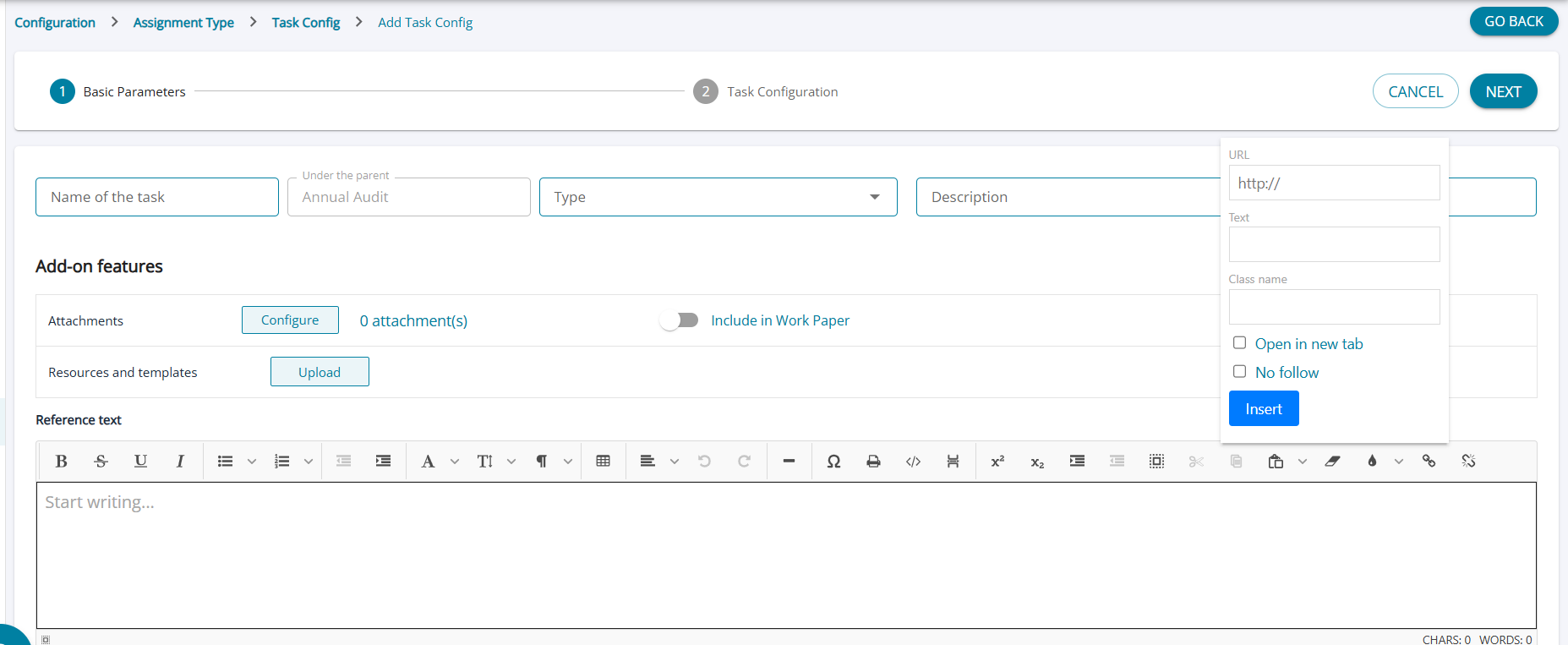
Under the 'Add-on Features' section, users can manage additional elements related to task documentation. The following items can be added:
- Attachments
- Resources and Templates
- Users can toggle applicability for each item to control whether it is included during workpaper generation.
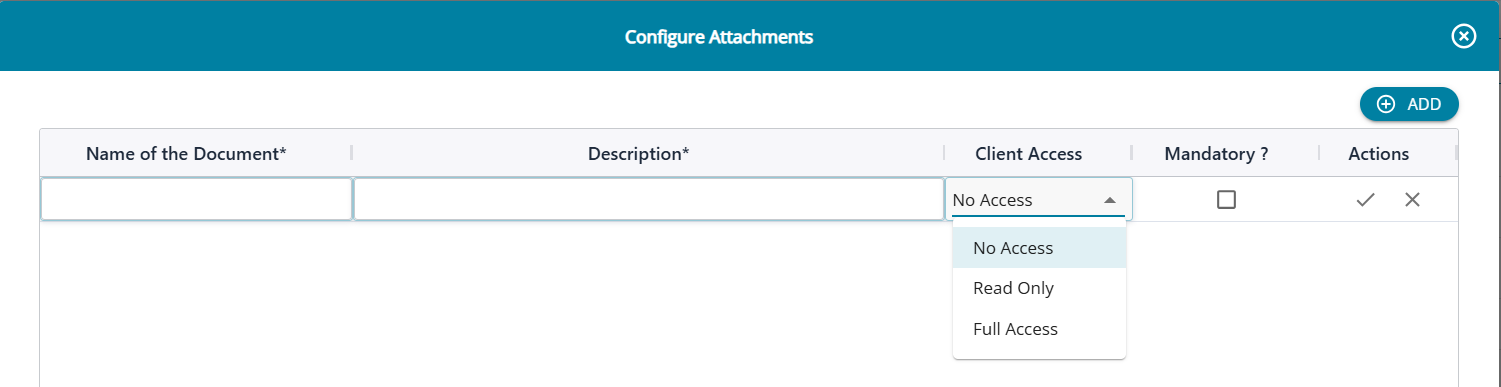
To add an attachment , users click on 'Add' and input required details and also grant access rights to the client.