
Additional Comments
In addition to the various comments and disclosures that are to be appended to Financial Statements, certain additional notes/comments need to go as part of the financial statement note section, for eg, various additional details to be given as part of the Note about Long Term and Short Term Borrowings, etc.
Additional comments can be added from the Notes section using the option available at the top. Comments can also be added directly beside a Head or Subhead by clicking the + button next to the respective name, which opens a pop-up window to enter the comments.
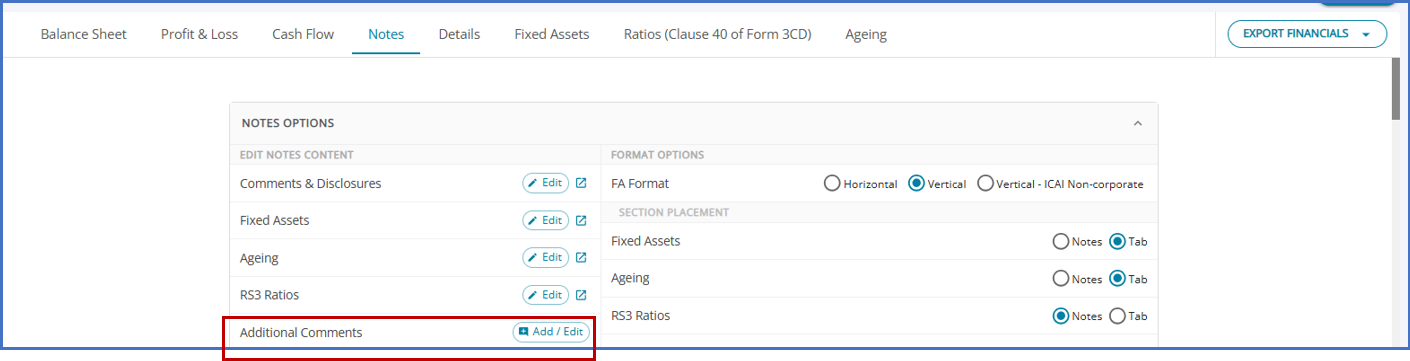
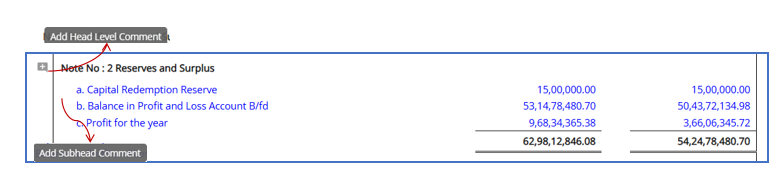
AssureAI allows users to enter additional comments at:
- Head Level
- Subhead Level
- Equity Shareholder Listing
- Preference Shareholder Listing
1. Head Level
The 'Add Comment' button allows users to add comments at a Head Level in the notes section of the financial statement.
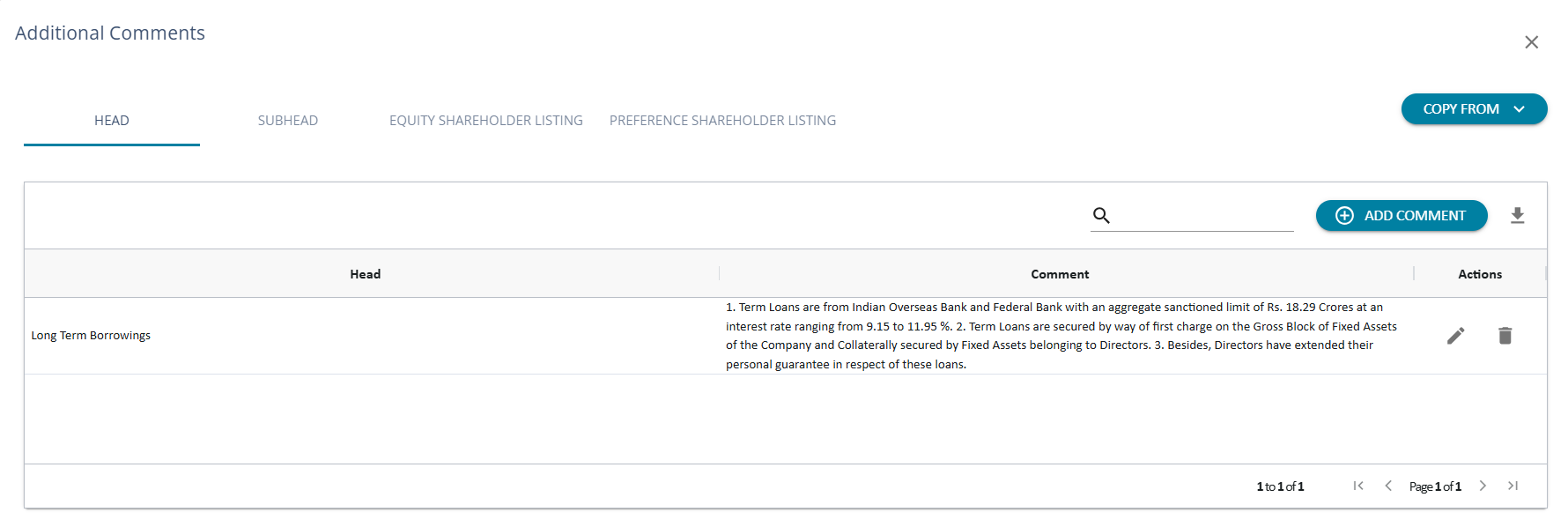
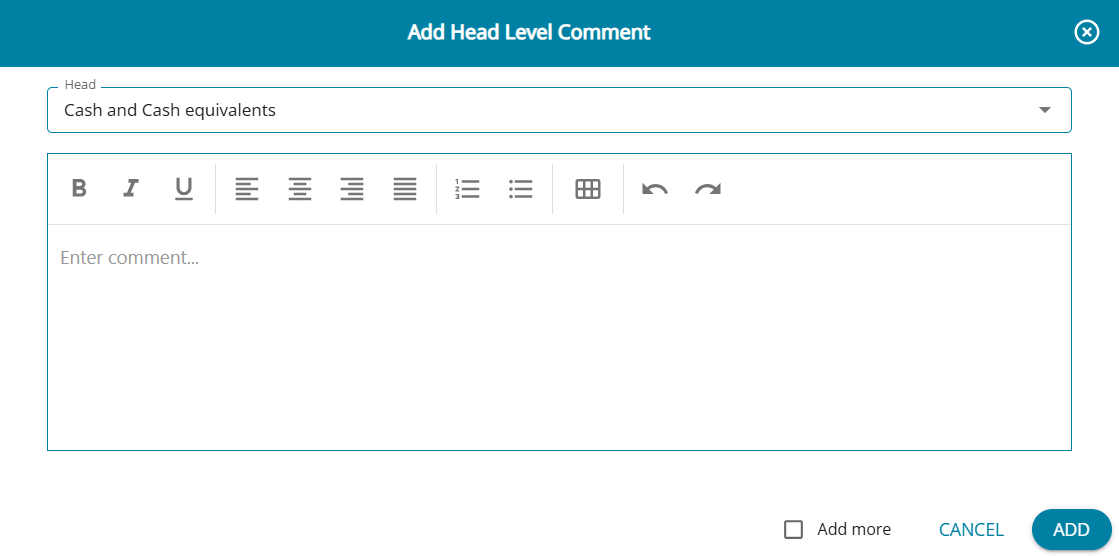
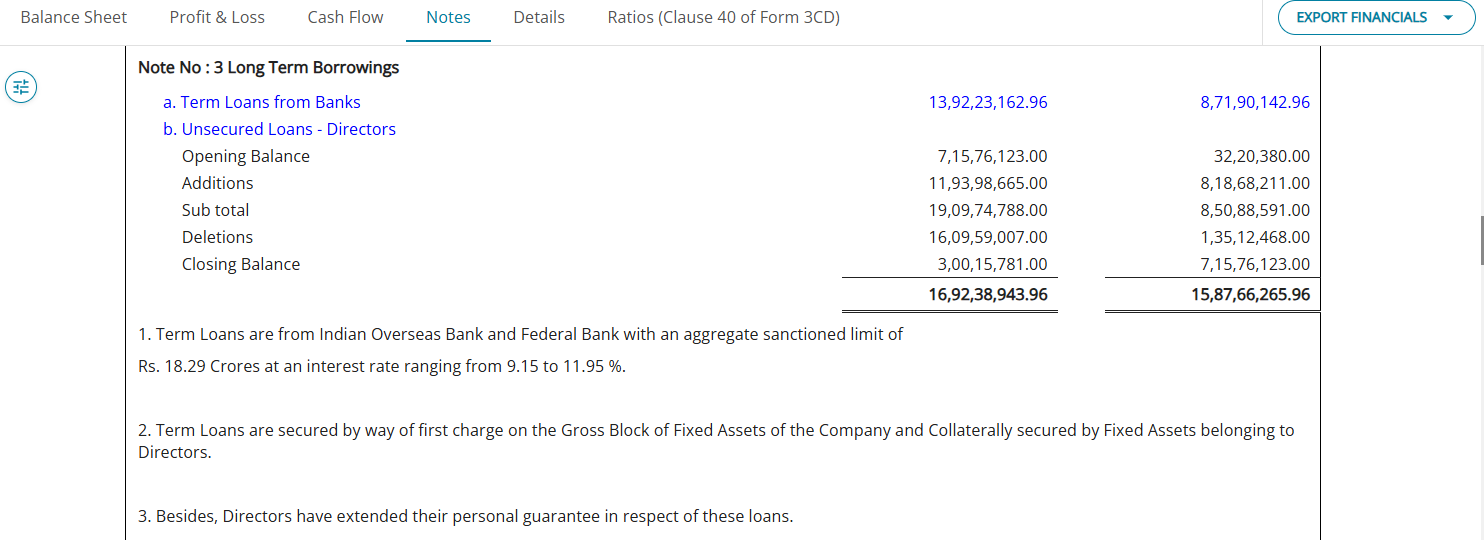
The drop-down lists all active Heads in the Financial Statement for which users can add comments.
2. SubHead Level
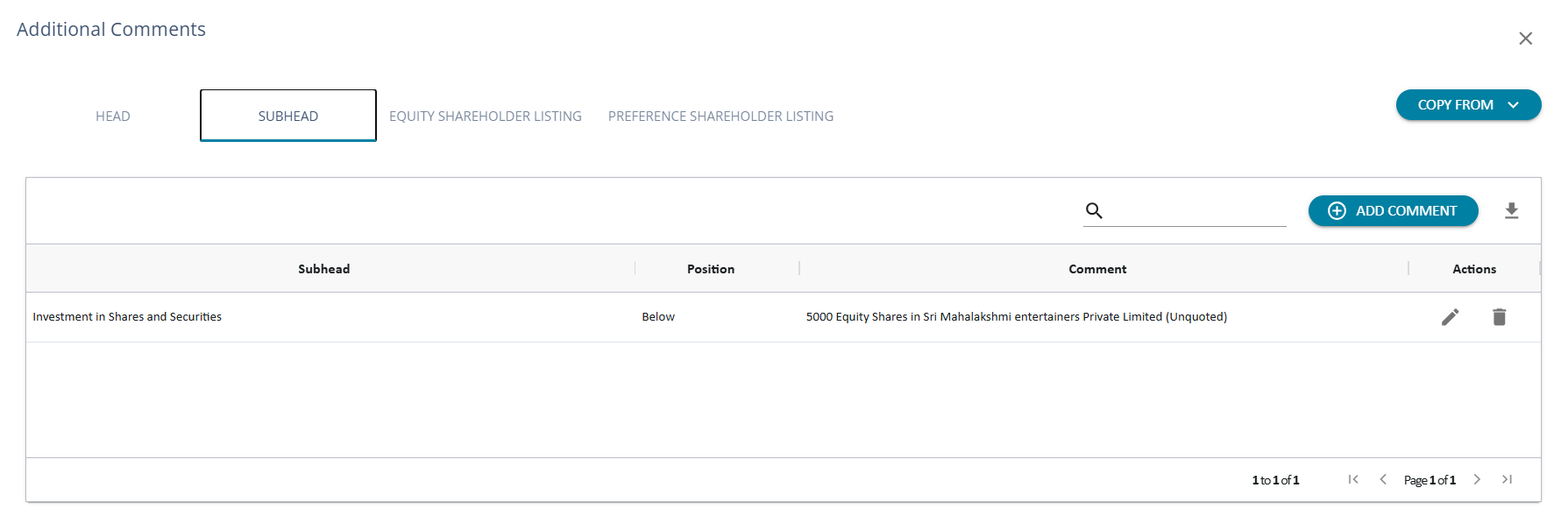
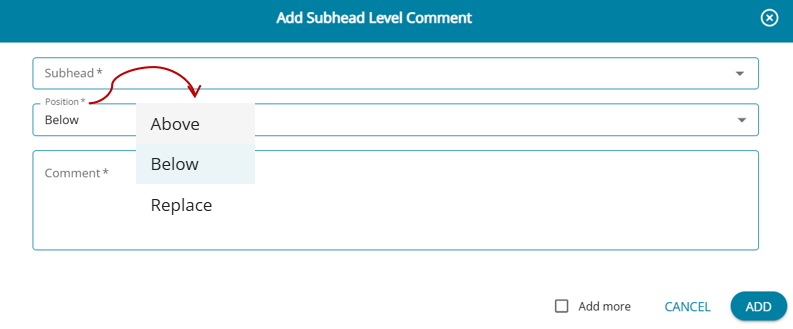
1. The user can add comments under ‘ Sub- Head Level’ and choose the sub-head under which the comments are to be displayed.
2. The additional feature for sub-heads in the position where the comments are to be displayed as Above , Below and Replace .
Comments can also be added at a Subhead level by clicking on the 'Add Comment' button.
3. Equity Shareholder Listing
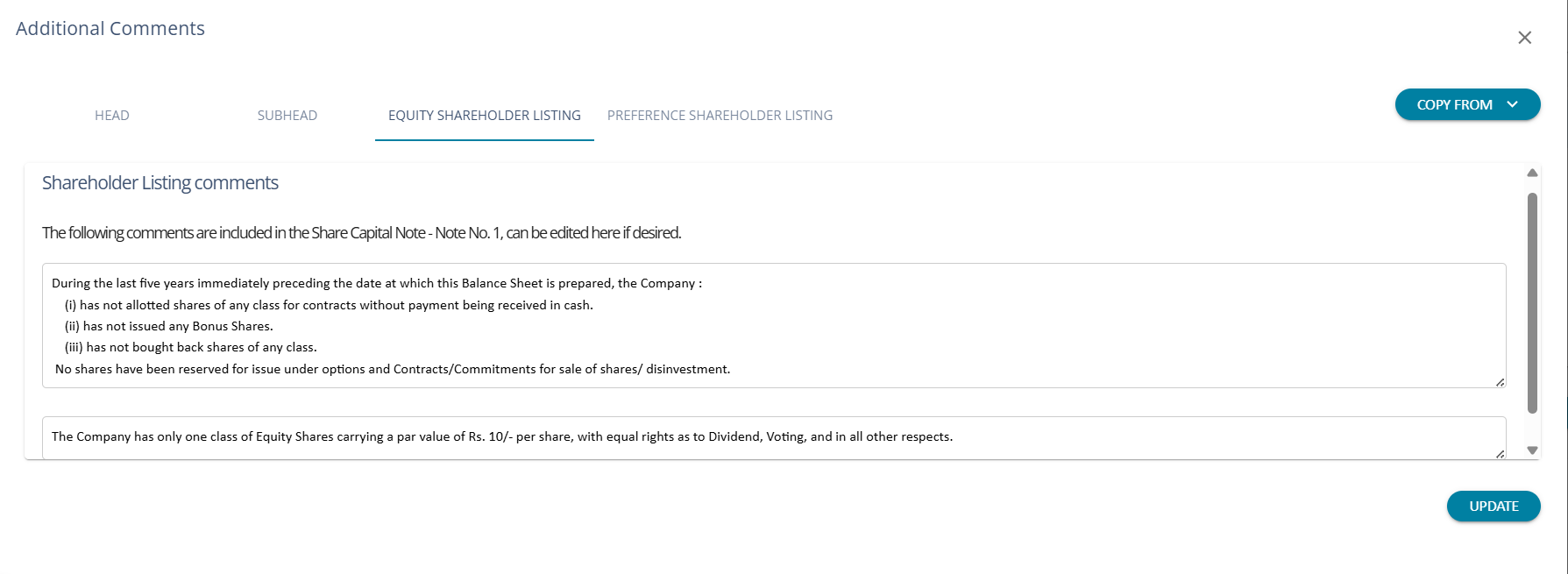
The share capital details for Note 1 can be entered into this section. Default comments are added to the section; however, if required, the user can change the comments.
4. Preference Shareholder Listing
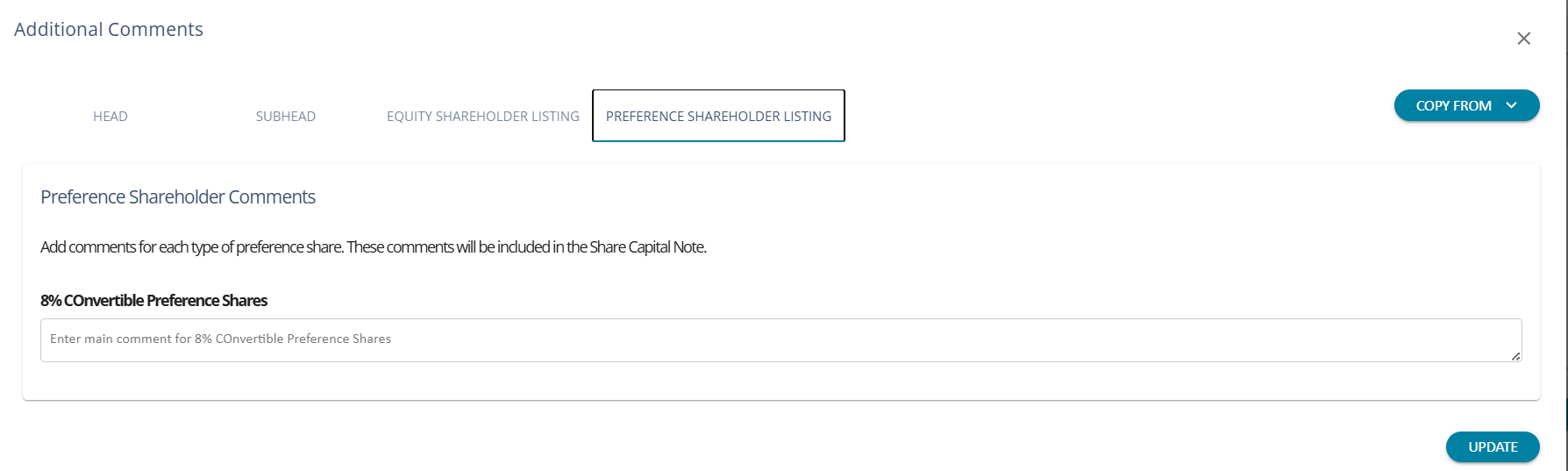
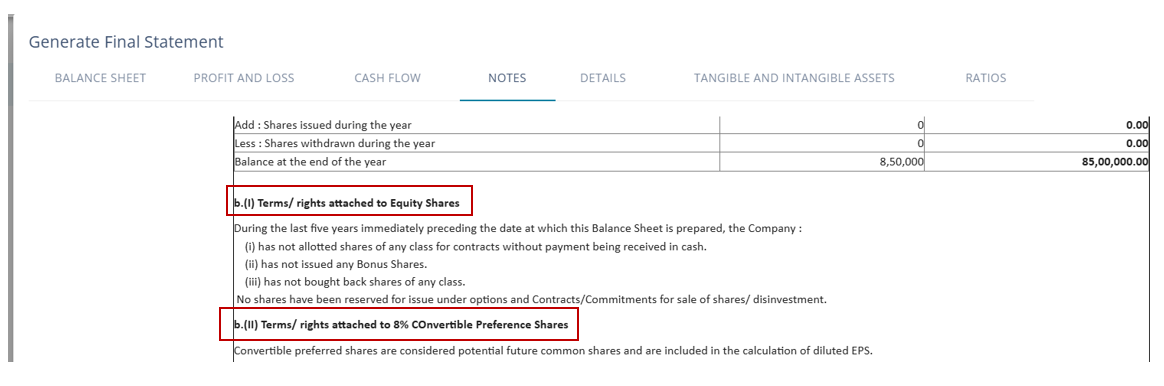
For each type of preference share added to the client onboarding screen, a tab is included in the comments page. AssureAI does not populate any predefined comments for preference shares. Based on the type of share, comments can be entered by the user to be included in Note -1
5. Additional Features - Copy From
1. The user can re-use the comments added from the previous year Financial statements or use the comments added for another client.
2. When choosing another client’s comments the user needs to choose the client name and the FY ( Select Assignment) from which the comments have to be added.