
Download Binder
Once all the attachments are added to the Binder, the user can generate a Binder to download.
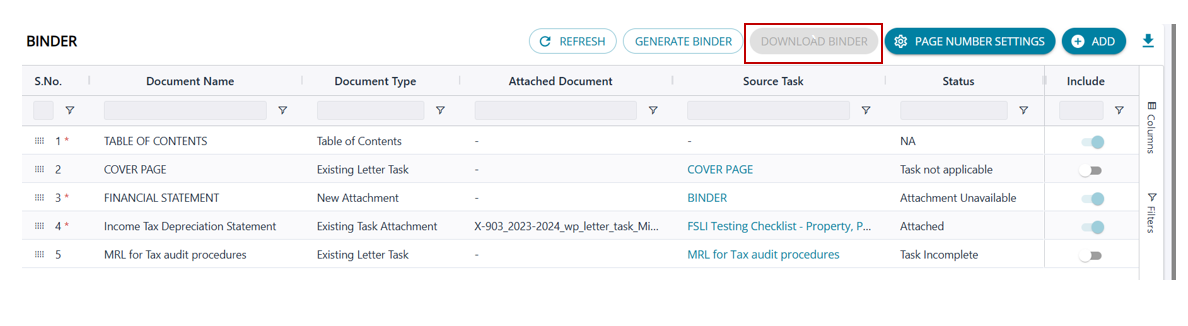 Binder Generation – Process Flow
- User adds all required attachments to the Binder.
- Before the first generation, the system behaviour is:
- Generate Binder → Enabled
- Download Binder → Disabled
- When the user clicks Generate Binder:
- The system validates all attachments, ensuring:
- All mandatory attachments are present.
- All attachments are in the required PDF format.
- If any validation fails:
- The system displays a validation error message.
- The Binder is not generated.
- The Download Binder button remains disabled.
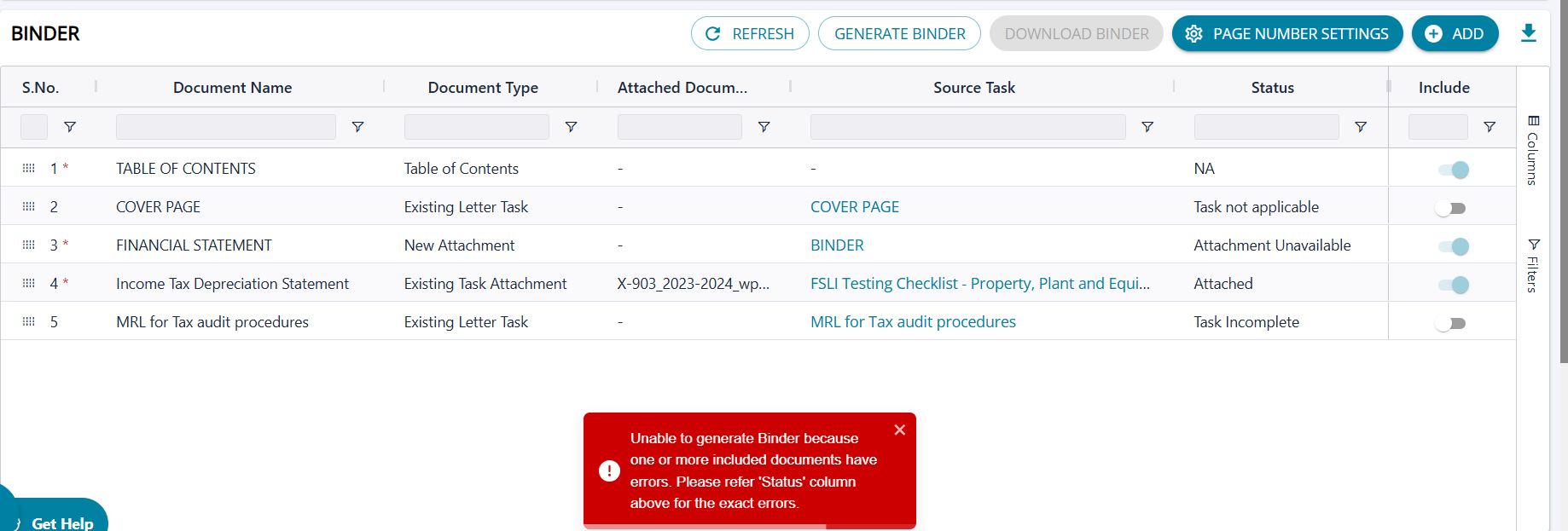
Attachment Validation– Process Flow
- The user attempts to generate Binder.
- The system performs validation on all attachments:
- Checks whether all mandatory attachments are present.
- Checks whether all attachments are in the required PDF format.
- If any mandatory attachment is missing or any attachment is not a PDF:
- The system halts the generation process.
- The system displays the following error message:
“Unable to generate Binder because one or more included documents have errors. Please refer to the ‘Status’ column above for the exact errors.” - The Binder is not generated.
- The Download Binder button remains disabled.
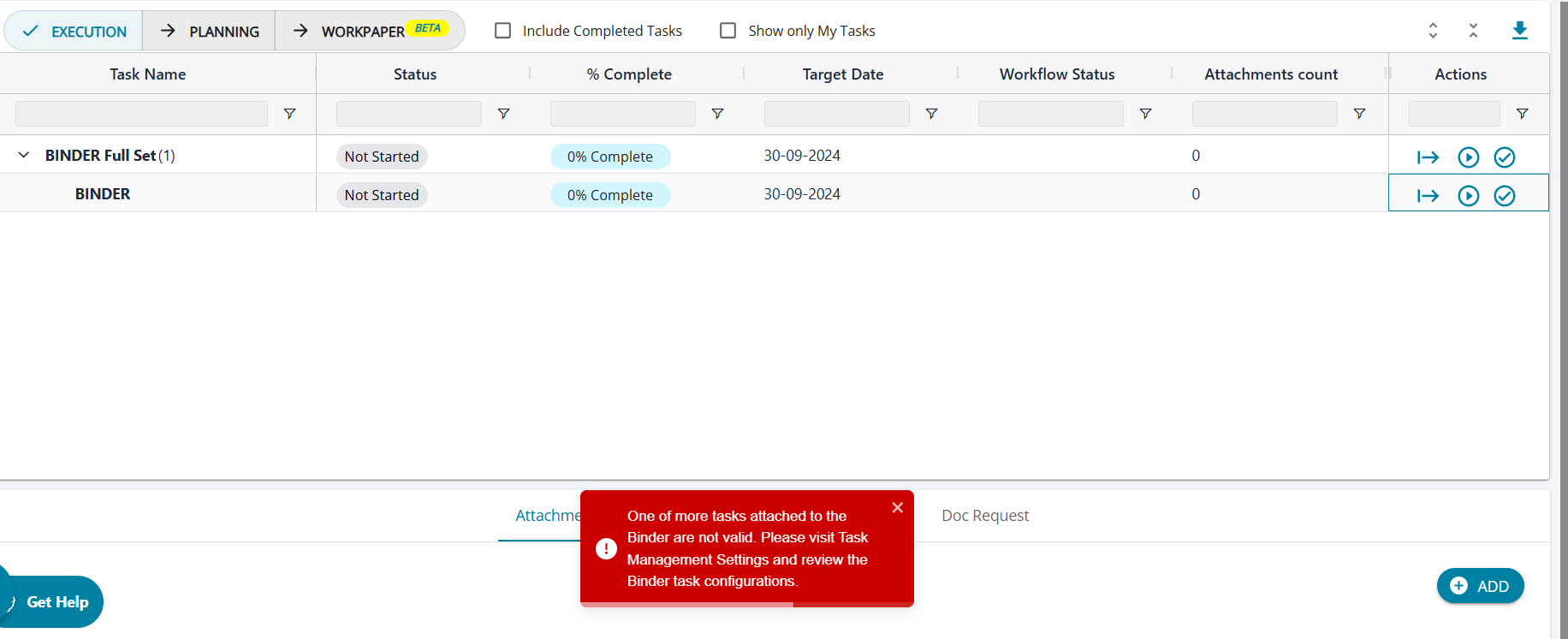
Active Task Validation– Process Flow
- A task that is part of the Binder configuration is deactivated in the system before the user starts the Binder task from the execution screen.
- The user attempts to start the Binder task.
- The system checks whether all tasks included in the Binder configuration are active and valid.
- If any included task is deactivated:
- The system does not allow the user to start the Binder task.
- The system displays the following error message:
“One or more tasks attached to the Binder are not valid. Please visit Task Management Settings and review the Binder task configurations.”
- After receiving the error, the user must take one of the following actions:
- Reactivate the task by changing its status to Active,
OR - Remove the document/task from the Binder configuration on the Binder Generation screen.
- Reactivate the task by changing its status to Active,
- Once the issue is resolved, the user can successfully start the Binder task.
 Binder Generation - Successful Validation
- The user ensures that:
- All mandatory attachments are added.
- All attachments are in the required PDF format.
- All tasks included in the Binder configuration are active.
- The user clicks “Generate Binder”.
- Since all validations pass, the system initiates the Binder generation process.
- The system displays a confirmation message indicating that Binder generation has started,
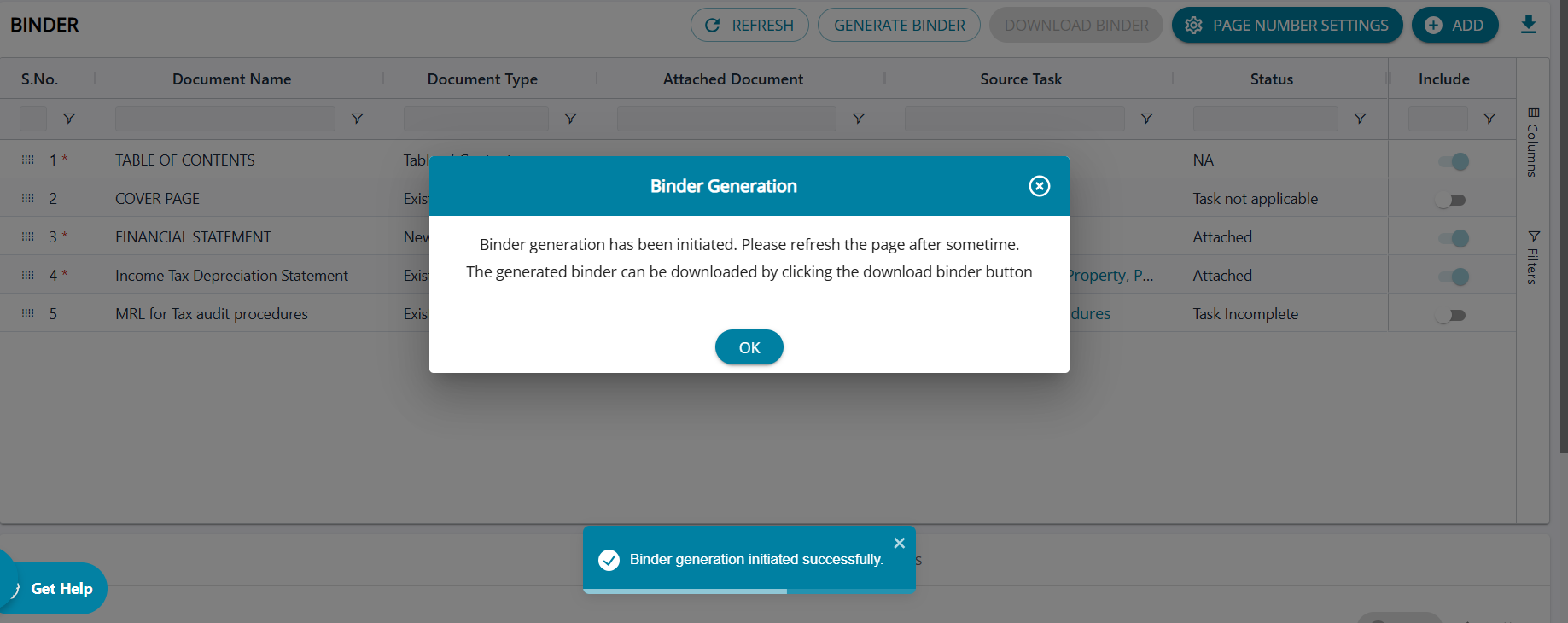
- After the user clicks “Generate Binder” and the system initiates binder generation, the user can click the “Refresh” button to update the screen.
- Upon clicking “Refresh”:
- The Download Binder button becomes enabled.
- The Generate Binder button is replaced with “Re-generate Binder”.
- The Download Binder button includes a tooltip displaying the timestamp of the last generated Binder, allowing the user to download the same Binder any number of times.

ReGenerate Binder – Process Flow
- The user makes updates to tasks and/or attachments after a binder has already been generated.
- To generate a new binder with the updated information, the user clicks the “Re-generate Binder” button.
- The system begins creating a new Binder, replacing the previously generated version.
- Once generation is complete and the user clicks “Refresh”:
- The Download Binder button now downloads the newly generated binder.
- The tooltip on the Download Binder button is updated to show the latest generation timestamp, indicating when the new binder was generated.