Ledger Scrutiny
Ledger Scrutiny Reports
Ledger Scrutiny
1. Ledger Scrutiny is a process where the system scans through the entire books of accounts concerning certain pre-defined rules and picks up the exceptions/action points and categorizes the ledger balances into three categories, namely High Risk, Medium Risk, and Low Risk
2. There are four types of reports available in this module
(a) Ledger Risk Overview – This report identifies and classifies the Ledger Balances that are considered risky as per the Ledger rules configured
(b) Voucher Risk Overview – This report identifies and classifies the transaction vouchers that are considered risky as per the voucher Rules configured
(c) Expense Variance Analysis Report – This is an analytical review report that highlights the variances in expenses of the current year as a percentage of revenue compared to the immediately preceding year
(d) Search Feature – through this, the user can initiate a search on ledger names and transaction vouchers
3. The menu ‘Graphs’ contains a graphical presentation of the risks identified, both in terms of number as well as value.
Specify Materiality threshold
1. The First step in the Ledger Scrutiny module is to specify the Materiality Threshold Amounts
2. User needs to specify the materiality threshold for the following categories :
(a) Ledge Balance amount for Balance Sheet Items
(b) Ledge Balance Amount for Profit and Loss account items
(c) Voucher amount for Balance sheet items
(d) Voucher amounts for Profit and Loss Account items
3. In addition, the user also needs to specify the ‘Expense Variance Threshold’ amount, which is used for compiling the expense variance report
4. Once done, click ‘Initiate Ledger Scrutiny’
5. The process will run in the back end for a few minutes, and during this time, the Ledger Scrutiny tab will turn red
6. After a few minutes, press the ‘Refresh Assignment’ button, and the Ledger Scrutiny button will become Green, and the user can click that and check the report.
Ledger scrutiny rules – ledger level rules
Ledger Scrutiny Report
View Risky Transactions / Vouchers
1. Click on a particular rule – the results will get populated in the table on the right side.
2. In the case of Ledger Risk, a list of risky ledgers picked up based on the rule will be displayed
3. In case of Voucher Risk, a list of risky vouchers picked up based on the rule will be displayed
4. The user can click on the Ledger Name, user will be taken to the full ledger view screen, where all the entries under that ledger will be visible
5. Users can also use the filter option available against each column to filter and view selected ledgers/transactions only
Data Table Features
1. In the Data table where the results get populated, the user may select items and Press the ‘Raise Issue’ button on the top right corner
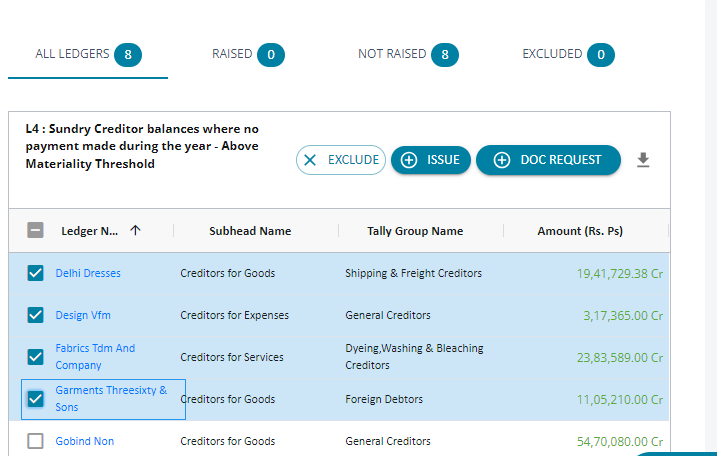
2. Immediately Raise issue screen will load, duly auto-populating the selected ledgers/transactions
1. The list of Items where issues were raised will be reflected under the ‘Raised’ Tab. Those for which no issue was raised will be shown under the ‘Not Raised Tab.
1. If it is found that a particular item that is listed is not an exception, the user may click the ‘Exclude’ button and enter the comment for exclusion, so those items will move to the ‘Excluded’ tab
2. Ledger Scrutiny Excel export has a separate section that shows excluded ledgers and vouchers.
Expense Variance Report
Ledger Scrutiny – Expense Variance
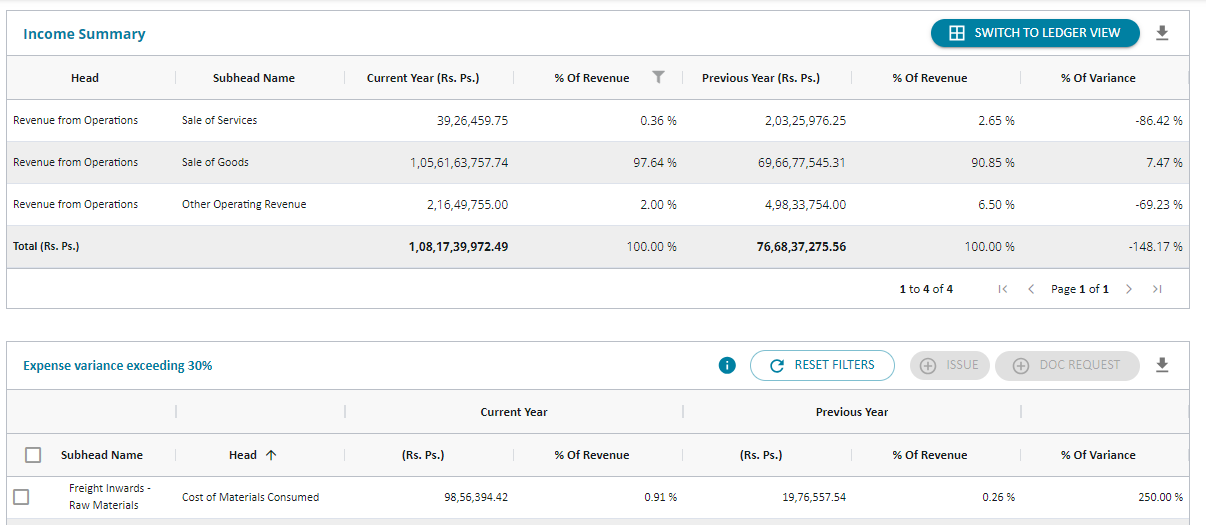
1. Based on the ‘Expense Variance Threshold’ given by the user at the time of setting materiality threshold limits, a report will be displayed containing expenditure ‘Sub-heads’ where there is a variance exceeding the threshold limit fixed
2. The variance will be computed as a percentage of turnover as compared to the immediately preceding year's data
3. The default table will capture variances at the P&L Sub-head level
4. There is an option in the right corner to ‘Switch to Ledger View’
5. Once the user selects this option, the variance report will be displayed at the P&L Ledger Level
6. The user may select any item and directly raise an issue from this screen
Search Tab
1. Search Tab contains features for ‘Free Text Search’ and Advanced Search
2. Type any text in the ‘Free Text’ box and click ‘Search’
3. All the ‘Ledger Names’ containing the text will be auto-populated in the bottom
4. Both Ledgers and Vouchers containing the said ‘free text’ will be available in separate tabs
5. From here, the user can click on a particular ledger and directly drill down to ‘Ledger View’
Advance Search
1. Click on Advanced Search, and the above screen will be loaded
2. The user can initiate a Keyword search in any of the fields listed above
3. For Example, Voucher Narration, containing “Penalty” – and so on – then click the ‘Search’ button.
4. Immediately, all the vouchers containing the word ‘penalty’ will be filtered and displayed in the bottom screen.
Graph
1. The system provides graphs to show the breakdown of the voucher values by ledger value and voucher value
Configure Scrutiny Rules
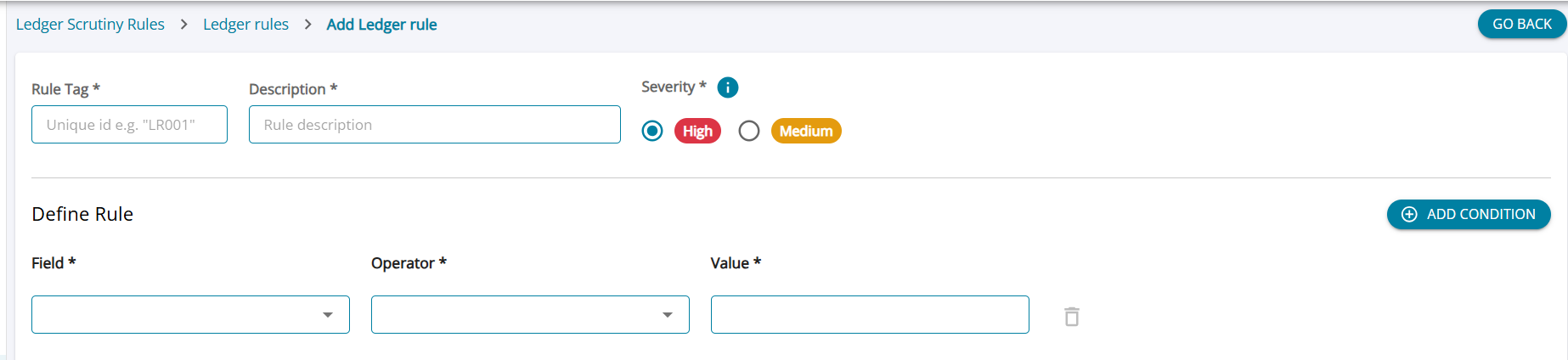
In addition to the existing list of rules configured for both Ledgers and Vouchers, users can add additional rules to suit requirements.
Under Field Work Setting -> Ledger Scrutiny Rules, users can view the list of pre-configured rules and add new rules to suit requirements.
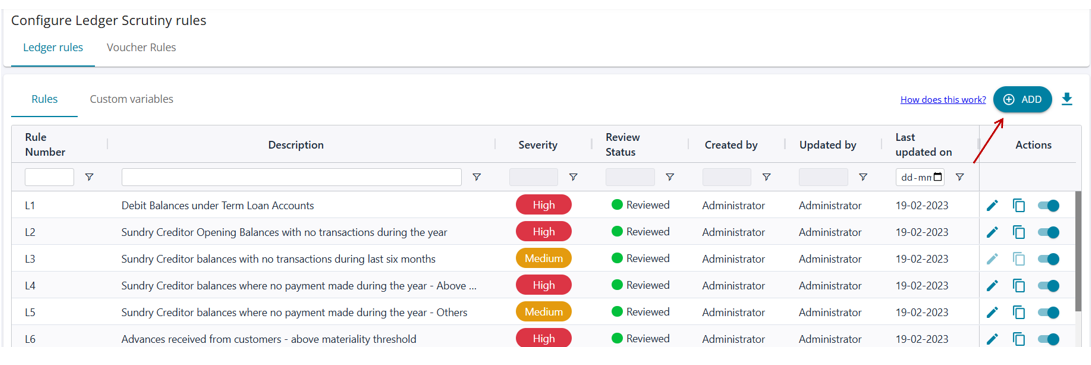
Users can click on the 'Add' button to configure additional rules for both Ledger and Voucher Scrutiny.