Identified & Corrected Misstatement Task : 'Accept Changes' Flow
Step -1: Record Identified Misstatements
If the PMS value is changed in the FSLI testing task after a row is saved in Step 1, the line item is highlighted in yellow upon visit to the ICM Task. The new PMS value is shown in the 'Updated Value of Potential Misstatement (PMS)' column. The user can edit and save the highlighted line to update IMS; this removes the highlight.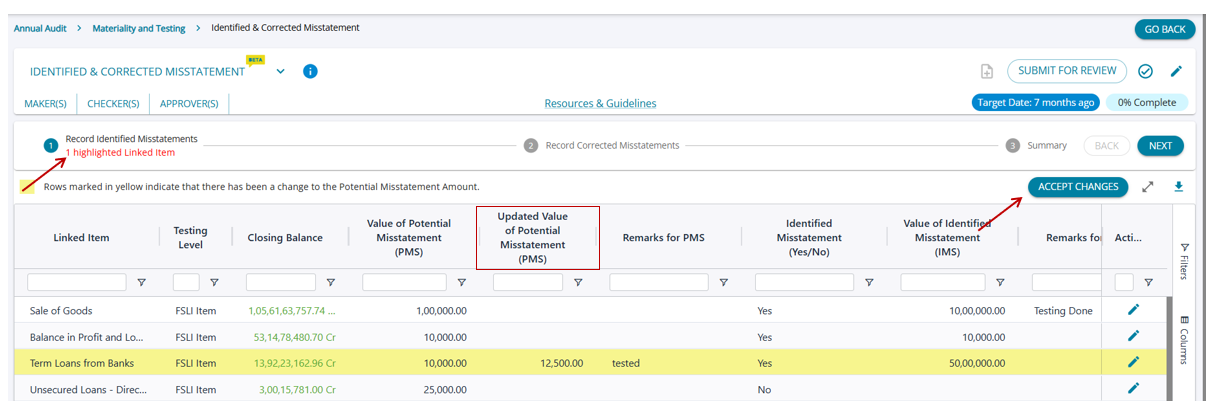
Alternatively, clicking "Accept Changes" opens a pop-up to confirm updates and clear all highlights, but this approach does not enable the user to update/change the IMS value. This is to only accept the new PMS and remove the highlights.
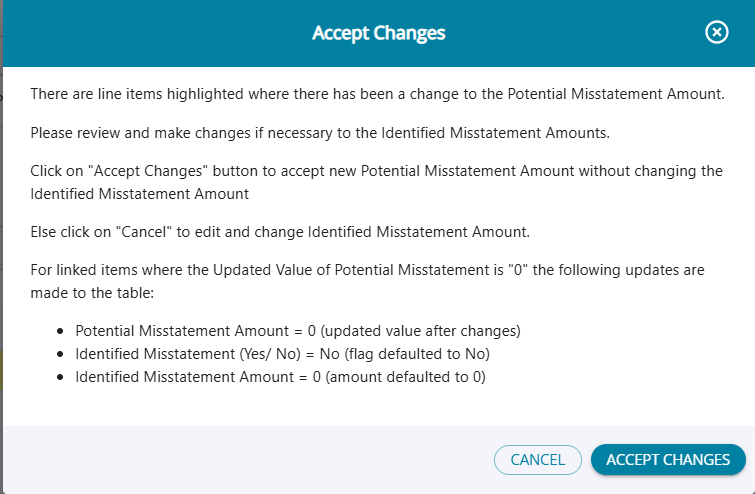
- When users click "Accept Changes," the yellow highlights are cleared from all affected rows.
- The "IMS Last Modified On" field is updated with the time of acceptance.
- "Updated PMS" field is set to "Null," and the new PMS values are displayed.
- If users click "Cancel," users will remain on the Step-1 screen with yellow highlights still visible.
- They can continue editing IMS values as needed. The "IMS Last Modified On" field only updates if users edit and save a row, not just by canceling.
- Alternatively, users can proceed directly to Step 2 by clicking the "Next" button without accepting or editing changes; in this case, the yellow highlights will remain on the screen.
Step -2: Record Corrected Misstatements
Similar to a change in PMS, if the IMS value is changed in the Step-1 table for any line item that is already saved in Step 2, the line item is highlighted in yellow upon visit to Step 2. The new IMS value is shown in the 'Updated Value of Identified Misstatement (IMS)' column. The user can edit and save the highlighted line to update CMS; this removes the highlight.
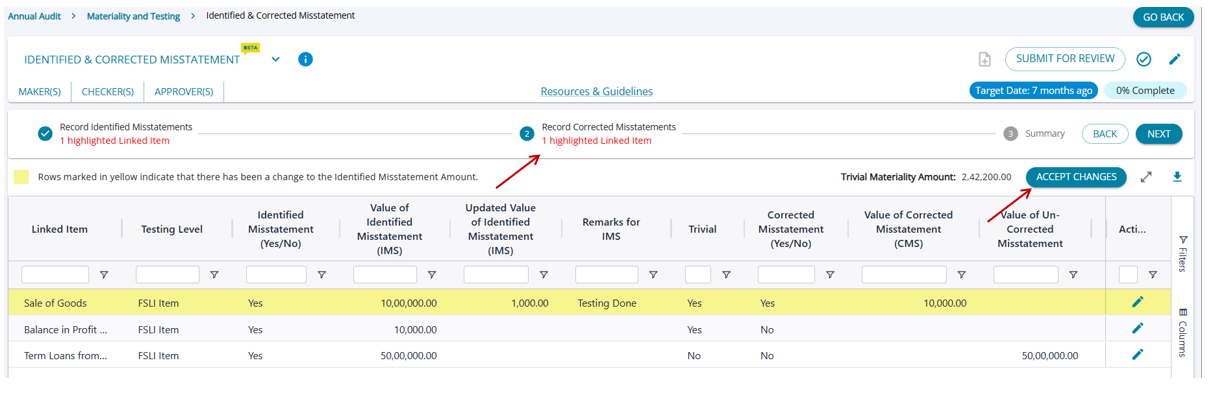
- When users click "Accept Changes" to confirm that CMS amounts do not require updates, all yellow highlights are removed from the table.
- The "CMS Last Modified On" field is updated with the acceptance timestamp.
- The "Updated IMS" field is cleared (set to "Null"), and the IMS column reflects the latest IMS values.
- If users select "Cancel," they remain on the Step-2 screen with yellow highlights intact. They can continue to edit the CMS values as needed.
- In this case, the "CMS Last Modified On" field is only updated when actual edits are made, not simply by clicking "Cancel."
- Users can proceed to Step 3 by clicking "Next" without accepting or editing IMS changes; the yellow highlights will remain visible in this case.
When the Corrected Misstatement Amount is > Updated Identified Misstatement Amount
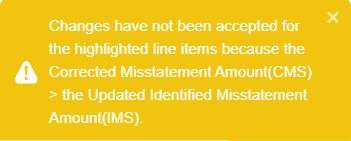
- If the existing CMS amount is greater than the updated IMS amount, the "Accept Changes" workflow will not remove the yellow highlight. Instead, the system will display a message informing users of the mismatch.
- Users must first edit the CMS amount to a value less than or equal to the updated IMS amount. Only after correcting this can they either accept the changes or edit and save the line item to remove the highlight.