Configure Sub-heads
CONFIGURE SUB-HEADS
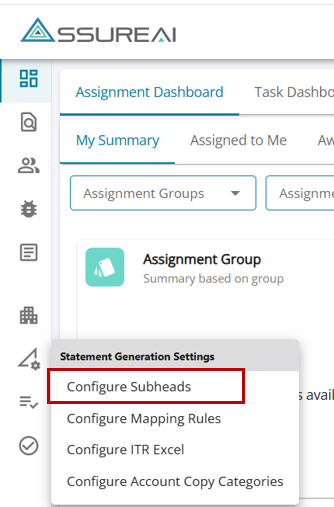
2-Heads are not configurable, as many heads are linked to various modules, including Ledger Scrutiny, etc. Any addition to Heads is possible only by the AssureAI support Team.
3-However, Flexibility to add more subheads is available through this ‘Configure Subheads’ feature, which is listed under the Statement Generation Settings Tab.
4-Only the active subheads under this page will be available in the Ledger Classification screen for mapping to underlying ledgers.
5-Select the Client Status for which sub-heads are to be added. Thereafter, select Balance Sheet or Profit and Loss based on what subheads need to be added
6-Immediately, the selected heads will be populated on the screen.
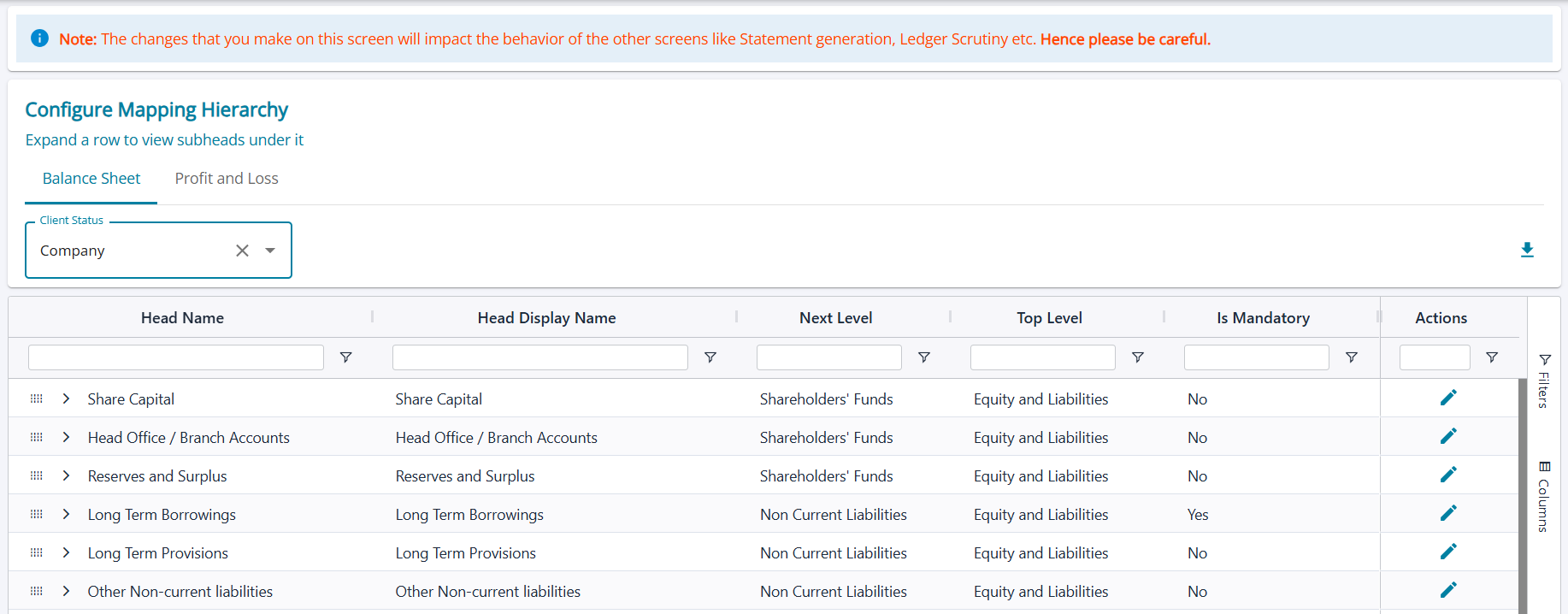
1. The list of heads based on the selection Balance sheet / Profit & Loss is displayed.
2. The user can change the display name of the sub-head only for those that are active.
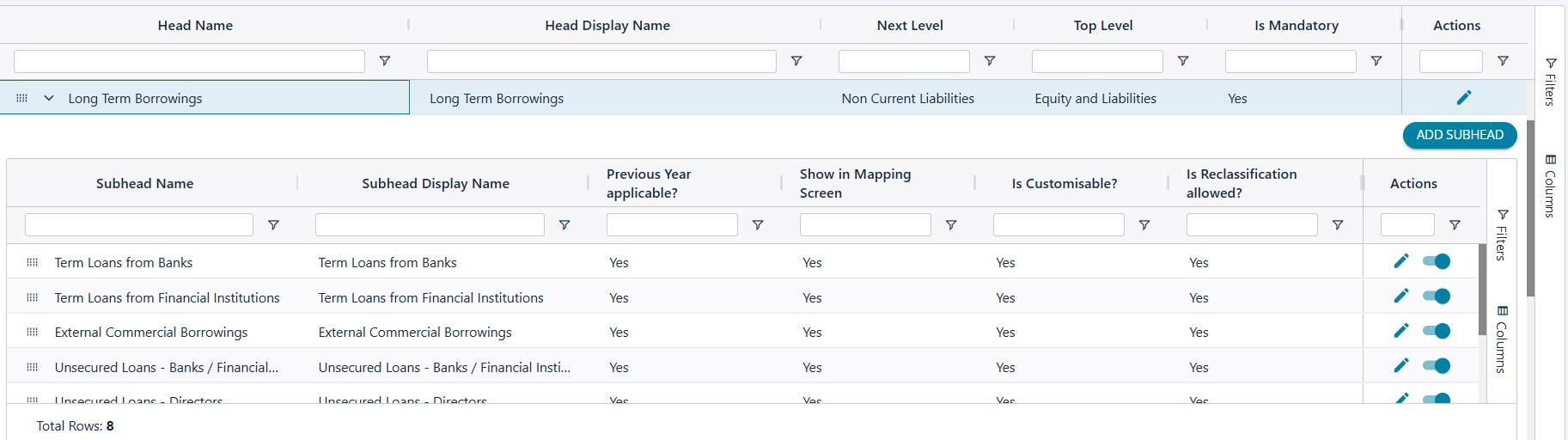
3. The user can expand any Head to see all the subheads that are mapped to the chosen head.
EDIT SUB-HEADS
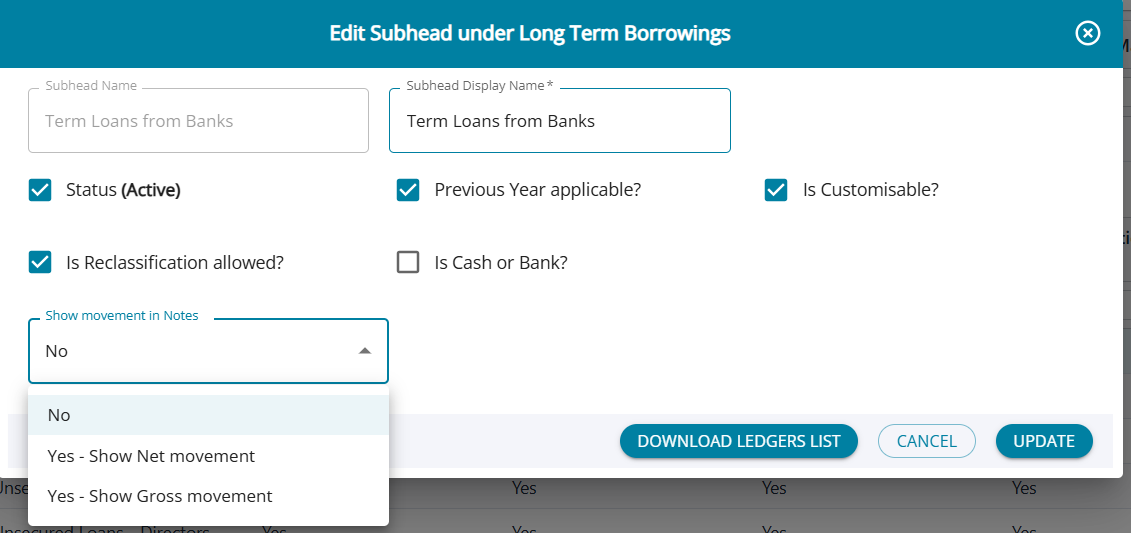
- Each subhead can be edited by clicking on the edit button under the action column.
- The Subhead Name cannot be changed; however, the display name can be configured by the User
- An option to mark the subhead as active/ inactive is allowed. Only Active dubheads will be available under the Ledger Classification page. If the checkbox is unselected, making it Inactive, no ledger can be mapped under this subhead.
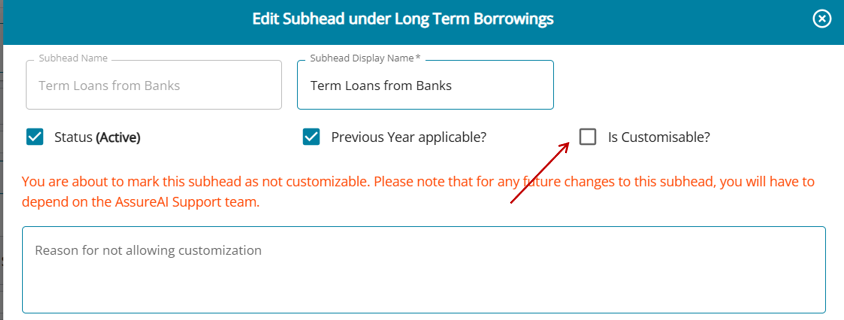
- 'Is Customisable' option allows the user to make changes to the subhead by unselecting the checkbox. The user can no longer make changes to the subhead by themselves.
- 'Is Cash or Bank' allows the user to include subheads under cash or bank, which will be considered for the Cash Condition check for Tax Audit under (Proviso to 44AB(a)) for form 3CD Annexures.
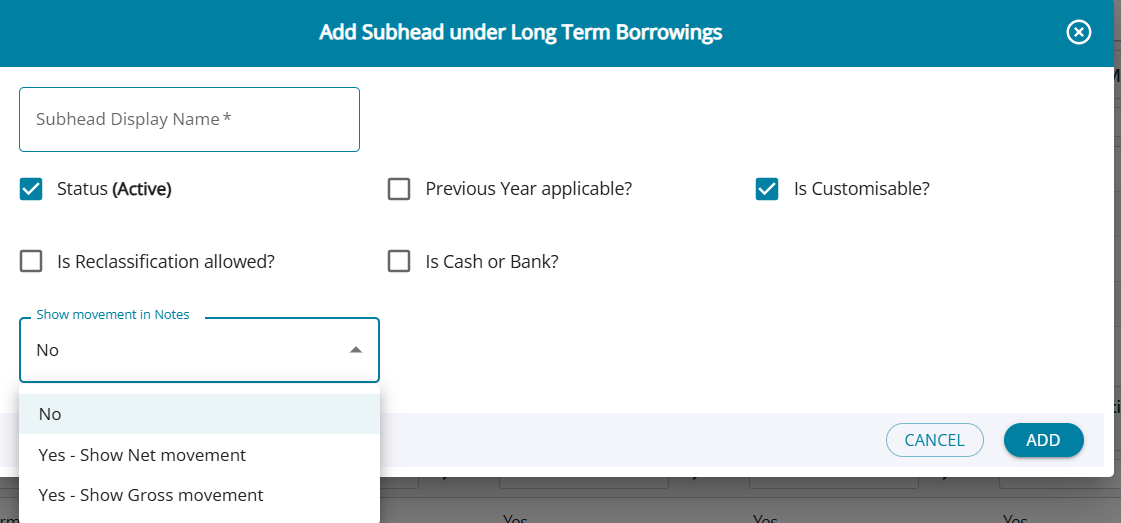
- Movement Capture: There are 2 options to select from: (1) Show Net Movement, (2) Show gross Movement. The chosen option will be applied to the subheads under the Notes section.
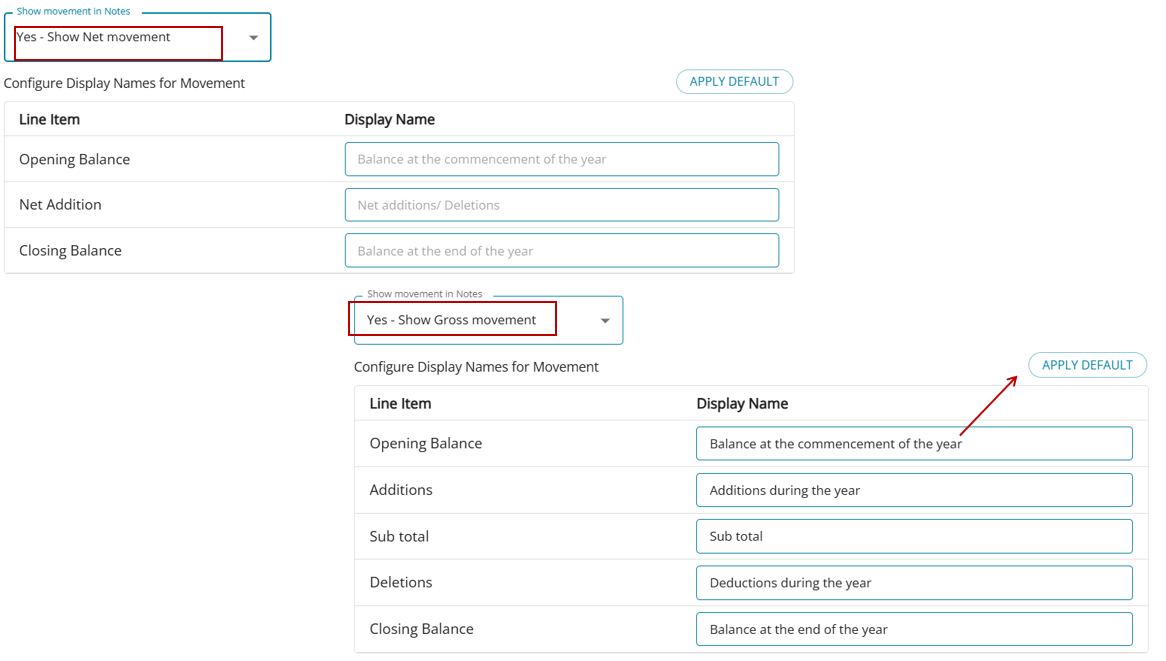
Example

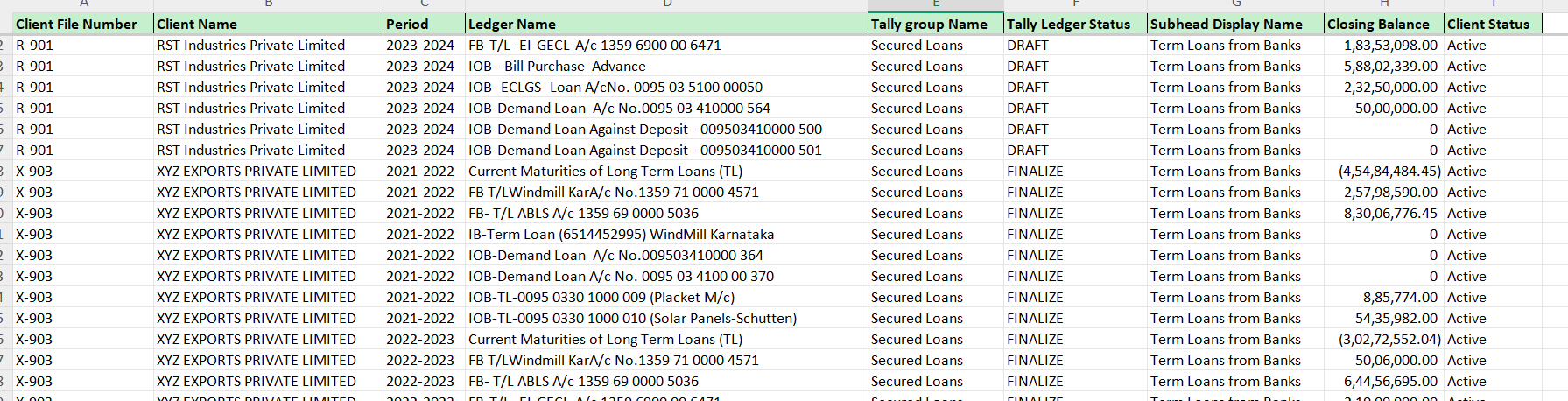
Download Ledgers List: This button allows users to download the list of all ledgers mapped under the chosen subhead in the firm across clients.
ADD SUBHEADS
Users can click on the 'Add Subhead' button for each Head and add subheads.