
Audit Tasks Execution - Letter ( task requiring only auditor signature)
1. Similar to a Questionnaire task, another set of tasks is the Audit Letters.
2. The letter Tasks that apply to the assignment have to be marked as applicable under the Planning View. Once selected, the tasks will be listed under the Execution View.
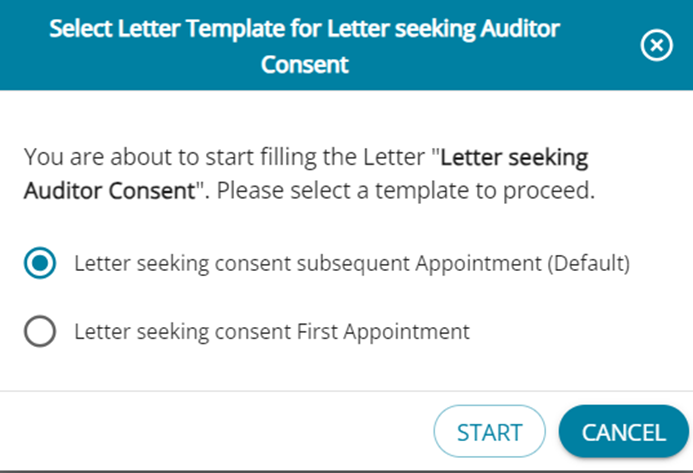
3. Letter tasks can have more than one template. When 'Start Task' is clicked for tasks with multiple templates, users must select the desired template before proceeding. Once the task is initiated, the selected template cannot be changed.
4. When the chosen letter task is started, the default letter template is displayed in edit mode, allowing users to modify the content to better suit the client’s requirements.
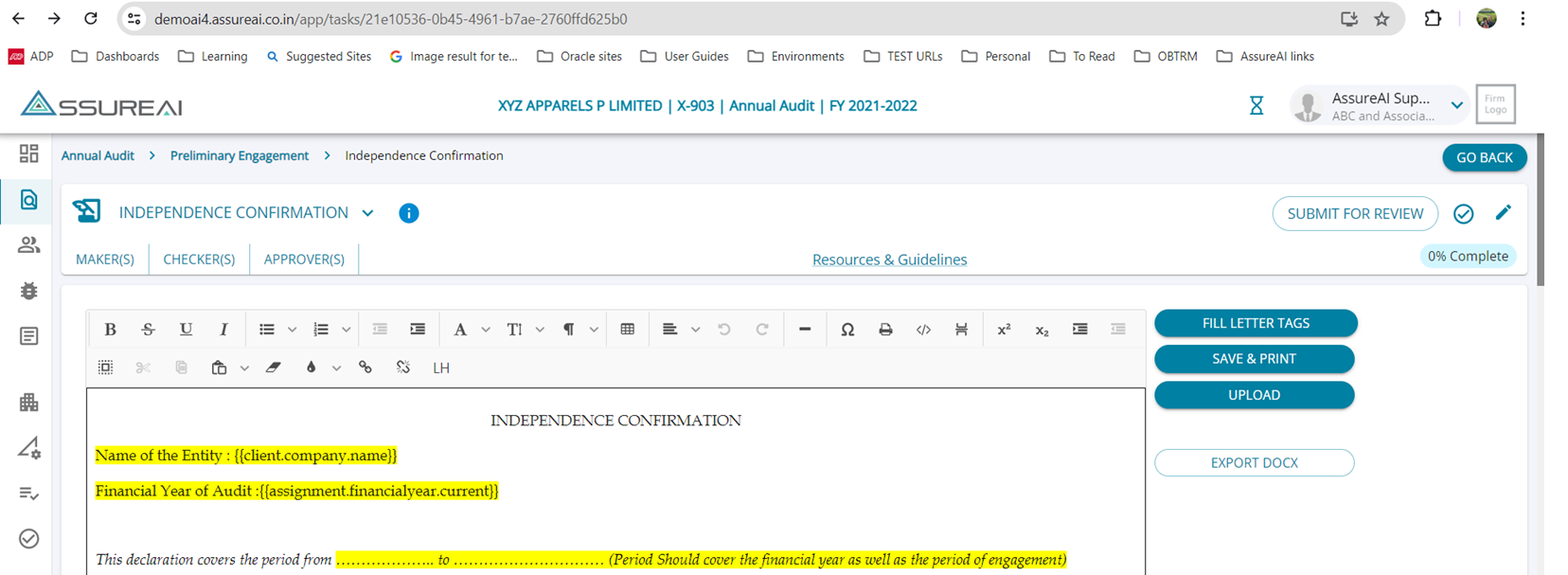
5. The Yellow highlights indicate the placeholders where information has to be input for the template. Once all highlights are filled in , users can click on the “Save & Print” option.
6. The system generates a PDF file that can be signed by the Auditor.
7. The signed copy has to be uploaded back into the system in a PDF format by clicking on the “Upload” button.
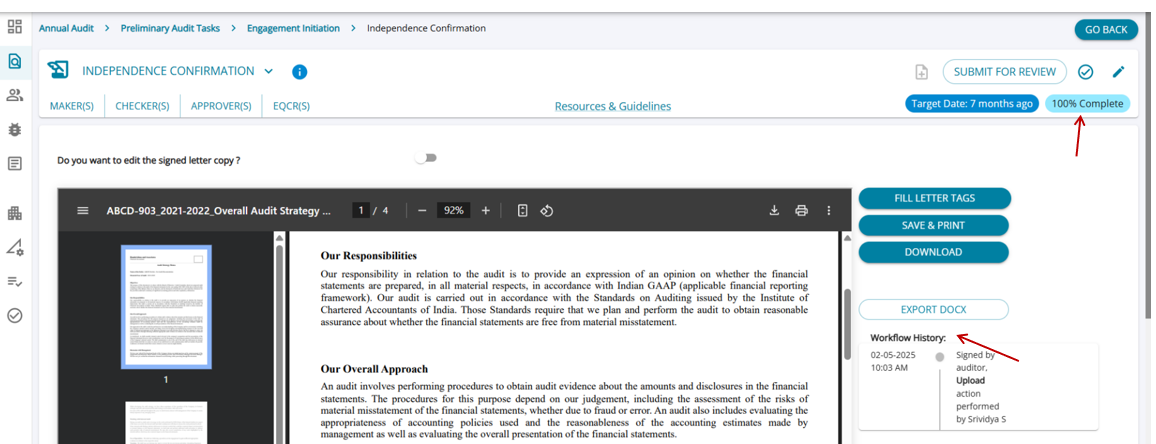
8.The uploaded letter is displayed with all details filled and with signatures and the workflow history is now displayed.
9.The task however is marked as 100% complete.
Edit Uploaded Letter
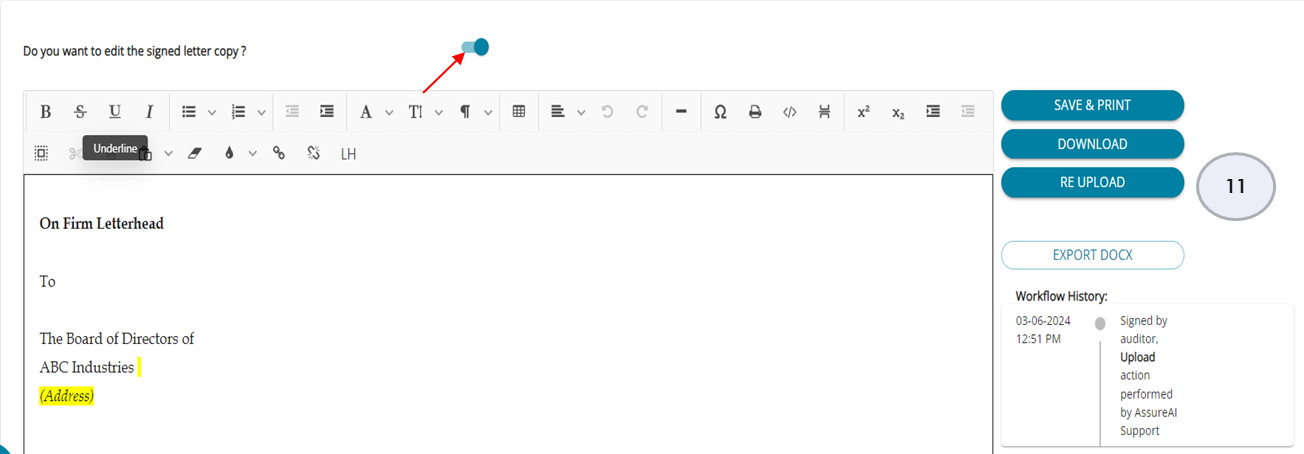
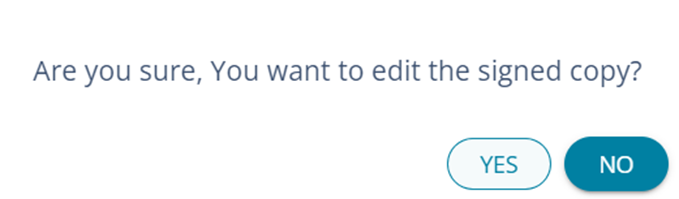
10. To edit the already uploaded letter , a re-upload can be done after making changes. To edit a task with an already uploaded letter users can click on the toggle for “Do you want to edit the signed letter copy ?” and choose yes on the pop-up asking confirmation and the letter is displayed with all previously made changes.
11. Now changes can be made and the letter can be saved and Re-uploaded again.
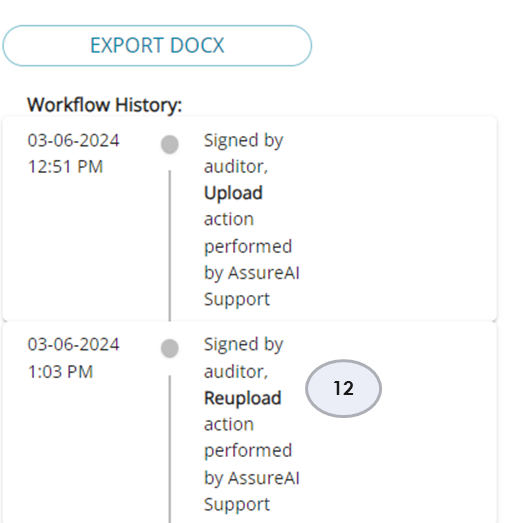
12. The workflow highligts the changes made.