
Binder - Generation
When the user starts the Binder task from the execution screen, the screen displays the table with all the documents configured at the configuration stage.
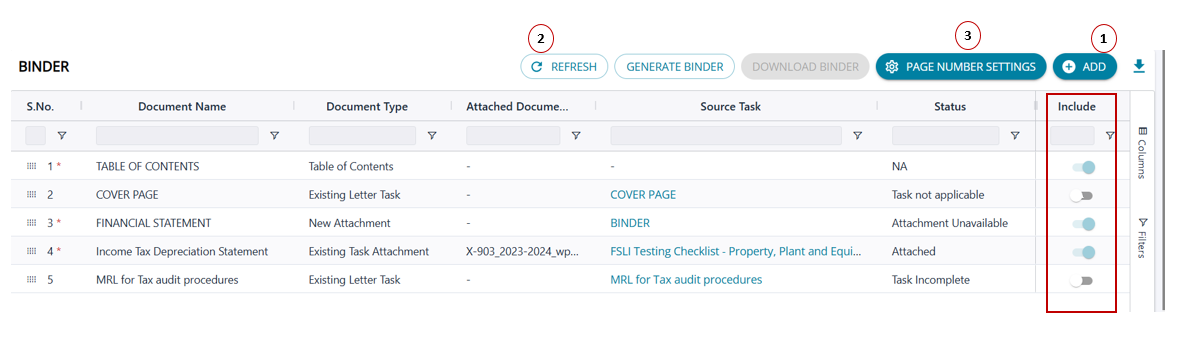 1. Add Button
The user can click on the 'Add ' button to add additional documents at the binder creation level.
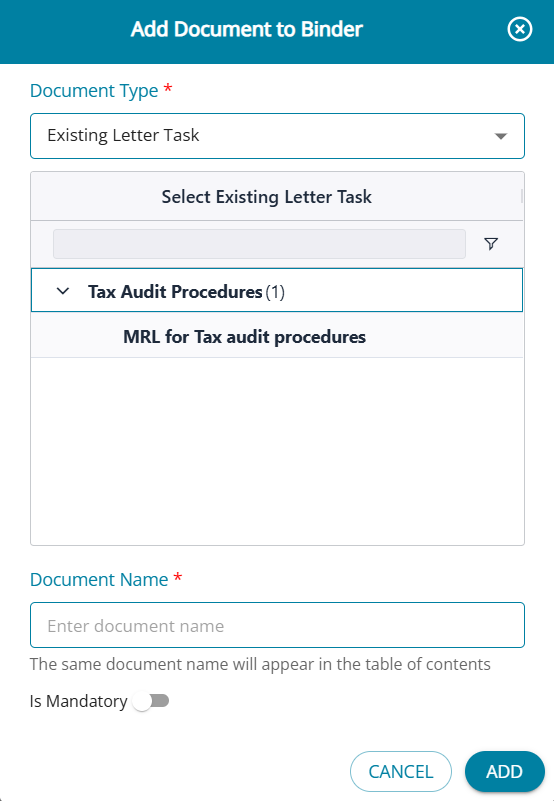
The Add Document modal is the same as the one used in the Binder configuration screen.
On this modal, the “Is Mandatory” option is disabled and cannot be changed.
Letter Type Selection
When the user selects “Letter,” only letter tasks that are:
Marked as applicable and available in execution mode, it will be listed as the binder task has already started.
Existing Attachment Selection
When “Existing Attachment” is selected, the drop-down will show only applicable tasks that have attachments configured.
2. Refresh Button
The refresh button above the table can be used by the user to update the attachments or status of the documents in the binder task.
The refresh button can be used to update values on the screen and to generate the binder.
3. Page Number Settings button
The settings for page number are the same feature available under the configuration screen.
If the page numbering has been selected and a serial number chosen already at the configuration screen, the same selections will be displayed and can be edited by the user at the generation screen.
If no selections for page number settings have been made at the configuration screen, then the user can select the checkbox and choose the serial number to start page numbering from.
Table View
Document name
- The list of all documents added at the configuration level will be displayed, with an asterisk (*) indicating if a document is mandatory for the Binder or not.
- The Table of Contents (TOC) will also appear in the list,
- with no attachment under the Link column and no status;
- These fields are blank and cannot be edited by the user.
- A default TOC will be added automatically by the system.
- Document names cannot be edited from the Generation screen.
- The order of documents can be changed using the drag-and-drop button in each row.
- Changing the order of documents will not prompt the user to update page number settings.
Document Type
The table displays whether the document is an existing attachment, a New Attachment, a Letter task or a Table of Contents.
Attached Document
The system automatically adds attachments selected at the configuration level for Existing Attachments and the Letter task.
Existing Attachments:
- Documents added to the task during configuration are automatically added to the Binder task against the corresponding document name.
- If the attachment was not added before Binder generation, the Link column will be blank with no attachment.
Letter Tasks:
- Letter tasks must be marked as complete for the attachment to be added to the Binder.
- For tasks that are 100% complete, the final attachment will be linked.
- If a letter task is only partially complete (e.g., 50% complete for letters requiring signatures from both parties), it will be considered incomplete, and the attachment will not be added.
New Attachments:
- When a document is added under the New Attachment type, the system automatically includes it in the list of attachments for ad hoc additions.
- When the Binder task starts, new attachments appear in the bottom panel under attachments, where users can add them.
- Once an attachment is added under ad hoc attachments and the table is refreshed, the Link column displays the uploaded document and the status updates accordingly.
- At the start of the task, new attachments will show “Attachment Unavailable” until uploaded.
Table of Contents (TOC):
- There are no attachments for the TOC document type.
- Users cannot add attachments to it. A default TOC is added automatically by the system, and the fields related to the TOC are disabled.
Source Task
The source task displays the parent task from which the attachments were added, regardless of the task type.
The system displays a hyperlink on the source task so the user can navigate directly to that task from the generation screen, allowing them to add or edit attachments.
Status
The documents go through various statuses depending on the status of the task and attachment.
Include
- The Action column will display a toggle button for marking a document as not applicable for the binder.
- The toggle button will be available only for non-mandatory documents.
- The applicability of mandatory documents can be modified only in the generation screen. If needed, the user can navigate to the configuration screen to update a document’s status as mandatory or non-mandatory.
- For non-mandatory documents, if the toggle is switched off, the document will not be included in the binder.
- The toggle button will display a tooltip:
- When the toggle is off → Include in Binder
- When the toggle is on → Exclude from Binder
No. of Attachments (column)
- The system allows the user to upload multiple attachments under a single document name in the Load Audit Program screen.
- When a document selected for the Binder has more than one attachment, all attachments under that document name are included in the generated Binder.
- To help the user understand how many attachments will be included, the “No. of Attachments” column displays the total count of attachments uploaded for each document name.