Audit Documentation - Single click workpaper
Workpaper Mode
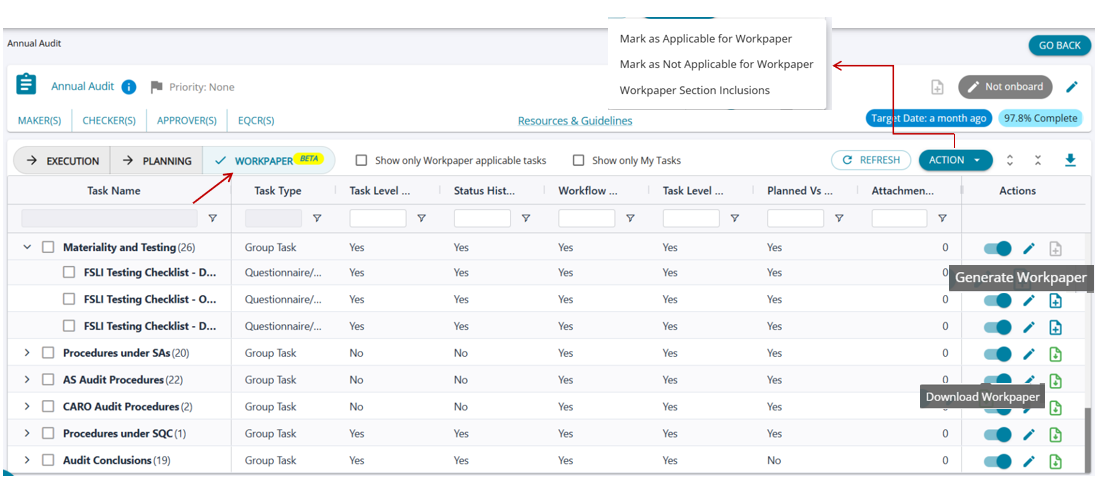
1. When a user clicks on the Load audit program, the Workpaper tab is displayed.
2. All tasks marked as completed (100% Complete) under 'Execution view' are shown in the workpaper tab.
3. Tasks marked as "Applicable for Workpaper" in Configuration settings are marked as applicable, and the 'Generate Workpaper' button is displayed.
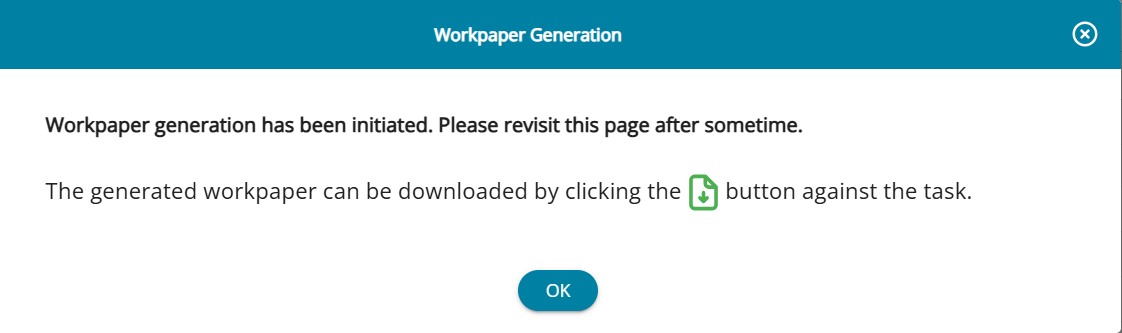
4. When the user clicks on 'Generate Workpaper,' a pop-up is displayed confirming to the user that the WP download has been initiated.
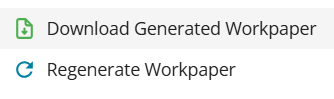
5. Once the WP is downloaded, the button turns green with a tool-tip ' Download Workpaper' and users can download the generated workpaper or regenerate the workpaper.
6. Tasks that were not included in the workpaper are marked Not Applicable, and the download button is disabled.
7. The user can include the task in the workpaper just by switching the Toggle button on to make the task applicable for the workpaper download if it is marked as "Not Applicable".
8. The user has the option to see only those tasks that are applicable for workpaper download by selecting the checkbox 'Show only workpaper applicable tasks' beside the workpaper tab. This will list only the tasks where the workpaper download is marked as applicable. The table view will not list the tasks not applicable for download.
9. The user can Bulk edit tasks by selecting multiple tasks and then clicking on the 'Action' button
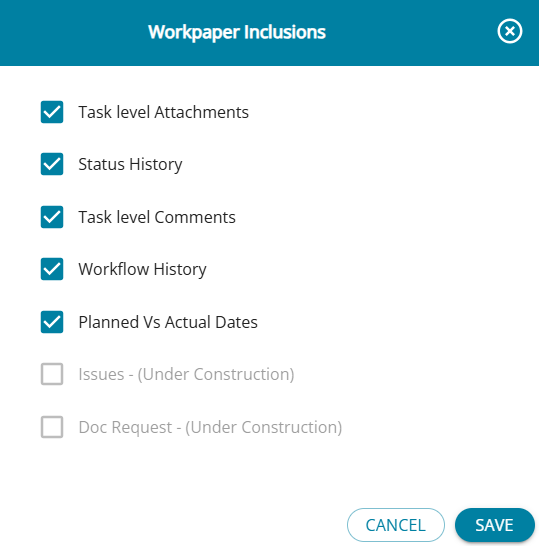
10. Workpaper has 5 section inclusions which can be included in workpaper by clicking on edit (Pencil symbol) for the tasks individually or tasks can be selected in bulk and sections chosen from the "Actions" button drop down.
- Task level Attachments
- Status History
- Task level Comments
- Workflow History
- Planned Vs Actual Dates
11. The user can download workpaper at the assignment level for all the tasks in the assignment once it is closed , by using the download button on the top right.

The Applicability of the paper and the sections that have to be included in the workpaper can be chosen from the task configuration screens and the Workpaper tab in the Load Audit Program screen.
1. User can set up Workpaper applicability while configuring the task itself by switching the toggle on for "Include in Workpaper".
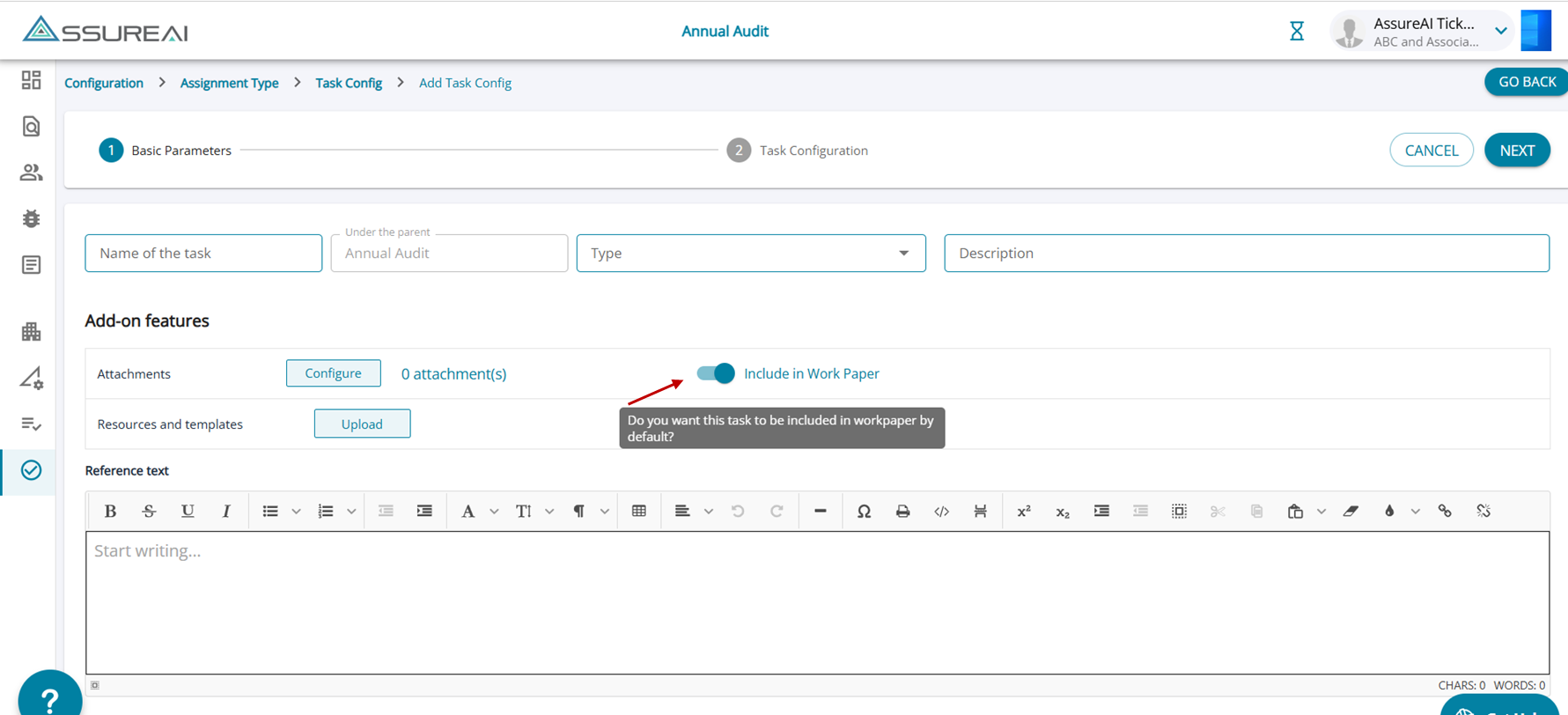
The toggle has to be set to applicable if the task requires a work paper download.
Workpaper Defaults- inclusions/ exclusions for the workpaper
2. Once the task has been set and configured, the workpaper section inclusions have to be selected under the "Configure Add-on Features". The table below gives the default inclusions/ exclusions for the workpaper for any Task type.
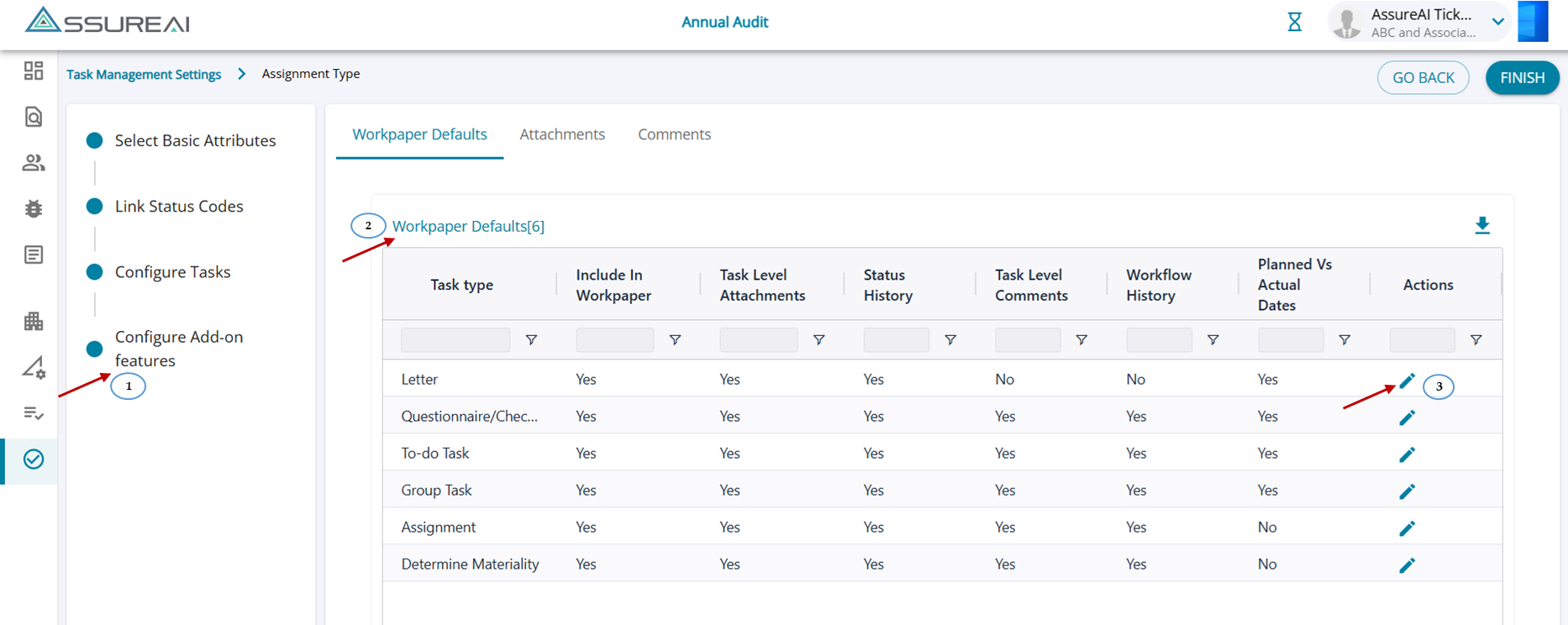
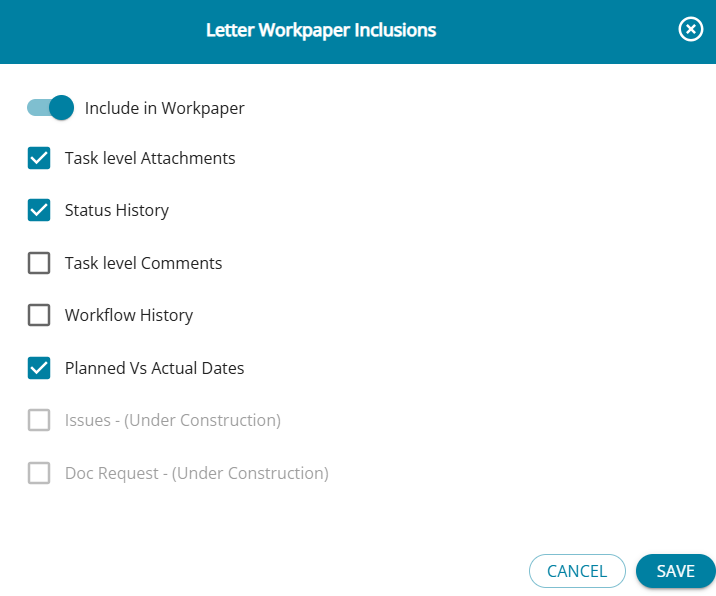
However, the workpaper defaults can be edited and the inclusions/ exclusions can be changed by clicking on the edit button in row for each task type.
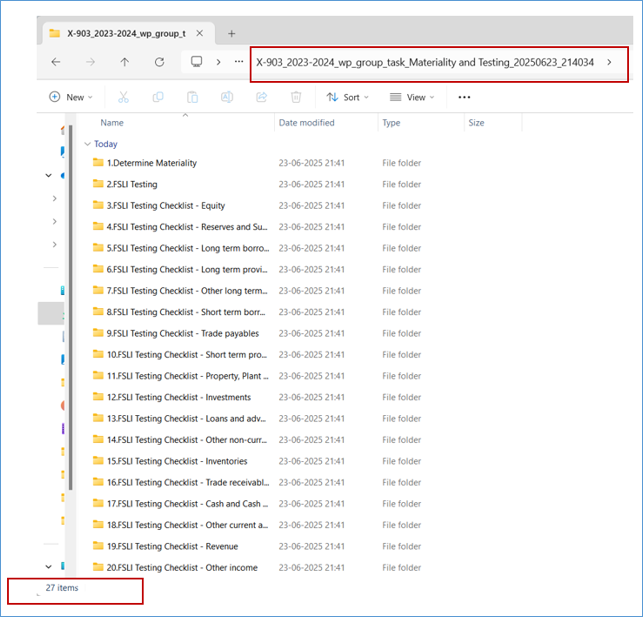
Workpaper - Sequence of folders in Output
- The updated work paper mirrors the tasks listed under each parent group with numbered folders.
- All folders are numbered in the same order as they appear on the screen, making it easier to identify how many tasks have corresponding work papers.
- This consistent numbering also helps users quickly locate and open the required task folders with ease.