
AssureAI Release Note - April 2025
Welcome to the April 2025 Release of AssureAI!
This release is short and sweet!. We’re excited to introduce an important new feature: the Identified and Corrected Misstatement Task. With this, we complete the full cycle of the Materiality and Testing Tasks—starting with Determining Materiality, moving through FSLI Testing, and now culminating with the Identified and Corrected Misstatement Task.
Additionally, the workpaper for the FSLI Testing Task is now available.
In response to customer feedback, we’ve also added the ability to generate two types of reports in the Issues Module, offering greater flexibility and clarity.
As always, we’ve addressed several minor bugs to improve product quality and enhance ease of use for our customers.
Thank you for being a part of the AssureAI journey!
1. New Feature
1.1 Identified & Corrected Misstatement Task
Under the Group Task “Materiality & Testing,” the third task is ‘Identified & Corrected Misstatement (I&CM).
During an audit, auditors perform procedures to accumulate potential misstatements. From the accumulated potential misstatements, the auditors can evaluate the effect of identified misstatements on the financial statements. Misstatements, except those deemed trivial, should be corrected.
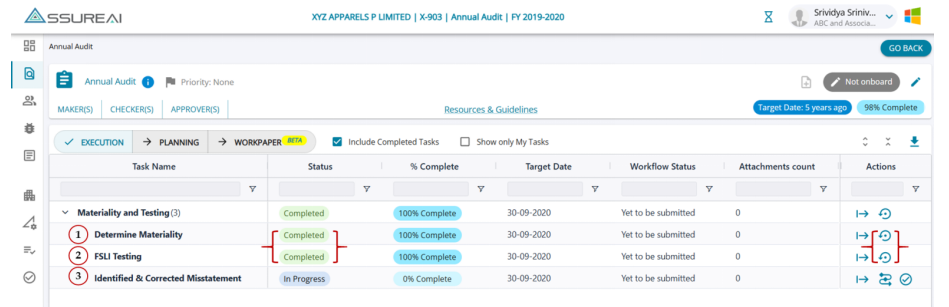
I&CM task can be started only when the Determine Materiality and the FSLI testing tasks are both marked as complete, as this task utilizes the value of Trivial Materiality amount from the Materiality task and the value of Potential Misstatements from the FSLI task.
1.1.1 Step 1: Record Identified Misstatements
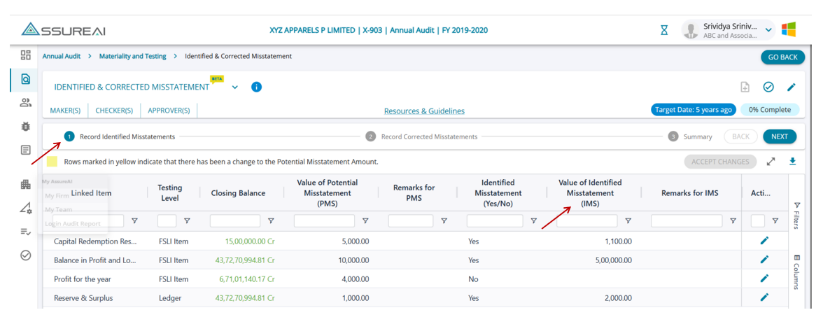
1. All line items with Potential Misstatement amounts entered in the FSLI Testing task under Balance Sheet and P&L will be listed here, both at the FSLI and ledger levels.
2. Users can edit each row to input an Identified Misstatement amount based on the Potential Misstatement amount for each linked item and proceed to Step 2.
1.1.2 Step 2: Record Corrected Misstatements
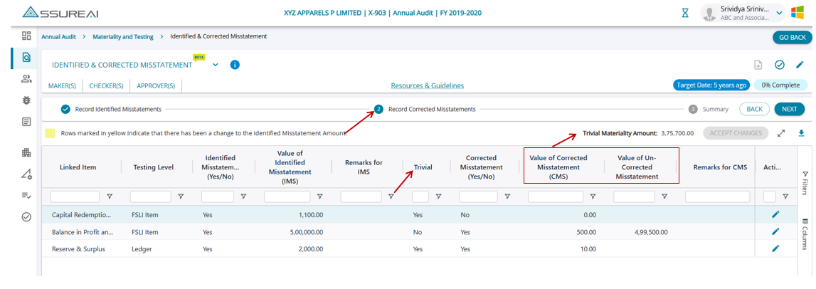
1. In Step 2, based on the Identified Misstatement amount, linked items are automatically classified as Trivial or Non-Trivial misstatements, using the Trivial Materiality threshold set in the Materiality task.
2. Trivial misstatements are excluded from correction, though AssureAI allows users to enter corrected amounts for Non-Trivial items.
3. The system computes Uncorrected Misstatements as the difference between the Identified Misstatement amount and corrected amounts for all Non-Trivial items. Auditors can then assess their impact on the audit report and request corrections.
1.1.3 Step-3 : Summary
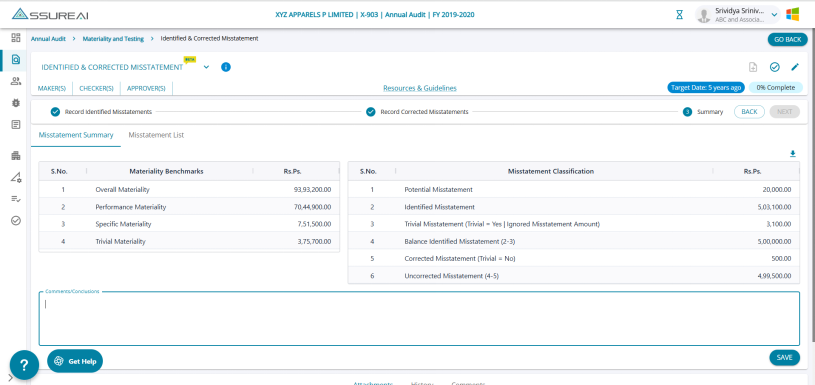
1. Misstatement Summary: The final step presents a summary of materiality thresholds from the Materiality task and a classification of all misstatement amounts.
2. Based on this summary, the auditor can evaluate the overall fairness of the financial statements and add their comments and conclusions.
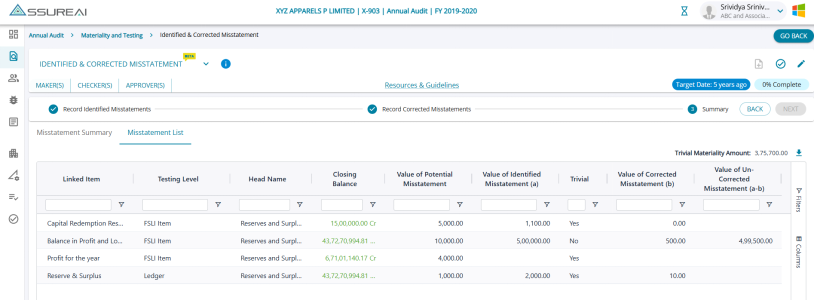
3. Misstatement List: A detailed table displaying all individual linked items along with values entered in Steps 1 and 2.
The work paper for the Identified & Corrected Misstatement Task is not part of the current release and will be rolled out in the next release.
2. Feature Upgrade/ Enhancements
2.1 FSLI Testing
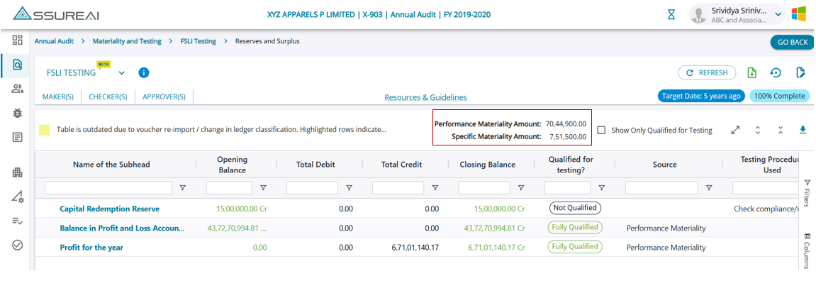
On the Subhead Level screen, users can view both performance and specific materiality amounts derived from the Determine Materiality task. This helps users understand how the system classifies qualified subheads in the source column.
2.2 Workpaper
1. For the new task, FSLI Testing (introduced in the last release), the workpaper format has been rolled out; users can now generate a workpaper containing complete details of FSLI testing.
2. A refresh button has been added to the task screen. The button is enabled once the task is marked as complete. When the user clicks on ‘Generate Workpaper, ’ the workpaper generation happens in the background, and the refresh button allows the user to see when the workpaper generation is complete.
2.3 Add Comments
The add comments module has been enhanced with additional features.
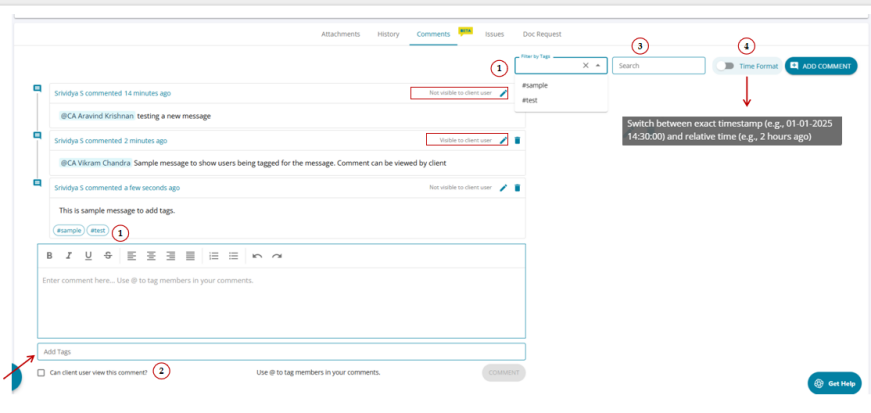
Users can now add tags to comments when posting new ones, as well as edit existing comments to include tags.
With the new "Filter by Tags" feature, users can easily filter and view all comments associated with specific tags. Additionally, clicking on a tag hyperlink will instantly filter the comments to show only those linked to that tag.
2. Each comment now displays its client view access status.
If the checkbox “Can client user view this comment?” is selected, the comment will show the note: “Visible to client user.”
If the checkbox is not selected, the comment will display: “Not visible to client user.”
3. Search based on the comments content has been introduced.
4. There is an option to toggle between the exact and relative time of the comment
2.4 Issues Export
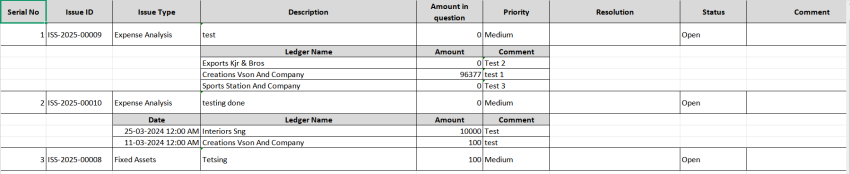
Users can now download the Issues raised into Excel in 2 different formats:
(i)Short Format
(ii)Long Format
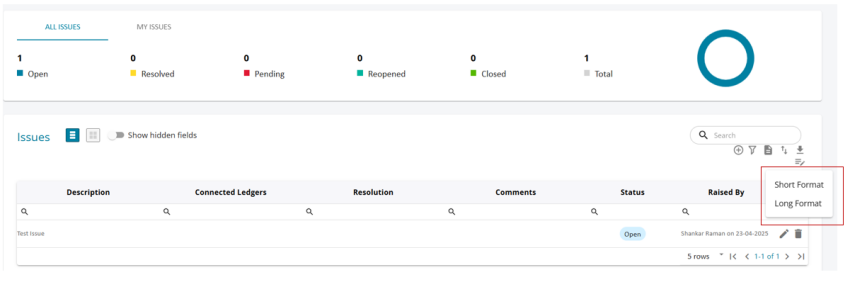
2.4.1. Short Format Sample

2.4.2. Long Format Sample
2.5 Option to Enforce Workflow
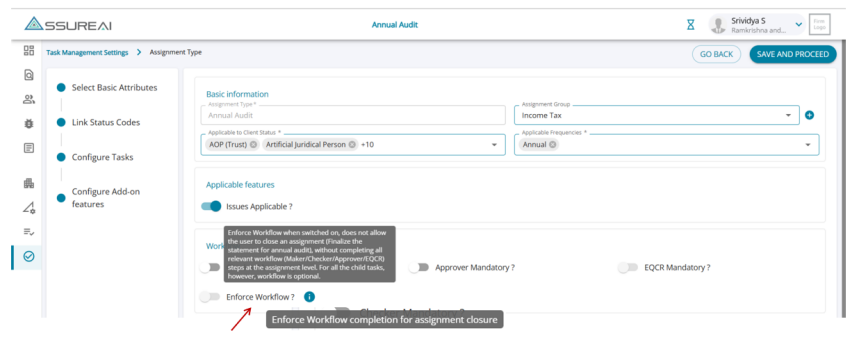
When workflow enforcement is enabled for any assignment, users are required to complete the associated workflow (maker, checker, approver & EQCR) before the assignment can be closed. This means:
1. The assignment will remain open and active until all mandatory workflow actions are completed.
2. The “Close” status option will be disabled until the workflow is fully executed.
3. This ensures that all necessary processes, reviews, and approvals defined in the workflow are properly followed before finalizing/closing the assignment.
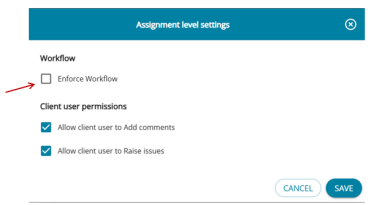
The setting can also be done at the assignment type level from the Planning mode by clicking on the “Assignment Level Settings” button.
2.6 Bug Fixes
Bug fixes and minor enhancements have been applied across various features and screens to ensure a smoother, more reliable user experience and improved product usability.
The fixes have been done on the following features/ screens:
1. Assignment Dashboard :
(i)The summary cards were not displaying the complete list of Makers. The table view showed all Makers correctly, but the summary cards used to omit some entries.
This inconsistency has been fixed and the summary card displays all assigned Makers as shown in the table view.
(ii)The tables on tabs ‘Assigned to Me’ and ‘ Assignments of my Team’ were not automatically refreshing after a bulk update. This issue has now been fixed.
2. Determine Materiality Task :
(i)The Overall Materiality Amount can only be an absolute value, even if the selected benchmark is negative.
(ii)Additionally, the issue where users were unable to save ‘Remarks’ has been fixed.
(iii)Task can now be marked as complete only if it is 100% complete.
3. Adhoc attachments : Previously, users could add attachments to the tasks even after they were marked as completed. Now, attachments can no longer be added once the task is marked as complete.
4. My team page
Only users with the roles Auditor, Administrator, or Audit Manager (read-only) have view access to the ‘My Team’ screen.
Previously, if this Administrator role was assigned along with another role (e.g., Audit Assistant), the table was not displayed. This issue has now been resolved.