
AssureAI Release Note 26.3– April 2026
1. New Feature - Timesheet Management
A. Timesheet Management – Overview
- End-to-end timesheet tracking is introduced in AssureAI
- Covers time capture, submission and review
- Improves visibility, control & utilization
B. Who Can Use This
- Firm Users only (not available for client users)
- Team Members – log and submit time
- Supervisors / Managers – review and approve time
- Admins – configure timesheet settings
C. Where to Find in AssureAI
1. Time capture available via timer icon across multiple screens
Assignment Landing Page
- Execution Mode
- Task-related screens
2. Accessible via Timesheet Dashboard in AssureAI
3. Tabs:
- My Time Sheet
- My Team's Time Sheet
- Time Sheet Awaiting my Review

1.1 Timesheet - Time Capture & Logging
- Log time against: Assignments, tasks
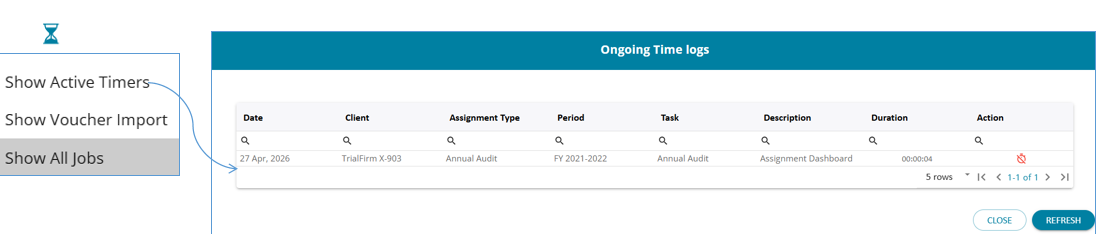
- Start/Stop timer or manual entry
- Auto-capture of: Client, assignment, task (from screen context)
- Multiple entries per day
- Smart tracking: (i) Auto duration calculation (ii) Ongoing logs via hourglass view
- Flexibility: (i) Entries allowed on holidays & non-working days (based on settings, with highlights) (ii) Time can be booked beyond assignment due dates
- Manual edits with validations: (i) Overlapping entries (configurable) (ii) Max 24 hours per entry
 1.2 Manual Time Entry
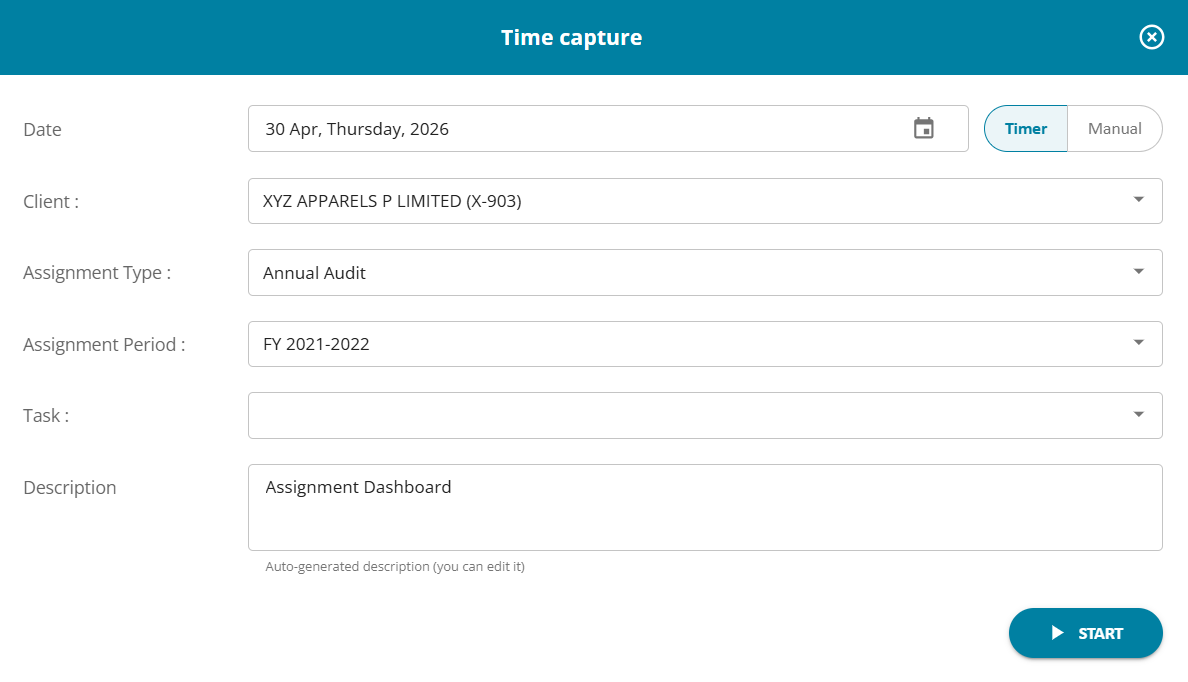
A. Time Capture Screen (Timer Mode)
1. Date auto-filled (editable if needed)
2. Client, Assignment Type & Period auto-populated from context
3. Task selectable based on assignment
4. Description auto-generated (editable by user)
B. Timer-Based Logging
1. Default mode: Timer
2. Click Start to begin tracking time
3. Entry runs in background until stopped
4. Duration auto-calculated and saved
1.3 TimeSheet Dashboard - My Timesheet
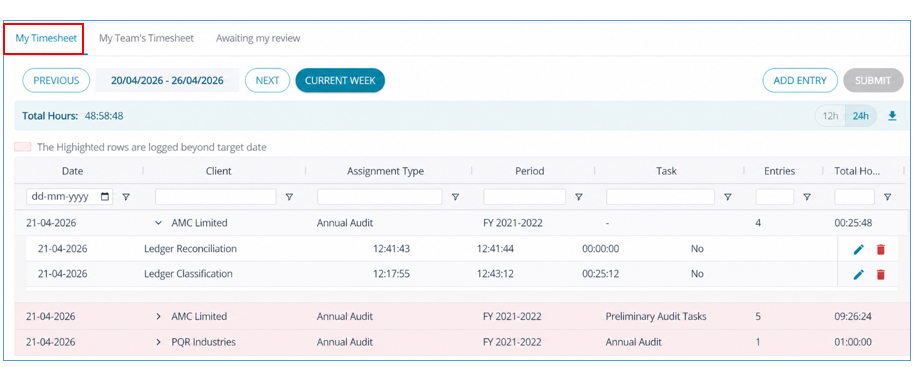
- Central place to view, add, edit and submit time entries
- Displays entries in a table format
- Add Edit / Time Entries
- Submit timesheet to supervisor
- Predetermined, configurable submission frequency (Daily, Weekly, Monthly)
1.4 Timesheet Dashboard - My Team’s Timesheet
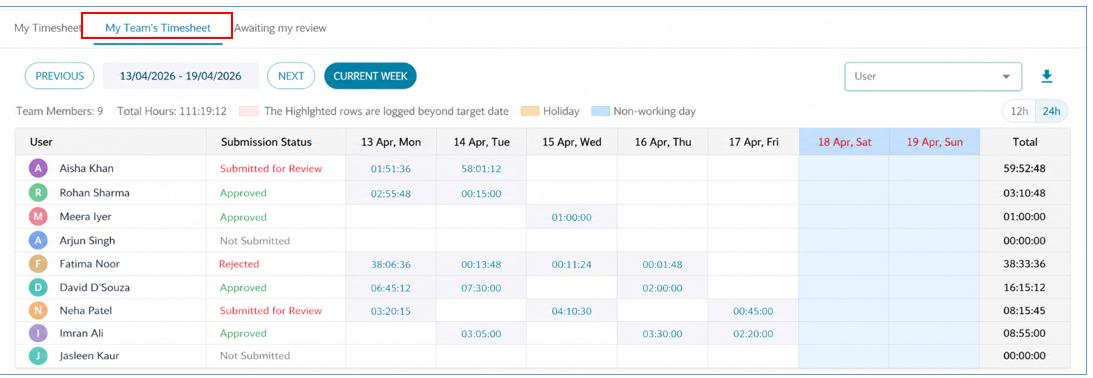
- Supervisor view (read-only) of team members’ time entries
- Displays user-wise, date-wise (calendar grid) view
- Each cell shows total hours logged per day
- Drill-down Details - (i) Click on hours to view detailed entries (ii) Client, Assignment, Task, Description, Duration, Status
- View Controls: (i) Filter by date range (custom period) (ii) Filter by user
(iii) Default view: Weekly - Key Highlights: (i) No edit / approve / reject actions (ii) Visibility across all statuses (Open, Submitted, Approved, Rejected (iii) Helps track team utilization & workload
1.5 TimeSheet Dashboard - Awaiting my Review
Smart Visibility - (i) Shows only pending entries for approval (ii) Once approved → Updates My Team’s Timesheet
- Controls - (i) Navigate previous / next weeks (ii) Filters for better tracking
Dedicated dashboard for pending approvals - Displays user-wise, weekly view of submitted entries
- Approval Actions - (i) Approve All / Reject All (user-level) (ii) Day-level approval via detailed view (iii) Mandatory comments for actions
- Drill-down View - (i) Click hours to see day-wise detailed entries (ii) Take action at a granular level
2. Major Enhancements
2.1 Task Packs for Smarter Assignment - Planning
A. What’s New
We’ve introduced Task Packs, a powerful enhancement to streamline assignment planning and reduce manual effort.
Task Packs allow you to define pre-configured sets of tasks for different types of clients and assignments—so you no longer have to select tasks manually every time.
B. Why This Matters
Planning assignments often involves selecting the right subset of tasks from a large list. This can be:
1. Time-consuming
2. Error-prone
3. Inconsistent across team members
With Task Packs, you can standardize and accelerate this process.
C. Where to Find It in AssureAI
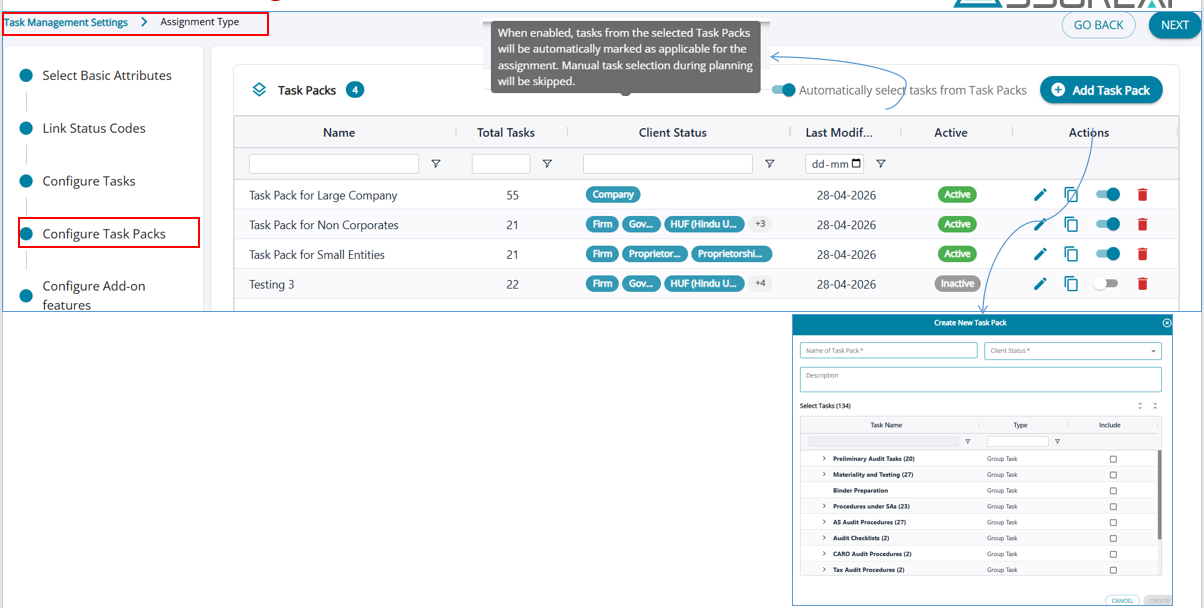
1. Task Pack Configuration→ Task Management Settings
2. Client Preferences→ Assign Task Packs to clients
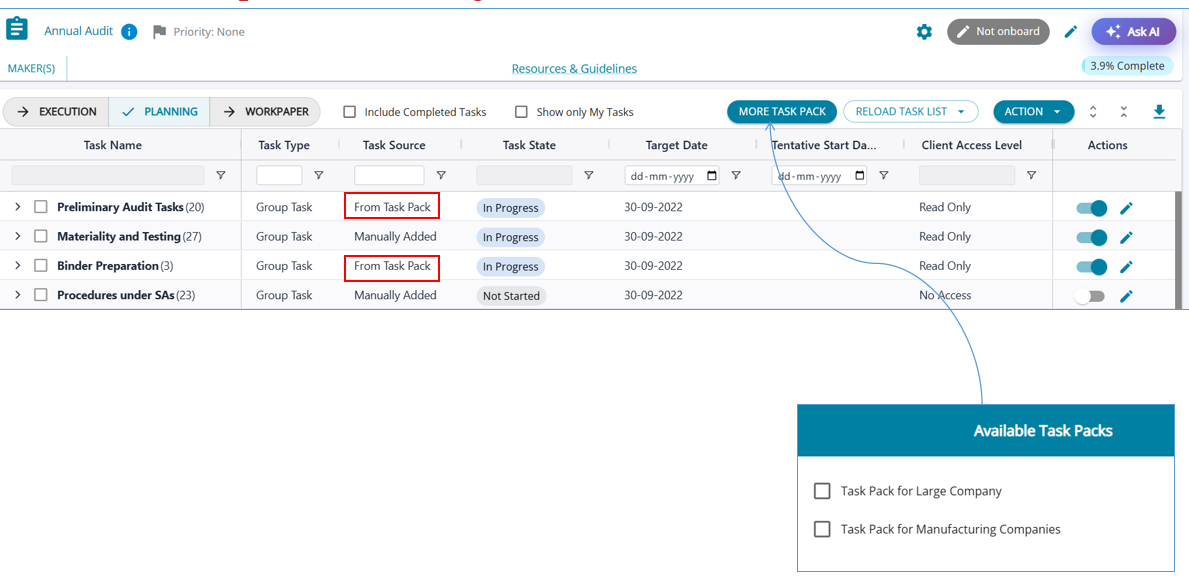
3. Planning View→ Apply and manage Task Packs or skip altogether
2.1.1. Task Pack Configuration
- Configuration: Create Task Packs by selecting relevant tasks from assignment templates and configure them for different client types (e.g., Company, Partnership, etc.)
- Re-usability – Easily reuse Task Packs across assignments
- Manage Packs – Edit, clone, mark as applicable, or delete Task Packs as needed
- Auto-Applicability - Enable automatic selection of tasks from Task Packs
- Skip manual planning and move directly to execution
2.1.2 One-time linking : Task Pack(s) with Clients
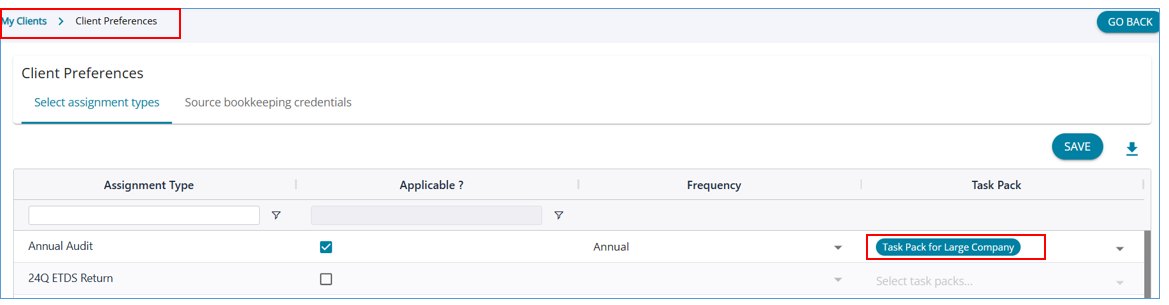
Client-Level Configuration : Assign one or more Task Packs to each client via Client Preferences. Only relevant Task Packs are shown based on client type
2.1.3 Task Packs - Optional Planning
- Faster Planning with Default Task Loading : (i) Tasks from selected Task Packs are automatically loaded in Planning view (ii) Supports multiple Task Packs with automatic de-duplication
- Add More Task Packs During Planning: (i) Use “More Task Pack” to include additional packs on demand (ii) Tasks are added without duplication (iii) You retain full control to mark tasks as applicable
 2.2 Excel Import for Checklist
- Introduced a new Import / Export option within Checklists for easier data handling.
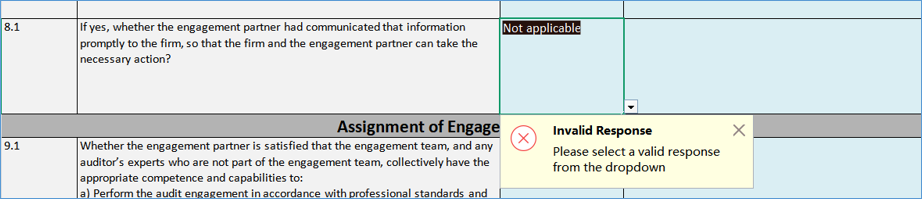
- Download Excel Template now includes pre-configured response options as dropdowns. These dropdown values are automatically populated based on the responses defined during checklist configuration.
- Import Filled Excel allows users to upload the completed template with selected responses.
- Download PDF option available to export checklist data as displayed on screen.
Import Processing & Validations:
(i) When the user clicks Import and uploads the Excel file, the system reads the data, performs validations, and shares the import status.
(ii) On successful import, the checklist table is automatically populated with the corresponding responses and comments.
(iii) If validations fail, an error report is generated with row-level details of the error and the failed validation.
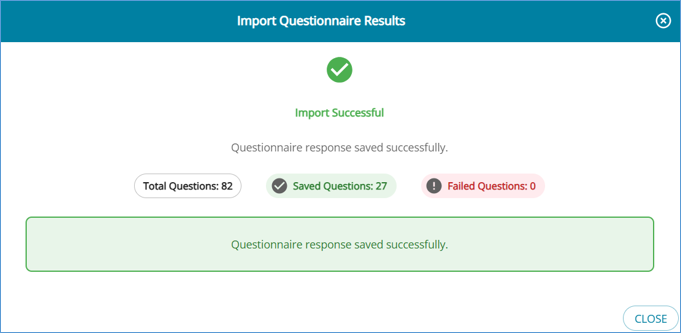
Sample checks include:
(i) Responses must match the predefined dropdown values in the template.
(ii) Mandatory fields cannot be left blank.
2.3 New Issues Dashboard
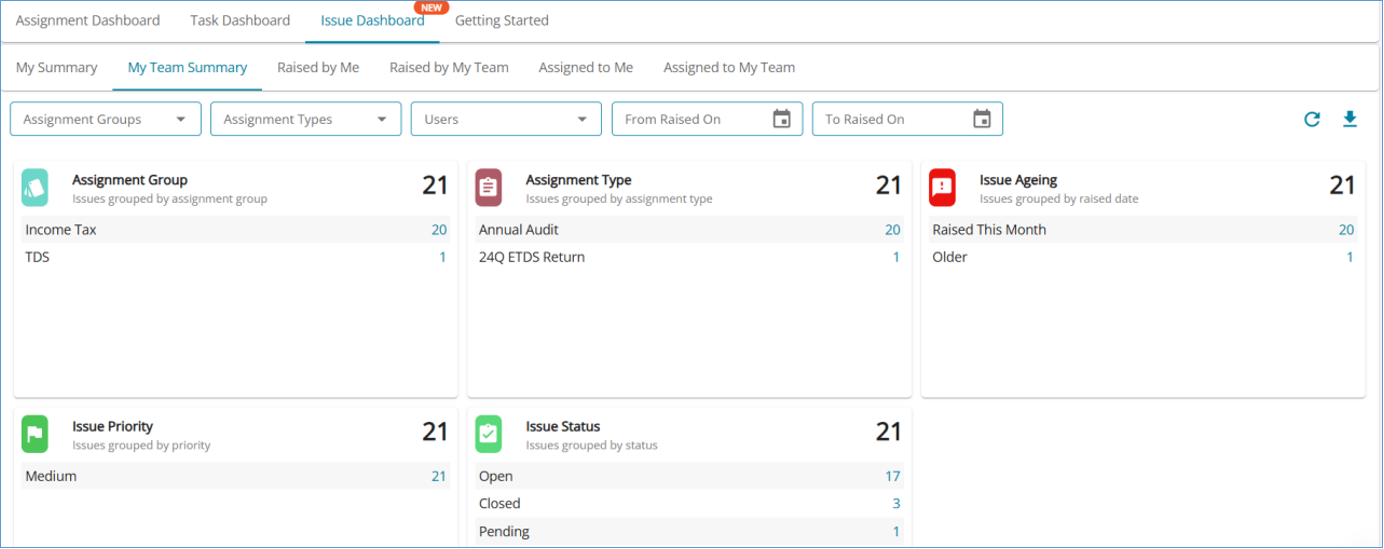
- Revamped Issue Dashboard – Redesigned with a card-based layout, similar to the Assignment Dashboard
- Multi-Card View – Multiple cards display with issue counts across for quick visibility
- At-a-Glance Insights – Easily identify and track number of issues by key parameters in a single view
2.3.1 Issues Dashboard - Feature Summary
- Issue Dashboard – Introduced a centralized dashboard to view and track issues across assignments
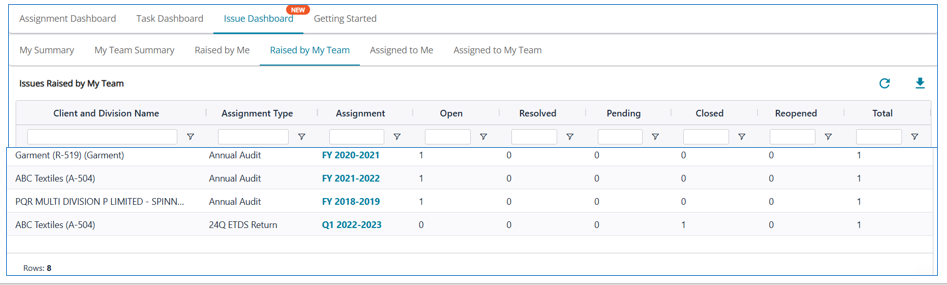
- Smart Navigation Tabs – Easily switch between My Summary, My Team Summary, Raised by Me, Assigned to Me, and more
- Advanced Filters – Filter issues by Assignment Group, Assignment Type, and Raised Date range
- Grouped Views – View issues grouped by: Assignment Group , Assignment Type , Issue Ageing (based on raised date) , Priority Status
- Quick Counts – Get instant visibility into issue counts across each category
- Refresh & Export – Added quick refresh and download options for better usability
3. Minor Enhancements
3.1 Re-import Handling : Safeguards for Manual Journal Entries During Re-import
Previously, users had limited visibility into the impact of certain actions such as rejecting data validation or re-importing books, which could lead to unintended data loss of journal entries directly entered within AssureAI.
Enhancements Introduced:
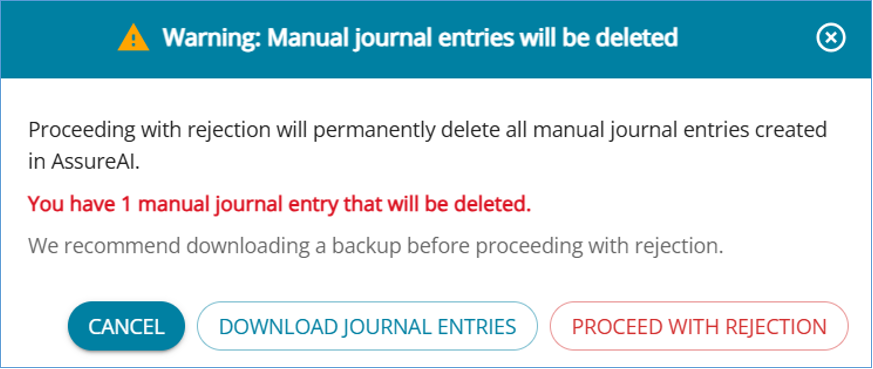
1. Clear warning messages are now displayed when users attempt to reject data validation, highlighting the impact on existing manual journal entries.
Users are given an option to download a backup of manual journal entries before proceeding.
2. Improved handling during re-import of books / new version uploads to ensure users are aware of data overwrite scenarios.
3. Overall better visibility and control over actions that affect existing data.
These changes help prevent accidental data loss and improve user confidence while performing critical actions.
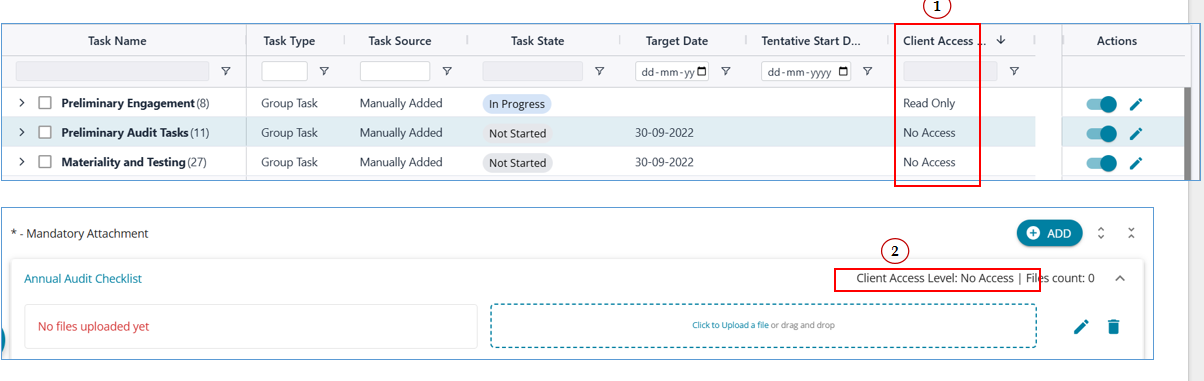
3.2 Planning and Execution Mode - Client Access Visibility in Tasks
1. A new “Client Access Level” column has been introduced to improve visibility into task accessibility for clients. This column (hidden by default) reflects the access permissions assigned to each task, with values: Can Work, Read Only, and No Access—aligned with the options available in the Edit Task dropdown.
2. Additionally, the assigned Client Access Level is now displayed for all task-level attachments, ensuring clearer understanding of client permissions across tasks and related documents.
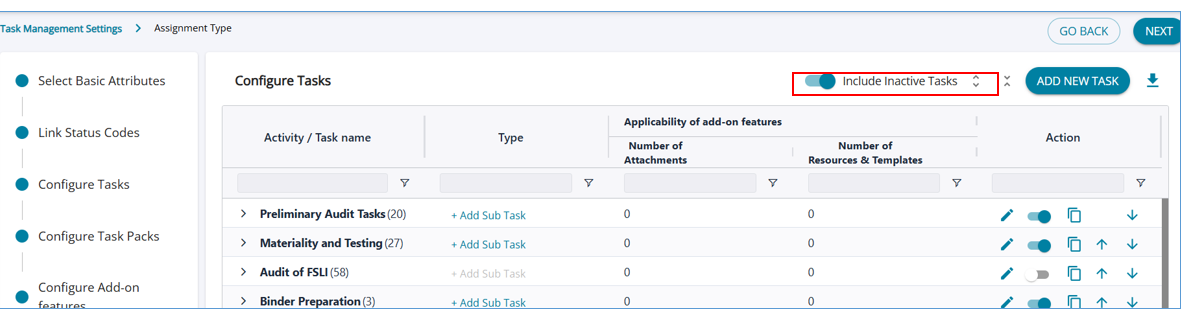
 3.3 Task management Settings: Configure Tasks - Active Tasks Filter : “Show only active tasks" control
Reduced clutter on the “Configure Tasks” page by displaying only active tasks by default. Added an “Include inactive tasks” option, allowing users to view deactivated tasks when needed, improving overall usability and focus.
4.Bug Fixes
A. Feature - Configure Tasks ( Task Management Settings)
Bug: Task Activation/Deactivation Hierarchy
Task activation and deactivation did not consistently follow the hierarchy—deactivating a task did not always deactivate its descendant tasks, and activating a task did not ensure that all its parent tasks were activated.
This issue has now been fixed. Deactivating a task will automatically deactivate all its descendants, and activating a task will ensure that all its parent and higher-level parent tasks are activated accordingly.
B. Feature - Comments & Disclosures
Bug Fix: PDF Export – Duplicate Section Names
There were certain rare scenarios where Financial statement PDF export was failing due to duplication of section names in Comments and Disclosures. – Fixed .
C. Feature - FSLI Testing ( Load Audit Program)
Bug Fix: Auto Population of Ledgers while raising issues
Ledgers were not auto-populated when the ‘Raise Issue’ button was clicked form the FSLI Testing page. - Fixed
D. Feature - Excel Import
Bug Fix: TB Import – Ledger Name Validation & Error Handling
During Trial Balance (TB) Excel import and Books of Accounts - Transactions Export – Formula rows added in the Excel, even if erased were throwing errors, unless the rows were deleted completely. This has been fixed. Users can now expect less errors in Trial Balance import.