Log Time - Auto Time Capture & Manual Time Entry
Time Capture & Logging
The Time Capture feature in AssureAI enables users to seamlessly track time spent on tasks, assignments, and activities—either automatically through a timer or manually via structured entry. Designed for flexibility and accuracy, it ensures minimal manual effort while maintaining complete visibility of work logged.
1. Auto Time Capture (Start/Stop Timer)
Users can start tracking time instantly from any screen using the Timer icon.
How it works:
(i) Clicking Start automatically creates a time entry in Open status
(ii) Time begins tracking in real-time without requiring manual input
(iii) Clicking Stop ends the timer and auto-calculates duration

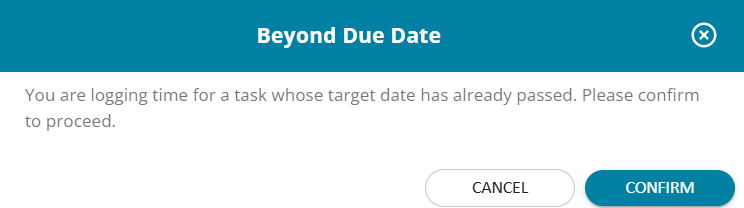
The system allows users to log time even after the task/assignment target (due) date has passed, with appropriate validation and user confirmation.
Auto-Captured Fields:
(i) Date – Current system date
(ii) Client – Derived from screen context (if applicable)
(iii) Assignment Type & Period – Based on selected assignment
(iv) Task – Captured from the task where timer is triggered
(v) Start Time – Timestamp of Start click
(vi) Description – Blank (editable later)
2. Manual Time Entry (Log Time Pop-up)
Users can log time manually using the Log Time option.
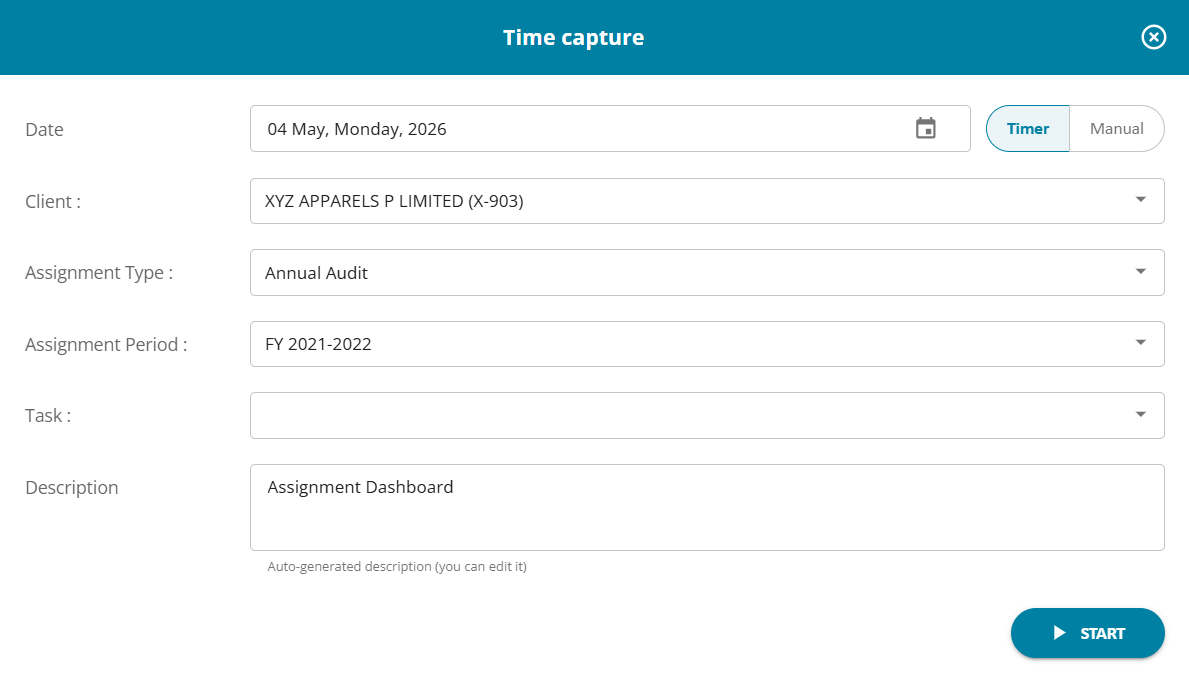
How it works:
(i) Clicking Log Time opens a structured pop-up
(ii) Users can enter or modify all required fields before saving
Fields Available:
(i) Date – Defaults to current date; allows past (unsubmitted) dates; future dates restricted
(ii) Client – Optional for non-client work; shows accessible clients
(iii) Assignment Type & Period – Filtered based on client; only active assignments shown
(iv) Task – Based on assignment and user role
(v) Description – Pre populated with defined details of work, can be edited by user
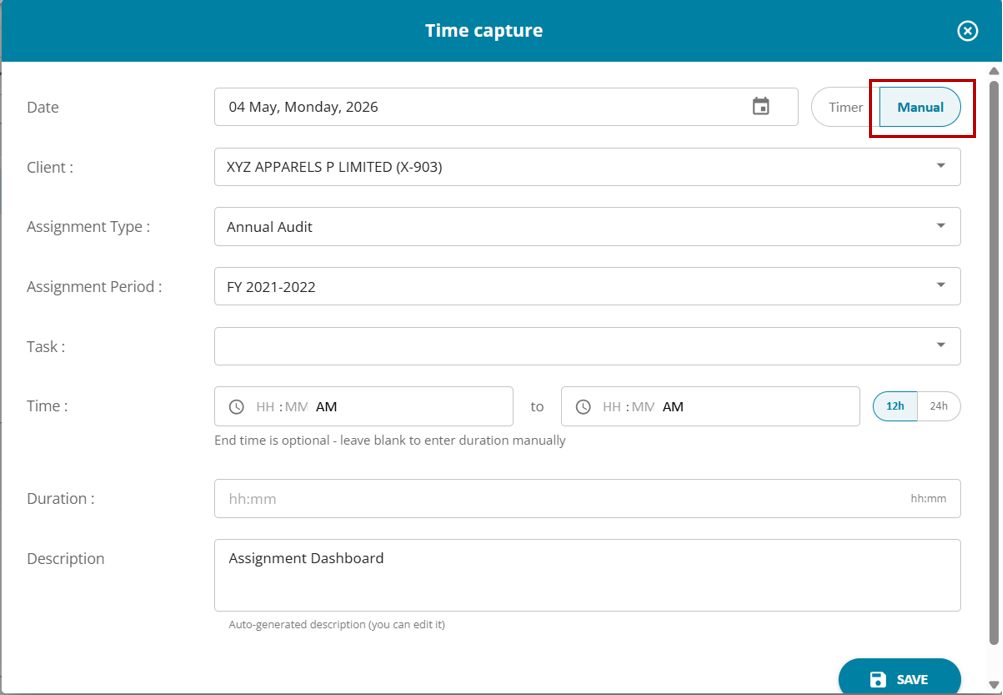
(vi) Start & End Time / Duration – For manual time calculation
3. Real-Time Tracking & Entry Creation
When a timer is started, a new row is automatically added in My Timesheet
The entry continues running until stopped
Users can stop the timer: (i) From the pop-up (ii) Or directly from the timesheet screen

4. Managing Time Logs ( Hour Glass View)
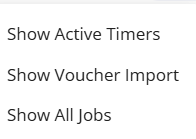
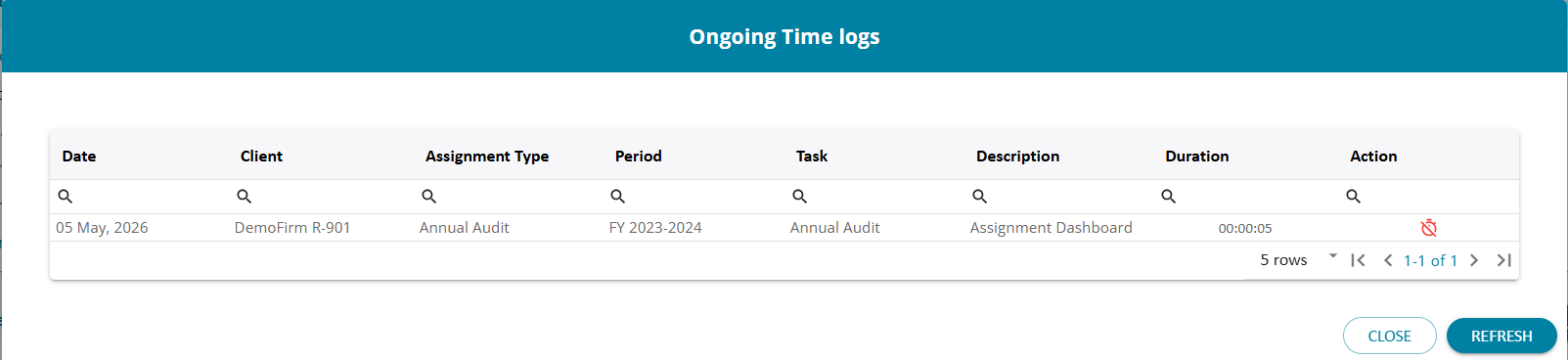
The Hourglass icon provides a centralized view of all ongoing time logs.
Features:
(i) Displays all active (running) time entries
(ii) Shows key details: Date, Client, Assignment Period , Task, Description, Duration
(iii) View-only screen for monitoring
(iv) Actions Available: Stop any running time log
(v) Additional Behavior: Multiple timers can run simultaneously (if enabled in settings)