
Bulk Update of Issues - Load Audit Program
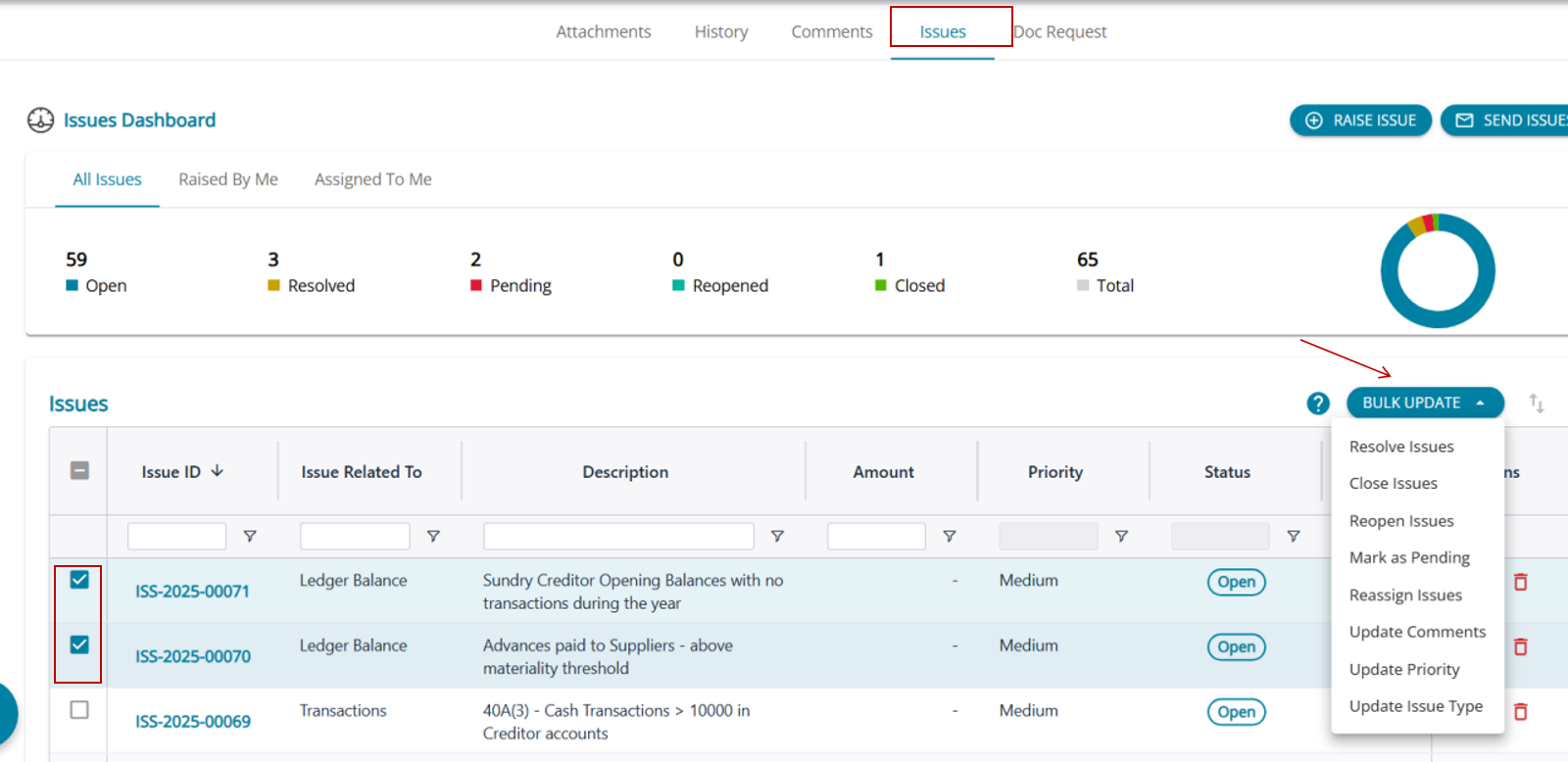
Upon selecting a checkbox for the issues raised, the bulk update button will be enabled.
The bulk update option is enabled for updating 1 or multiple issues at the same time. The drop-down for bulk update has the following options :
- Resolve Issues
- Close Issues
- Reopen Issues
- Mark as Pending
- Reassign Issues
- Update Comments
- Update Priority
- Update Issue Type
1. Update Priority
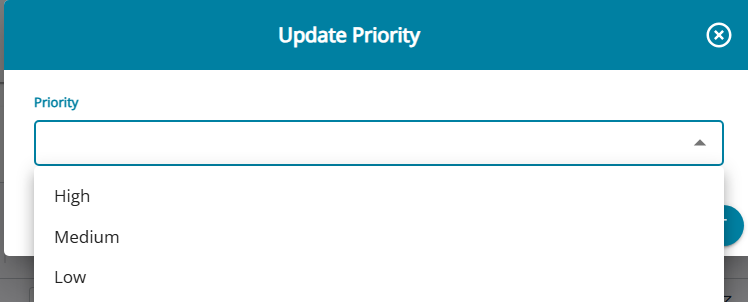
When the user selects the option to update the priority. the pop up for changing priority is displayed
The drop-down for priority update should list: High, Medium, and Low.
2. Update Issue Type
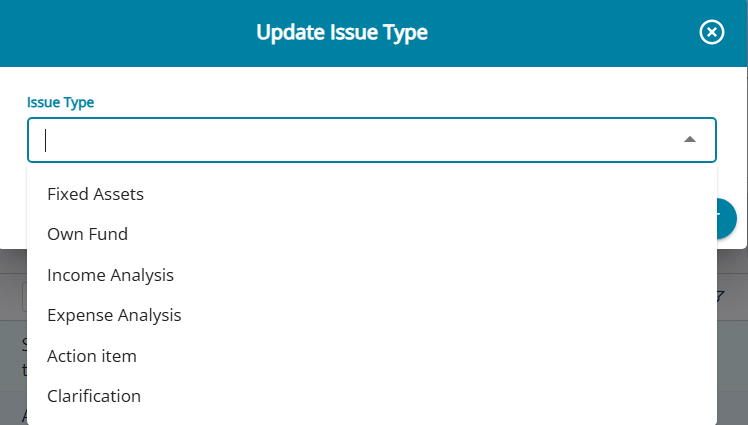
When the user selects the option to update the issue type. the pop up for changing the issue type is displayed
The drop-down for issue type update should list: Fixed Assets, Own Fund, Income Analysis, Expense Analysis, and Action Item Clarification.
3. Reassign Issues
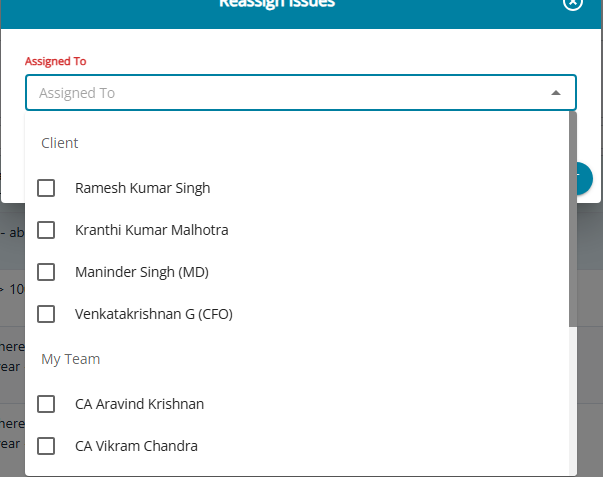
When the user selects the option to update Assigned to, the pop-up for changing the assignee is displayed. The drop-down for the Assigned To update will list all active firm users and client users.
The user can select more than 1 assignee while editing.
4. Update Comments
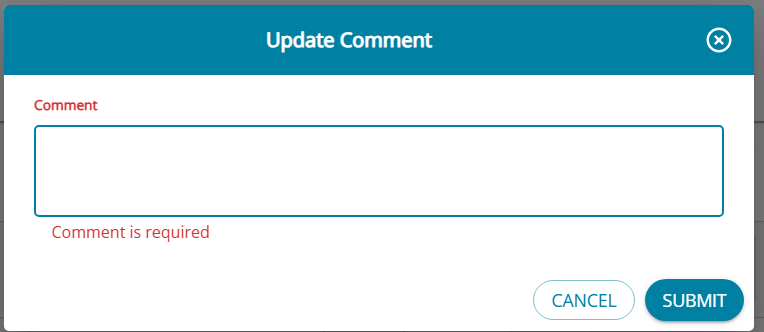
When the user selects the option to update Comments, the pop-up for adding comments is displayed.
The pop-up screen displays a text box for the user to enter the comments
The default display will be an empty text box, and even if the user has entered any comments for the issue previously, the comments will not be displayed here.
5. Status Update Options
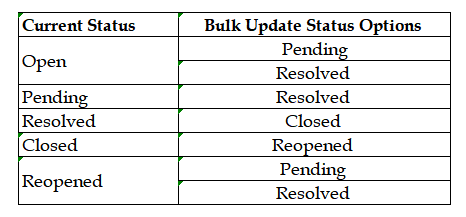
5.1 Mark as Pending
Only issues that are in the status Open or Reopened can be marked as Pending. If the user selects issues with different statuses, the bulk update of statuses cannot be done. The system shares an error message.
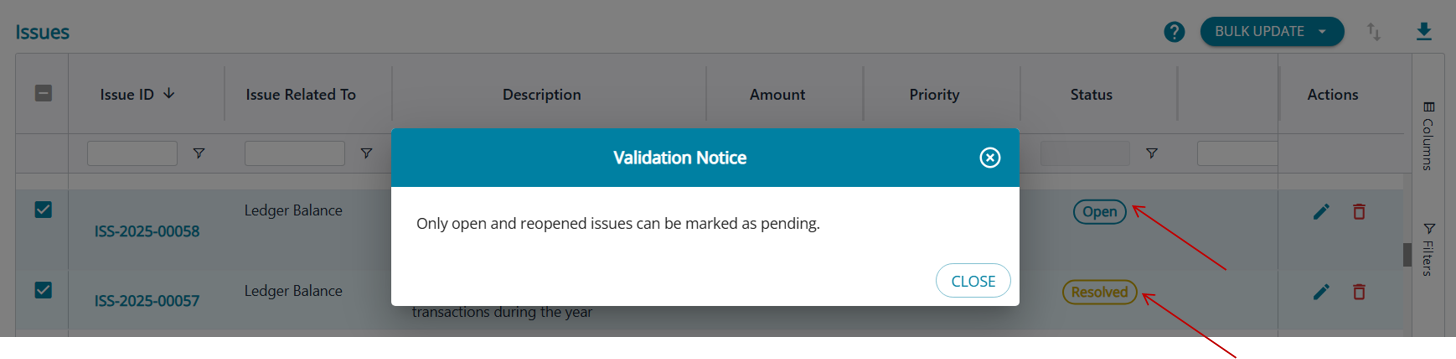
5.2 Close Issues
Only issues that are in the status Resolved can be marked as closed. If the user selects issues with different statuses, the bulk update of statuses cannot be done. The system shares an error message.
5.3 Resolve Issues
Only issues that are in the status Open, Pending, and reopened can be marked as Resolved. If the user selects issues with different statuses, the bulk update of statuses cannot be done. System shares an error message
If all the selected issues all are in the required status, then the status of the issues is updated to resolved, upon click of the yes the system shares a pop-up message to update the resolution for all the selected issues.
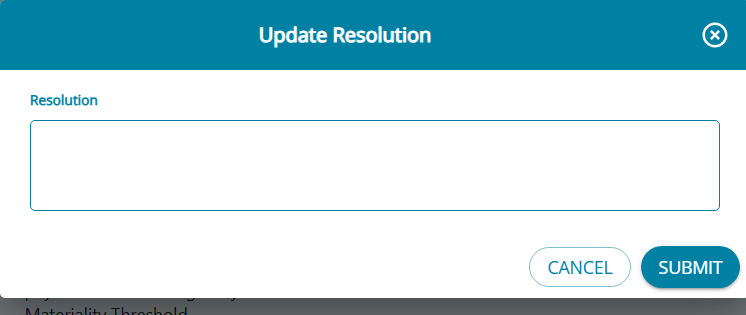
If the user clicks on 'Submit without entering resolutions', the system will share an error message requesting the user to enter the resolution.
5.4 Reopen Issues
Only issues that are in the status closed can be marked as Reopened. If the user selects issues with different statuses, the bulk update of statuses cannot be done. The system shares an error message.
If all the selected issues are in the closed status, then the status of the issues is updated to Reopened. Upon clicking the yes button, the system shares a pop-up message to update comments for all the selected issues.
Comments are mandatory to update the status to Reopened, user cannot submit changes without adding comments.
If the user clicks on 'Submit without entering comments, the system will share an error message requesting the user to enter the comments.