
Configure Auto Mapping Rules
Configure Auto Mapping Rules
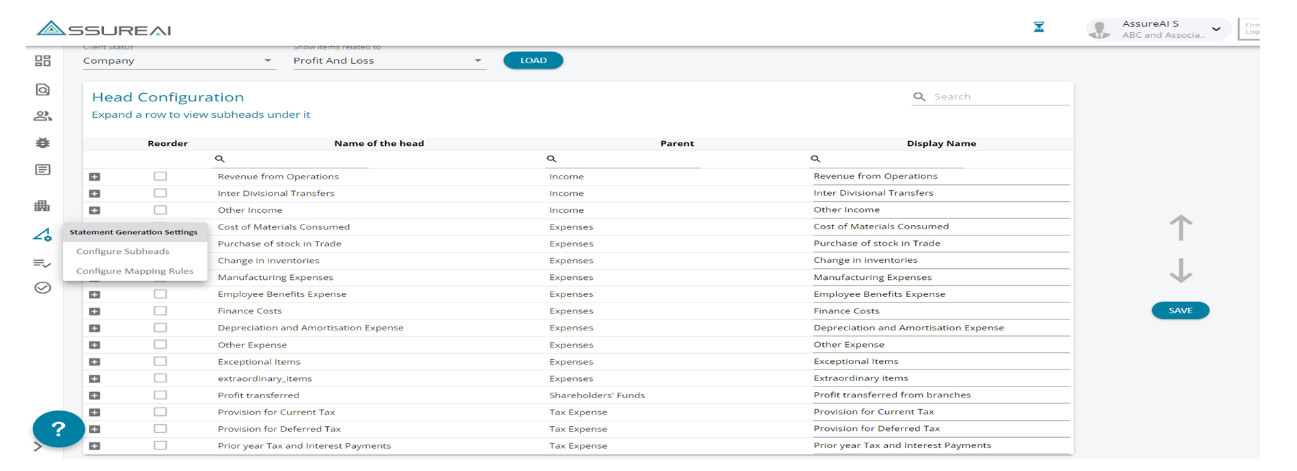
1-Ledger Classification (Mapping) is an important step where the Accounting Ledgers are mapped to pre-defined Subheads
2-Auto mapping is a process whereby mapping is done based on pre-defined Rules
3-Mapping Rules are pre-configured and it is possible to delete the rules and add new rules
4-Click on the Configure Mapping Rules tab on the left scroll bar to review/add/delete auto-mapping rules
Add/Delete Auto Mapping Rules
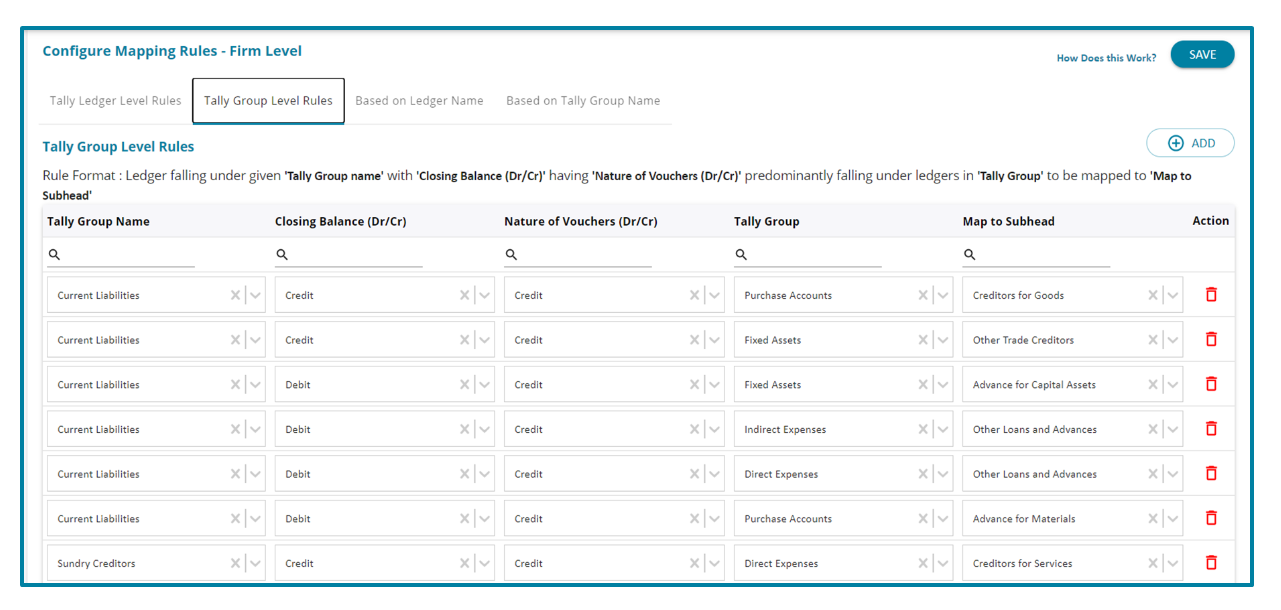
Mapping Rules Configuration
1- There are four types of mapping rules
A)-Tally Ledger Level Rules - Ledger falling under given 'Tally Group name' with 'Closing Balance (Dr/Cr)' having 'Nature of Vouchers (Dr/Cr)' predominantly falling under given 'Ledger' to be mapped to 'Map to Subhead'
B)-Tally Group Level Rules - Ledger falling under given 'Tally Group name' with 'Closing Balance (Dr/Cr)' having 'Nature of Vouchers (Dr/Cr)' predominantly falling under ledgers in 'Tally Group' to be mapped to 'Map to Subhead'
C)-Based on Tally Ledger Name - Ledger falling under given 'Tally Group Name' with 'Closing Balance (Dr/Cr)' and ledger name containing 'Text' to be mapped to 'Map to Subhead'
D)-Based on Tally Group Name - Ledger falling under given 'Tally Group Name' with 'Closing Balance (Dr/Cr)' and parent tally group name containing 'Text' to be mapped to 'Map to Subhead’
2-Users are allowed to Add more rules to this “Firm Level Mapping Rule” setting – it also possible to delete any pre-defined rule using the delete button on the right side of each rule
3-These rules will operate on sequential basis – first Tally Ledger Level rules will be executed, followed by Tally Group Level Rules, and so on.
4-Once configured, these firm level rules will be available for importing at the Client level and the user can also modify the rules at the Client Level before Auto mapping
5-For detailed write up about Rule configuration, please read the document ‘How does this work?’ in the top right corner of the mapping rule configuration screen