How to correct Automated Forex adjustments in Tally PRIME
AssureAI expects that for each ledger, the closing balance is equal to the sum of Opening balance and transactions.
Hence in cases where there are automated calculations in Tally, (say Forex adjustment), Ledger reconciliation will not match in AssureAI.
To check this
1. Verify Whether Multi Currency Option Is Enabled In Tally
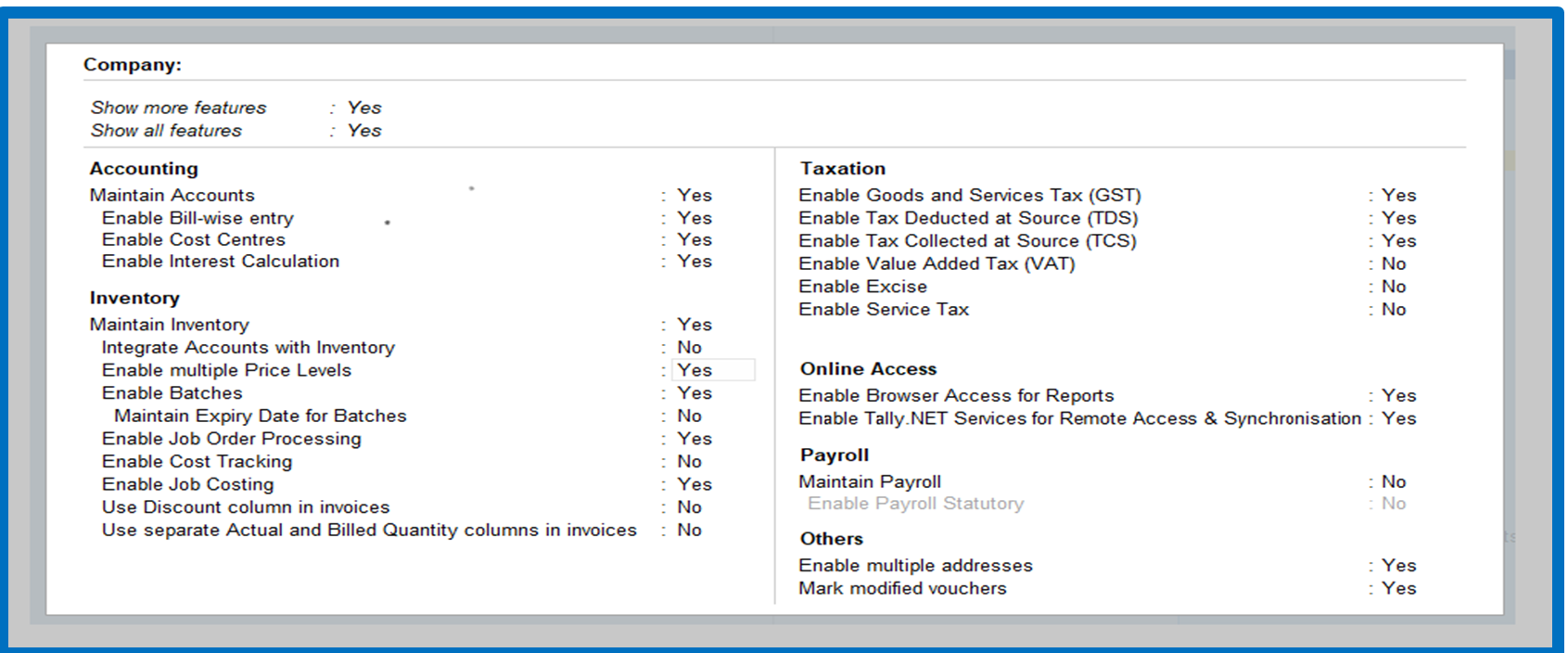
User to click on F11 - > “Enable Multi Price Levels” to be updated to “YES”
2. Exchange Rate Fixation
Navigate to -> Gateway of tally – Create – Rates of exchange –Set –
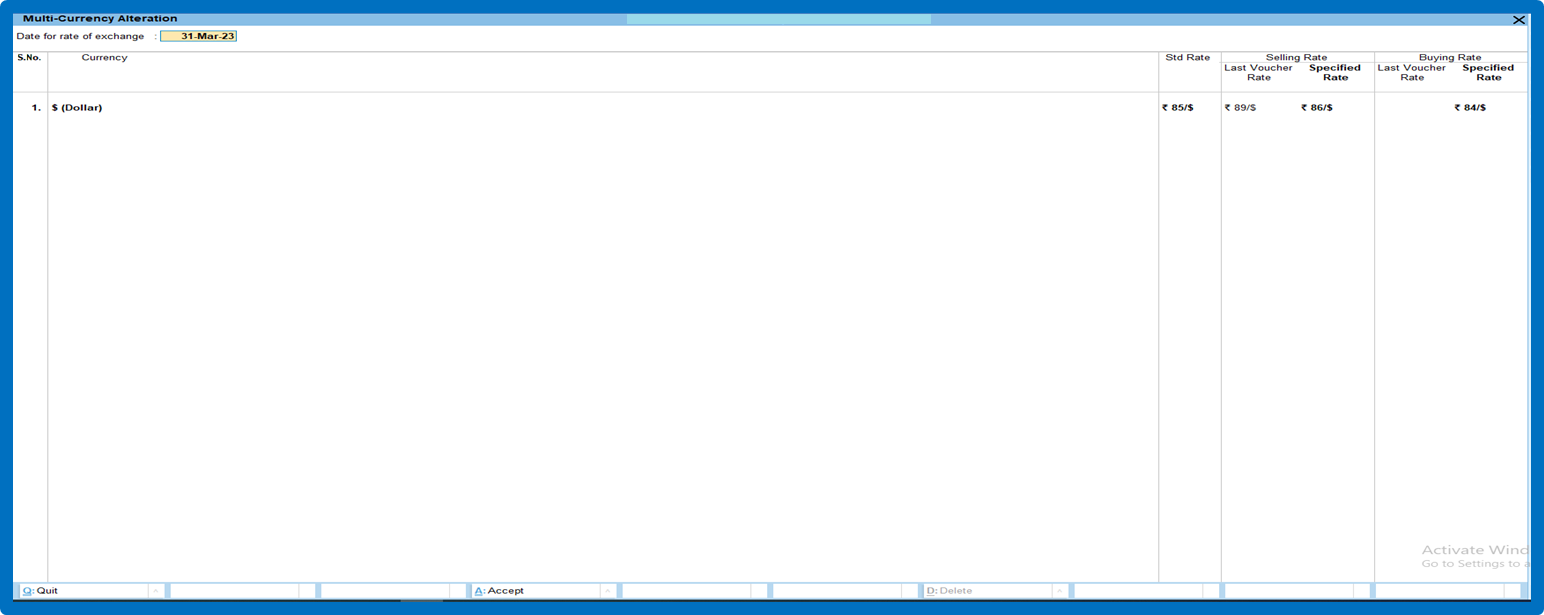
(1) Standard Rate (2) Selling rate (3) Buying rate
3. Entry made with other currency
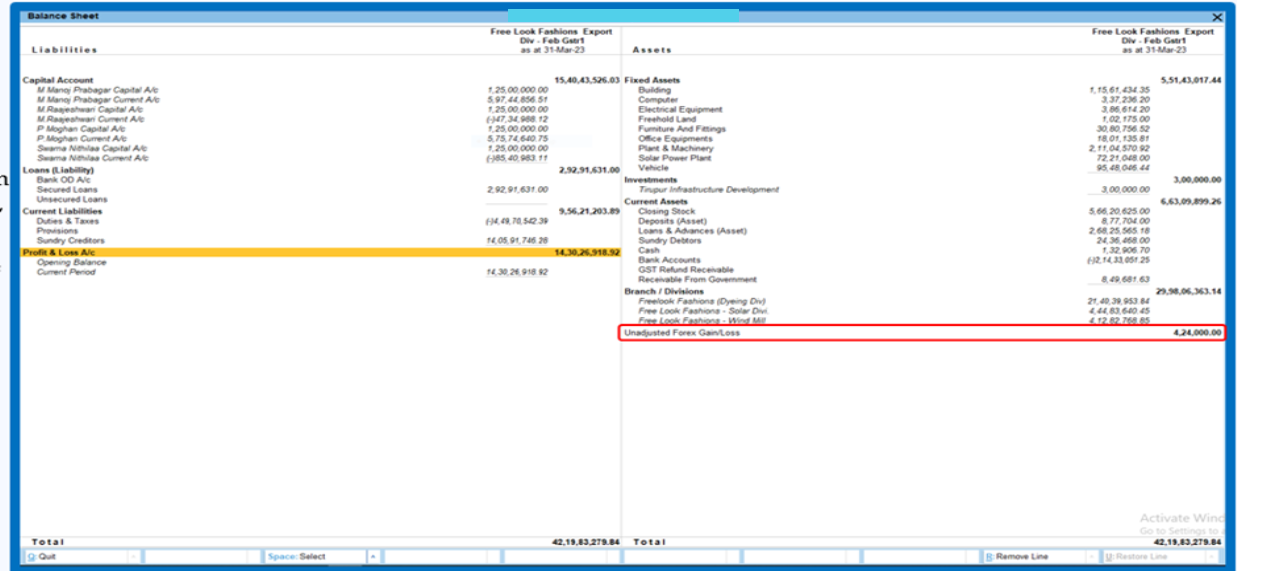
4. Unadjusted Forex Gain /Loss
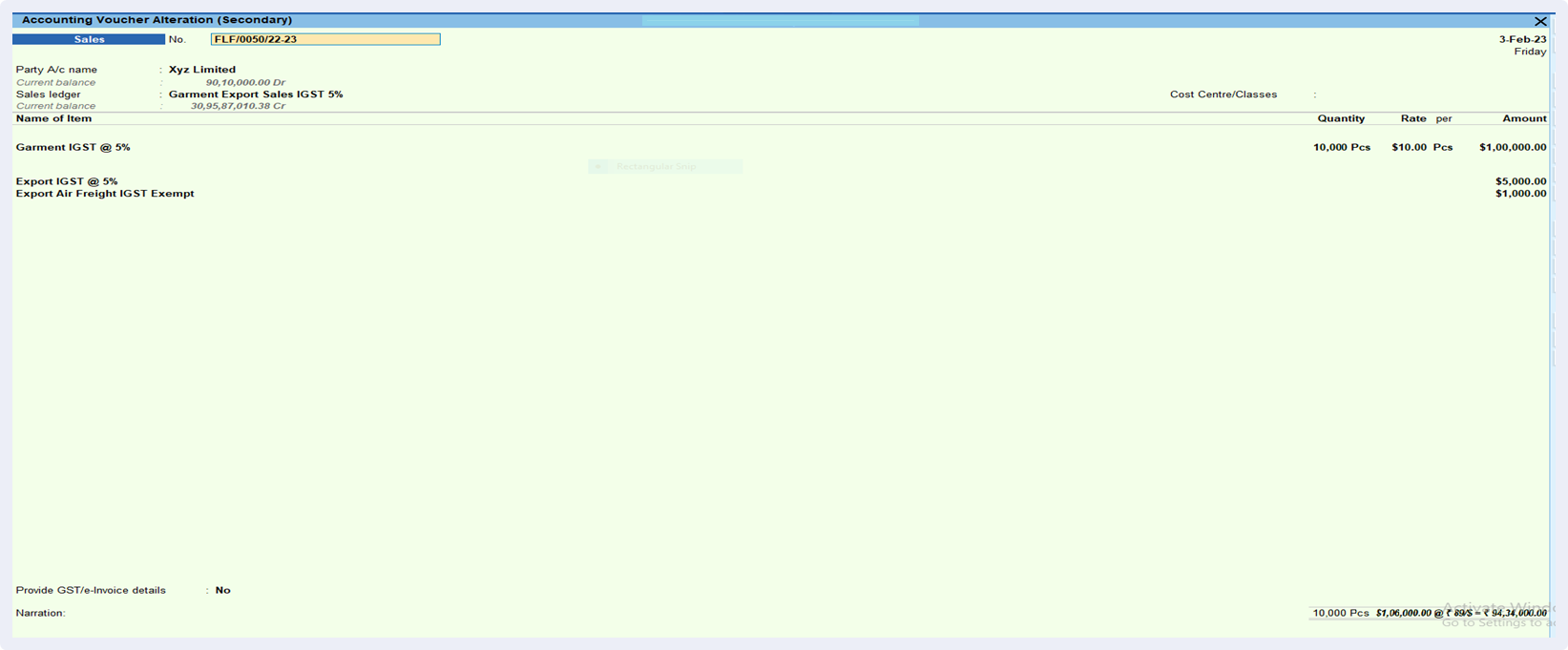
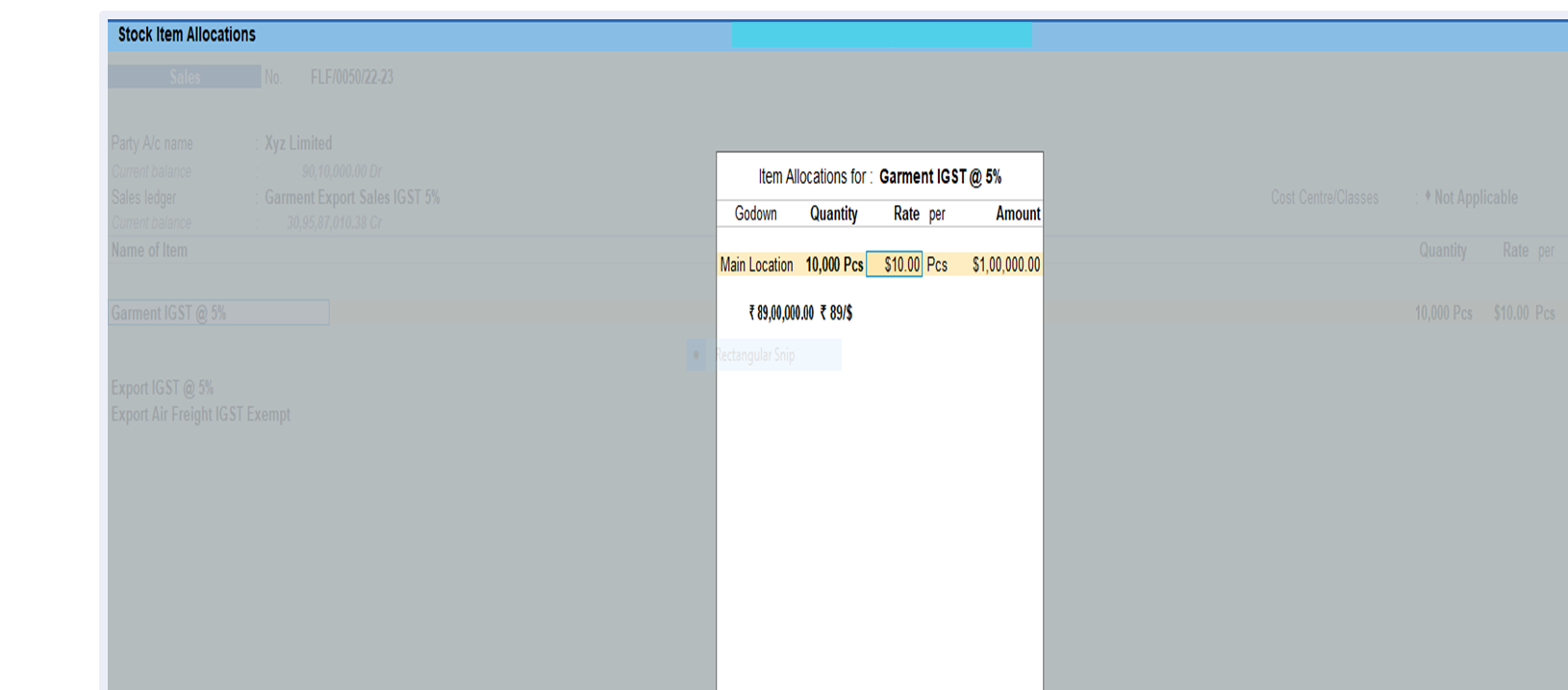
(a) Sales booked on 89
(b) Standard rate 85
(c) Difference 4
(d) Total FC accounted in this voucher $106000,
(e) Hence unadjusted forex Gain / (Loss) is INR 424000 (4*$106000)
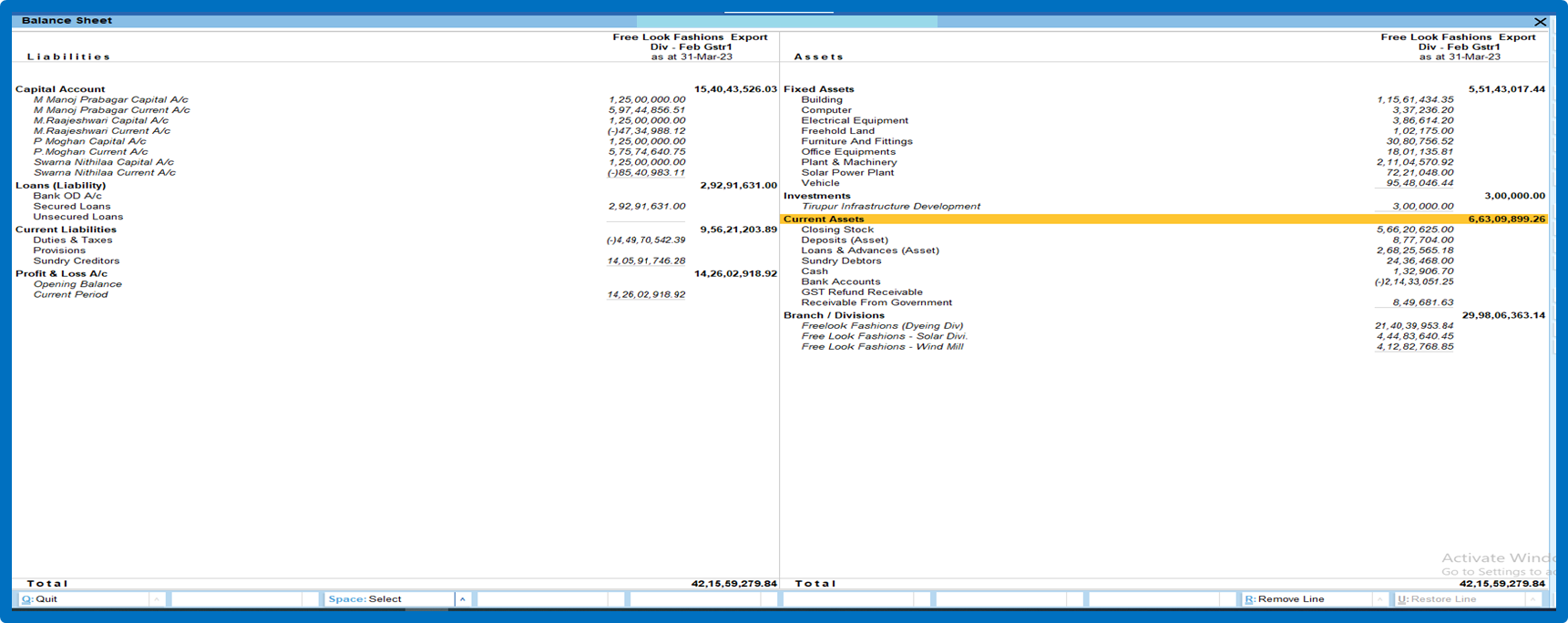
1. In forex enabled client books, an automated entry ‘Unadjusted forex gain/loss’ will figure as a separate line item in the balance sheet.
2. This is not due to any voucher entry but out of an automated calculation and hence this transaction will not be picked up during JSON Export.
3. Now we need to pass forex fluctuation entry and remove this automated calculation from the balance sheet.
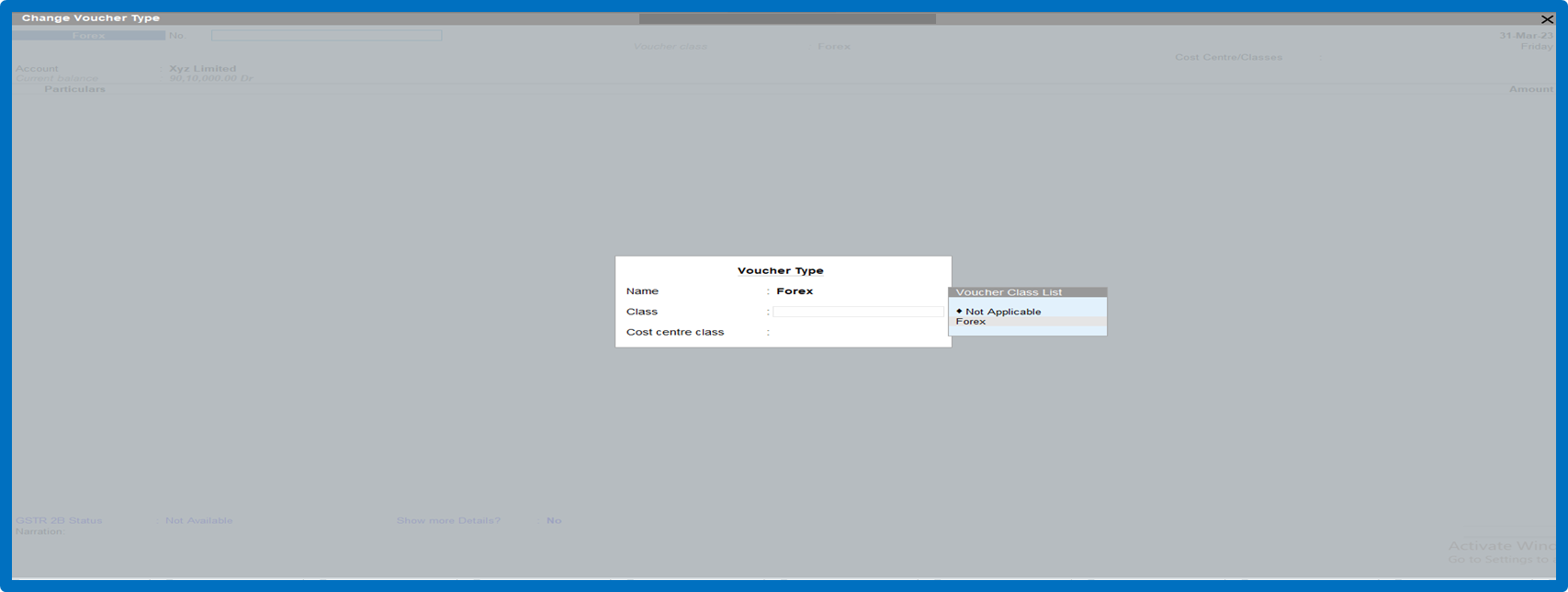
5. Create Voucher Type
Gateway of tally – Create – Voucher Type – Forex Adjustment
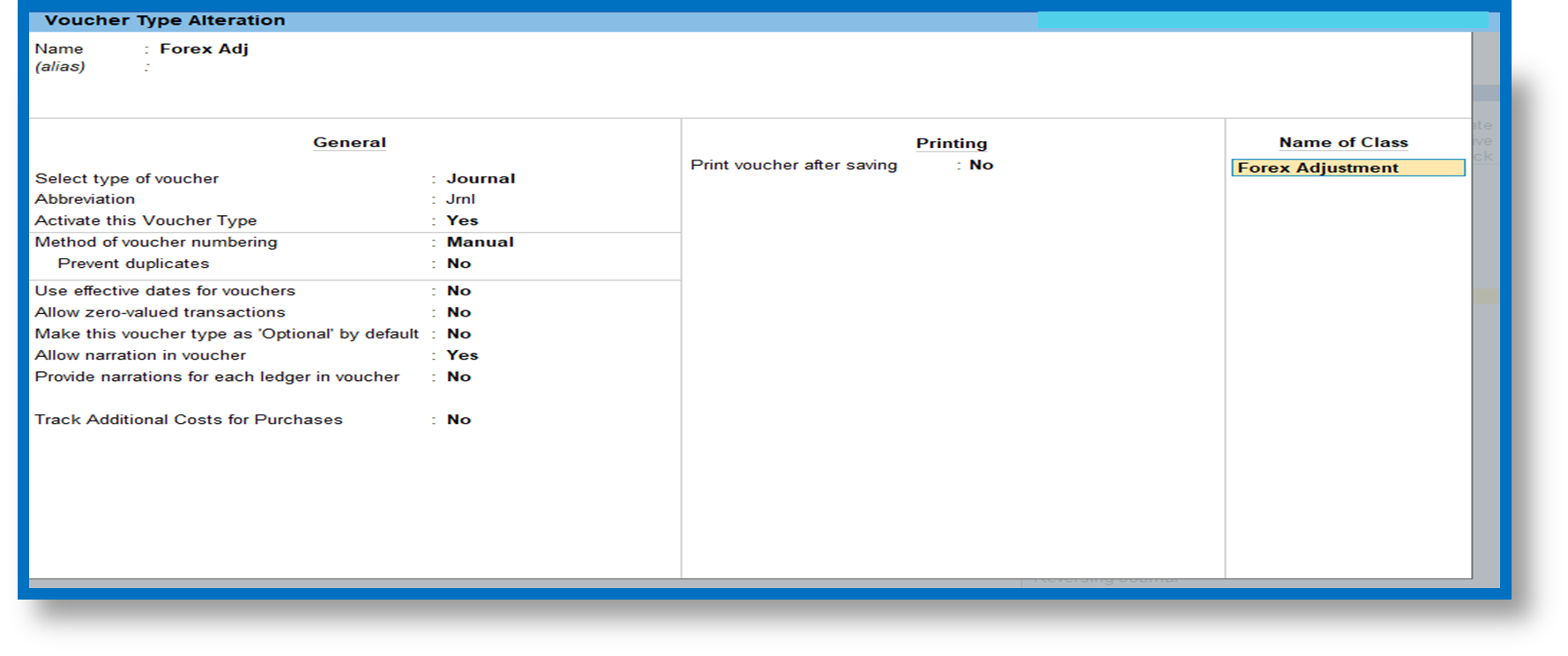
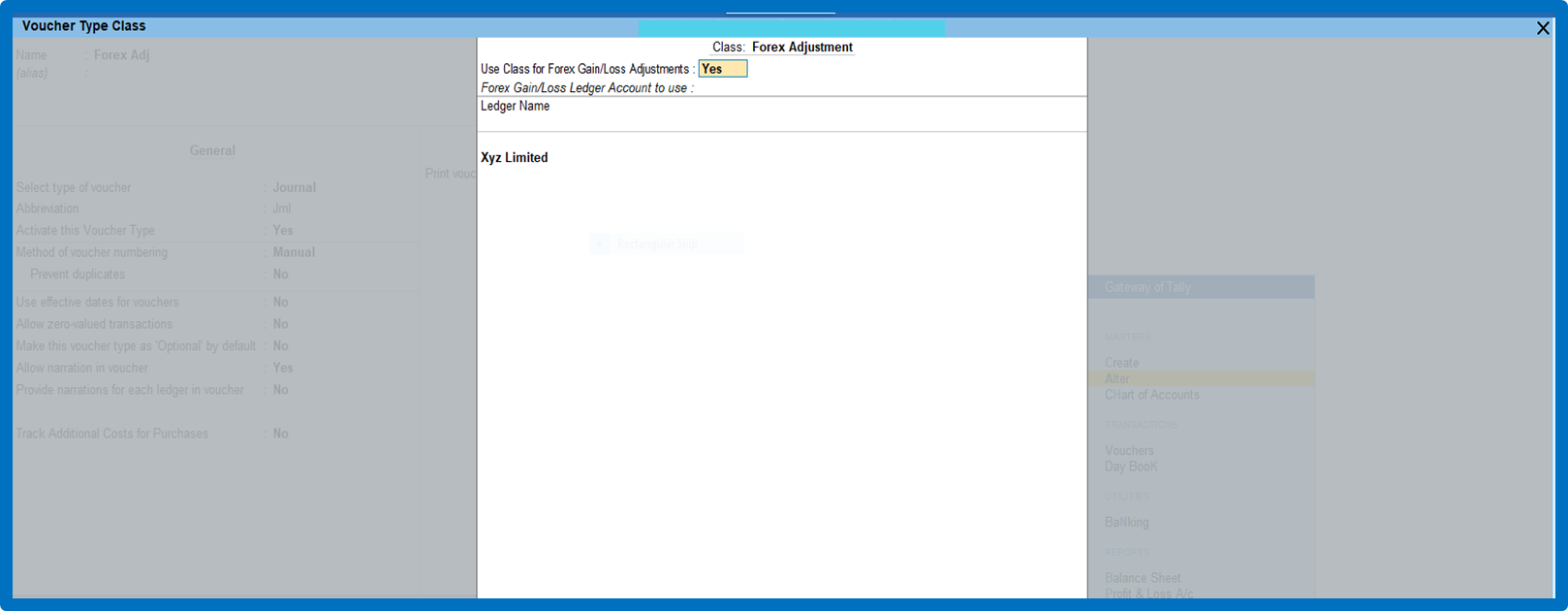
6. Create Voucher Type - Enable Forex Gain / Loss Adjustment
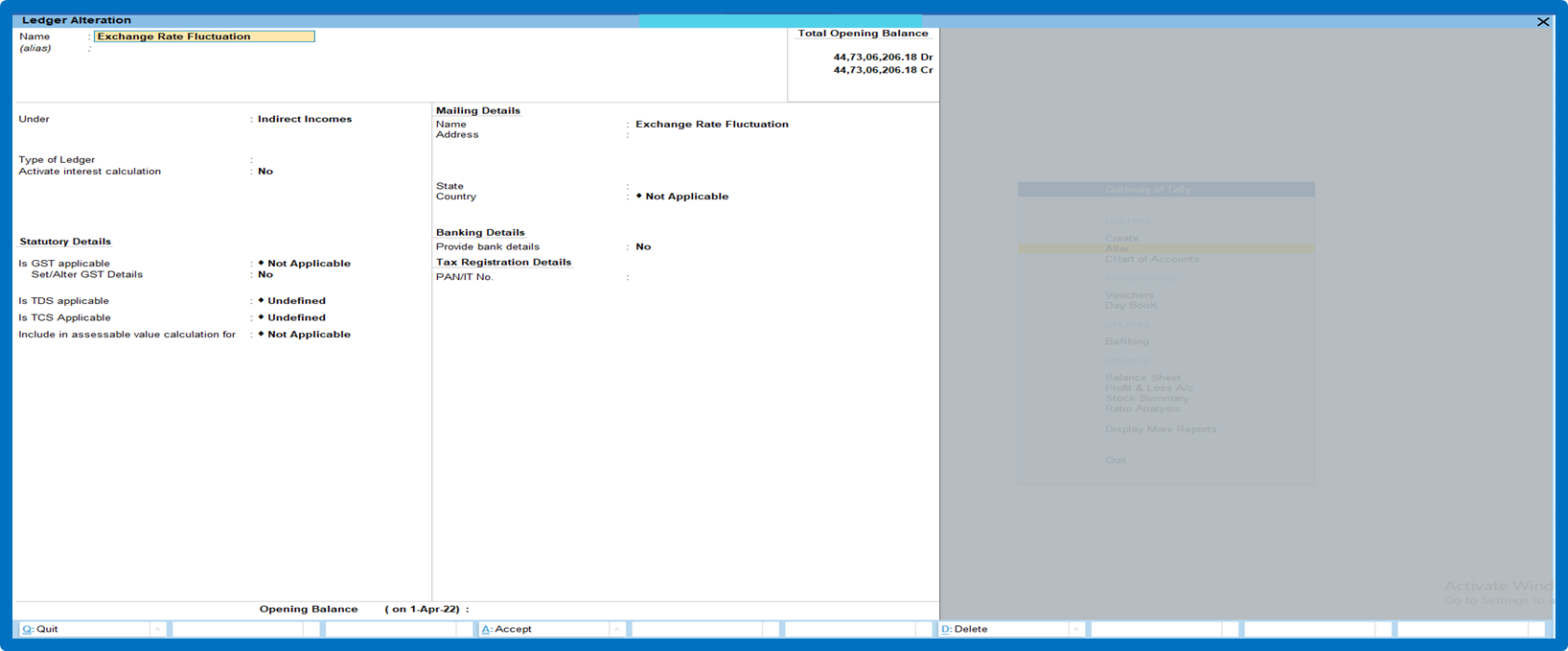
7. Create Ledger For Forex Adjustment
Gateway of tally – Create – Ledger – Exchange rate fluctuation
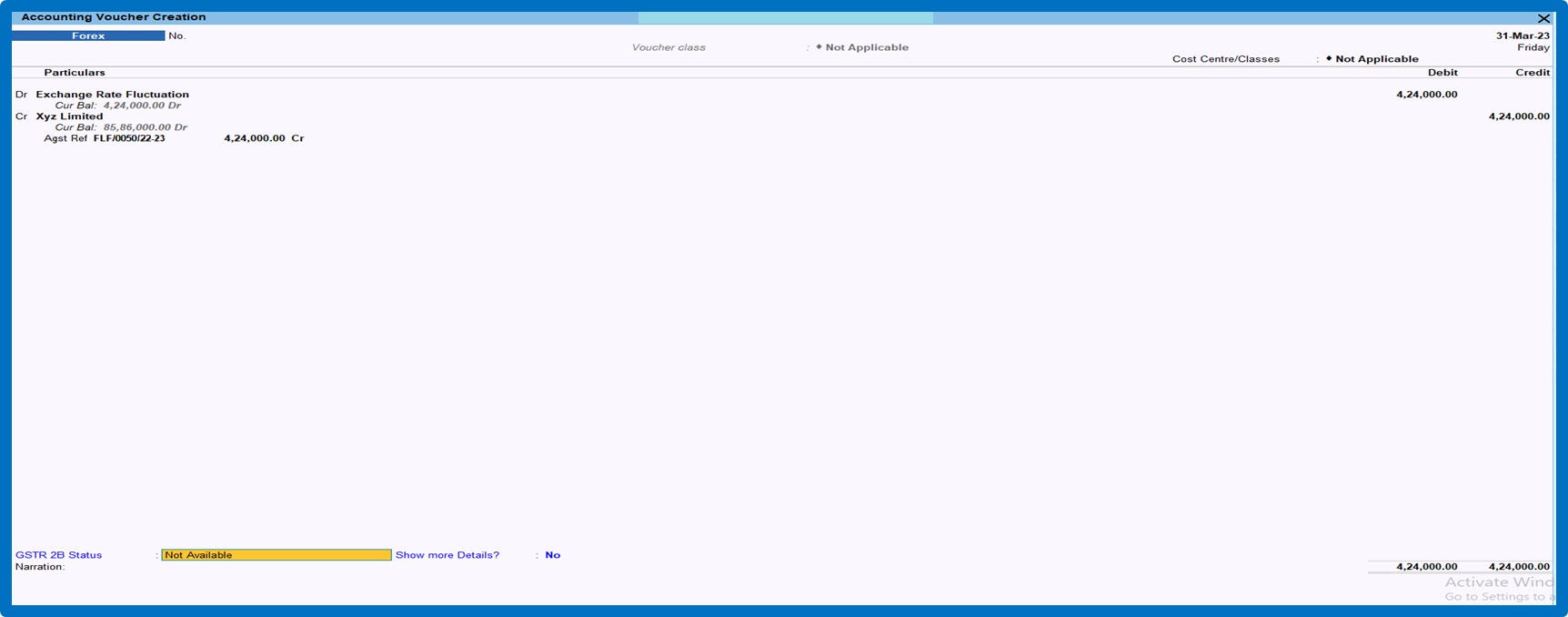
8. Forex Adjustment Entry – Go To Accounting Vouchers – Select Journal
F7 – Journal – Forex Adjustment
9. Pass Forex Journal
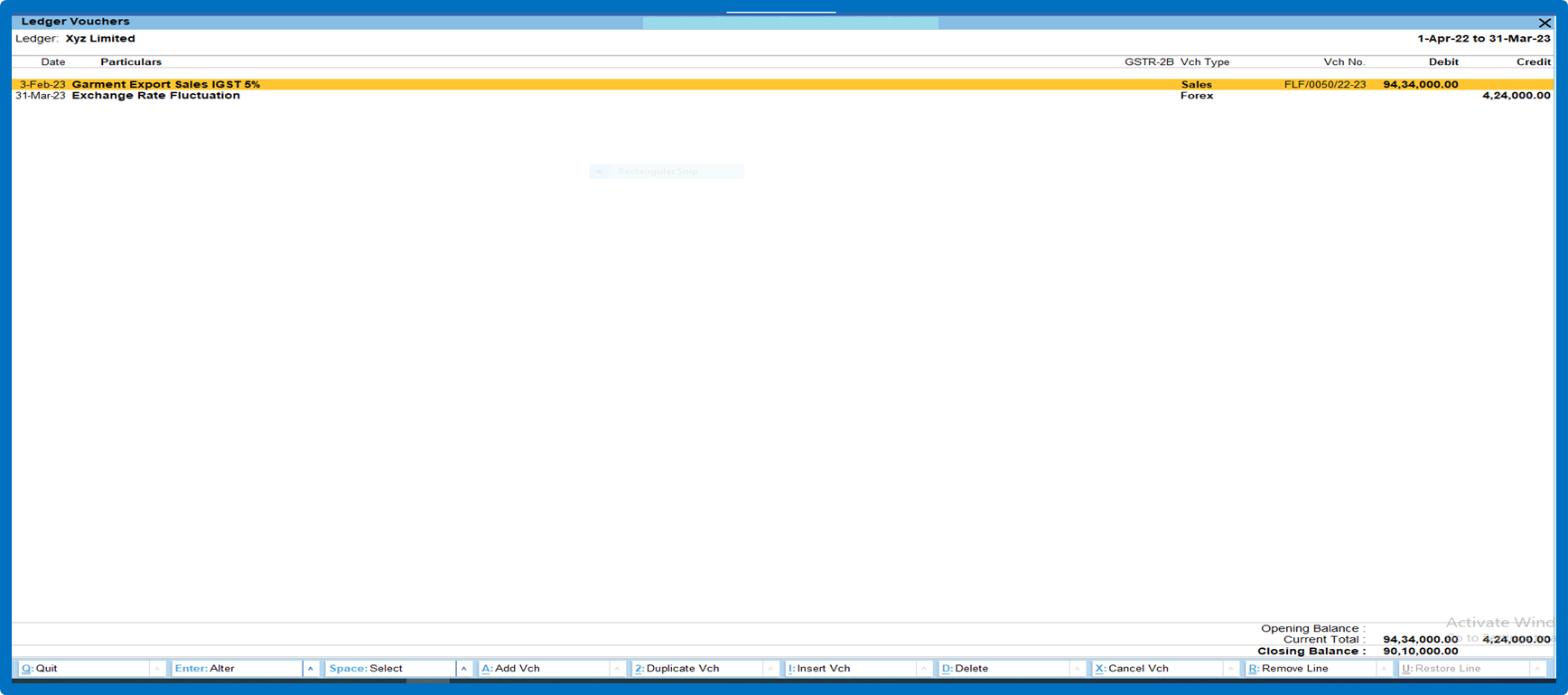
10. Party Ledger
11. Balance Sheet
Kindly follow the screen shot steps before generating JSON