
Audit Tasks - Letter - Fill Letter Tags
1. This feature allows users to fill in mandatory information in the letter templates easily and quickly.
2. Tags have been included in the letter (highlighted in yellow in curly brackets), where information can be filled in automatically at the click of a button
.
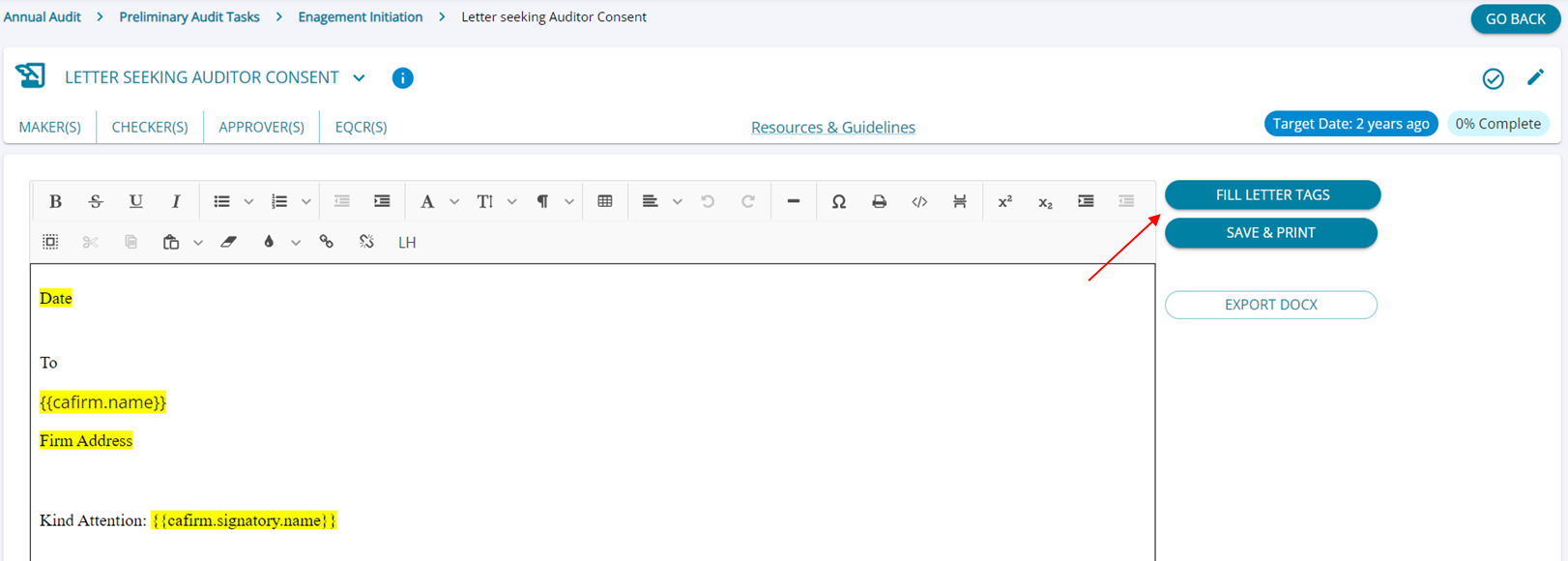
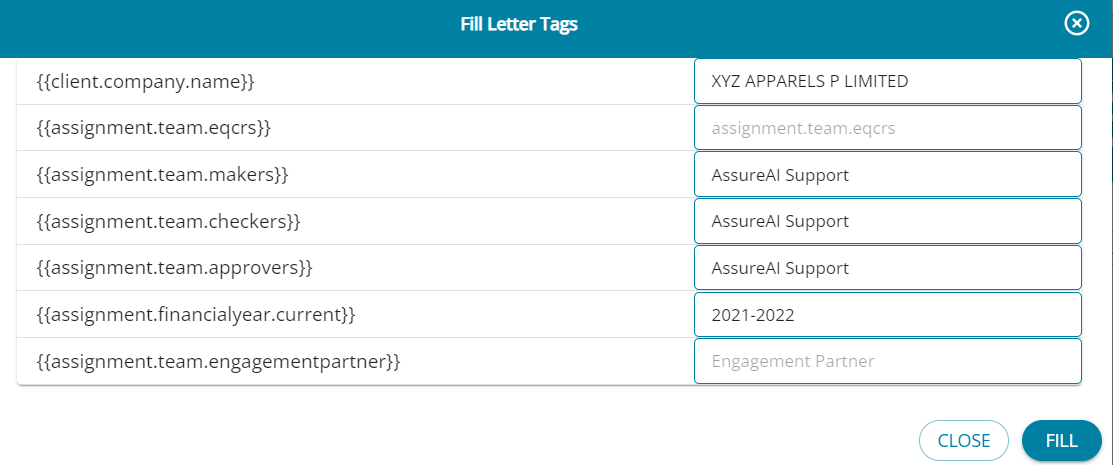
3. When the 'Fill Letter Tags' button is clicked, a pop-up displays all the available tags for the letter. Wherever tags are not available, the fields will be disabled, and the tags must be filled in manually by the user.
4. Upon click of the button, all the yellow highlights wherever data is available will be filled in and the text highlights change colour to Blue.
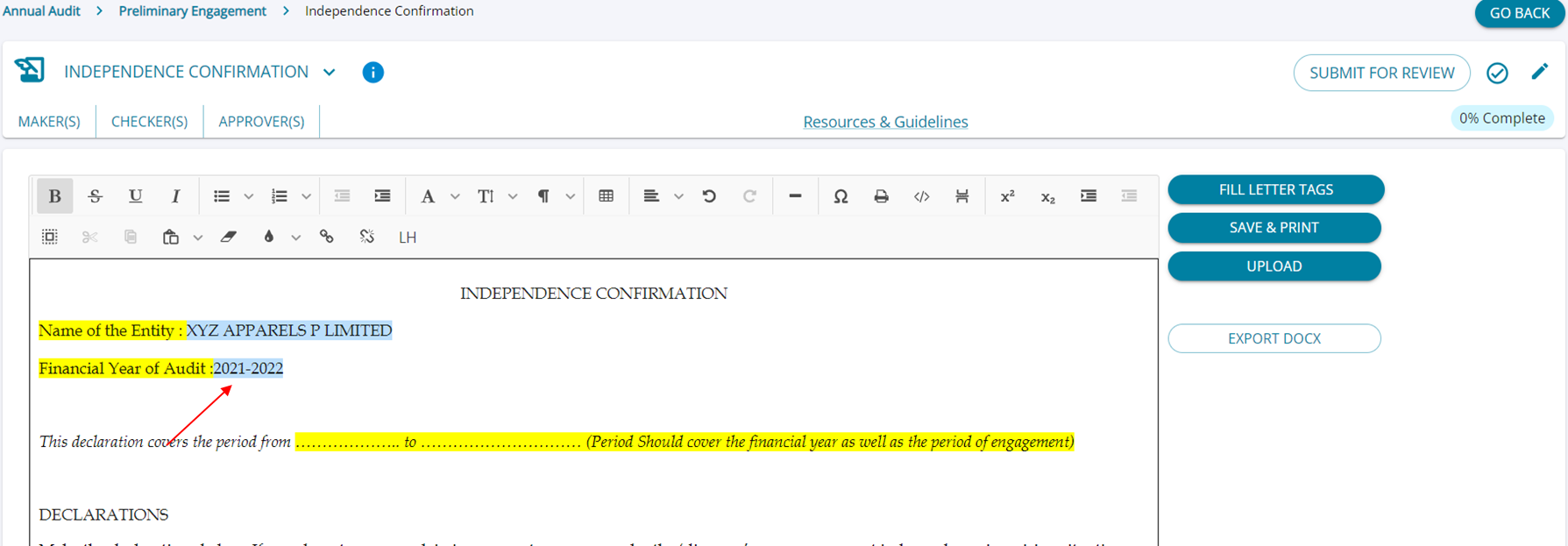
5. However, not all gaps can be filled through tags, and the unfilled data continues to be highlighted in yellow and has to be manulaly filled in.
Setting Up Letter Tags
1. Letter tags have to be configured at the time of set-up of the Letter Task , so they can be auto-filled at the time of executing the task.
2. In the "Configure Tasks" screen , when a new letter template is added to any Letter Task , Tags can be chosen as place holders in the letter to be filled in when the task is begin executed.
3. Inserted Tags will be highlighted in yellow.
Configure Tasks -> Letter Task->Add Template (in Step -2) -> Add Letter Tags
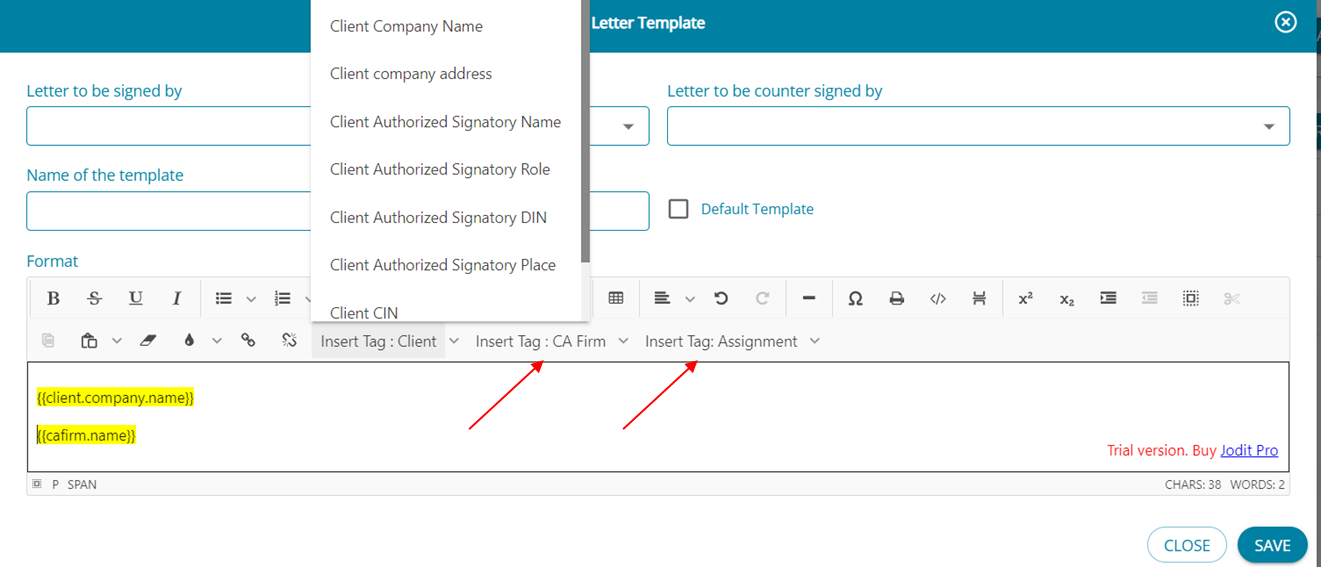
3. Tags are available with data for the Client , CA Firm and at the Assignment Level.