
Ledger Classification- Bulk Mapping
Ledger Classification- Bulk Mapping
Bulk Mapping
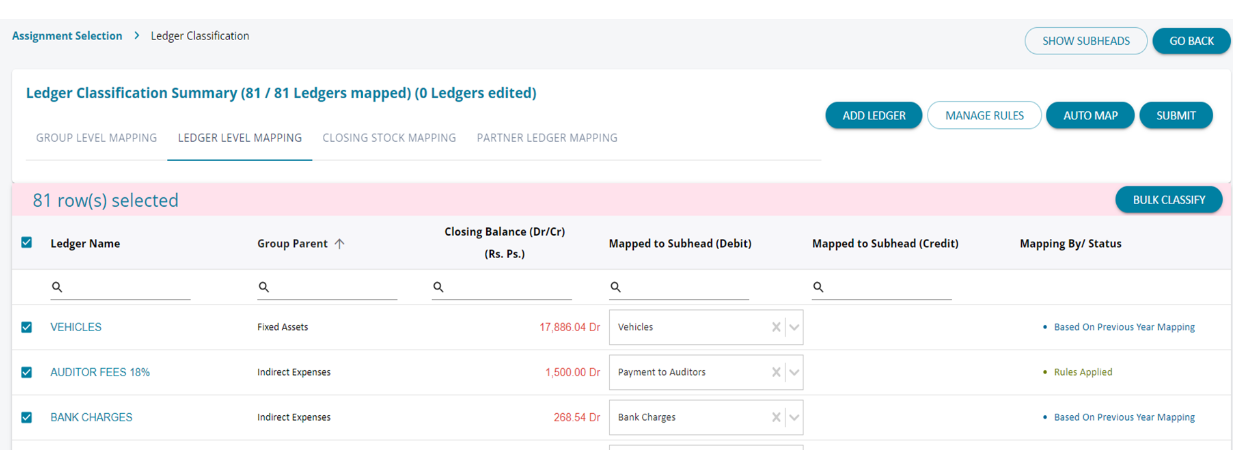
1. Use the Bulk mapping feature to complete ledger mapping rapidly
2. Use the filter options against group parent/ledger name and select a particular class of ledgers
3. Thereafter click the Checkbox on top of the table whereby all those ledgers get selected. Immediately, on the top right,
a button ‘Bulk Classify’ will pop up, which is not initially
4. Displayed on the screen until a ledger for classification is selected.
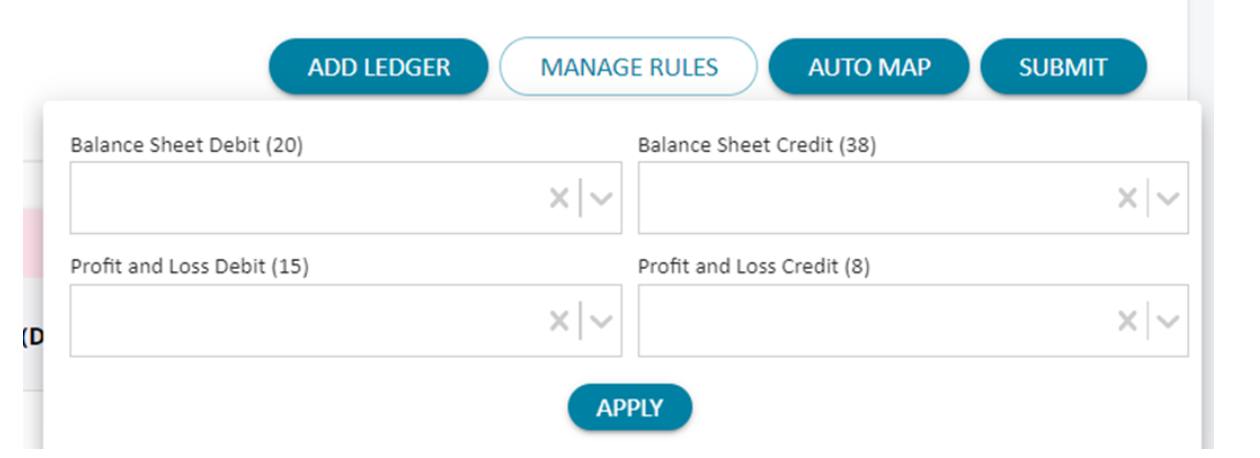
1. Upon selecting the bulk classify button, above pop up will open
2. Select the Balance Sheet subhead for both debit and credit
3. In case Profit and loss ledgers are also selected as part of the multi-select option, the button will be enabled under Profit and Loss as well
4. Select the appropriate sub-head for debit and credit
5. Apply and save
6. This way mapping exercise can be completed quickly
Stock Ledger Mapping
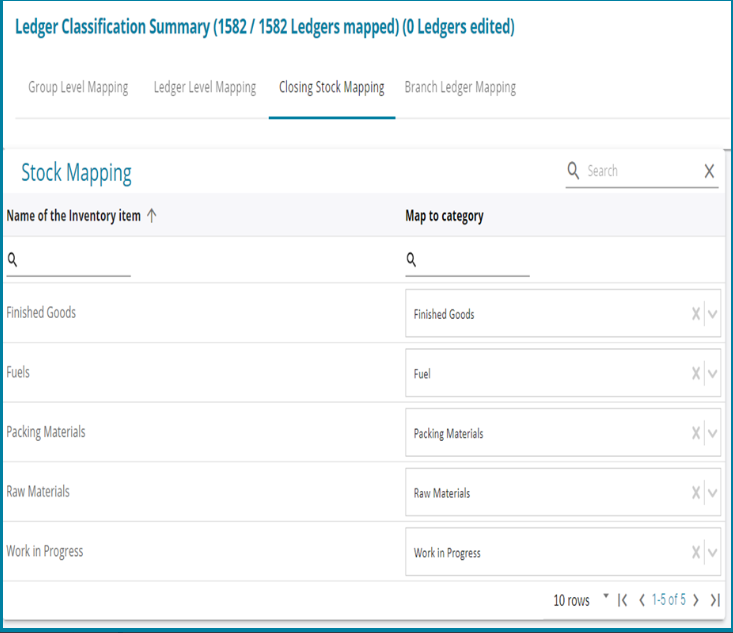
1. Once all the ledgers are mapped, then it is necessary to classify the Closing Stock Ledgers.
2. Possible values for Closing Stock Ledgers are
a)Raw Materials
b)Finished Goods
c)Fuel
d)Packing Materials
e)Work in Progress
3. Once stock ledgers are duly mapped, then proceed to save the classification. If the stock ledgers under Current Assets are not
correctly mapped in the group or ledger level mapping screens , then the closing stock mapping will not be automatically filled in.
4. In such scenarios , the user needs to revisit the mapping screens and correctly map the stock to the appropriate sub-head.
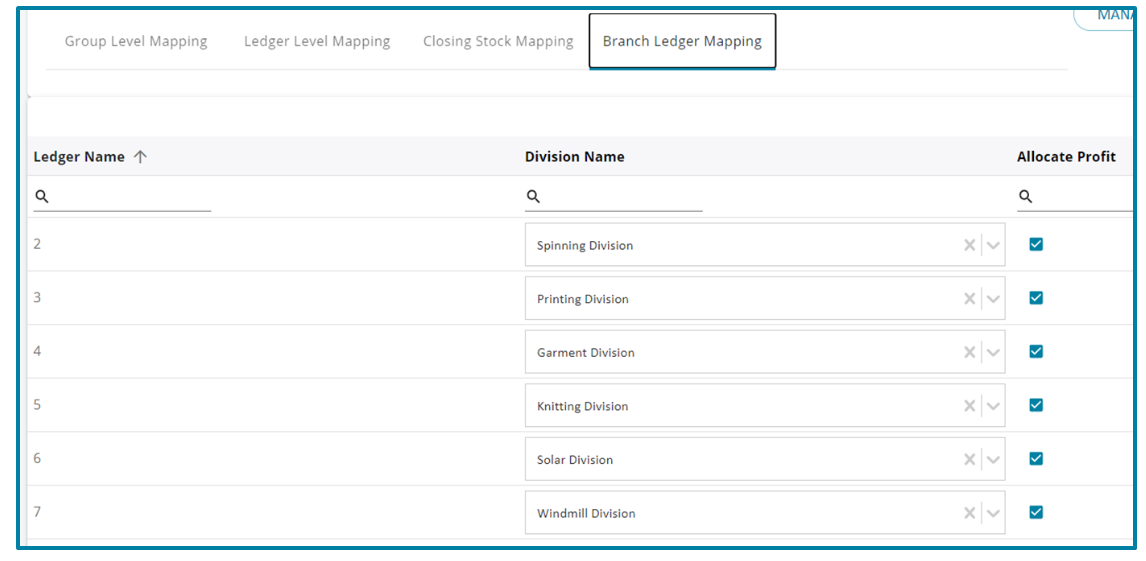
Multi division – HO/branch ledger mapping
Partner ledger mapping
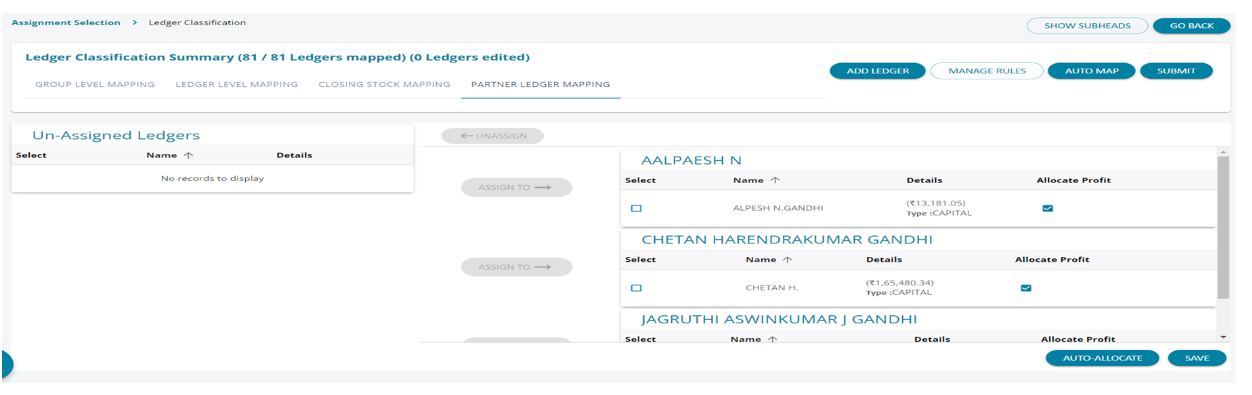
1.The user can assign / un-assign the Capital and Current A/Cs of all the partners of the firm. The un-assigned ledgers can be
selected and then the ‘ASSIGN TO’ button is activated and when the ledgers under the respective partner’s name has to be un- assigned by selecting check box the user can activate the ‘UNASSIGN’ button and un-assign the edger.
2. Complete the assignment so that there are no item left on the left side
3. Then click on the particular account for each partner for which share of profit to be allocated
4. In case of only one current account each per partner, click on ‘Auto Allocate’ so that system will select ‘Partners’ Current account’ for all partners
5. Once done, press Submit.
Once all the ledger classifications are complete, then click ‘Submit’ Button.
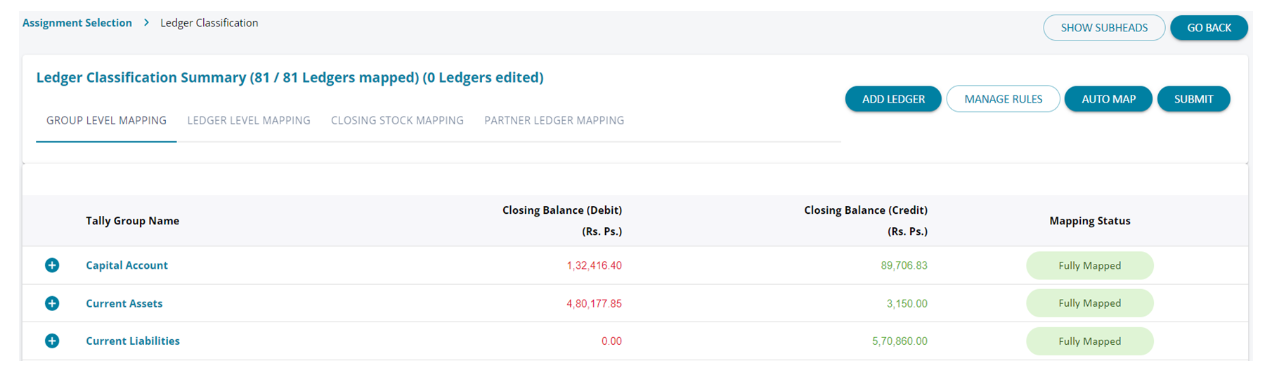
1. Once all ledgers are mapped and submitted , the screens shows that all ledgers are mapped.
2. Once all the ledger classifications are complete, then click ‘Submit’ Button.
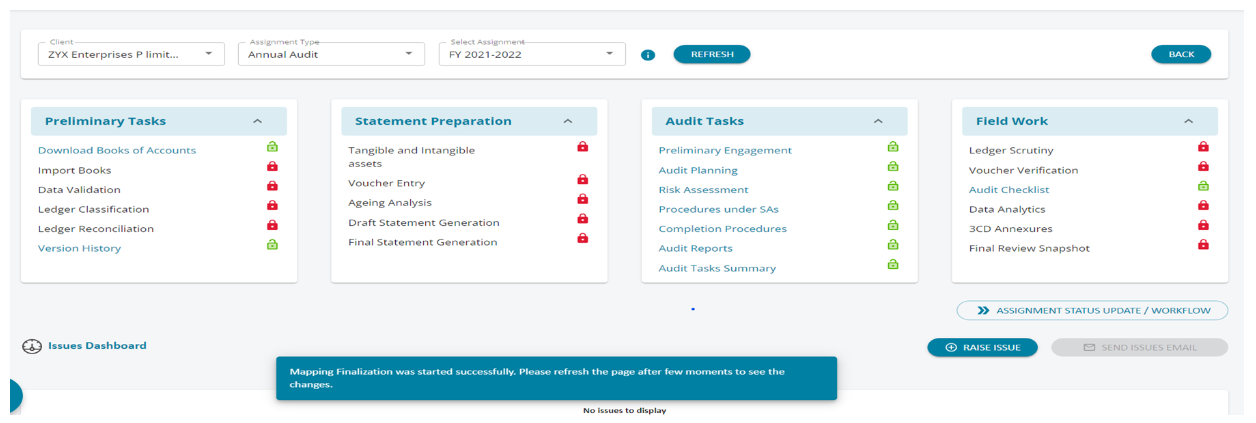
1. Upon clicking the “SUBMIT” button in mapping screen , the system will perform the computations in the background, during which all links will be disabled. You can however, navigate to other assignments during this time.
2. A message is shown that the user should refresh after a few moments so see the changes and the next step “Ledger Reconciliation” will be enabled then.
3. This update is useful when the client has larger volumes of ledgers ( sometime > 3000) and saves time for the user to work in parallel on other assignments.