
AssureAI Release Note 26.2– March 2026
This release introduces new capabilities, key enhancements, and several bug fixes to improve efficiency and usability across the platform.
The key highlight is Ask AI, a GenAI-powered feature that enables users to perform financial analysis using natural language queries. The Ledger Classification module has also been enhanced to support Excel-based ledger imports for faster classification.
In addition, this release includes Enhanced User Allocation for Assignments and Tasks, along with improvements to Issue Tracking, Audit Program notifications, and Client creation workflows.
Several bug fixes and stability improvements have also been implemented across modules including Import Books, Ledger Classification, Statement Generation, and Asset documentation.
Further details are provided in the sections below.
-----------------------------------------------------------------------------------------------------------------------------------------------------
I. New Feature
1. Ask AI (GenAI-Powered Financial Analysis
Introducing Ask AI — Our newest GenAI-powered feature designed to help you derive deeper and more meaningful insights from client financial data.
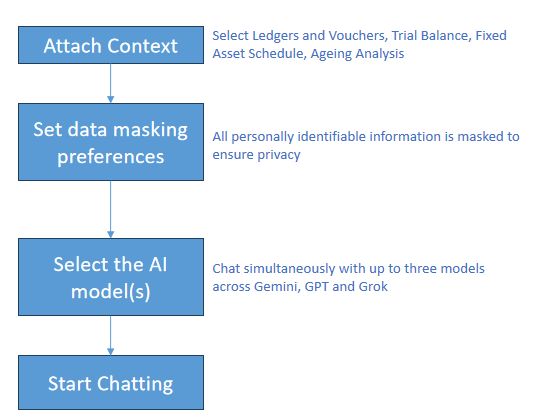
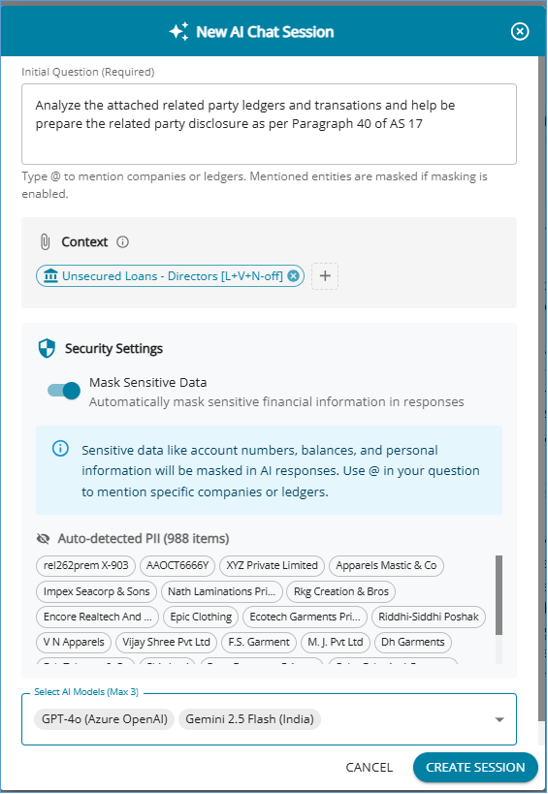
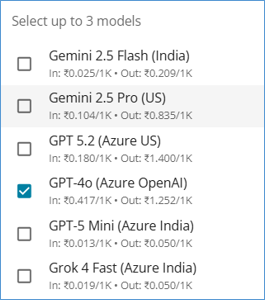
With Ask AI, you can securely attach client data and interact with multiple AI models through a conversational interface. Built-in data masking capabilities ensure that sensitive information remains protected, so you can explore insights without compromising data privacy.
To help you get started, AssureAI provides pre-loaded credits, allowing you to try out the feature and experience its capabilities right away.
This enables:
- Faster financial analysis during peak audit
- Reduced manual analytical procedures
- Improved documentation quality

1.1 How to Use ASK AI
Accessible from the “Load Audit Program” screen, the Ask AI button allows users to initiate an AI-powered chat session and ask contextual questions about a client’s financial information.
1.2 Response from AI
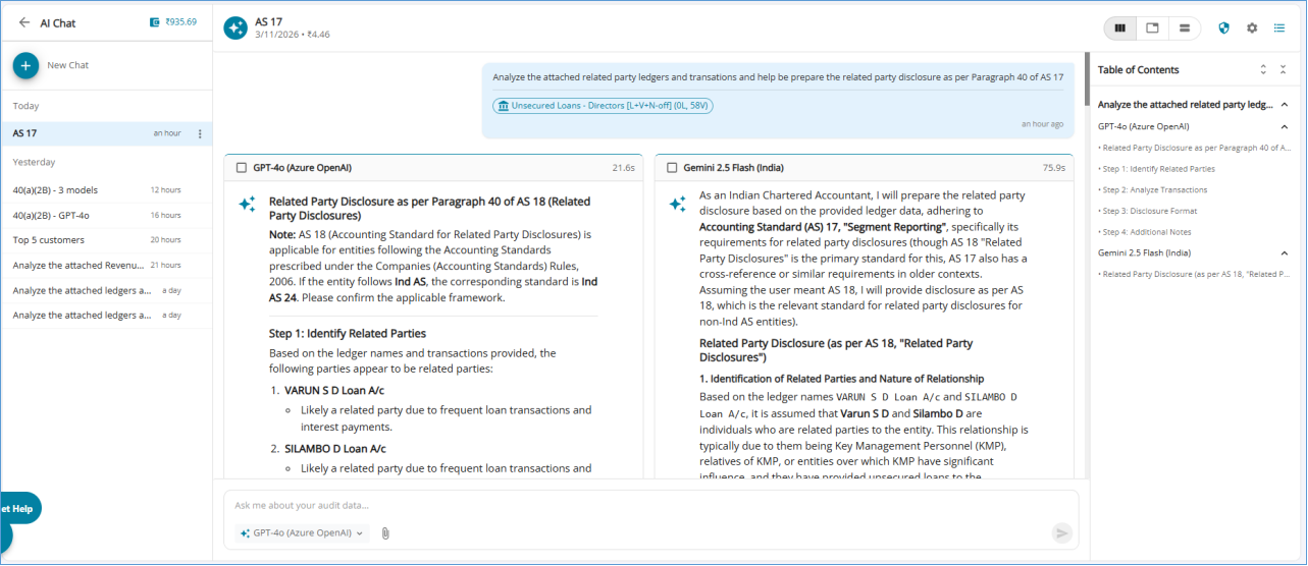
- AI Analysis Report: Once the AI completes the analysis, a detailed report is generated for the selected data-set. Parallel display of results from different models
- History of all previous chat sessions is available on the left panel for easy reference and continuation of discussion.
- Table of Contents (TOC) that allows users to quickly navigate to specific sections within the AI-generated report. Cost of each query and the token usage then and there
- Pre-loaded credits for exploration and ability to purchase additional credits
1.3 Settings
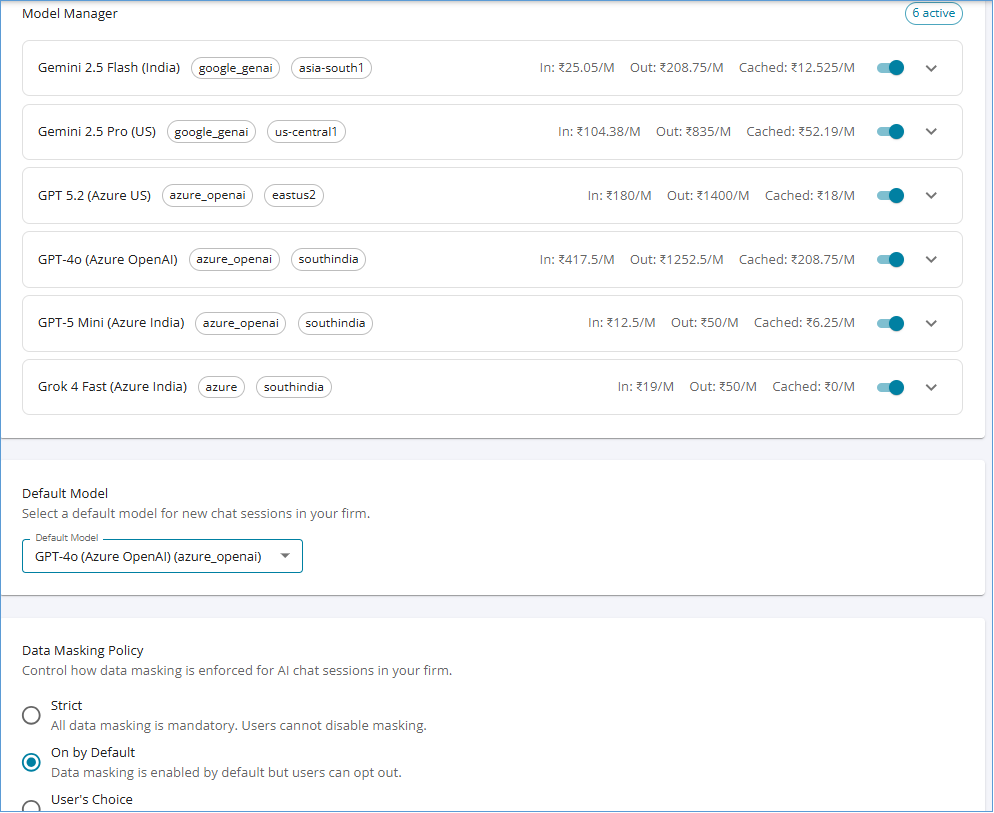
Accessible from the Gen AI Chat page and available only to Auditor and Administrator, the Ask AI settings page allows the firm to set its Gen AI usage policy by selecting preferred models and setting the Data masking Policy.
1.4 Attach Context for ASK AI
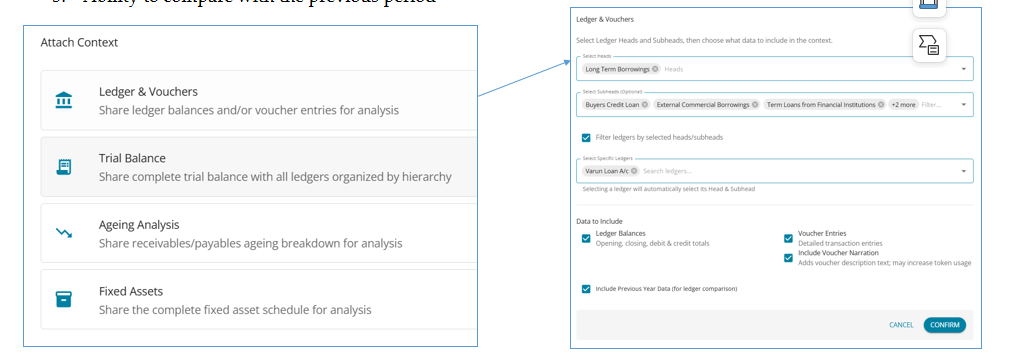
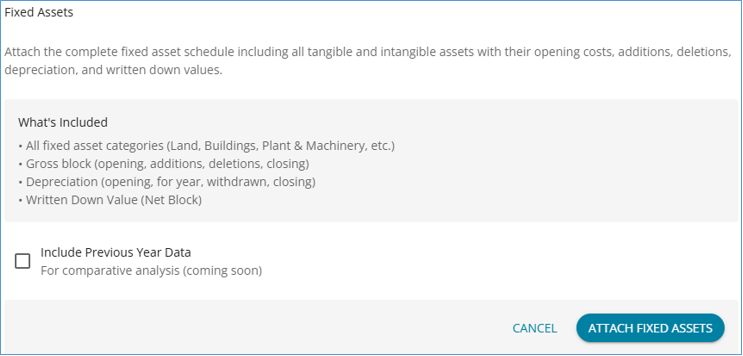
Context can include Ledgers & Vouchers, Trial Balance, Ageing Analysis and Fixed Assets
1.4.1 Ledgers & Vouchers
- Filter by Heads, Sub-Heads , or SPecific Ledgers
- Option to include Voucher and Narration for deeper analysis
- Ability to compare with previous period
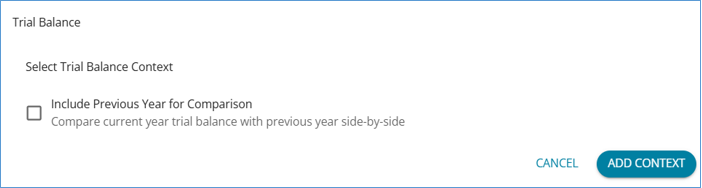
1.4.2 Trial Balance
Analyze Trial Balance data for the selected client
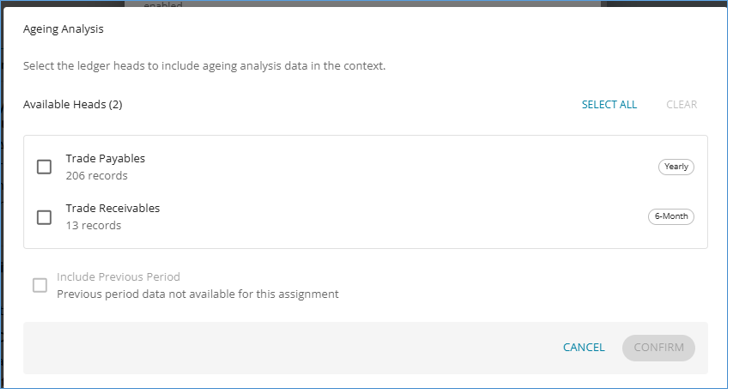
1.4.3 Ageing Analysis
Available for Trade Payables and Trade Receivables
1.4.4 Fixed Asset Ledgers
2. Ledger Classification - Import Mapping
The much-awaited Excel Import feature for Ledger classification, requested by many of our customers, is now available.

This enables users to quickly complete ledger classification using their preferred tool.

Revised recommended flow for ledger Classification
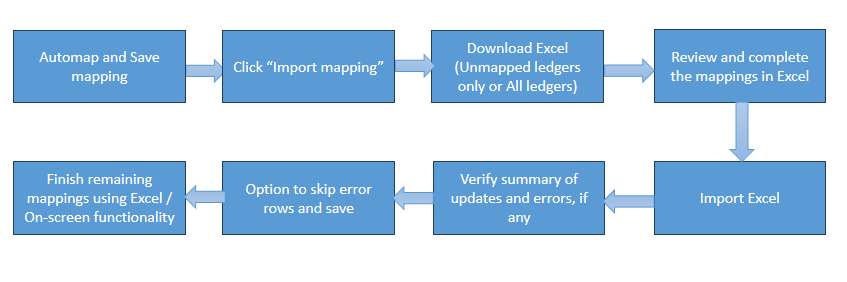
2.1 Steps in Ledger Import Process
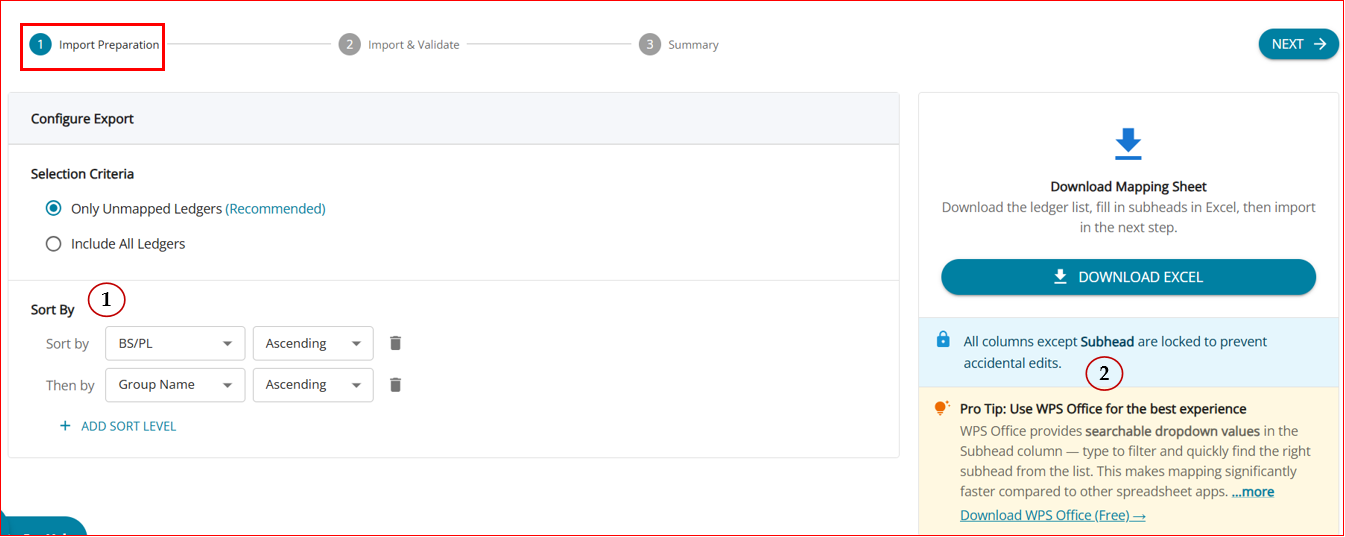
Step 1: Export Data
Users can download an Excel template containing the ledger list for mapping.
Key capabilities:
- Option to export only unmapped ledgers (default) or all ledgers.
- Support for multi-level sorting (e.g., BS/PL → Group Name).
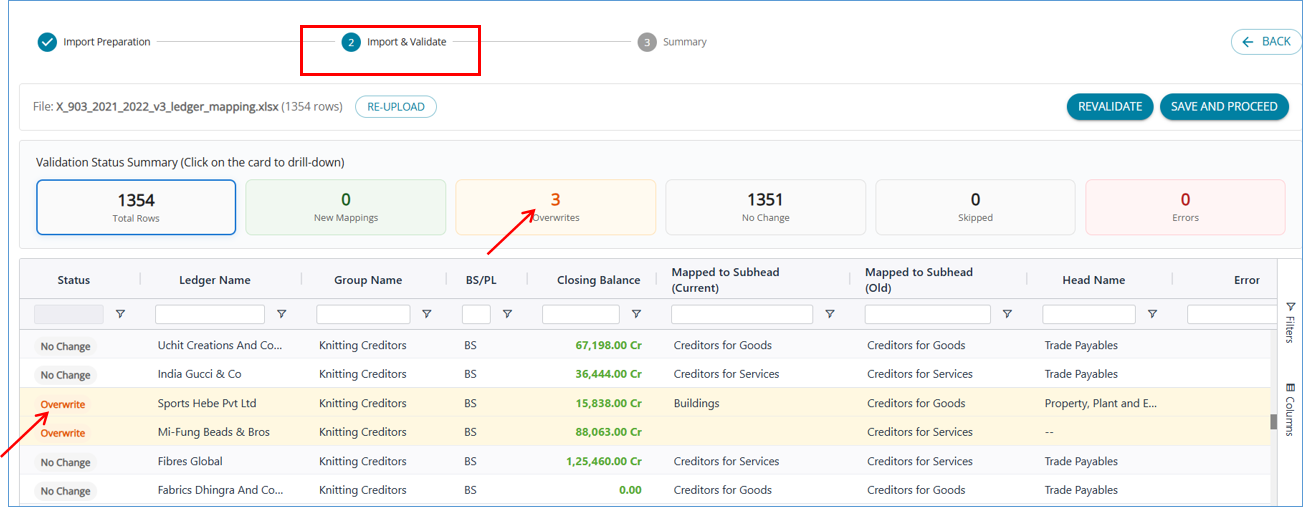
Step 2: Import & Validate : Users upload the completed Excel file and validate mappings before saving.
Key capabilities:
- Upload the filled .xlsx file and run
- Re-validate to check mappings.
Validation summary highlights:
- New Mappings – previously unmapped ledgers now mapped.
- Overwrites – existing mappings changed.
- No Change – mapping remains unchanged.
- Skipped – no subhead provided for an unmapped ledger.
- Errors – invalid or inactive subheads.
- Errors such as invalid subheads, inactive subheads, or missing ledgers are clearly flagged.
- Users can re-upload a corrected file and proceed to save once validation is successful.
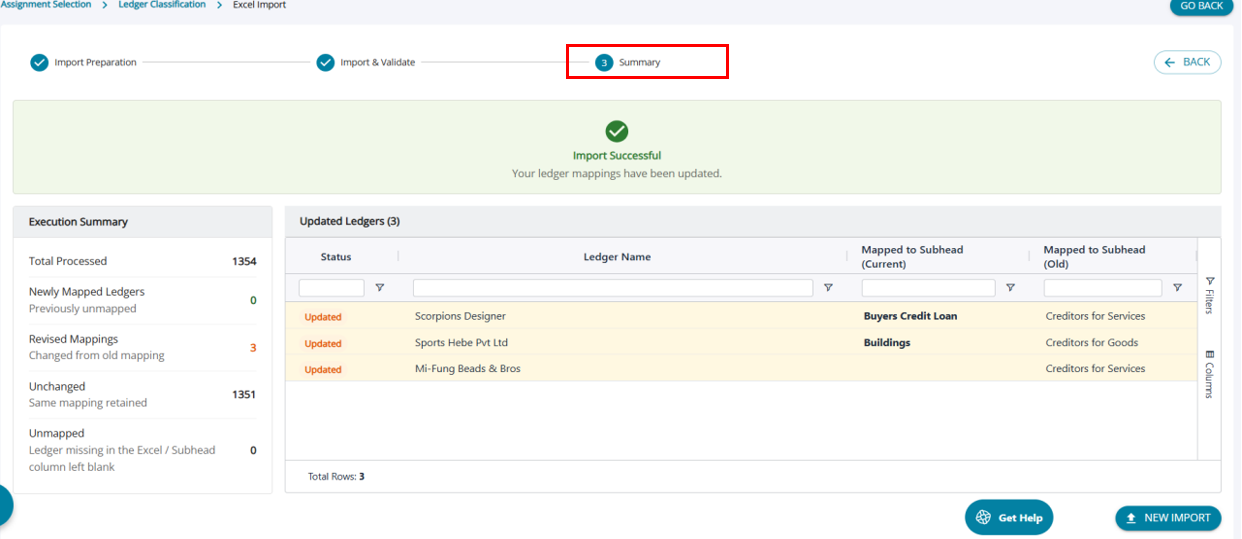
Step 3: Summary : After saving, a summary view displays the results of the import.
Key details: Confirmation message indicating successful update of ledger mappings.
Execution summary showing:
- Total processed ledgers
- Newly mapped ledgers
- Revised mappings
- Unchanged mappings
- Unmapped ledgers
Additional actions: Map Remaining – return to Step 1 to map any remaining unmapped ledgers.
New Import – start a fresh mapping process.
II. Major Enhancement - Flexible User Allocation for Assignments and Tasks & Dynamic workflow
The user allocation framework for assignments and tasks has been enhanced to provide greater flexibility and consistency in managing team responsibilities.
The update ensures that required roles are always assigned while providing flexibility to add / remove users at any point during the assignment execution phase. The system automatically adjusts the workflow considering the latest set of roles assigned
Benefits
- Enables real-time team restructuring without workflow disruption
- Eliminates repetitive task-level allocation updates
- Stronger enforcement of review and approval roles.
- Improved clarity in task responsibility assignment.
- More predictable behavior in hierarchical task structures.
Impact
- Existing assignments will continue to function without any changes.
- The enhanced validation and user propagation rules will apply when assignments or tasks are created or edited going forward.
User allocations can be updated from:
- Assignment Planning
- Assignment Dashboard (single or bulk edit)
- Assignment Details page
- Task editing screens
The same validation and propagation rules are applied across all screens to maintain consistency.
Automatic Propagation of Assignment Users to Tasks
- Users allocated at the assignment level are automatically made available across all tasks within the assignment. When a user is added to an assignment later, the user becomes available across the entire task hierarchy.
- When a user is removed from an assignment, the change is reflected across all tasks.
- This reduces the need for manual updates at individual task levels.
Dynamic adjustment of workflow
- Any addition or removal of a role (Checker, approver, EQCR) to an in progress assignment / task results in automatic rerouting of workflow.
- Option to “Realign workflow” that is stuck with a role that has been removed from the allocation
III. Minor Enhancements
1. Feature – Issue Tracking
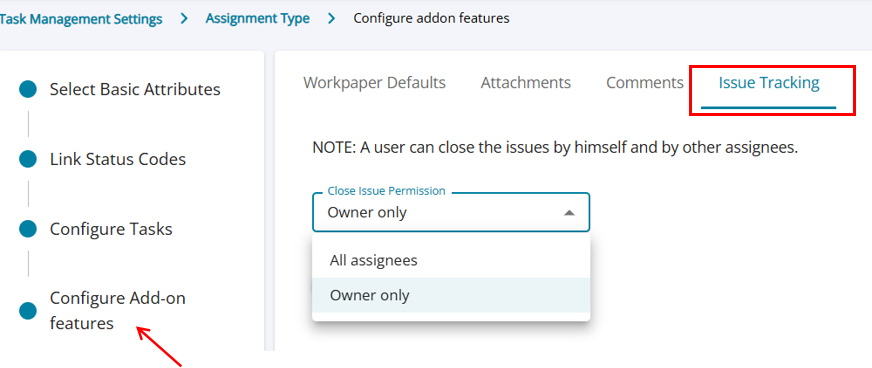
A. Enhancement: Configurable issue closure permissions at assignment type level.
Previously, only the person who raised an issue was able to close it. This has been made flexible and configurable. An option has been introduced at the Assignment Type level under “Configure Add-on Features” to control who can close issues. The system behavior will follow the selected configuration for each assignment type.
B. Issue Assignee list pruned
Previously it was possible to assign issues to users outside the assignee list of the assignment. This has been corrected such that the list now only includes active assignees of the assignment and relevant active client users and admins.
C. Issue closure permissions updated
Previously, only the user who raised the issue was allowed to close it. This has been fixed, and the following users can now close issues based on their access:
- Makers, Checkers , Approvers and EQCR (MCAE) users assigned to the assignment
- Supervisors of the MCAE users
- Auditors with access to the assignment
- Client user – can close only the issues raised by themselves
- Client supervisor (Client Admin) – can close issues raised by themselves and any other client user
D. Client user permissions made consistent
Assignment Rules:
- If an issue is raised by a client user, it can be reassigned to both client users and firm team members.
- If an issue is assigned to a client user, it can be reassigned only to another client user, with the team member option disabled.
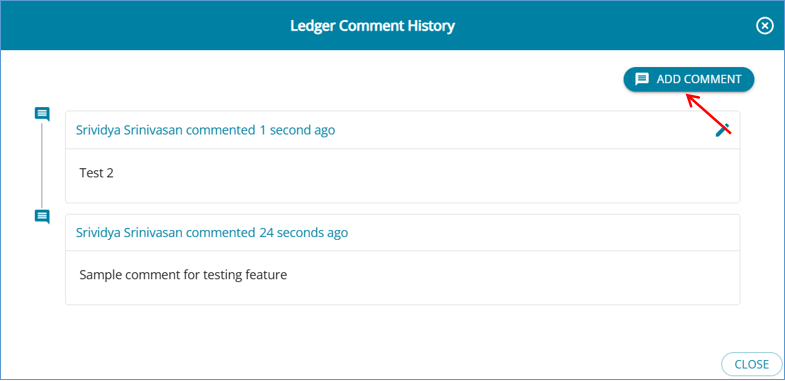
E. Enhancement: Line-item comments in Issues – Audit trail
When an issue has been raised wit linked ledgers and transactions, previously, the line-item level comments were editable by another user (say the assignee)

As part of this change, the Edit Issue module has been enhanced to support better tracking of new and existing comments:
- Users can add additional comments instead of editing existing ones.
- Comment history is preserved and visible for audit and traceability.
- UI improvements have been made to support inline comment actions and a clearer edit work-flow.
2. Feature – Comments tracking
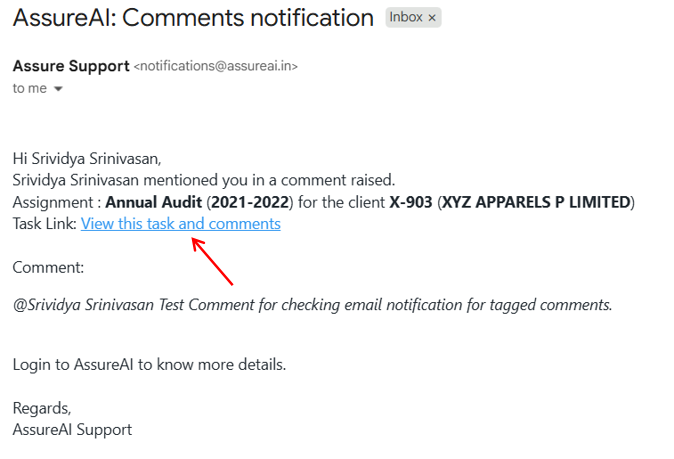
Enhancement: Improve email notification for tagged comments.
When a user is tagged in a comment, an email notification is sent, which is now updated to include a clickable link that navigates the user directly to the relevant task/comment
3. Feature - Add Client
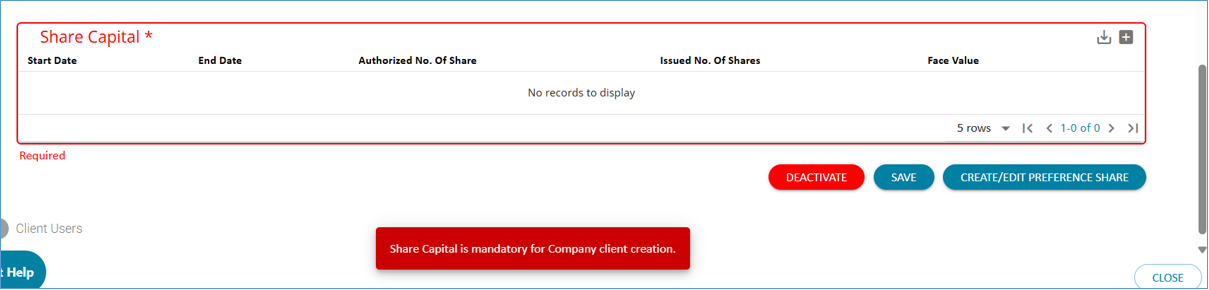
Enhancement: Mandatory capture of client share capital details.
While creating a company client, share capital details are now mandatory. This ensures that the required information is available upfront and helps prevent errors or validation issues during the mapping submission process
IV. Bug Fixes
A. Feature - Import Books
Bug: JSON import failure due to duplicate ledger names.
During JSON import, cleanup of special characters such as “/r” and “/n” from ledger names resulted in duplicate ledger names in a few cases, causing the import to fail. - Fixed
B. Feature – Ledger classification
Bug: Blanks in Closing Stock mapping
After classifying all ledgers under current assets correctly, a few ledgers containing special characters were not getting mapped correctly under “Closing stock mapping”. Fixed.
C. Feature - Statement Generation
1. Bug: Client signatures placement mismatch between Excel and PDF.
The placement of client signatures in the Excel file was not aligning with the placement shown in the generated PDF. This inconsistency has been corrected so that both formats display the signatures in the same position.
2. Bug: Broken drill-down links in exported Excel financials
In the exported Excel financials, the drill-down from Notes to Details were broken in some places - Fixed
3. Bug: Incorrect cell references for FA schedules
Cell references for Property, Plant and Equipment and Depreciation in the Excel output were not pointing to the Fixed Asset schedule, resulting in loss of traceability to the underlying FA data. - Fixed
D. Feature - Version History
1. Bug : no Debit/Credit indication in Modified Ledgers
Under Modified Ledgers on the Version History page, it was not clear whether the old and new balances were Debit or Credit. This has been corrected by highlighting Debits in red and Credits in green, consistent with the rest of the platform.
2. Bug: Incorrect Trial Balance version shown in Mapping Submission History.
In the Mapping Submission History page, the “Trial Balance Version” column always displayed the latest version number for all records, causing earlier submissions to lose the reference to the actual version the data belongs to. - Fixed
E. Feature - Tangible & Intangible Assets
Bug: Missing voucher reference in Vouchers_with_Ledger_entries sheet.
In the Export Vouchers Excel from the Tangible and Intangible Assets page, the file contains two sheets: “Vouchers” (one row per voucher) and “Vouchers_with_Ledger_entries” (all line items), leading to difficulties in traceability.
To resolve this, a “Voucher ID” column has been added as the first column in the Vouchers_with_Ledger_entries sheet to link each line item to its respective voucher.
********