
Binder - Configuration
Users can now configure a binder template for any assignment type and generate a combined PDF containing all the necessary deliverables.
The binder automatically:
- Merges files in the defined sequence
- Inserts continuous page numbering
- Generates a dynamic Table of Contents
- Produces a downloadable, ready-to-share PDF booklet
This ensures standardised, audit-friendly documentation across engagements.
Step -1: Basic Parameters
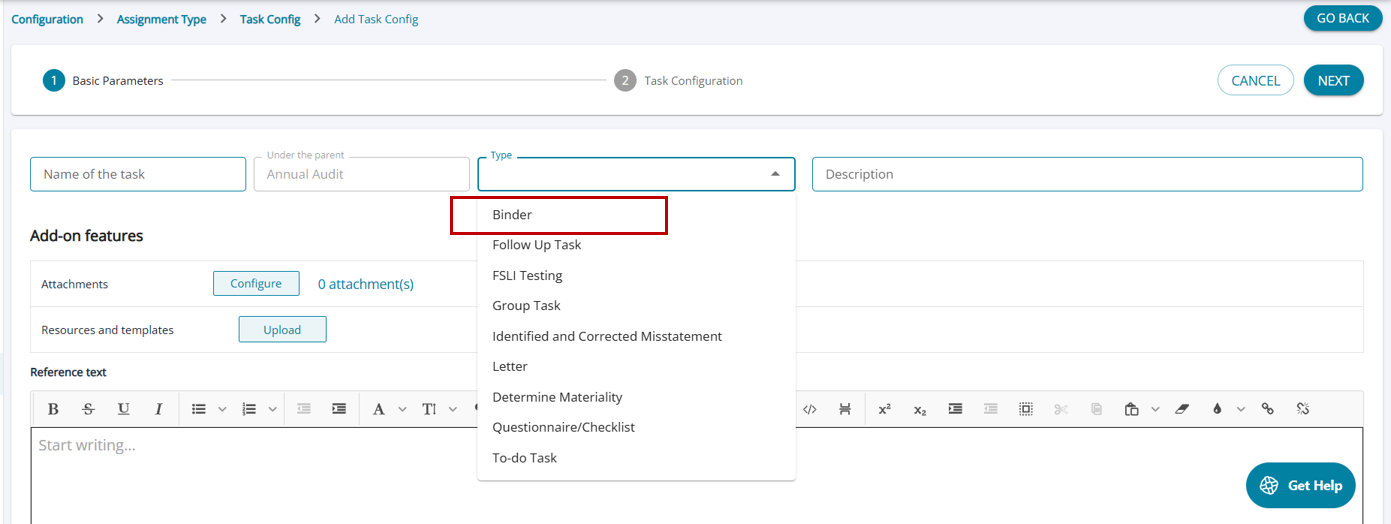
A Binder is a new task type that can be added under any assignment type.
When creating a new Binder:
- Task Name - The user must enter a unique task name.
- Parent Task - The field (Under the Parent) will be auto-populated based on the location where the new Binder is being added.
- Task Type - In the Type drop-down menu, the new task type Binder will appear as a selectable option.
- Description (Optional) - The user may enter a description if needed.
Add-on Features
- Attachment will be disabled at the task level; binders cannot have attachments
- Resources and templates can be attached if required
- Default selection for Workpaper is marked as applicable, and the toggle can be switched off if required.
Once the type is chosen as Binder, Step 2 is updated to Binder. The user can click on next to navigate to step -2
Step -2: Binder
Step 2 displays a blank table for the user to add documents to the binder.
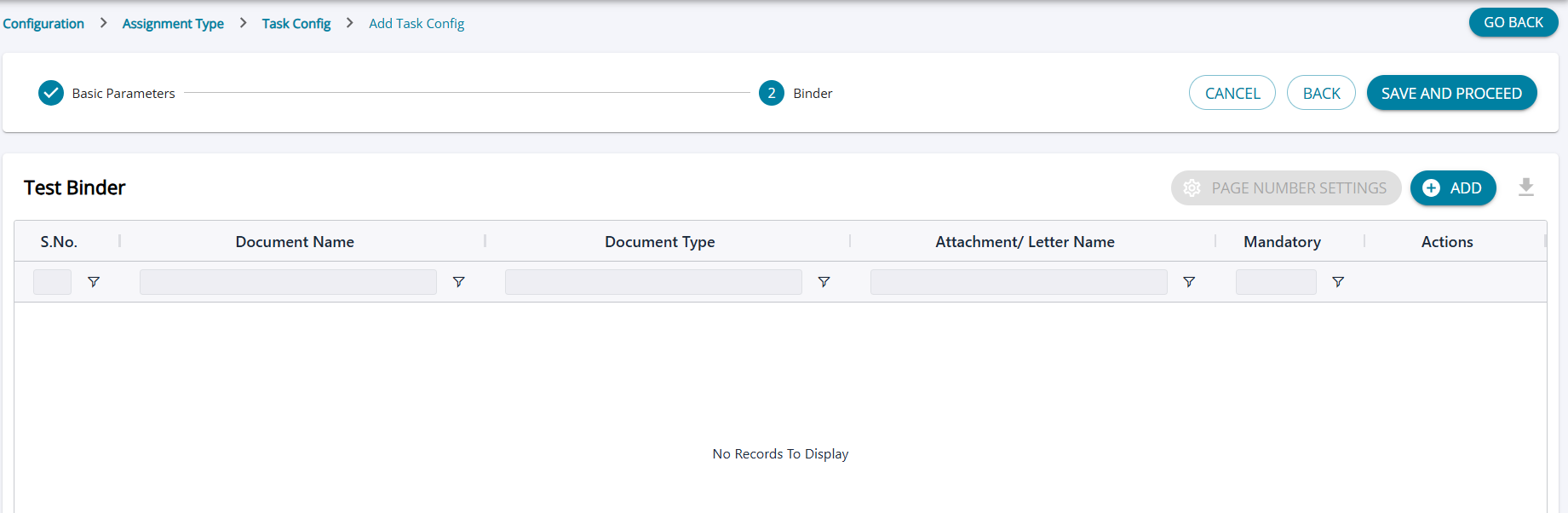
Document Type
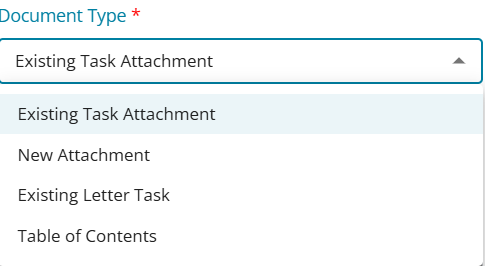
The drop-down has the following options: Existing Attachment, New Attachment, Existing Letter Task, and Table of Contents.
Existing Attachment
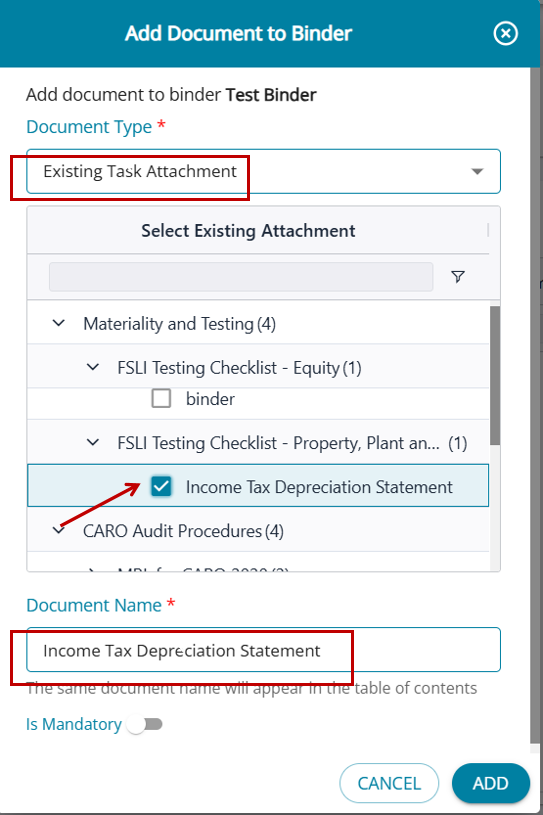
- When the user selects “Existing Attachment”, the drop-down menu will display all tasks from the Configure Tasks page that have attachments configured at the task level.
- If a task does not have any attachments, it will not appear in the pop-up list.
2. Selection Limit
- The user can select only one attachment from the list. Multiple selections are not allowed.
3. Preventing Duplicate Use of the Same Attachment
- After an attachment is selected for a Binder task:
- It cannot be added again under another document name within the same Binder.
- The attachment will be disabled for further selection.
4. Display in the Table
- All selected documents will be shown in the Attachments column of the table.
- Once a document is selected:
- The Document Name field will auto-populate with the attachment’s original name.
- The user may edit this name if required.
5. Indication of Source Task - The table will display the task name from which the attachment was selected, using the format: <Task Name> -> <Document Attached>
Existing Letter Task
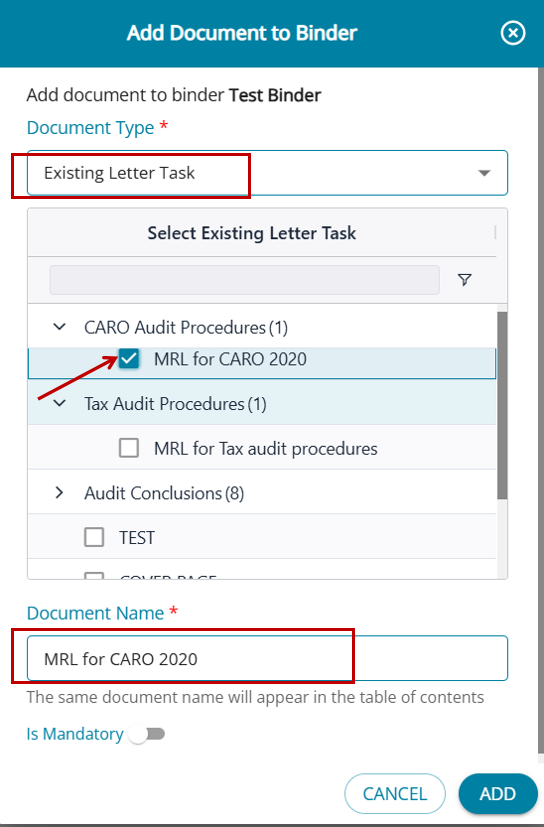
When the user selects the option “Letter”, the drop-down in the column will display all letter tasks.
The drop-down will include all active letter tasks, regardless of whether they have already been marked as applicable for the assignment on the planning screen.
The user can select only one letter task per document name.
Once a letter task is selected, it cannot be used again within the same Binder and will be disabled in the list.
After selection, the Document Name field will auto-fill with the letter task’s name, which the user may edit if needed.
New Attachment
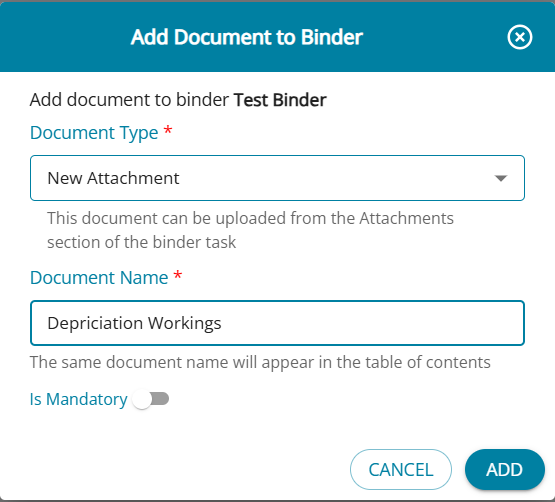
The user must manually enter the name of the new attachment/document since it does not already exist.
Each row can contain only one attachment.
Table of Contents
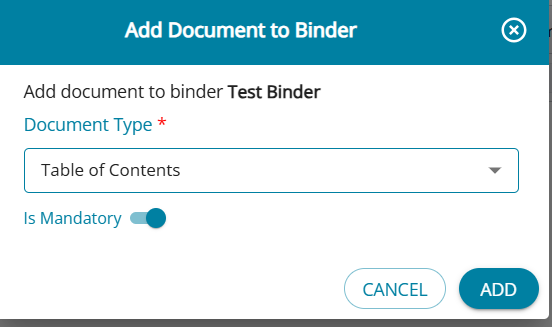
When the binder is created, the system will automatically insert a Table of Contents; the document name acts as a placeholder for this system-generated content.
The Document Name will auto-populate as Table of Contents, but the user may edit it if needed.
Once a document name is added, it will be added to the table.
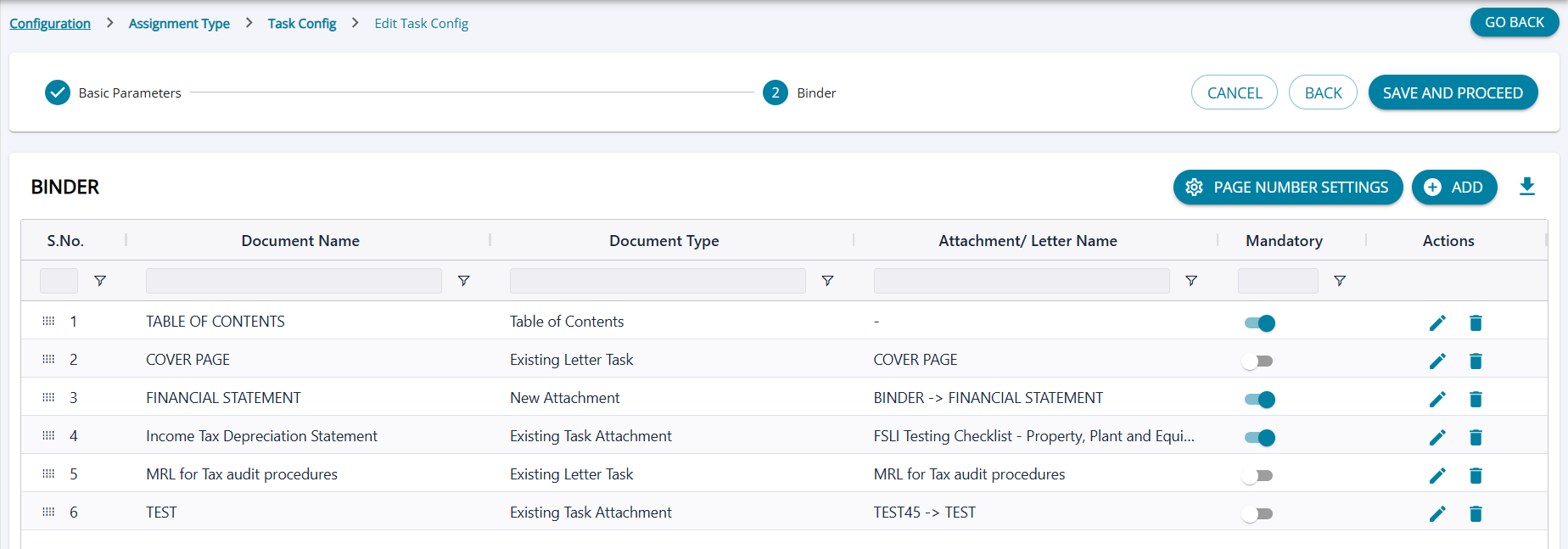
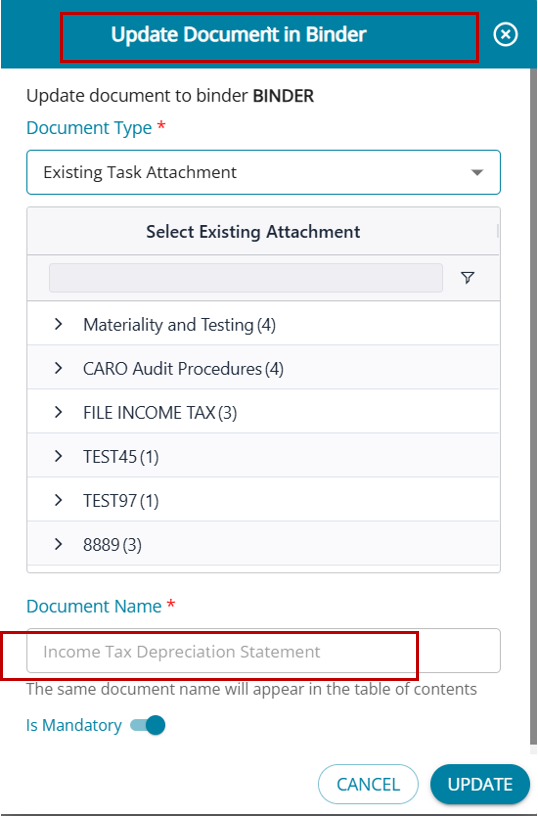
The edit feature allows the user to change the type and attachment, but not the name of the document.
Delete Attachment
When an attachment has been selected (mandatory or not) in the binder for any document name, and the user deletes the attachment by editing the task, the system prompts the user.
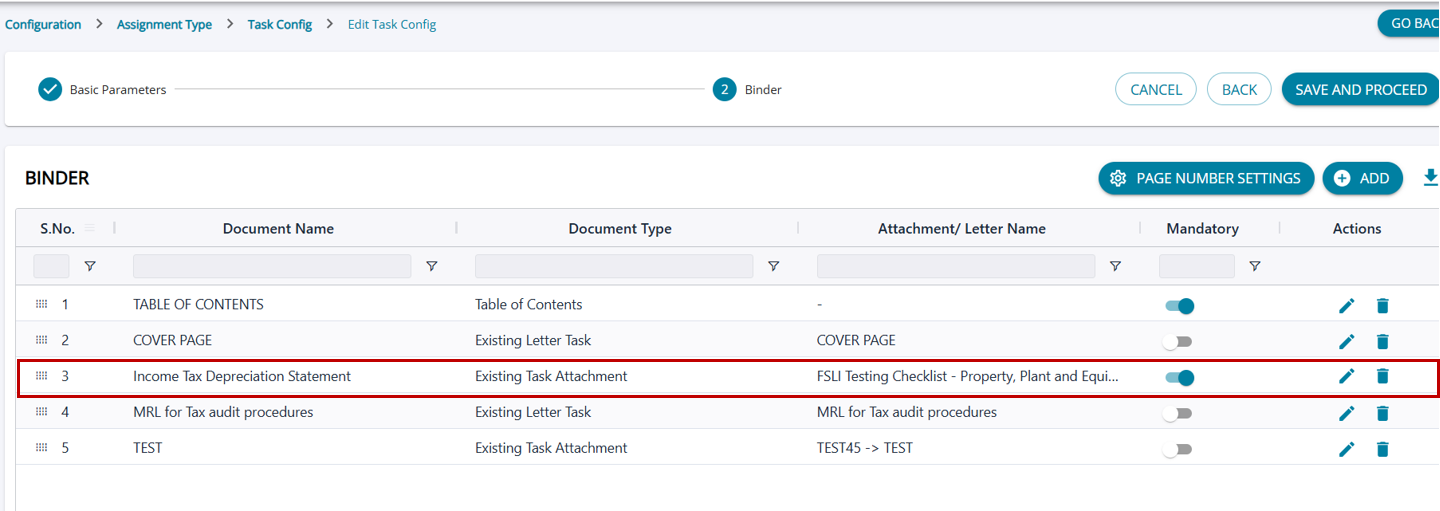
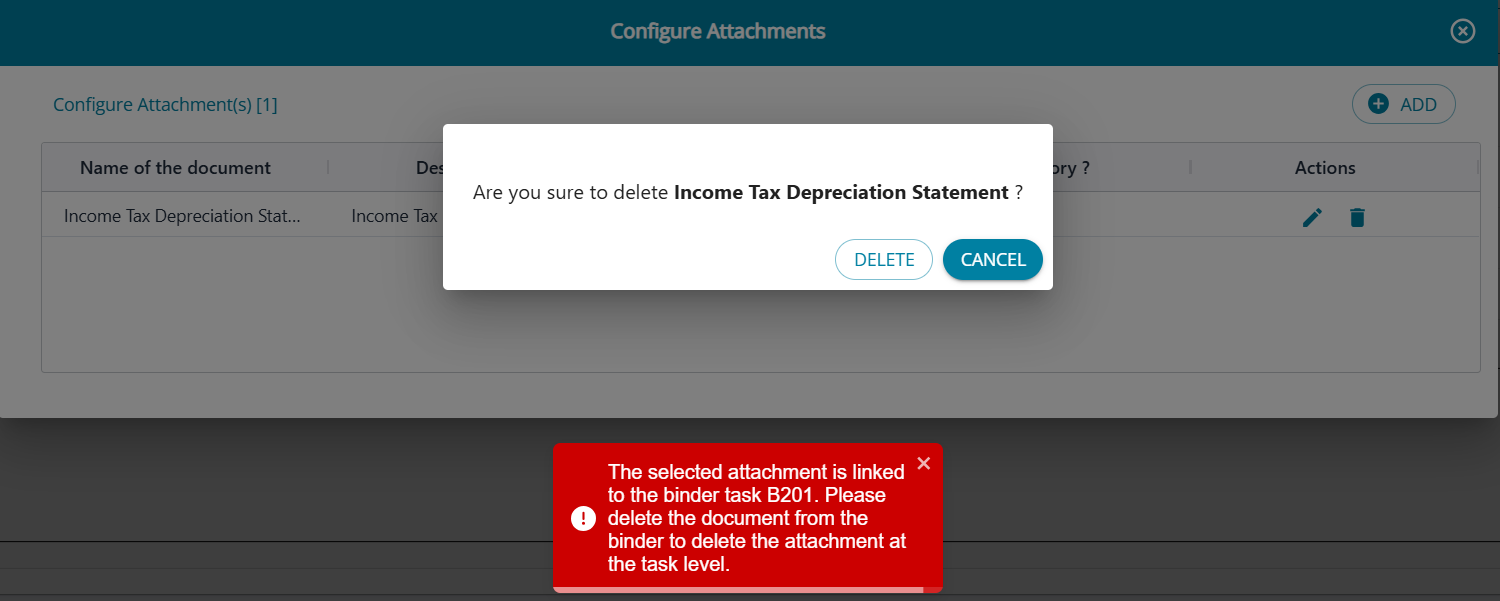
The document has to be removed from the Binder before it can be deleted from the task.
Deactivate Task
When the task is deactivated, the system allows the user to deactivate the task. There are no validations User can also deactivate a task selected into a binder.
Page Number Settings button
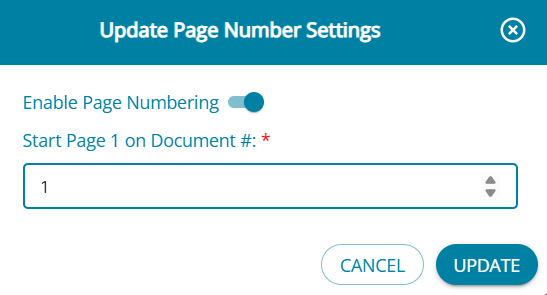
Once the user marks the toggle button for page number as applicable, the 'Start Page 1 on Document' field is enabled, and the user can select the document number from the list.
Once the configuration is complete, the new Bnder task is displayed under the list of configured tasks.