
Voucher Entry
The Voucher Entry module enables users to pass Journal Vouchers directly within AssureAI, without affecting the client's books.
Click the Voucher Entry button under the Statement Generation group of links.
Select the Posting Date and, optionally, enter the Voucher Number.
- Choose the Ledger Names from the dropdown list and enter the respective Debit and Credit amounts.
- Enter the Narration for the voucher ( mandatory).
- Click Submit. The Journal Voucher will be immediately reflected in the financial statements.
Additionally, the 'New Ledger' button can be clicked to add new ledgers from the voucher entry page as well.
Adding a new ledger from the voucher entry screen mirrors the same process of adding new ledgers from the Ledger Classification screen.
Add Ledger from Ledger Classification screen
https://assureai.productfruits.help/en/article/ledger-classification-add-edit-ledger
View / Download Vouchers
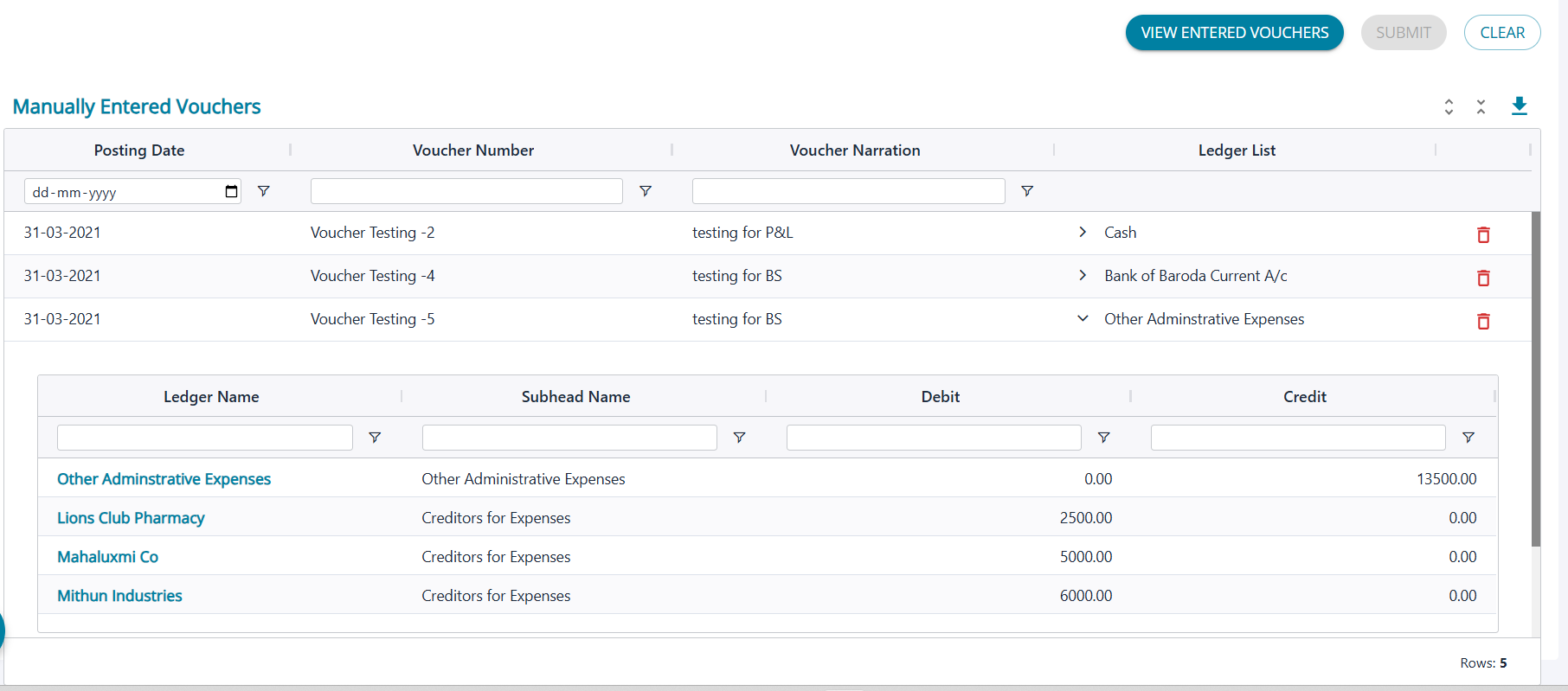
- Click the View Entered Vouchers button.
- All vouchers entered directly within AssureAI will be instantly displayed on the screen.
- You can also download an Excel version of the vouchers by clicking Export Vouchers List.