
FSLI Testing - Sub-Head Level Testing
FSLI Level View
- Upon clicking on any Head on the Head Level page, the user navigates to the Sub-head level screen. The table on this screen lists all subheads within the selected Head.
- Each subhead is a hyperlink; Clicking a subhead will take the user to the ledger view screen
- Values will be displayed for each subhead in the TB format with Opening Balance, Total Debits, Total Credits, and Closing Balance.
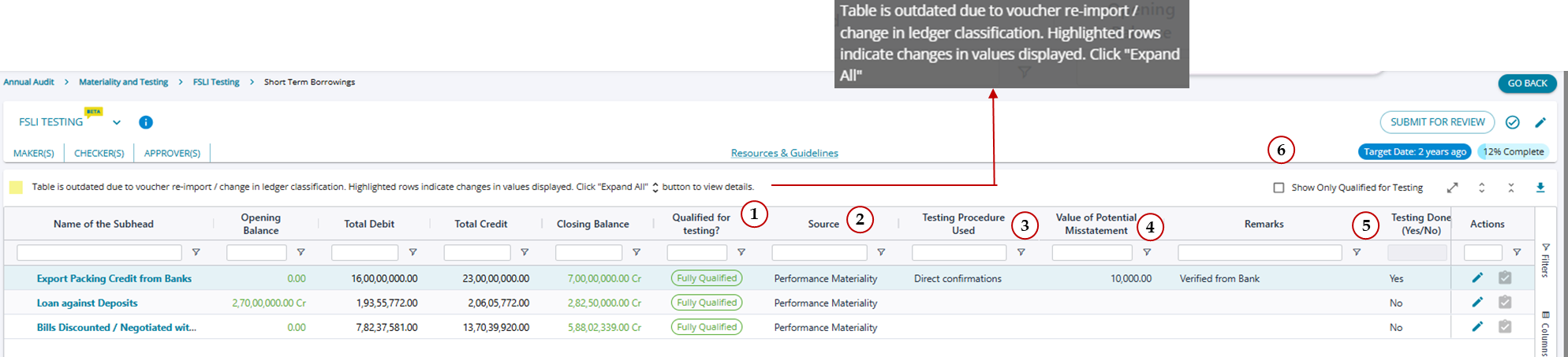
1. Qualified for testing? The field can have 2 values: (i) Fully Qualified and (ii) Not Qualified
(i) Fully Qualified: The subhead is marked as fully qualified if the closing balance of the subhead is > than
The performance materiality threshold amount set in the Determine Materiality task (or) the Specific Materiality amount; if the subhead has been selected for Specific Materiality in step -3 of the Determine Materiality.
(ii) Not Qualified: The subhead is marked as Not qualified if the subhead closing balance is < than
The performance materiality threshold amount set in the Determine Materiality task (or) The Specific Materiality amount, if the subhead has been selected for Specific Materiality in step -3 of the Determine Materiality Task.
The source column will be left blank for the FSLI line item if it is not qualified for testing.
Subheads that are marked "Not Qualified" for testing by the system can also be tested by the user, and the testing procedure used and PMS amounts can be filled in and tested (Yes/No) can be marked as Yes, but will not contribute to % completion at the Head Level.
2. Source: The field can have the following options : (i) Performance Materiality, (ii) Specific Materiality
- Performance Materiality: The system marks the source as Performance Materiality. If the fully qualified subhead is qualified as the closing balance is > the Performance Materiality set up in the Determine Materiality Task.
- Specific Materiality: The system marks the source as Specific Materialityif the fully qualified subhead is qualified as the closing balance is > the Specific Materiality set up in the Determine Materiality Task, for the subhead selected for Specific Materiality.
3. Testing Procedure Used - The user can choose an option from the drop-down list provided.
- The list of procedures that will be available for each subhead is decided from the "Configure Testing Procedures" screen, where, other than system-chosen procedures, users can add more procedures manually.
- The drop-down list is available for all Sub-heads, whether they are qualified for testing or not.
Please refer: https://assureai.productfruits.help/en/article/fsli-testing-configuration-of-testing-procedures
4. Value of Potential Misstatement:
- This is a user-enterable field , if the subhead is marked applicable (or not) for potential misstatement, the user can enter an amount into this field.
- Default values for all subheads will be blank. The user can enter any positive/ negative amount into the fields for the FSLI line item.
- Once the amount is entered for all applicable subheads, the total misstatement will be updated at the head level on the "Head Level View" table.
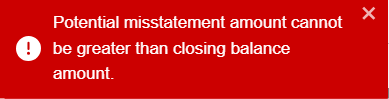
- The amout of PMS cannot be greater than the closing balance of the Sub-Head. If user enters amount > closing balance and saves the row, system will share error message and value will not be saved.
5. Testing Done (Yes/ No) :
- The field has a drop-down with Yes/ No, and the default value for the field is "No"
- If the user selects "Yes" from the drop-down down the FSLI item is marked as tested, and the % completion at the head level increases
- If "No" is selected, % completion will not be updated.
- The selection can be made for FSI items not marked for testing as well, but even if the choice is "yes," % completion will not be impacted for "Not Qualified" line items
6. Show only Qualified for Testing:
- The checkbox can be selected by the user to filter only sub-heads that are classified as "Fully Qualified" for testing.
- The non-qualified sub-heads will be removed from the screen
Alternate Process flow when the Table is outdated
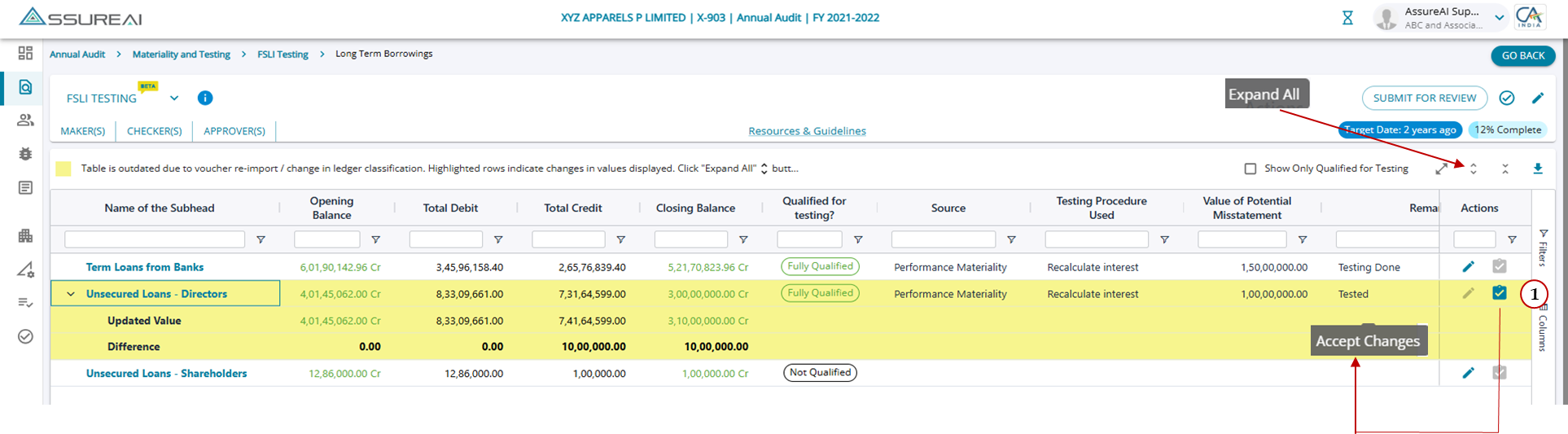
- If there has been case of Voucher re-import or Ledger Re-mapping then there arises a scenario where the values previously displayed on the table based on which the PMS amount was entered by the user; have changed.
- If for the sub-heads displayed on this screen there has been change in values, then the row will be highlighted in yellow , indicating the values have hence changed. For sub-heads not highlighted in yellow there will not be a nested view.
- The field "Qualified for Testing?" will be updated with the current status of the line item , if there has been a change in the testing qualification for the line item the new status will be reflected.
- A nested display is given for all the sub-heads highlighted in yellow and can be viewed by clicking on the "Expand All'' button with 2 rows within.
(i) Updated Value : The new set of values for the Head will be displayed
(ii) Difference: The difference between the existing values on the table and the updated values. The difference will be an absolute value without Dr. or Cr.
Accept Changes Workflow
For all rows highlighted in yellow, the "Accept Changes" link under the action column will be enabled. Upon clicking on the link for accept changes, a pop-up screen is displayed.
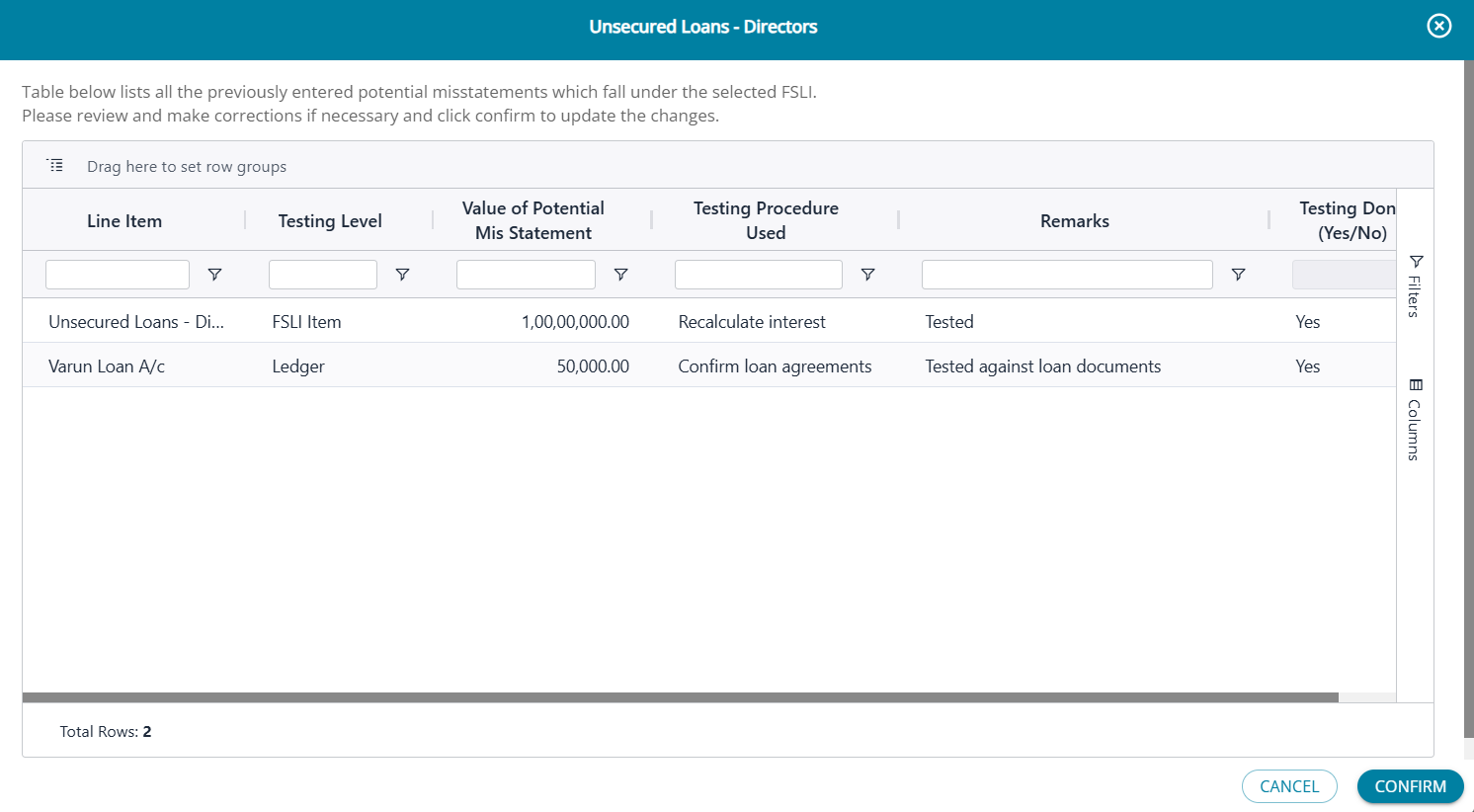
- The pop-up screen lists PMS amount entered for the FSLI item and child items (Ledger level amounts); if entered and saved earlier, else it will be left blank.
- The screen lists all items wherever "Tested (Yes/No)" field has been marked "Yes" indicating the line item has been already tested.
- If the user clicks on "cancel" then the pop-up will be closed and no changes will be made to the table and the yellow highlights will also be retained.
- If the user clicks on "Confirm" the revised values will be updated on the screen and the yellow highlights will be removed at the parent and the child level.
- Upon confirming, if the values of PMS have been edited on the pop-up screen the new values will be displayed on the table, else the old vales will be retained.
- However, even if no PMS amounts were changed, the highlights will no longer be there , indicating there are no more differences to highlight.
Head Level View: https://my.productfruits.com/portal/workspace/xWVaZVlBiKrm3hxg/help/articles/detail/50470
Ledger Level Testing : https://assureai.productfruits.help/en/article/fsli-testing-ledger-level-testing