
Account Copy Entry
Account Copy Data Entry
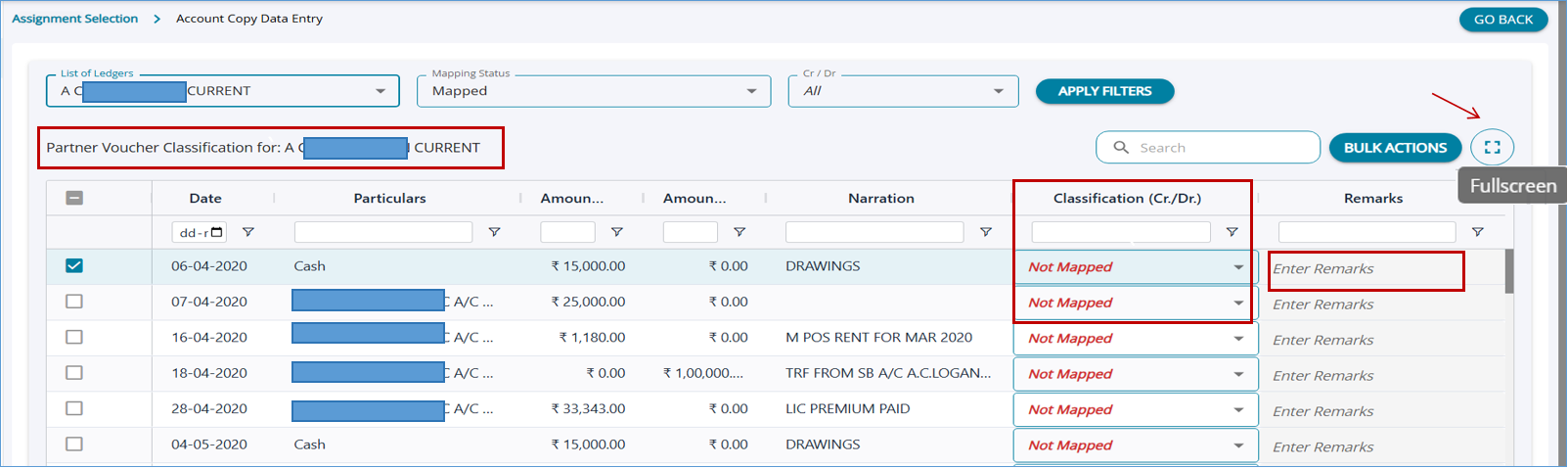
1. Above screen will load once you select a particular partner name and apply filters
2. Here, all the voucher entries under the Partner Ledgers will be listed for the selected partner
3. User can select the items from the drop-down and classify every line item. In the classification column, wherever mapping has not been done for the vouchers, “Not Mapped” is displayed in red to indicate that mapping is required.
4. User can also type further details in the Remarks tab and clearly highlights the need to add remarks.
Bulk Classify
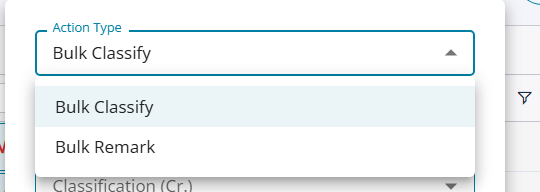
The bulk update feature has 2 options, bulk classify for classification of debit and credits and bulk update of remarks for selected vouches.
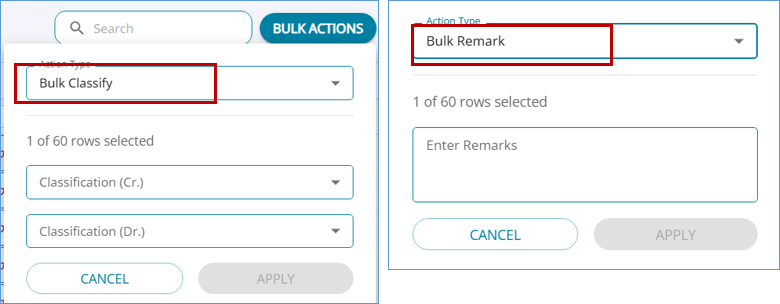
1 .User can also select more than one item and click 'Bulk Actions' button on top right corner of the page
2 .Then the user will be able to specify the classification for both debit and credit sides separatelyor remarks.
3. Click Apply so that the specified classification will be automatically applied for all the ledgers selected.
Account Copy report-Grouped
1. Once the Partner Voucher mapping is completed, then in the Statement Generation screen, user can generate Account Copy report
2. Account Copy report can be generated in ‘Grouped report format’ or ‘Item wise Report Format’
3. Grouped report format will aggregate the amounts and each category and display the report
4. Itemized report will contain one row for each voucher entry in the Account Copy