
Ad-Hoc Tasks- My Tasks
The Task Dashboard screen includes an “Add Ad Hoc Task”. The Ad-Hoc Tasks enables users to create, track, and manage non-assignment-related tasks within the system.The dashboard allows users to:
- Create and manage ad-hoc tasks
- Assign Makers and Checkers
- Track Task Status and Workflow Status
- Monitor tasks created by themselves or their team
- Review and approve tasks submitted for workflow approval
The My Ad-Hoc Tasks screen provides users with a centralized view of all Ad-Hoc Tasks associated with them. The screen is divided into separate tabs based on task ownership and execution responsibility.
The three sub-tabs are:
(i) Assigned to Self
(ii) Assigned to Me
(iii) Assigned by Me
1. Self Assigned
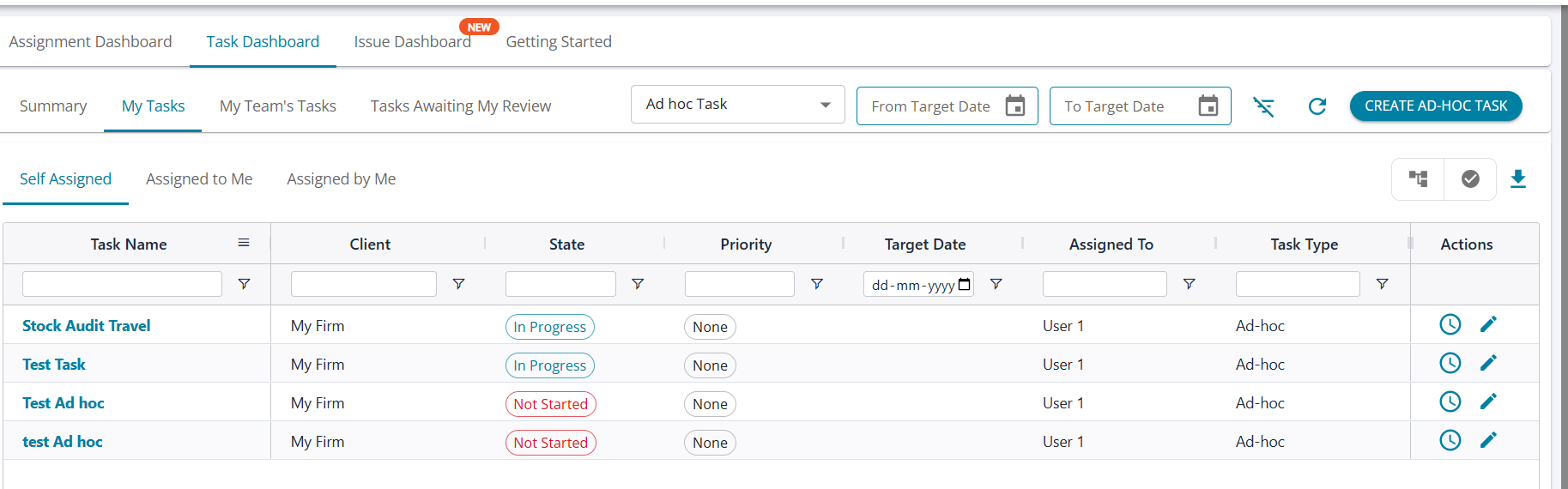
(i) Created By = Logged-in User
(ii) Maker = Logged-in User
These tasks are fully owned and managed by the same user.
Task Actions
Users can:
(i) open tasks from the grid,
(ii) perform task execution,
(iii) complete workflow actions,
(iv) mark tasks as complete,
(v) edit tasks,
(vi) log time.
Task completion can only be performed from the Task Detail / Execution screen.
2. Assigned to Me
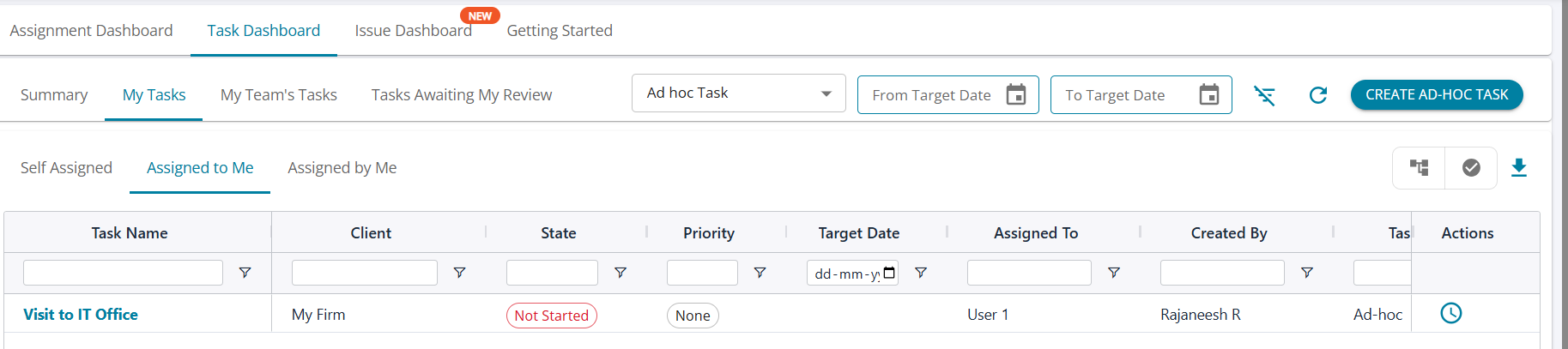
The Assigned to Me tab displays tasks where:
(i) Created By ≠ Logged-in User
(ii) Maker = Logged-in User
These tasks are delegated for execution.
Users can:
(i) open tasks from the grid,
(ii) perform task execution,
(iii) complete workflow actions,
(iv) mark tasks as complete,
(v) edit tasks feature is not available
(vi) log time.
3. Assigned by Me
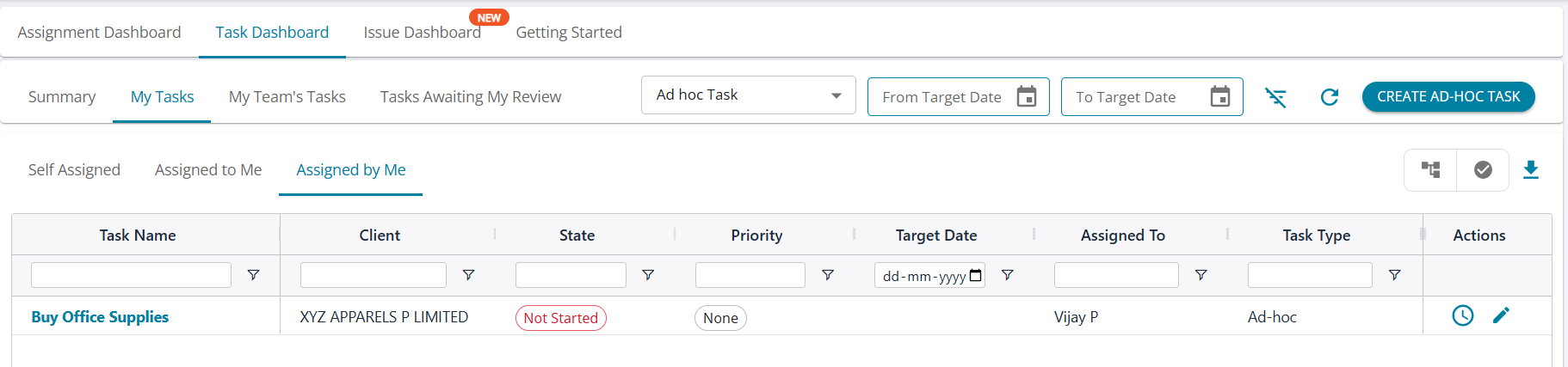
The Assigned by Me tab displays tasks where:
(i) Created By = Logged-in User
(ii) Maker ≠ Logged-in User
These tasks represent delegated work items.
Only active tasks are shown by default.
Task Actions
Users can:
(i) open tasks from the grid,
(ii) perform task execution,
(iii) complete workflow actions,
(iv) mark tasks as complete,
(v) edit tasks,
(vi) log time.
Task completion can only be performed from the Task Detail / Execution screen.