Configure Tasks - Letter
Add Letter Task
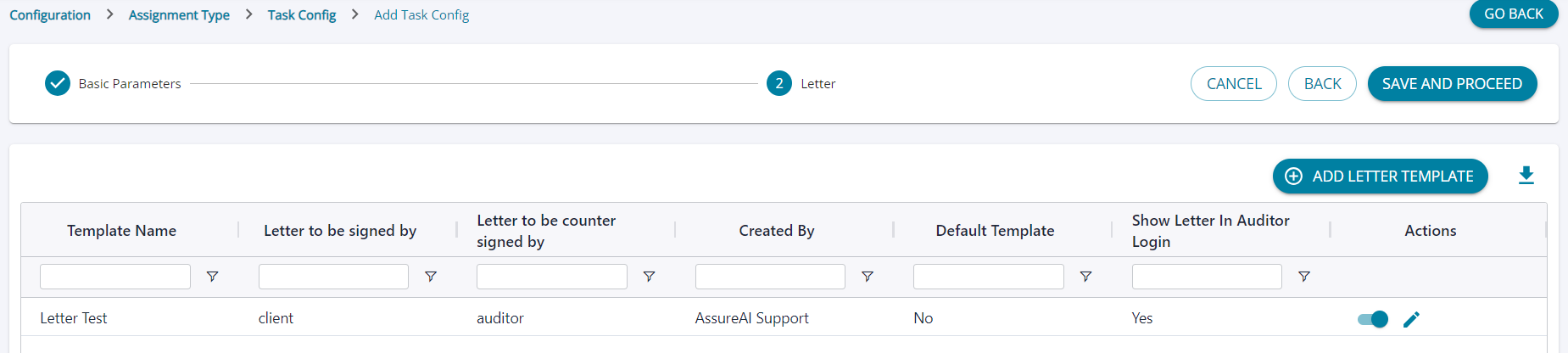
- Navigate to step 2 after selecting the Type of task as Letter.
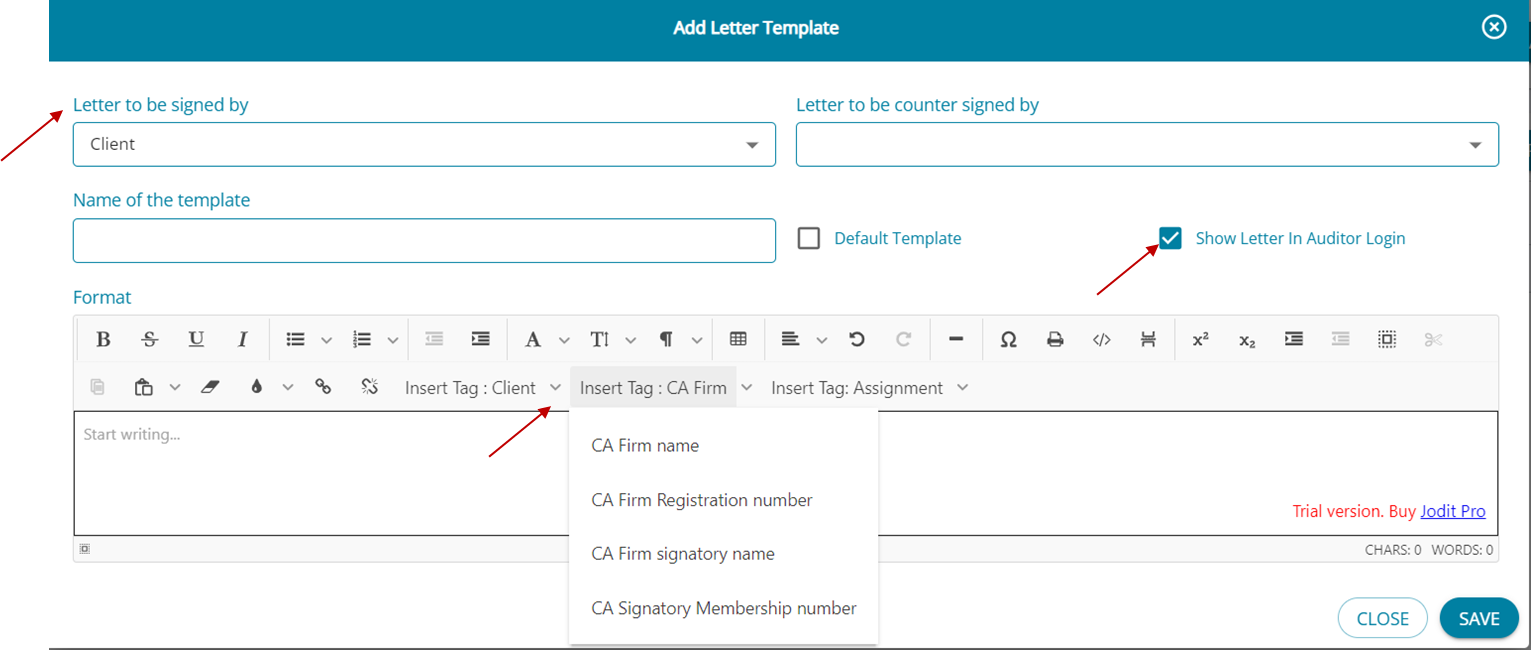
- The letter can be added , and the signatories can be chosen from the drop-down on this page.
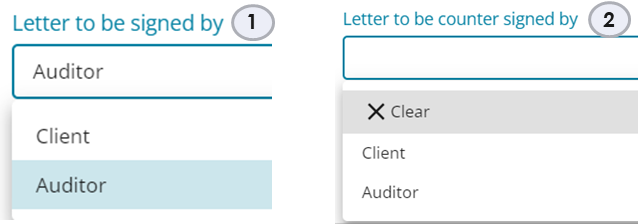
- Signatories for the letter can be chosen from the drop-down. The letter must be signed by either the Auditor or the Client.
- The letter can be additionally countersigned by the Auditor ( if the primary signatory is the Client) or by the Client ( if the primary signatory was the Auditor); but it is not mandatory to choose a counter-signatory.
- If the primary signatory is the client, then the checkbox for "Show Letter In Auditor Login" is displayed and can be selected if required.
- The Letter cannot be signed and counter-signed by the same party.
- Letter tags can be chosen from this screen to be inserted into the letter.
- Once saved the selections will be displayed in step -2.
- “Save and Proceed” to add under Configure Tasks.
- More than 1 template can be saved for a letter task if required.