
AssureAI Release Note - February 2025
Welcome to the February ‘25 release of AssureAI,
We are excited to announce the latest release to AssureAI! This update introduces a range of new features, improvements, and optimizations designed to help you comply with Audit documentation requirements with ease.
After the automated computation of Materiality introduced in the previous release, we now have FSLI testing. The system automatically qualifies line items for testing and lets you record the results, including potential misstatements.
We are also delivering on our promise of single-click workpaper generation. As you continue using AssureAI for audit documentation, checklists, and letters, you can now generate a single zip file that includes all task details and attachments.
Additionally, we've introduced the ability to exchange freehand comments between audit team members and clients. All tagged users in a comment will be notified via email.
New checklists have been loaded under AS Audit Procedures, Materiality and Testing, and CARO Audit Procedures.
The Dashboard has been significantly enhanced with many practical utilities. You can now set priorities for your assignments and track them. Checkers, approvers, and EQCRs will now have visibility to what is going to come to them, not only assignments that are waiting for review /approval already.
New Features in this Release
FSLI Testing
Single-Click Workpaper
Add Comments
Priority Flagging for Assignments
1. FSLI Testing
This feature allows the auditor to accumulate misstatements identified during the audit.
The accumulation of misstatements can be done at Head, Sub-Head and Ledger level using this feature. The FSLI Testing can be initiated by the Auditor once the Determining Materiality task has been marked as Complete.
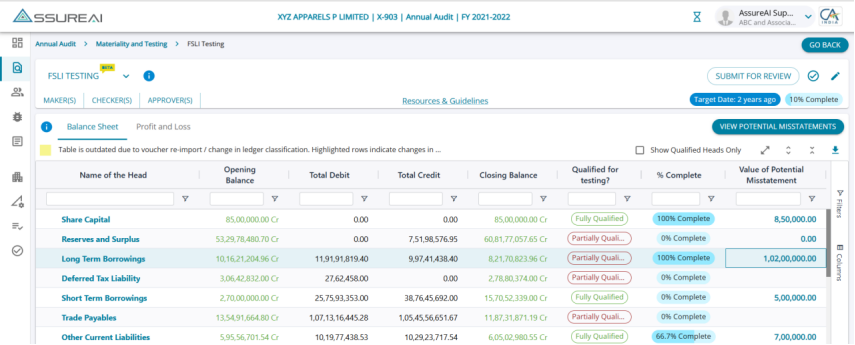
Table with all heads from both the Balance Sheet and Profit & Loss Statement is displayed as a view only table.
The system automatically classifies each Head as Qualified / Partially Qualified and Not Qualified for testing based on the status of the FSLI items mapped to the respective Heads, considering the materiality numbers fixed in the earlier step.
The users can drill-down from the Head View to the FSLI Level view and from there to Ledger View and then to transaction view.
A summary report of total Potential Misstatements at individual Head Level and for the all Heads under both Balance Sheet and Profit & Loss Statement is available to view/download.
Potential Misstatement Summary
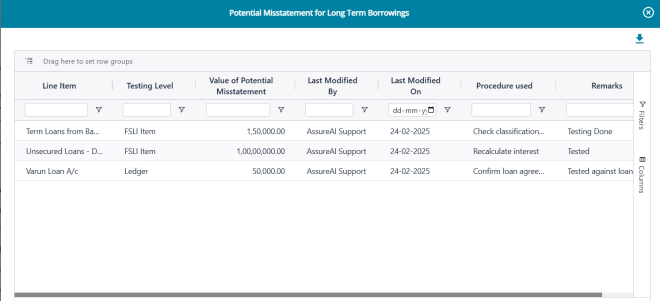
FSLI Level Testing

Upon clicking on any Head on the Head Level View , the user navigates to the Sub-head level screen which displays each subhead in the TB format with Opening Balance , Total Debits, Total Credits and Closing Balance.
Each sub-head is classified by the system into Qualified/ Not Qualified for testing, by taking its source from the threshold set for Performance and Specific Materiality in the Determine Materiality task.
Wherever closing balance of the FSLI Item is greater than the threshold amounts set, the system qualifies the FSLI Item as mandatory for testing/or not.
At this level, users can enter the potential misstatement amount for each FSLI Item, choose the testing procedure used, and add user remarks before marking the row as tested/ or not.
Ledger Level Testing

A further drill-down to the ledger level testing is possible from the FSLI testing screen, where the user can enter potential misstatement amounts at a ledger level.
Together the amounts entered at the Ledger Level and FSLI Level are summed up into the Head level Potential Misstatement , which is displayed on the Head Level table upon refreshing the Head Level Page.
2. Single-Click Work Paper
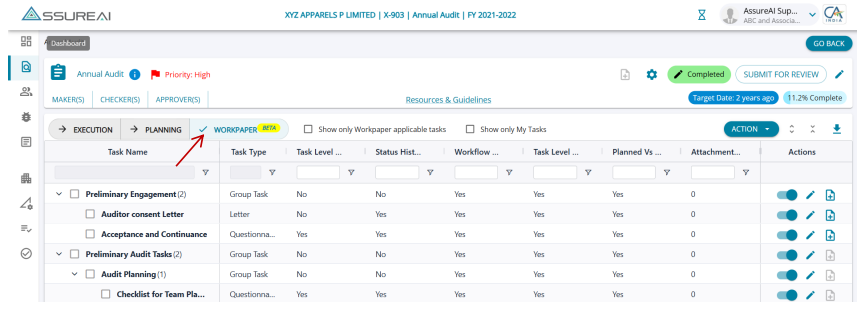
A new tab, “Work paper," has been included in the Load Audit Program screen.
The view will display all completed tasks only (tasks that are "Marked as Complete" from the Execution screen)
The view will include all completed tasks irrespective of whether workpaper generation is applicable or not for that task, as there is an option to edit applicability for the WP generation.
Workpaper can be generated at an individual task level, Group Task level, and for the entire Assignment.
There are various section inclusions for the work paper; the required sections can be included/ excluded before generating the Workpaper.
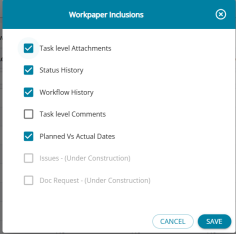
This inclusion / exclusion of sections in the Workpaper can also be done at the Task Level, Group Task Level and at an Assignment Level.
The work paper can be downloaded into a ZIP file for individual tasks, group tasks, and the entire Assignment.
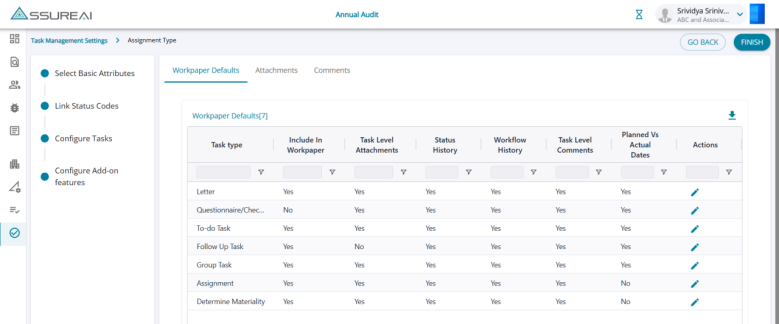
The default setting of the WP for each task is set-up under the new tab “Workpaper” defaults under Task Management Setting.
The inclusions/ exclusions can be changed by editing the default settings for each task from this screen.
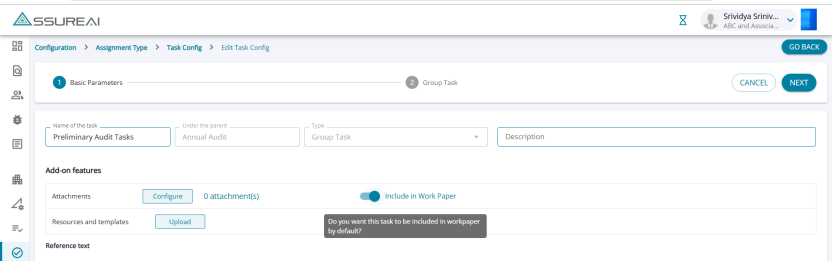
Also, while configuring a new task, a toggle option is provided to include the task for the WP download or not.
3. Add Comments
Users can now add comments at the assignment or task level, and/or assignment level, and tag firm and client users in the comments. When any user is tagged, an automated mail with the comments is sent to the tagged user(s).
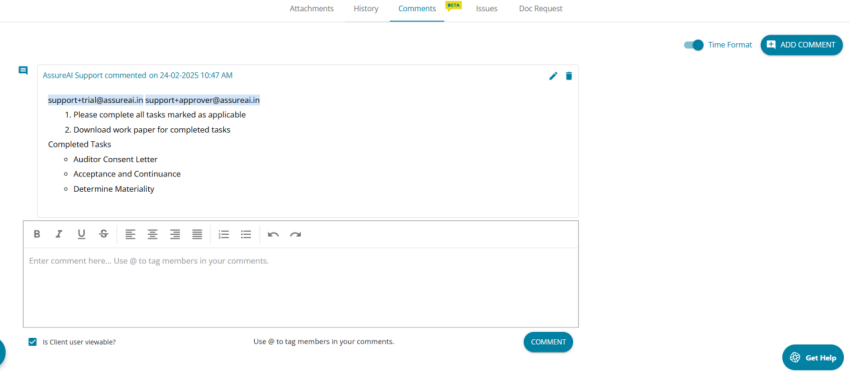
Users can add comments in the comments space given at the bottom of the screen or click on “Add Comments” button. Additionally, the firm users can choose to grant access to the client users to view the added comments by selecting the “Is Client user viewable?“ checkbox at the bottom.
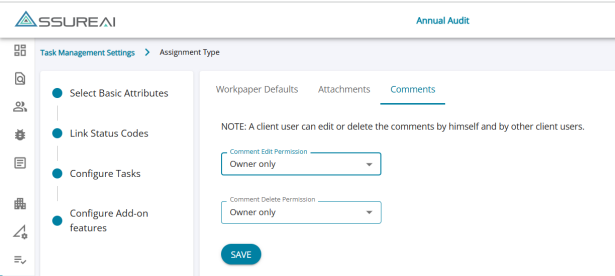
Under the Task management setting, the stepper Configure Add-on Features includes a tab for granting edit and delete access to comments for various users with options in the drop-down for selecting (i) Owner Only, (ii) All Assignees, (iii) Auditor Only.
4. Priority Flagging for Assignments
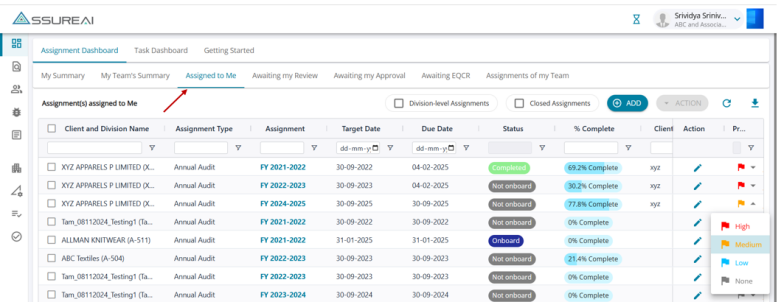
The option to flag assignments with a priority flag has been introduced. Assignments can be flagged as High, Medium, Low, or None (no priority). A new card on the assignment dashboard has been included to display the assignments under different priorities.
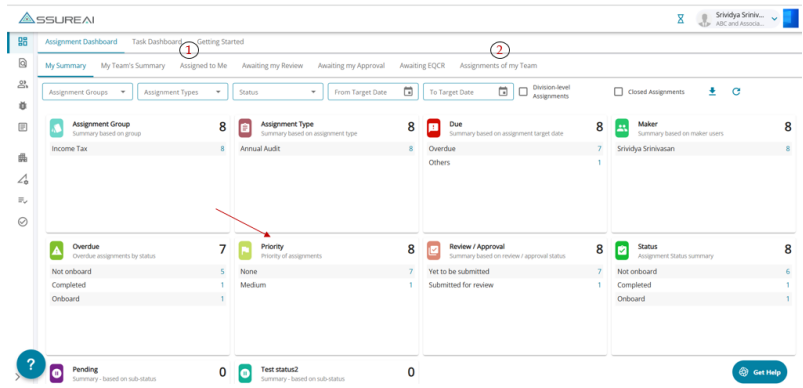
Users assigned as Makers for an assignment and users who are Supervisors to the makers alone will be able to flag assignments with the priority flag.
Priority flagging can be done from the tabs below:
I. Assigned to Me &
ii. Assignments of my Team
5. New Checklists and Letter Templates
Additional tasks (checklists & letter) have been added to the Audit Documentation module.
AS Audit Procedures: All 27 AS checklists have been added under this parent task.
Materiality & Testing: All 24 FSLI checklists have been added under this parent task
CARO Audit Procedures: Checklist and a Management Representation Letter(MRL) for CARO 2020
Procedures under SQC: Checklist for verification of Compliance to Standards on Quality Control
Feature Upgrade/ Enhancements
1. Determine Materiality - Additional Features & Enhancement
Step 1: Assess Engagement Risk
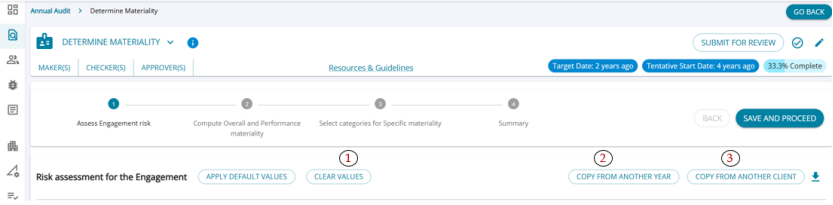
Clear Values: Restores the responses of all the questions to the "Not Applicable" level of risk and "0" Weightage.
Copy from Another Year: If the questionnaire has been filled for the client in any other financial year(s), the user copy responses from there.
Copy from Another Client: From this drop-down, the user can choose any client within the firm and copy the values filled in for that client from any FY.
Step 2: Compute Overall and Performance Materiality
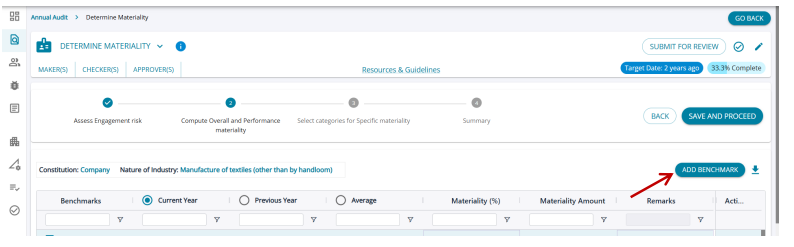
Add Benchmark
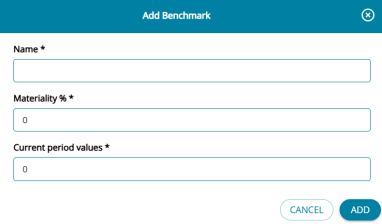
The appropriate benchmark depends on the entity, its industry, and the needs of its financial statement users, business environment etc. to mention a few. As the default list of benchmarks may not cover all the scenarios under which benchmarks are chosen for materiality computation; an “Add Benchmark” feature is included for users to add more benchmarks as may be required.
Users can now Add Benchmarks manually, other than the Benchmarks provided by the system.
The pop-up for adding a benchmark needs to be filled in with the required details to add a new benchmark.
The user-added benchmarks can be edited/deleted by the user.
Read Only Mode
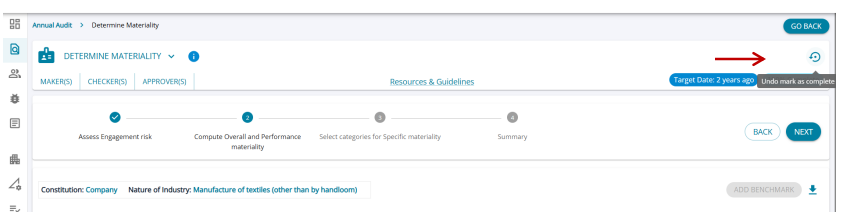
Once the task has been marked as complete, the user can no longer make changes to the task and can only view/download the tables in each step.
However, the user can "Undo Mark as Complete" and return the task to edit mode and make changes.
2. Assignment Dashboard enhancements
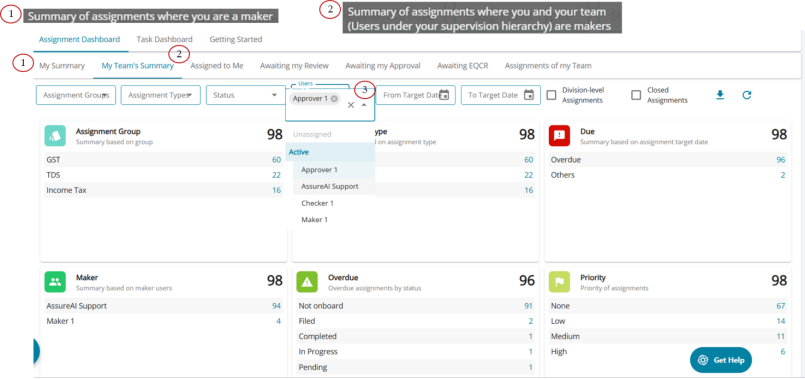
The default view for a user will display a new tab, “My Summary”, listing only the assignments that are assigned to the user. Another tab, “My Team’s Summary,” has been added to display all the assignments in the entire team.
The “Users” filter on the screen now is classified as Active and Inactive users to enable easy selection of users from the drop-down list.
An excel download has been enabled for all the summary tabs on the Assignment dashboard.
Due Date cannot be updated for an one-time assignment like a Certificate. If the user selects an one-time assignment or selects multiple assignments that include an one-time assignment, the due-date field on the “Edit Dates” pop-up will be disabled.
3. Cash Condition for Tax Audit (Proviso to 44AB(a))
Show Subheads
This existing feature allows auditors to check the applicability before filling in the Tax Audit Clauses for Form 3CD in AssureAI.
The “Show subheads” button has been added to the table, which lists the sub-heads that AssureAI considers for generating this report.
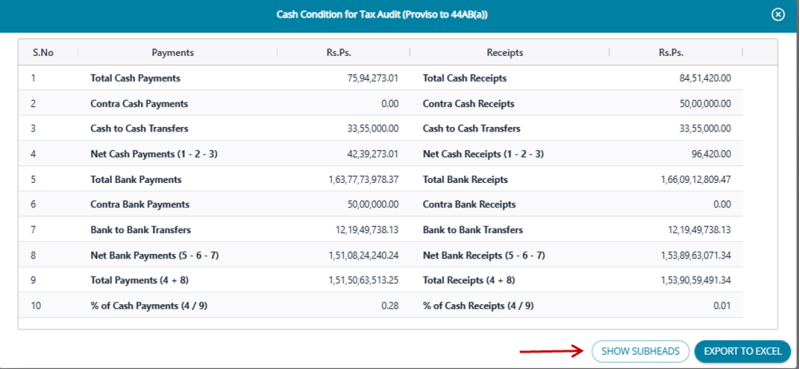
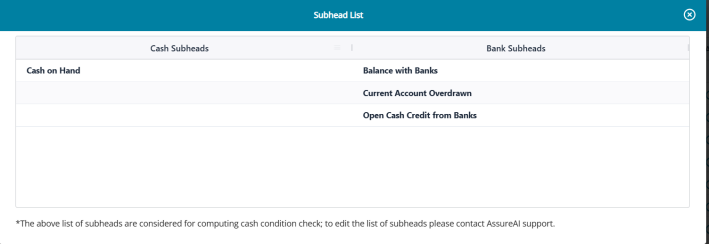
However, if there are no ledgers mapped under the required sub-heads for both Cash and Bank , the system will display the table with “0” values and suggest to the user to check mapping and then re-run the cash condition check.
If you want additional subheads to be considered as Cash or Bank, the Support team can help by way of a ticket.
Cash Condition check for Multidivision clients.
The consolidated cash condition check for multi division client will enable an excel download with consolidated values upon click of the button.
4. Ad-Hoc Attachments
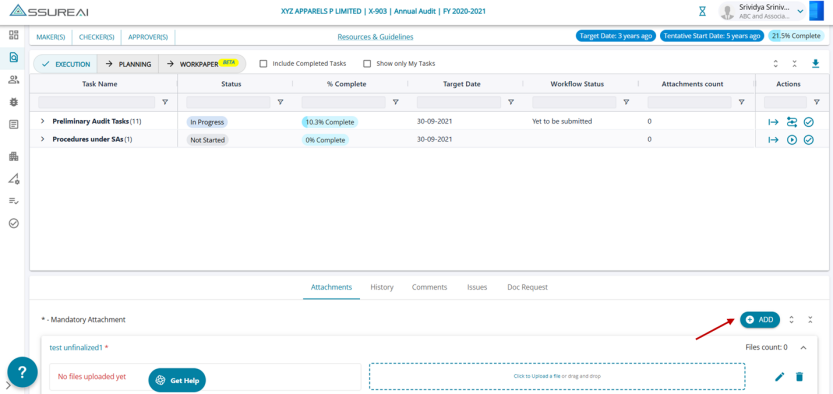
A new feature has been added allowing users to add attachments to the assignment or individual tasks from the Audit Program screen.
Additional attachments can be added other than those that have already been configured at an assignment/task level while configuring.
The "Add" button will enable the user to add attachments on the fly by filling in the required details in the pop-up screen and the action column will include "Edit" and "Delete" options for attachments added on this screen.
5. Transaction View (Ledger View)
The transactions screen has been updated with additional features.
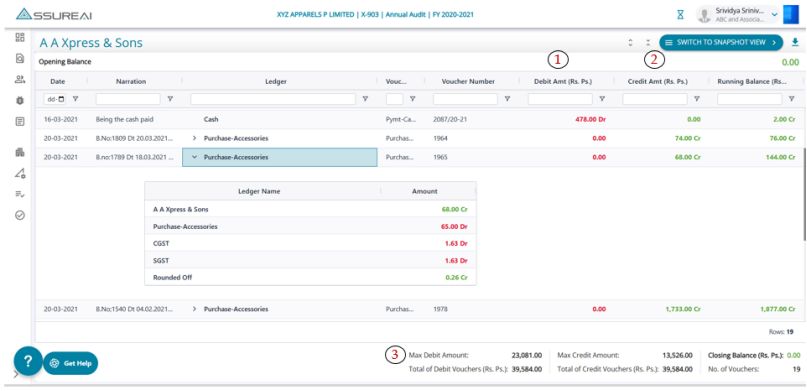
Total debits and total credits are separate columns
Maximum debit and maximum credit are added
The expanded view of every transaction had a different display
The entire set of transactions can be downloaded into an Excel spreadsheet.
Snapshot View: A Sorting option has been included in Debit & Credit summations, enabling users to analyze the ledger further and make inferences
6. My Team
The existing screen has been updated with more user-friendly features.
The screen now displays an option to filter and see the active and inactive users in the firm. The pie chart on the top indicates the number of users under each category.
Also, users can now be deactivated by using the toggle button under the actions column.
7. Other Enhancements
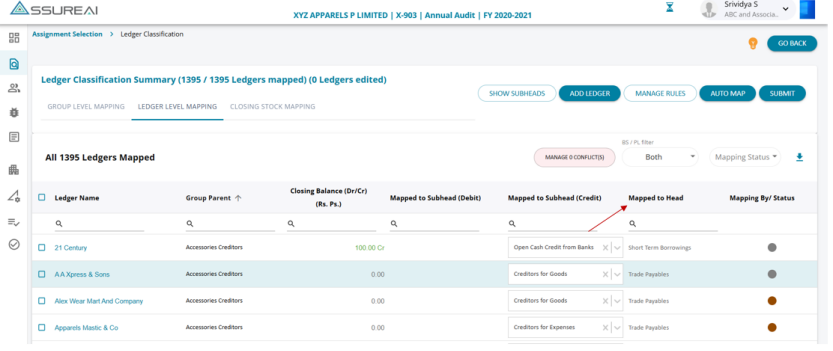
1. “Mapped to Head” column has been added in read-only mode beside the “Mapped to Sub-Head” column at both the “Group Level Mapping” and “ Ledger Level Mapping”. The Head name will be displayed as soon as a sub-head is selected for the ledger from any mapping source: Copied from the previous year, Rule-based, Machine-learning, or Manual mapping.
2. Books of Accounts Excel Import: Stock ledgers entered in the Trial Balance have to be a Balance Sheet item only. The Stock ledgers cannot be marked as a Profit & Loss Ledger. The system will validate the entry and throw an error if stock ledgers are marked to PL
3. A new stepper has been added to the Task Management Setting screen, “Configure Add-on Features,” to include
a) Workpaper Defaults - the table displays default inclusions & exclusions for all the task types
b) Attachments - the tables lists all attachments that are defaulted by system with an option to add more attachments at the assignment type level.
c) Comments - Permissions can be given to the client users to edit and delete comments added at the assignment and task level.
8. Bug Fixes & User Feedback:
1. Financial statements: Additional comments were not getting printed for a few heads and subheads; it has now been fixed.
2. Form 3CD: Clause 21(d)B - Section 40A(3A) - A new validation has been added to ensure that the date of payment should be within the assignment period, else the row will not be saved by the system.
3. Client -Boarding Screen: An update of role from client user to client admin & vice versa was not possible once a user was created. This has now been fixed so that the user role can be updated even after the creation of the user.
4. My Firm: Validation setup to check client limit (as entered in the field Number of Clients), where the system will throw error message when activating a deactivated client increases the number of clients beyond the number of clients entered.
5. Upload of signed Letter Template (Load Audit Program) : Users can now only upload signed PDF documents for a letter task. If the user is attempting to upload a file that is not a PDF document, the system will throw an error message "Please upload a valid PDF signed letter".