
Preliminary Engagement
Audit Work flow- Preliminary Engagement
1. Letter seeking Auditor Consent, Auditor appointment letter and Auditor appointment resolution are uploaded by Client User / Client Admin. By clicking “Letter seeking Auditor Consent” a message is shown as below – “Note : Letter is pending to be signed by the client. Once Signed,
2. Letter seeking Auditor Consent Letter will appear here”.
3. Once the Client user logs in and uploads the signed copies of these letters the pdf letters uploaded by them will be displayed. (This can be seen separately).
1. Under “Preliminary Engagement” select “Engagement Letter – General”
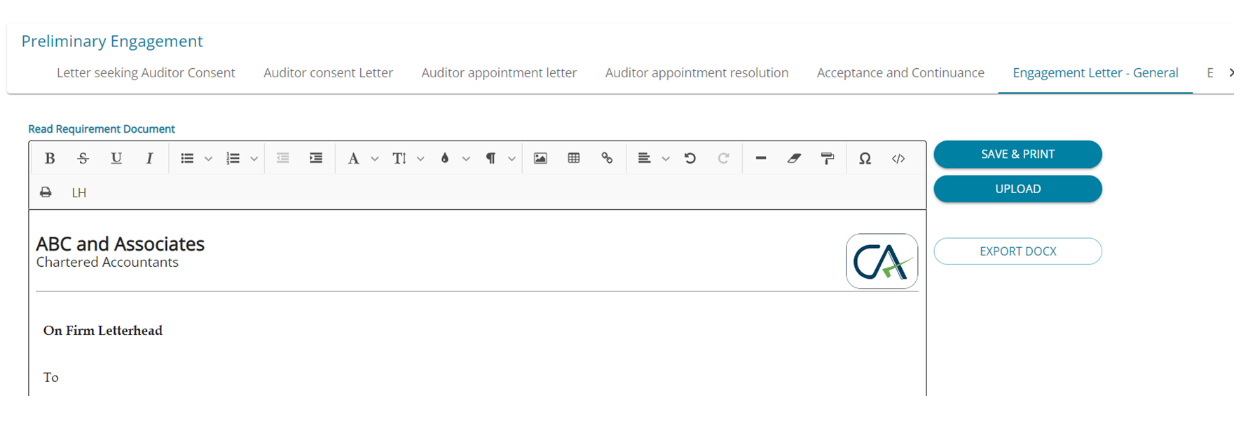
2. Here the letter available in in editable form. It is also possible to add “Letter Head” here.
3. Once all changes are updated Click “Save & Print”.
4. Audit Firm users need to add “Signature” and scan the copy and upload the file. This has been
shown in next screen.
Audit Work flow- Preliminary Engagement -2
1. Once all changes are updated Click “Save & Print” and then the “Upload” button is displayed.
2. Audit Firm users need physically sign the printed document and scan the copy and upload the file
Audit Work flow- Preliminary Engagement - 3
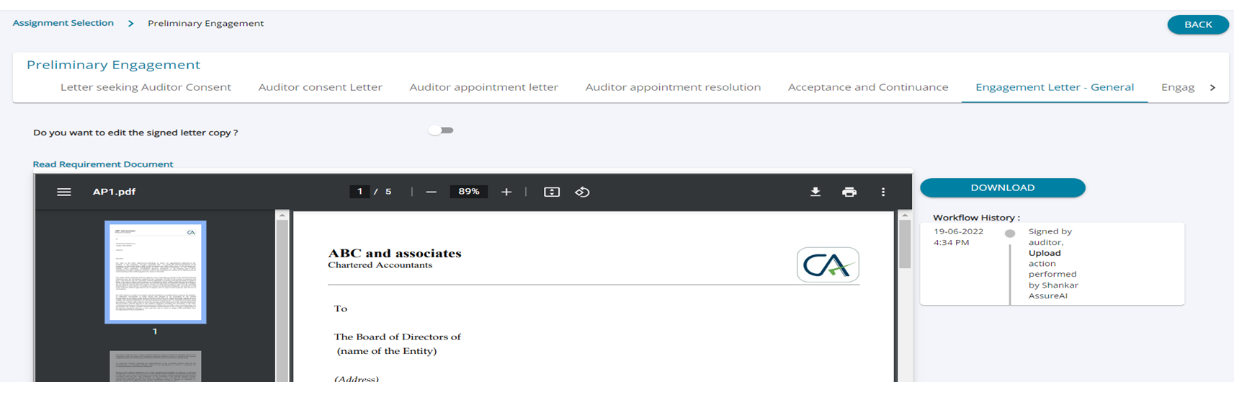
2. On the right hand side a work flow history table also been added which gives details like date and time and the name of the person who has uploaded the signed copy lastly etc.
3. Audit user can further edit this document if needed. The steps to be carried out for editing has been explained below.
Audit Work flow- Preliminary Engagement- 4
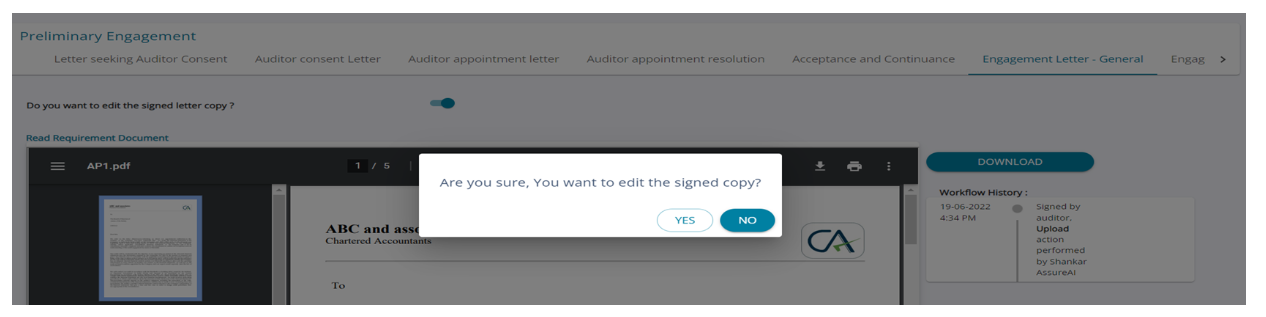
1. Once Audit user clicks the button against “Do you want to edit the signed letter copy” a pop up will be displayed “Are you sure, You want to edit the signed copy?”
2. By clicking “Yes” then the letter will be displayed in editable form.
3. After editing the letter, the user needs to add “Signature” and scan the copy and re-upload the file.
Audit Work flow- Preliminary Engagement -5
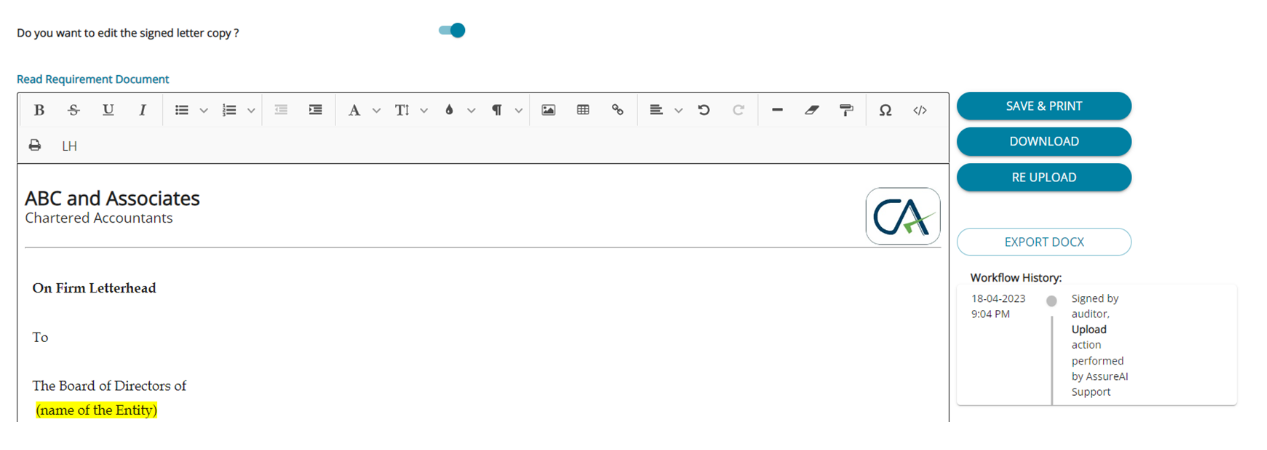
1. Once the user opts to edit the already uploaded letter , the “ Re-Upload” button is displayed.
2. Thus the flow of uploading the documents is as below Save & print Upload Download / Re-Upload
3. The user can edit / re-upload any number of times.
Audit Work flow- Preliminary Engagement -6
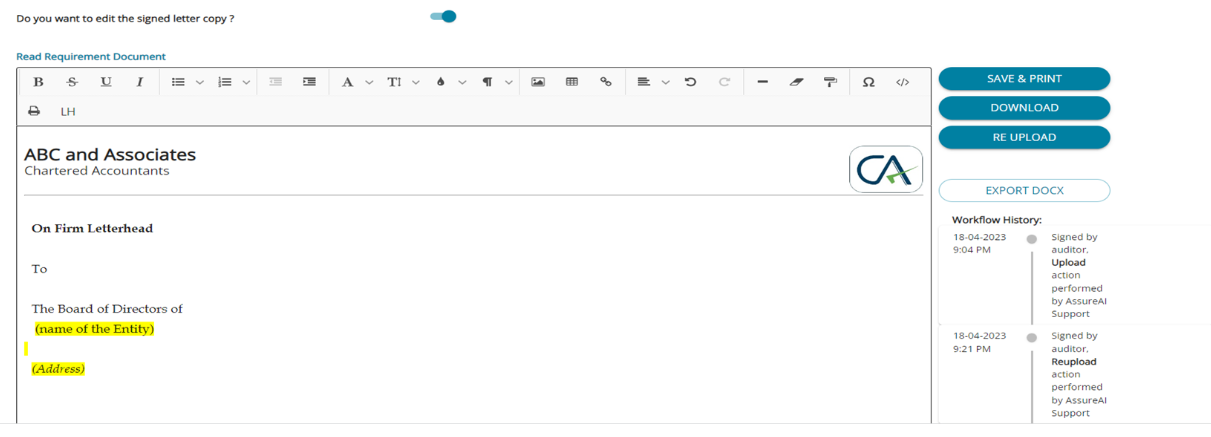
1. Here the re-uploaded file has been shown in pdf form and workflow history has also been updated accordingly.
2. These templates can be edited any number of times.
3. Likewise the user needs to repeat the process for “Auditor Consent letter”, “ Engagement Letter – IFCOFR” and “Independence Confirmation”.– All these letters are uploaded by the Audit user only.
Audit Work flow- Preliminary Engagement - 7
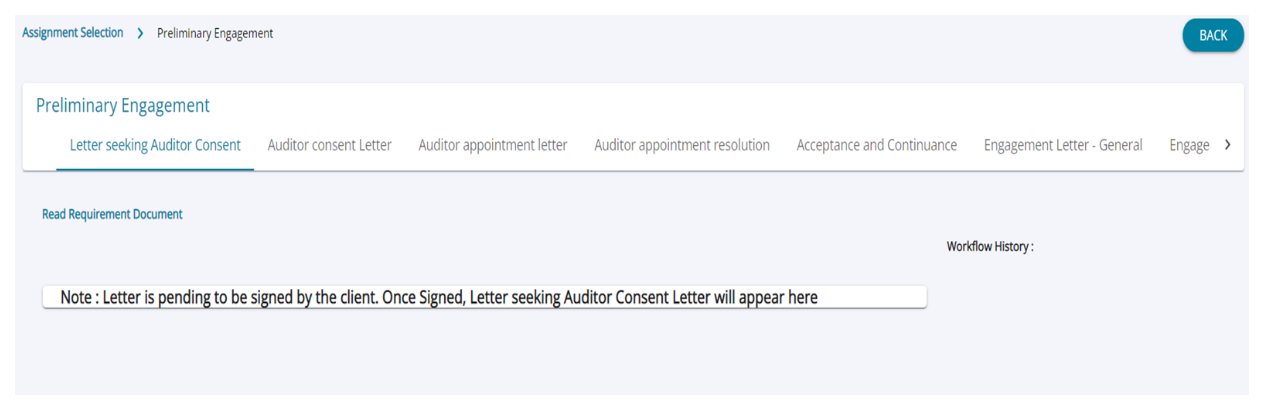
1. Letter seeking Auditor Consent, Auditor appointment letter and Auditor appointment resolution are uploaded by Client User / Client Admin. By clicking “Letter seeking Auditor Consent” a message is shown as below – “Note : Letter is pending to be signed by the client. Once Signed,
2. Letter seeking Auditor Consent Letter will appear here”.
3. Once the Client user logs in and uploads the signed copies of these letters the pdf letters uploaded by them will be displayed. (This can be seen separately).
Audit Work flow- Preliminary Engagement - 8
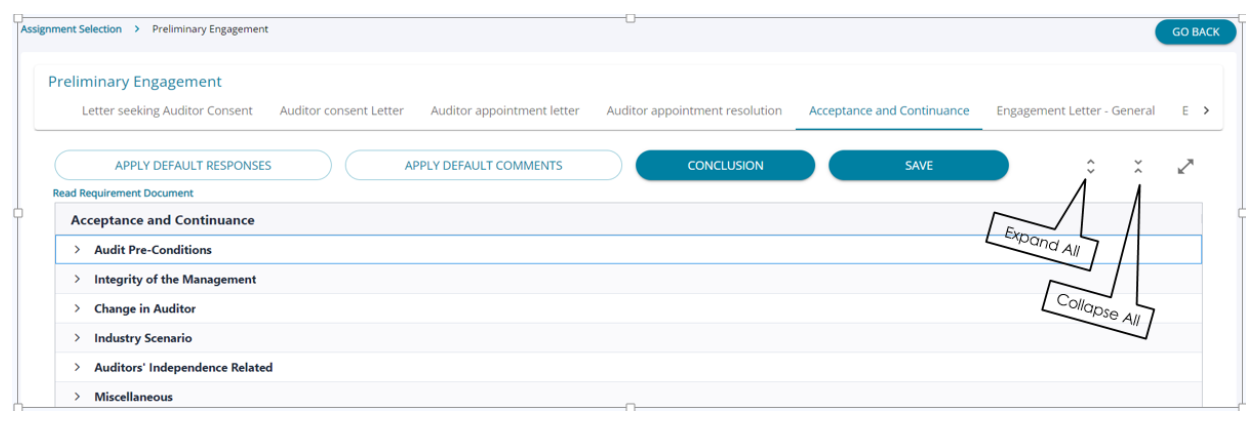
1. Each step in Audit Task can be either of the two types - Letter type & Questionnaire type templates.
2. Questionnaire type templates are further divided into - Grouped questionnaire & Non-grouped questionnaire.
3. For e.g. “Acceptance and Continuance” is a grouped questionnaire, wherein the questions are shown under multiple groups. The “Expand all” / “Collapse all” buttons can be used to view / hide the questions.
Audit Work flow- Preliminary Engagement- 9
1. Click “Apply default responses” – A Warning message is shown to the user. “This will overwrite already entered responses, if any. Are you sure to continue?”
2. Click "No" to the warning - Default responses are not copied.
3. Click "yes" to the warning - Default responses are copied.
4. Click “Apply default Comments” – Warning message is shown to the user. “This will overwrite already entered comments, if any. Are you sure to continue?” (Also please note if "Comments Template from back end" is blank then no comments get updated here).
5. Click "No" to the warning - Default comments are not copied.
6. Click "yes" to the warning - Default comments are copied.
7. Next slide gives a screen shot of a filled questionnaire.
Audit Work flow- Preliminary Engagement - 10
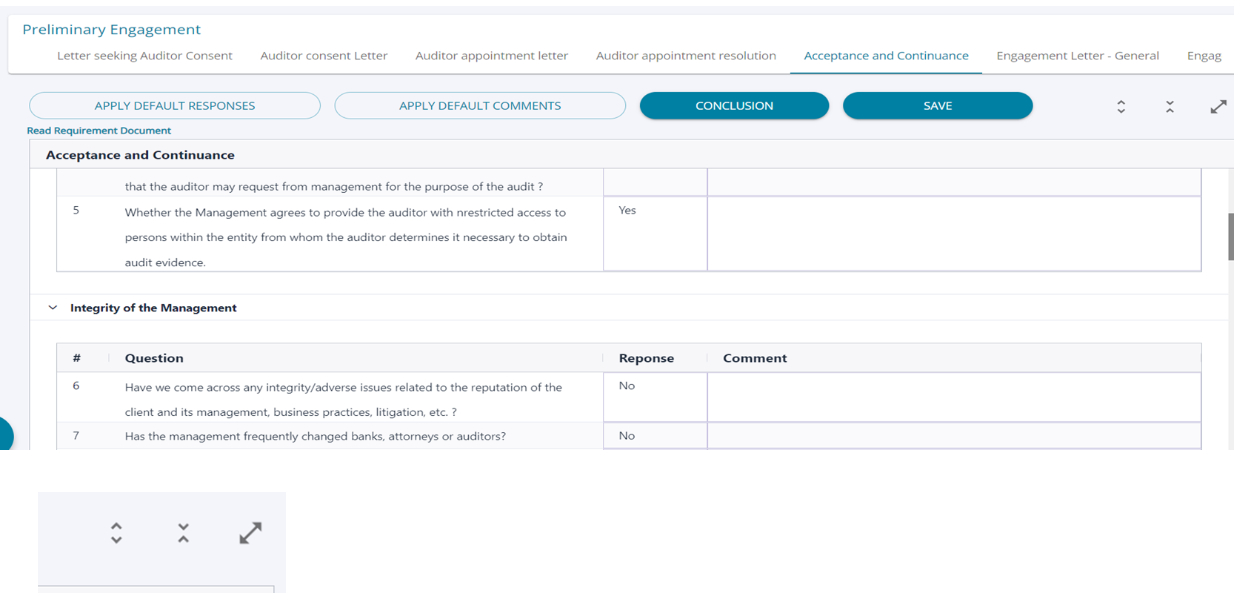
Expand All, Collapse All and Go to Full screen buttons.
Audit Work flow- Preliminary Engagement -11
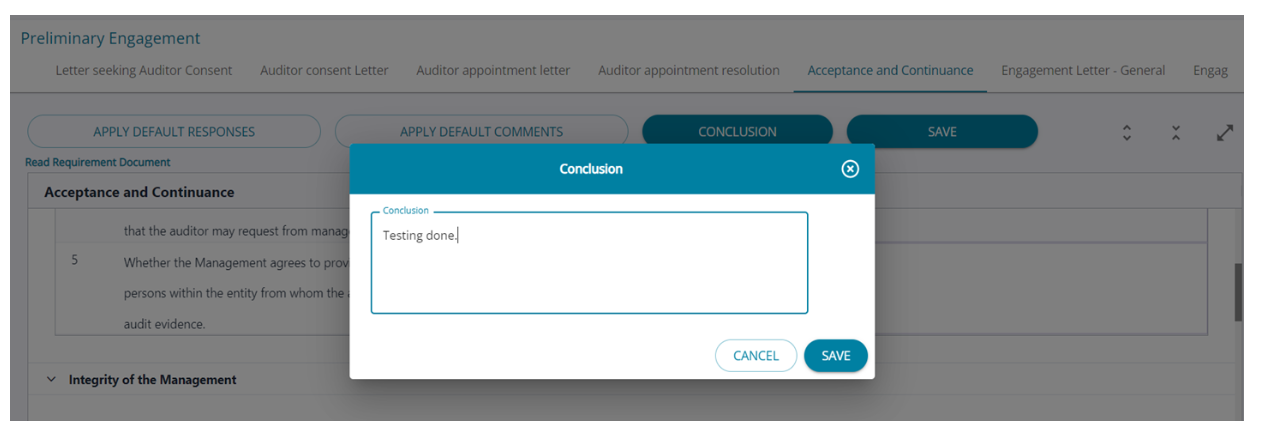
1. Click “Conclusion”. A text box has been opened. Fill the conclusion points if any and “Save”.
2. Now the questionnaire get saved.
Audit Task-Audit Workflow
Choose Client for Assigning Audit Tasks
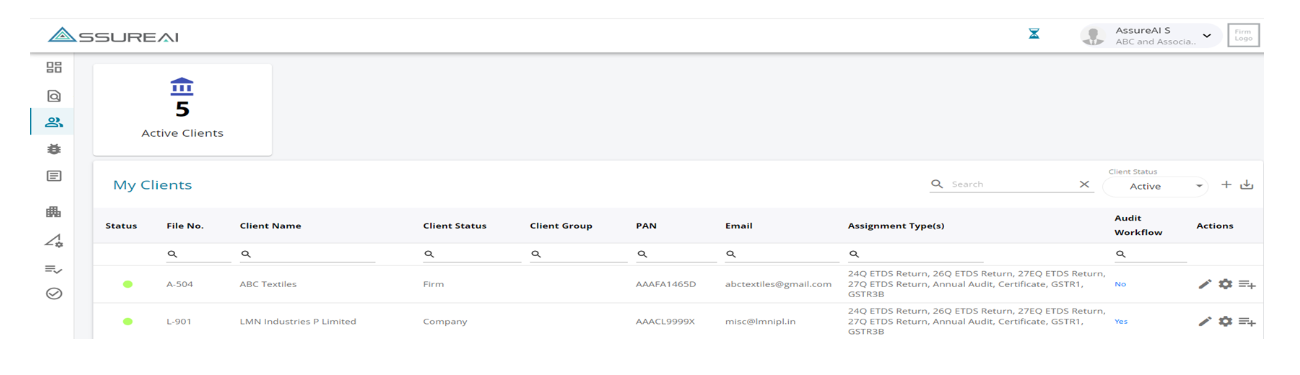
1. Audit tasks comprise of multiple activities and sub-tasks.
2. For any “Company” client, the default set of activities are automatically selected. However, these can be customized as well.
(Both for corporate and non-corporate clients)
3. Go to “My clients” from left panel.
4. Click “No” Or “Yes” hyperlink (blue font item) under “Audit workflow” heading against the respective client
5. Assume in the above screen we are selecting “LMN Industries P ltd” as an example.
Add Audit Workflow

1. Once clicking “No” the above screen will appear.
2. Select the cursor against “Is Audit Workflow Applicable”
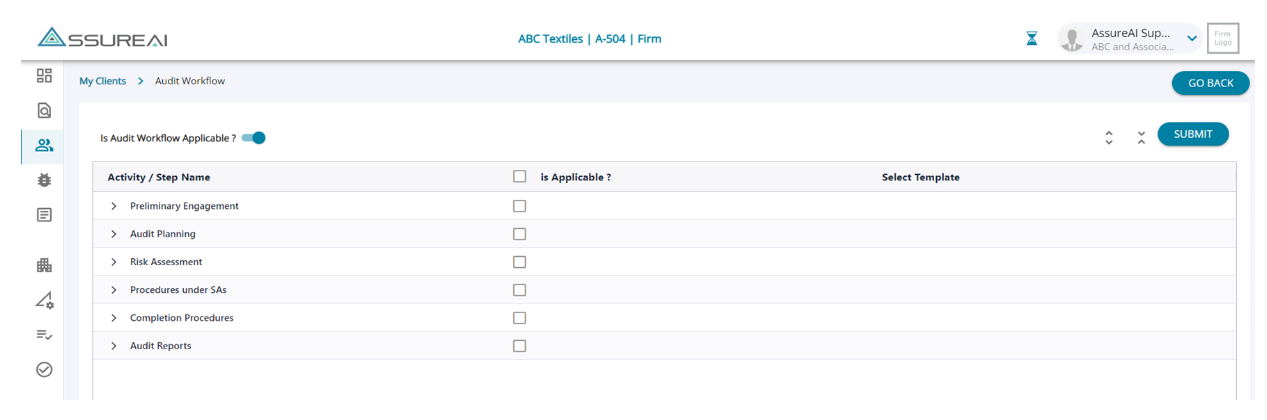
1. Now the above table will appear.
2. Here against each “Activity / Step name” select the same is applicable and to select the appropriate template from the available templates.
3. No need to select template if the Activity itself is not applicable for the client.
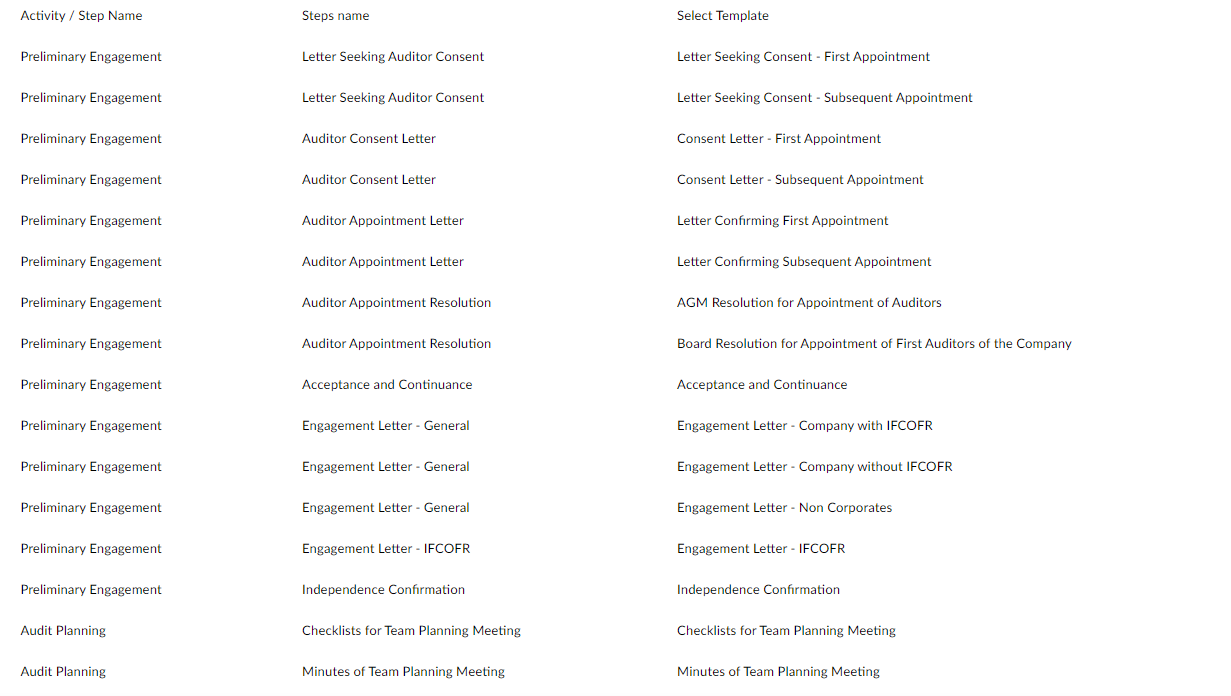
The templates against each step / activity is listed and according to the requirement the template needs to be changed.
Audit Workflow - Select Templates
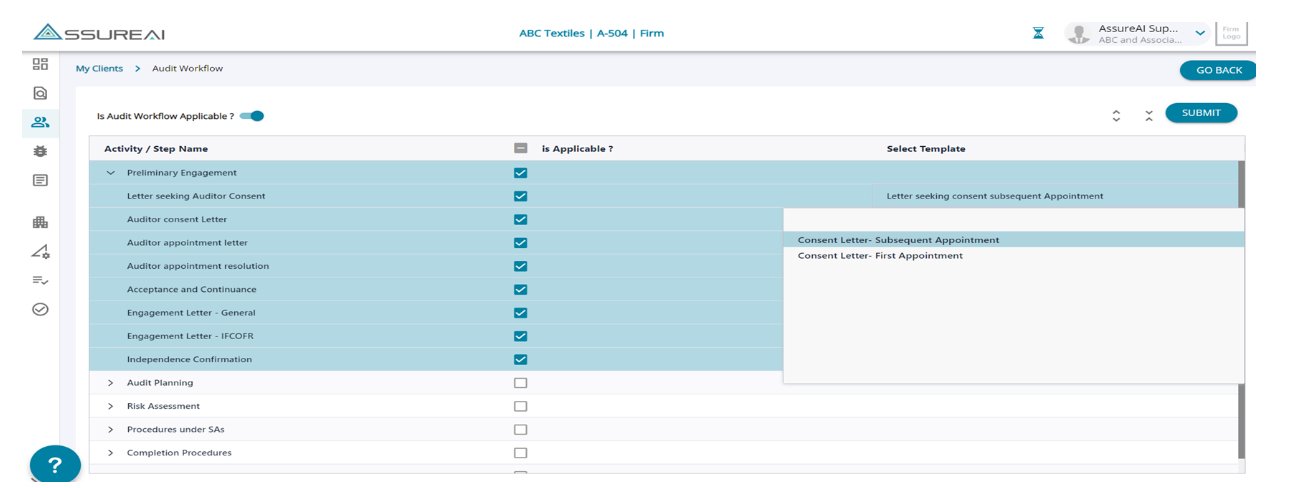
1.The available templates under each Activity / Step name has been displayed in the above table. The user can choose the applicability for each step / activity .
2. Upon selecting the applicability , if there is only one default template for the activity the same will be auto selected , if there are more than one template for the user to choose from, then the system does not make the selection.
3. For each Activity / step select the appropriate templates for the clients shown as below.
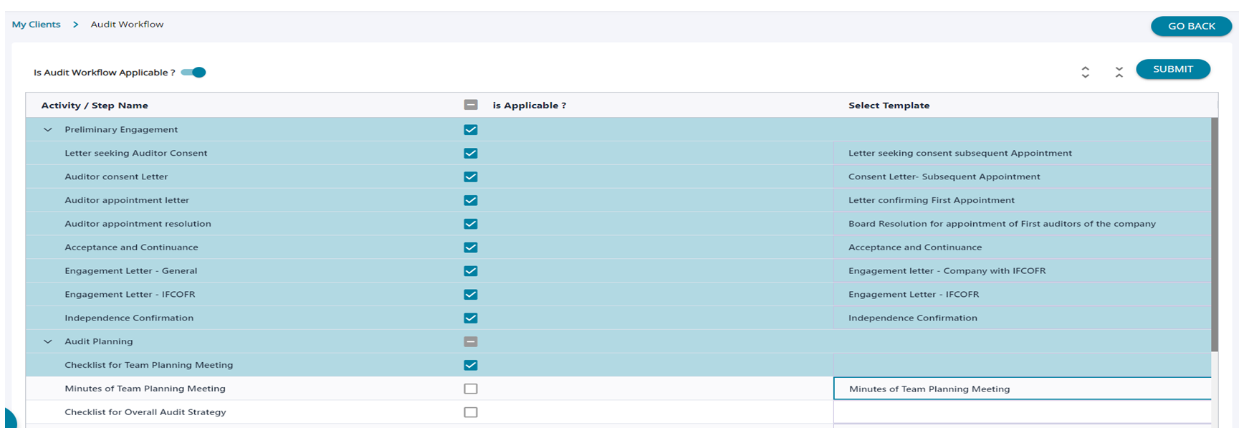
1. Assume the Activity Selected are Preliminary engagement and Audit planning and assume the selected templates are like as above.
2. Click “Submit”. It will save the Audit workflow table. Now click “Back” which leads to “My Clients page”.
Audit Workflow Added
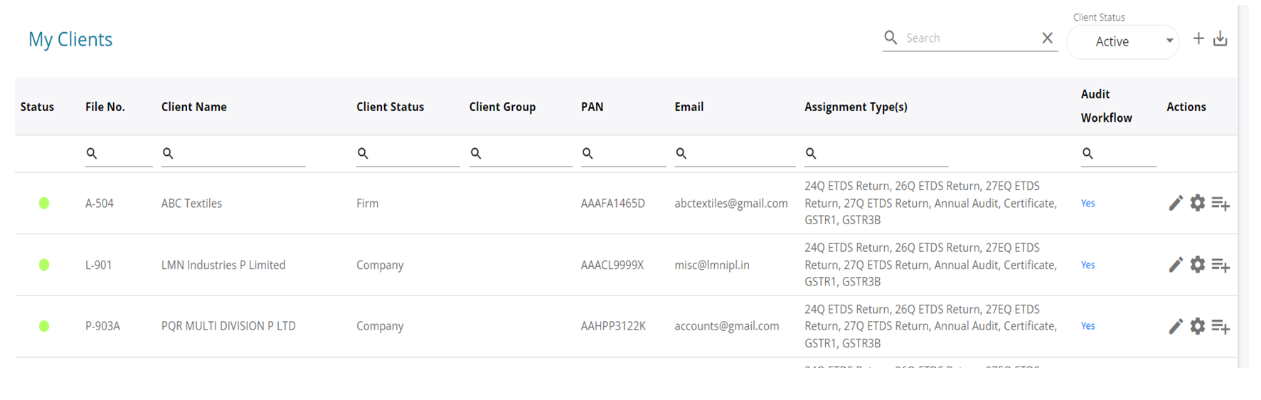
Now the “No” has been turned to “Yes”
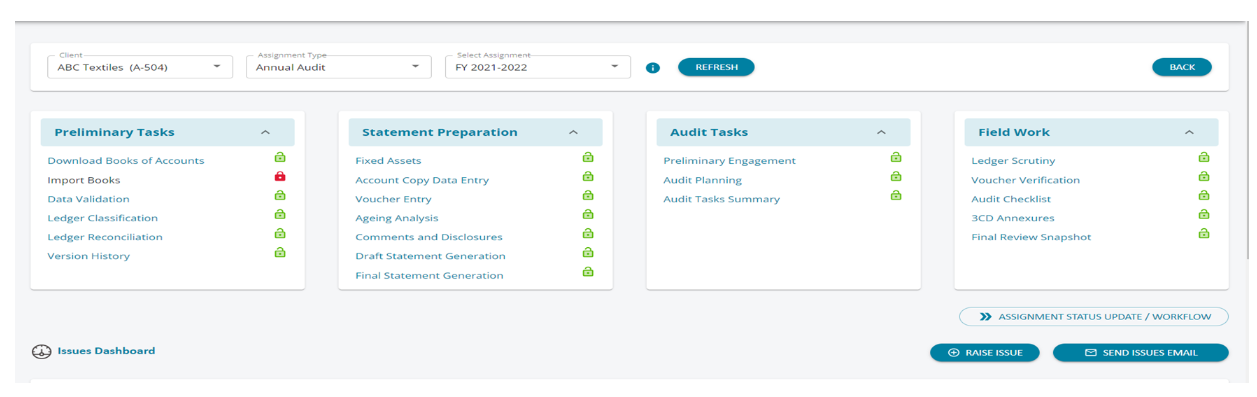
1. Go to “Assignment Selection” from left hand side menu.
2. Select the Client (for which Audit Workflow has been enabled) and Select “Annual Audit” Assignment type and the respective year.
3. Now under the “Audit Tasks” Box we have “ Preliminary Engagement” and “Audit Planning” which were already selected in “Audit workflow Activity” under “My Clients”.
4. Now Select “Preliminary Engagement”