Time Sheet DashBoard - My Time Sheet
My Timesheet
The My Timesheet dashboard is the central workspace where users can log, manage, and submit their time entries. It provides a structured yet flexible interface to capture daily work across assignments, tasks.
1. Overview & Behavior
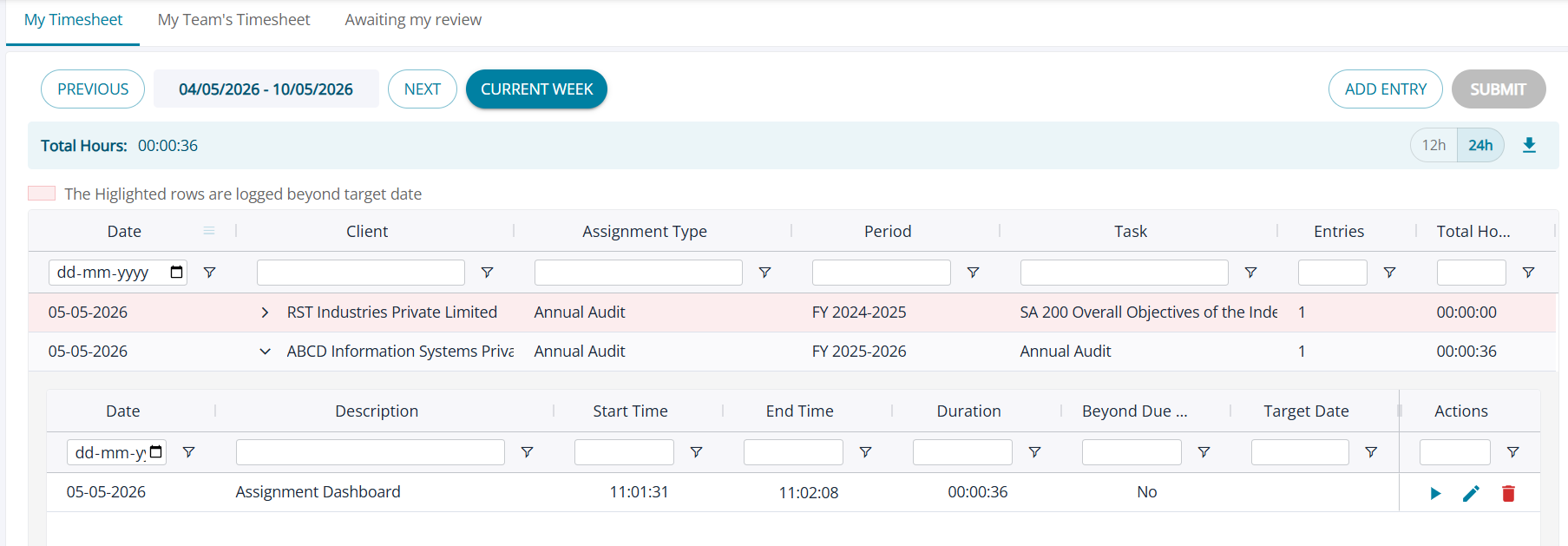
(i) The page loads blank when no entries exist
(ii) Entries are grouped based on submission frequency (Daily/Weekly/etc.) set up in Time sheet settings page
(iii) Users can:
(a) Log time for current date by clicking on ' Add Entry' button
(b) Log time for past dates not yet submitted
(iv) Ongoing time logs from multiple screens are visible and can be managed
2. Adding & Managing Time Entries
Add Entry
(i) Entries can be added only within the current week view
(ii) Users can log time for: Current day
(iii) Past days within the same week (e.g., if today is Thursday, Monday–Wednesday are enabled)
(iv) Future dates are disabled for time entry
Timer-Based Logging
(i) Users can start a new timer directly from the row of an alredy existing time log
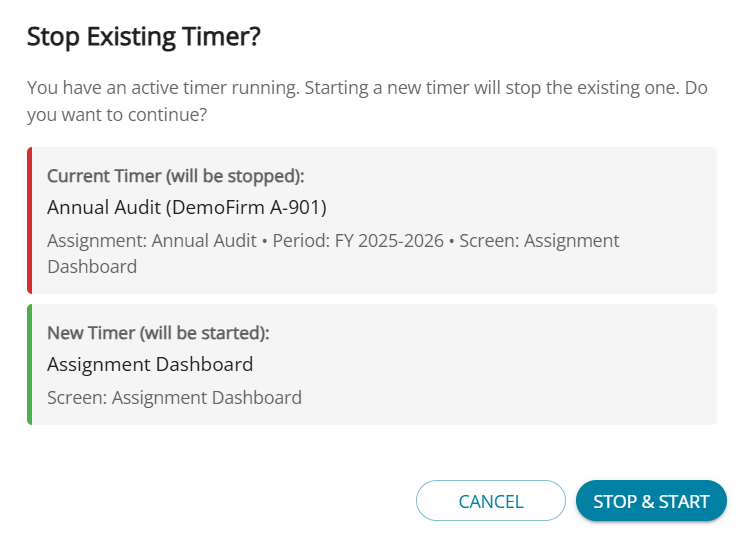
(ii) If overlapping entries are not allowed: System prompts the user to stop any running timer before starting a new one
Manual Entry
Users can manually add or edit:
(a) Start Time
(b) End Time
(c) Duration
(d) No need to start/stop timer for manual updates
Special Scenarios
Time logging is allowed beyond assignment end date. Such entries are highlighted (pink) to indicate exceptions
Row-Level Actions
(a) Start / Stop
(b) Edit
(c) Delete
3. Submission Workflow

Submit Button Availability
(i) The Submit button is displayed for all unsubmitted periods
(ii) It is enabled only when:
(a) At least one time entry exists, and
(b) All active time logs (timers) are stopped
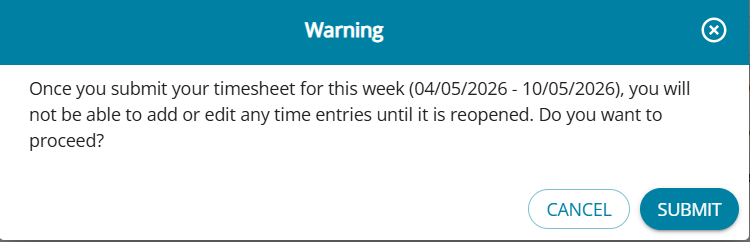
(i) On clicking Submit: A confirmation pop-up is displayed
(ii) Shows:
(a) Summary of the selected period (e.g., week details)
(b) Option to add comments
(c) User confirms submission to proceed
Post-Submission Behavior
(i) Once submitted: The period moves to Submitted status
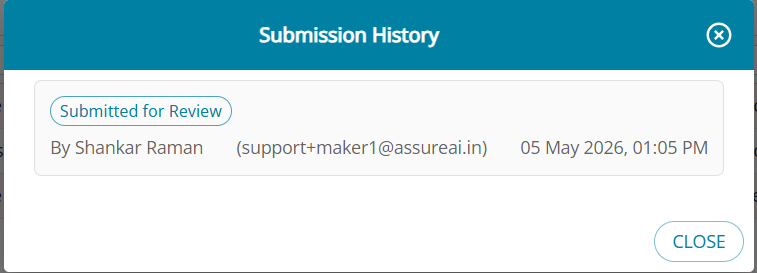
(ii) A “View History” button is enabled
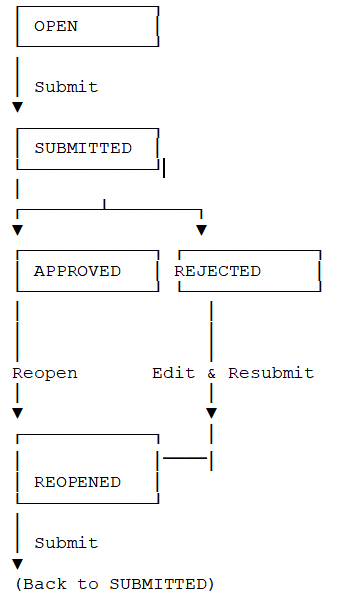
(iii) Displays the movement of the timesheet across statuses (Open → Submitted → Approved/Rejected)

Entry Restrictions
(i) Entries can be added only when the period (e.g., week) is in Open status
(ii) Once submitted: Add Entry button is disabled
(iii) No further time logging is allowed for that period until period is reopened
4. Status and User Actions
| Status | Description | User Actions Allowed | Time Logging Allowed (Date-wise) | Next State |
|---|---|---|---|---|
Open | Initial state of time entry | Edit, Delete | Allowed for current & past (unsubmitted) dates within the week | Submitted |
Submitted | Entry submitted for approval | No actions allowed | Not allowed | Approved / Rejected |
Approved | Entry approved by reviewer | Reopen (if edits required) | Not allowed | Reopened |
Rejected | Entry rejected by reviewer | Edit, Delete | Allowed for correction on the same dates | Resubmitted → Submitted |
Reopened | Previously approved entry opened for edits | Edit, Delete | Allowed for correction on the same dates | Submitted |