Doc Request Dashboard
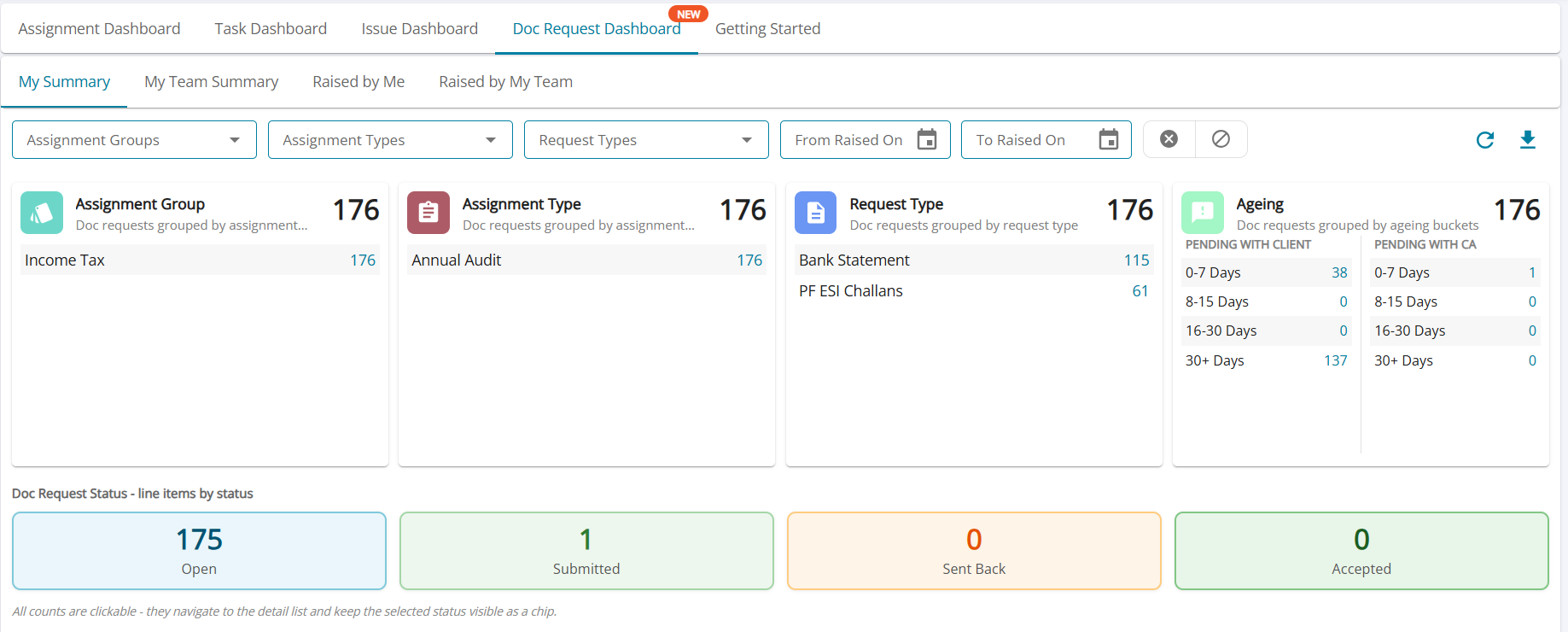
The Doc Request Dashboard is a top-level, consolidated dashboard for tracking document requests across every assignment. It gives everyone involved in an assignment, whether on the audit team or on the client side, a single place to see what's outstanding.
1. Navigation and Views
The dashboard sits alongside the Assignment Dashboard, Task Dashboard, Issue Dashboard, and Getting Started tabs.
Who's looking determines what they see:
- Audit team members get four views: My Summary, My Team Summary, Raised by Me, and Raised by My Team.
- Client users get a single, focused "Assigned to Me" view — everything the client has been asked for, in one place.
The client-facing view has the same summary cards available in the audit-facing views, providing clients with a more comprehensive and consistent experience.
2. Filtering the View
A common filter bar sits above the summary cards, letting users narrow the dashboard by Assignment Groups, Assignment Types, and Request Types ( Bank Stmt. , PF/ ESI Challan , Sister Concern Copies , Third Party Confirmations or Other Documents) plus a From/To Raised On date range.
3. Summary Cards
Summary cards : Assignment Group, Assignment Type, Request Type, Ageing, and Doc Request Status together make up the full set of five summary cards. Every one of them drills down into a pre-filtered list — no separate step required to go find the detail behind a number.
4. Ageing Buckets, in Detail
Ageing card filters all doc requests into :
- Pending with Client — requests waiting on the client to respond or submit something
- Pending with CA — requests the client has submitted, but which the audit team (the CA) still needs to act on
Each side is then broken into the same four ageing buckets:
- 0–7 Days
- 8–15 Days
- 16–30 Days
- 30+ Days
5. The Doc Request Status Card
The bottom section, labelled "Doc Request Status – line items by status," is the fifth summary card. Four , color-coded tiles show the count of requests in each status:
- Open (blue)
- Submitted (green) , meaning the client has responded with attachments and it's now awaiting review
- Sent Back (amber/orange) , meaning the attached document has currently been rejected or bounced back to the client for correction
- Accepted (green) , indicating that the attachment is accepted by the auditor
The summary cards use color coding as a visual status indicator, making it easy to identify request statuses at a glance.
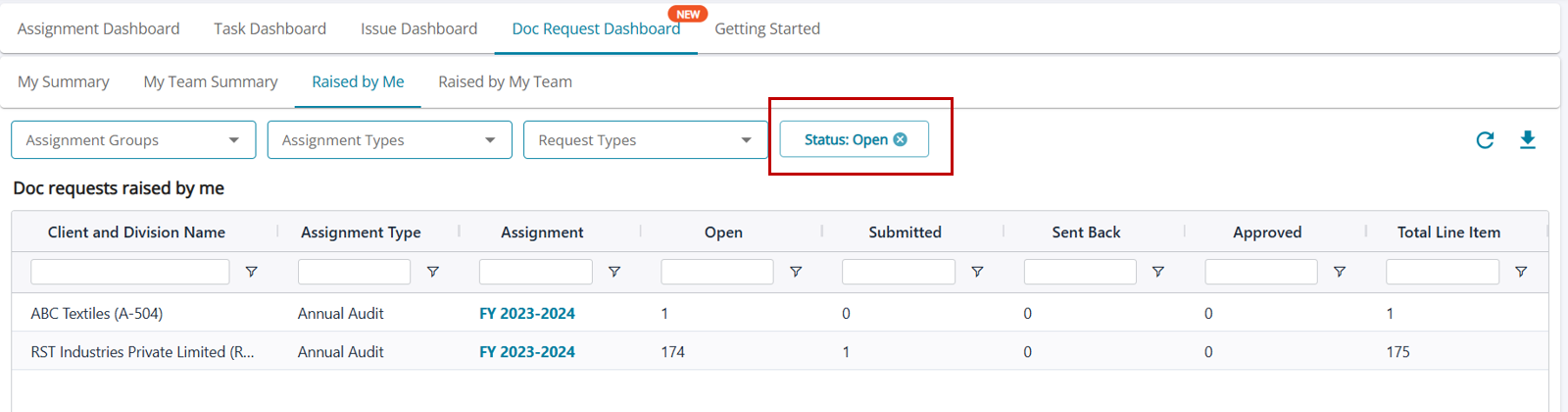
All, the cards are clickable, allowing users to drill down directly into the corresponding detail list. When a count is selected, the relevant status is retained as a filter chip, ensuring the context is preserved while navigating through the requests.
For example, clicking “175 Open” takes the user directly to the filtered list of those 175 open requests, with the Open status clearly visible as the active filter.