
Add / Edit Ledger

A ledger can be added directly in AssureAI even if it does not exist in the client’s Tally data.
However, when ledgers are created manually in AssureAI, the client must be informed to update the ledger in their original books of accounts, as changes made in AssureAI do not sync back to or modify the source accounting data.
Add Ledger
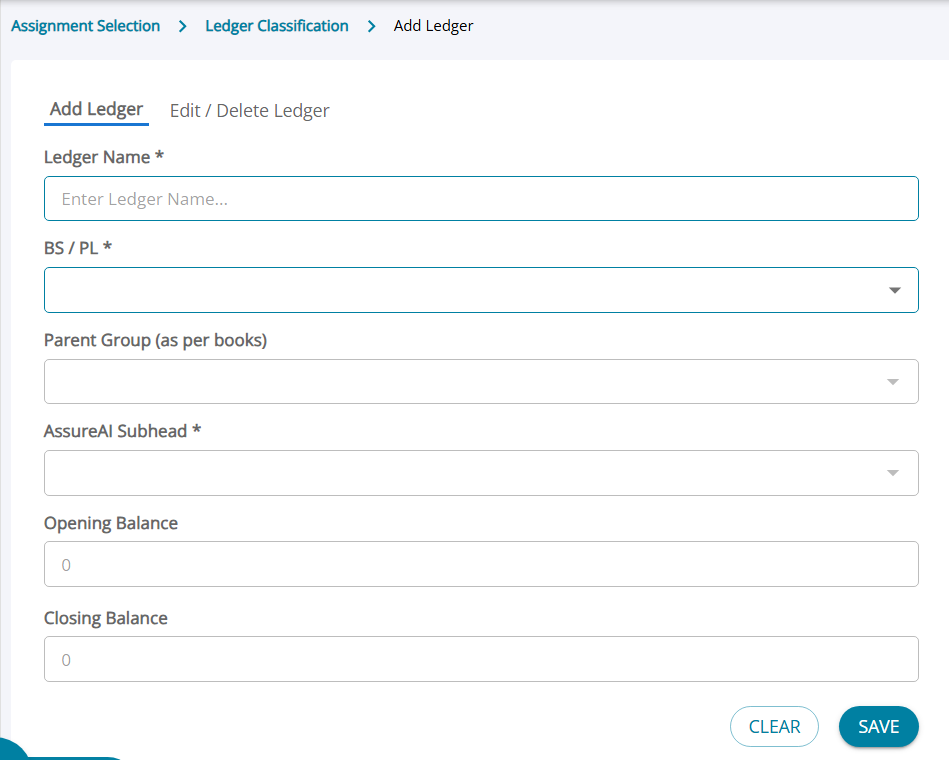
This is because newly created ledgers cannot have an opening balance.
As long as no entries are posted to these ledgers, they will not appear in the Balance Sheet or Profit & Loss Statement, since they remain zero-balance ledgers.
Users can post vouchers using these ledgers, and once vouchers are added, the ledgers will appear under the appropriate Head and Sub-Head selected during ledger creation.
Once ledgers are added by the user , transactions can be added to the ledgers from the voucher entry screen.
Edit / Delete Ledgers
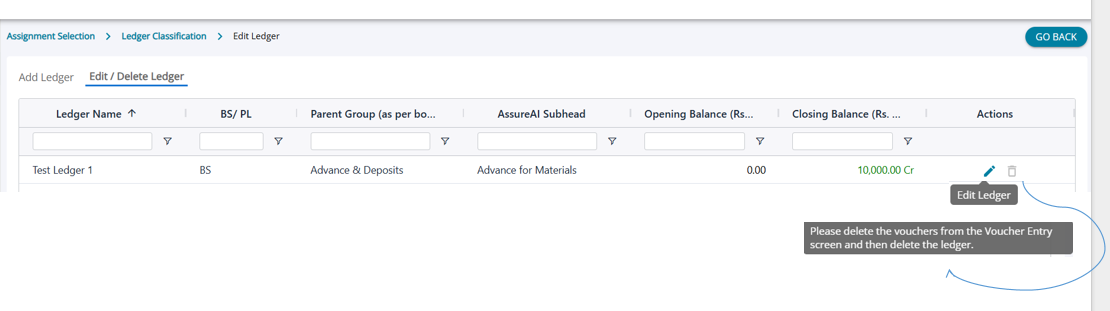
If the user wants to edit details of the ledgers created manually, they can navigate to the Edit/ Delete ledger tab.
Editing a Ledger
When the user clicks the Edit button, they can modify the following fields:
- Ledger Name
- Parent Group
- AssureAI Subhead
Note: The BS/PL classification cannot be changed.
Deleting a Ledger
A ledger can be deleted only if its balance is zero.
- If the user has posted vouchers for this ledger from the voucher entry screen, the Delete button will be disabled (because the ledger no longer has a zero balance).
- If the user deletes those manually added vouchers, bringing the ledger balance back to zero, the Delete button on this screen will be enabled again, and the user can delete the ledger.
