Audit Tasks Execution - Questionnaire / Checklist Templates
All tasks marked as applicable from the planning mode screen will be listed on the execution mode screen.
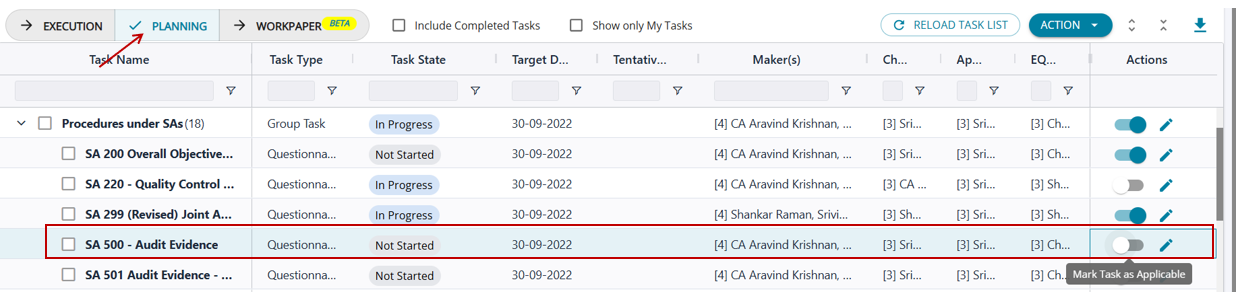
The task appears on the Execution screen for the maker.
- Task status is initially 'Not Started'.
- Completion is shown as 0%.
- The maker must click the 'Start' button to begin the task.
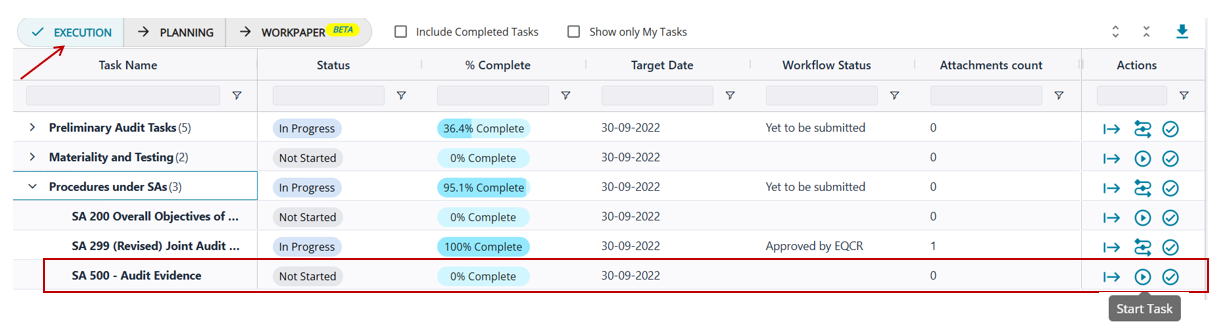
Start Task
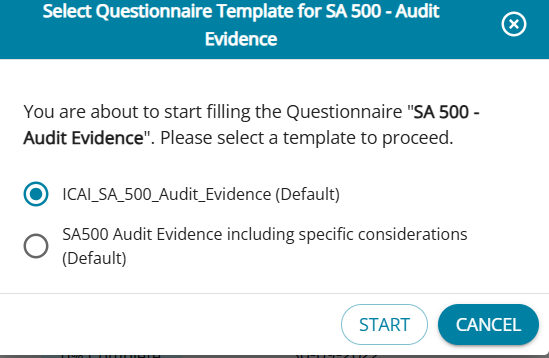
- When the user clicks Start, the available template(s) are displayed.
- If multiple templates were configured for the task, all will be listed for selection.
- The user must select a template before starting the task.
- Once the task is started, the selected template cannot be changed.
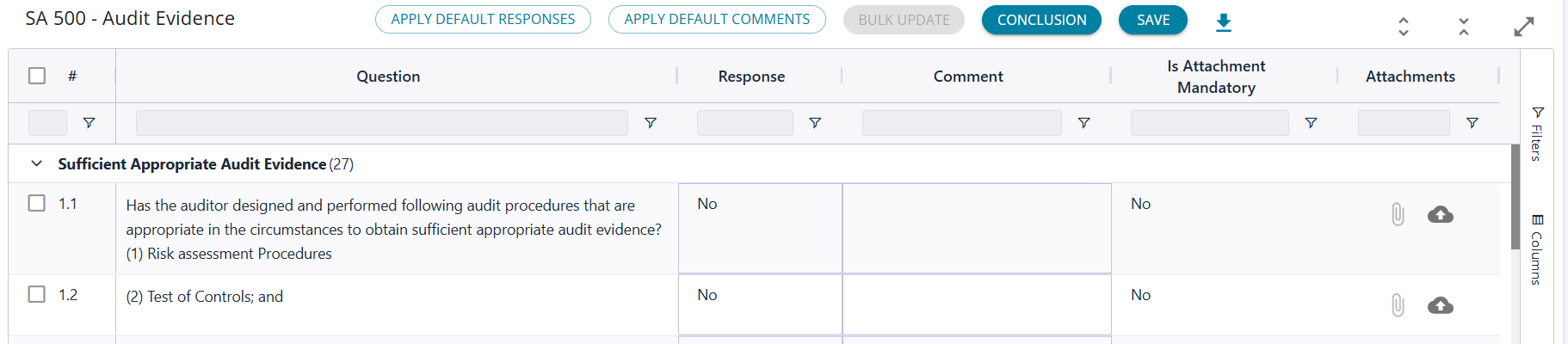
The selected questionnaire is displayed; the “Expand All” button can be clicked, and the entire set of questions will be listed. The default view lists the user Question, Response, Comment, and Attachment columns.
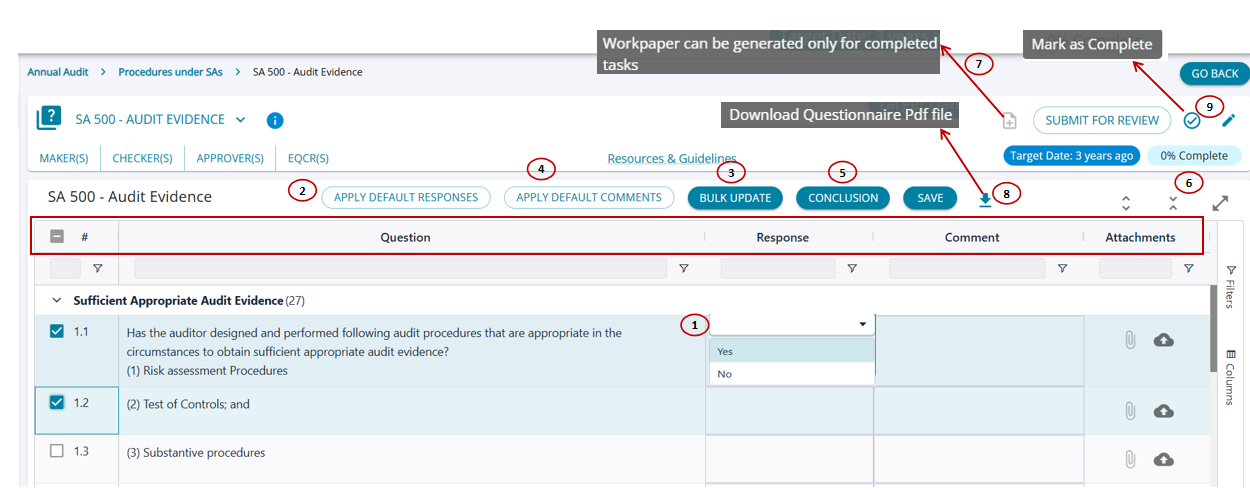
1. Users can fill in required responses individually by choosing the response from the drop-down options available for each checkpoint.
2. Apply Default Values:
- AssureAI has pre-saved responses for all questionnaires in the system.
- These responses are generally applicable to most entities and help save time.
- By clicking the designated button, the system will auto-fill the responses.
- The user can review and modify any response if it’s not suitable for the specific entity.
3. Bulk Update :An option to bulk update the responses is also available, where multiple questions can be selected at the same time and responses can be chosen in bulk.
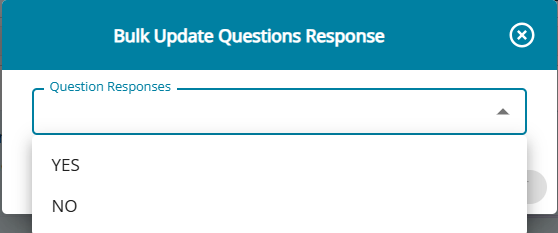
4. Add Comments: Comments can be entered manually for each checkpoint. If preset comments are available, clicking the ‘Apply Default Comments’ button will automatically populate them against the respective checkpoints, but can still be edited as required.
5. Conclusion: Once the Questionnaire is filled , a conclusion can be logged in by the user and saved.
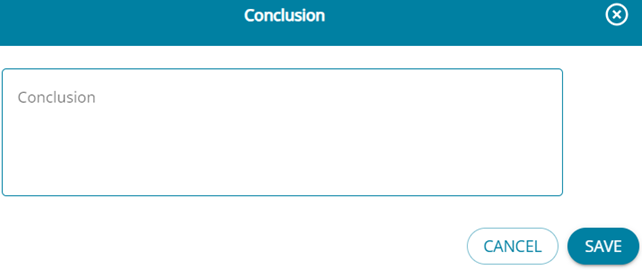
6. The task will be 0% complete at the start of the task and will increase when the user adds responses to the checkpoints and saves the responses.
7. A workpaper can be generated for all completed tasks and once the checklist is complete 100% and marked as complete the workpaper button will be generated for the task.
8. Once all responses, comments, and attachments are added and all changes are saved, the entire checklist can be downloaded into a PDF.
9. Once the task is 100% compleet , the task can eb amrked as complete , incomplete tasks cannot be marked as complete and the system will throw an error.
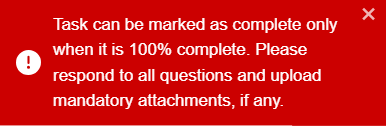
Additional Columns
By clicking on the “Columns” button, a side-drawer is opened which lists additional columns that are not displayed by default. By selecting the checkbox, the chosen columns will be added to the table view along with the default columns.
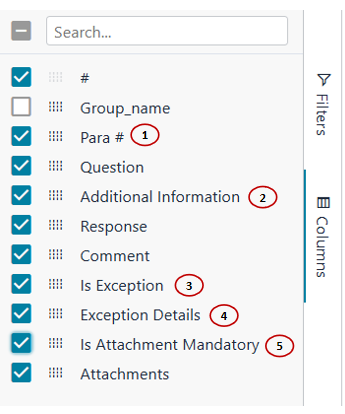
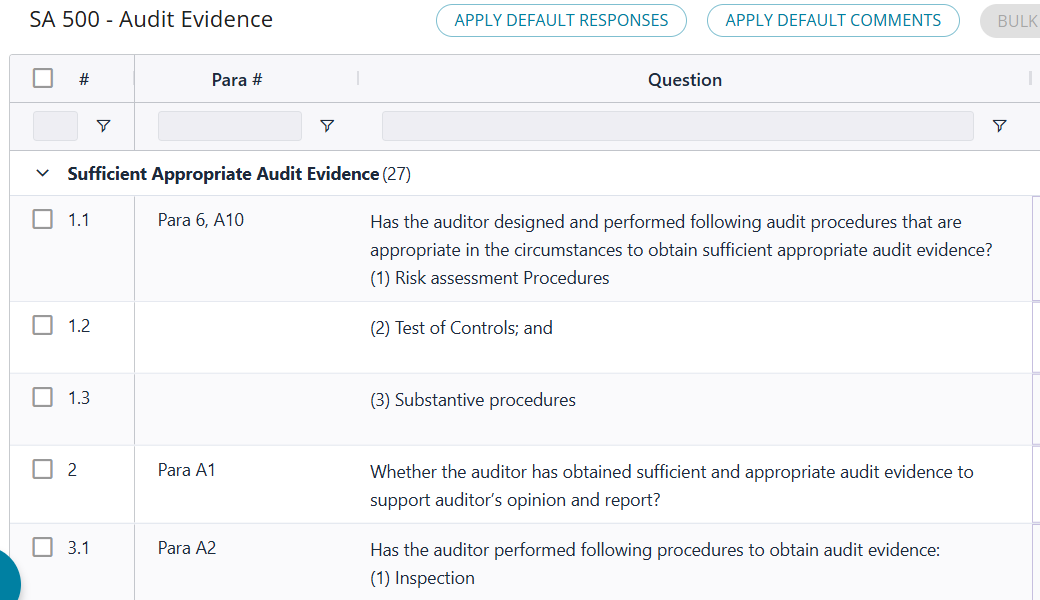
1. Para: These columns contain details from the ICAI templates, where available, including the relevant paragraph number for each checkpoint
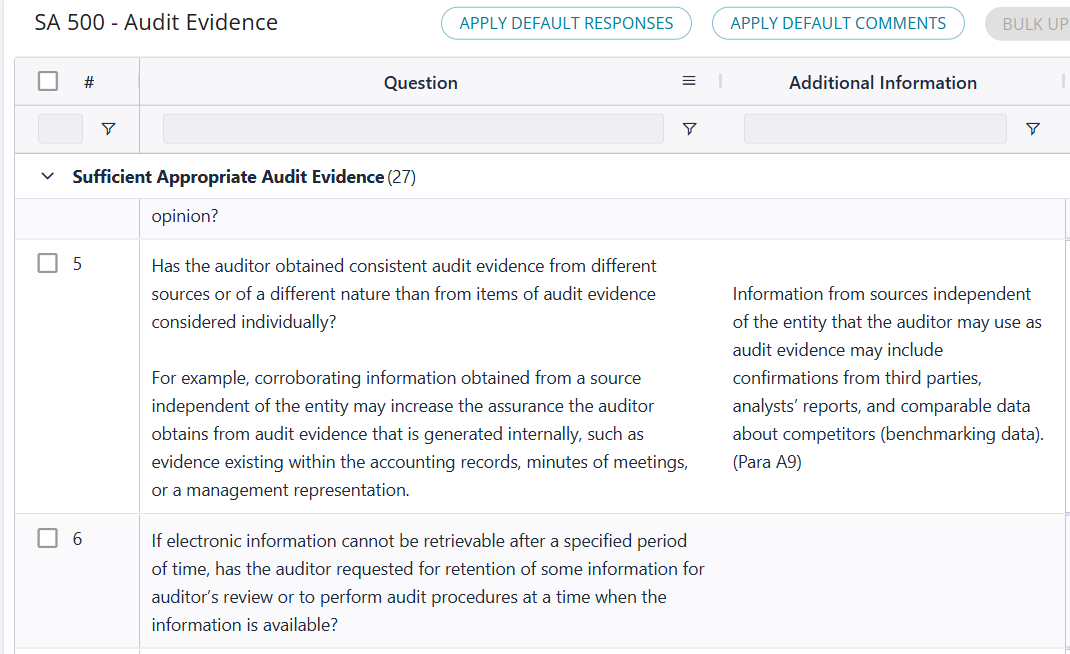
2. Additional Information: Additional Information column contains supplementary guidance to help users understand how to respond to the checkpoint in the column Additional Information.
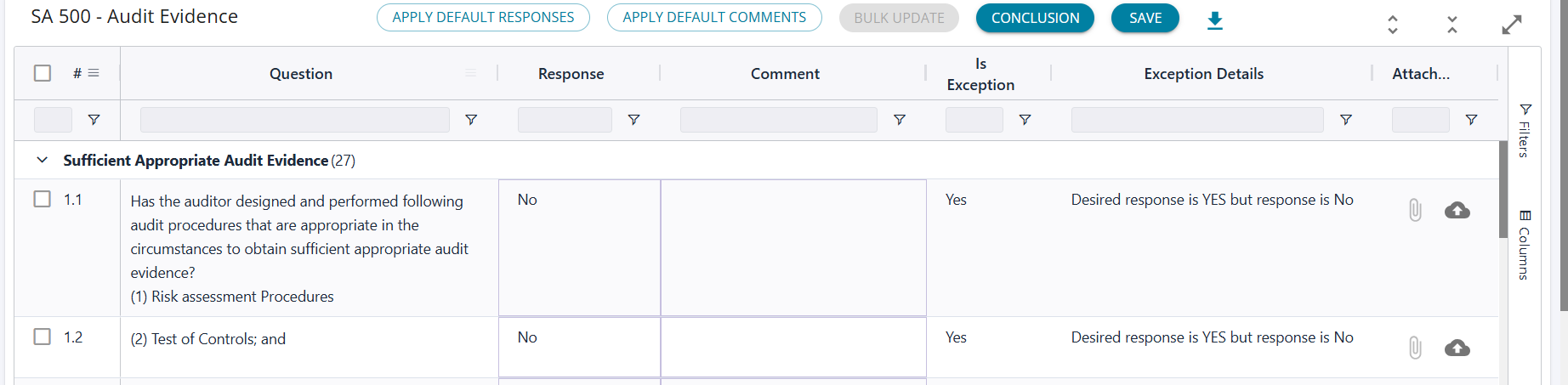
3 &4. Is Exception and Exception Details: When the user modifies a default response, the hidden columns 'Is Exception' and 'Exception Details' can be used to highlight the difference. If the updated response differs from the desired response, 'Is Exception' is marked as 'Yes', and the 'Exception Details' column captures the desired response.
5. Is Attachment Mandatory: Is Attachment Mandatory' is a column introduced by Assure AI to help classify checkpoints that require mandatory attachments to substantiate the response provided. Where the attachment is marked mandatory, the user cannot complete the task if the attachments is not added to the checkpoint.
WorkPaper Generation

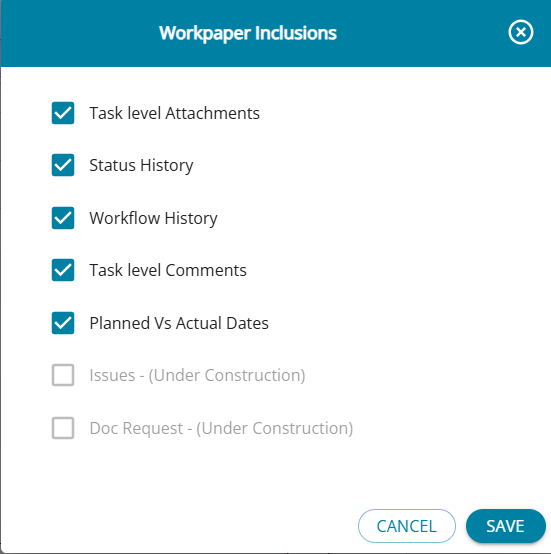
Once the task is marked 100% complete, the generate workpaper button and update workpaper inclusions button are enabled and displayed. Users can update the inclusions and generate a workpaper.